


In the past, it's frustrated for Android and iPhone users to share files between their devices. However, a magnificent turning point has come - we can AirDrop iPhone to Android. Even though this news has been released for a few days, many people don't know how to AirDrop files from iPhone to Android. Now, go through this guide to get the solutions and alternatives directly.
Part 1: Can You AirDrop from iPhone to Android?
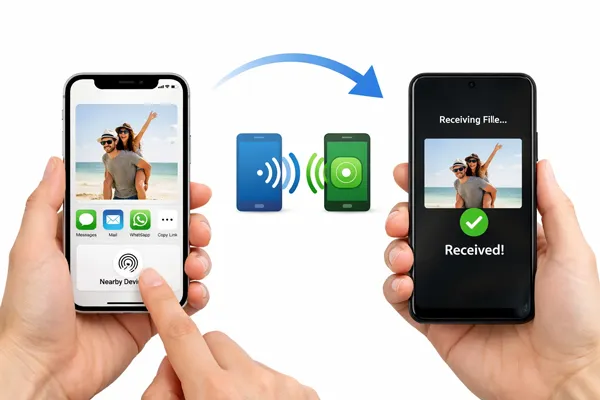
Yes, as of early 2026, you can now "AirDrop" between iPhone and Android, though the technical implementation varies depending on your specific Android model. Recent updates to Quick Share have introduced interoperability with Apple's AirDrop protocol. This allows files to move between the two ecosystems without third-party apps like WhatsApp or WeTransfer.
The feature uses a "translation layer" that allows Android devices to communicate directly with Apple's peer-to-peer Wi-Fi and Bluetooth protocol. Currently, this native cross-platform sharing is rolling out to flagship devices first:
- Google Pixel: Pixel 10 series and Pixel 9 series.
- Samsung Galaxy: Galaxy S26, S26+, and S26 Ultra (via the March 2026 One UI 8.5 update).
- Others: Oppo (Find X9 series) and Nothing have confirmed support is rolling out now.
Part 2: How Do I AirDrop Between iPhone and Android?
In fact, you need to utilize AirDrop and Quick Share at the same time when sharing files between iPhone and Android. This feature works by allowing Quick Share to "speak" the AirDrop protocol.
From iPhone to Android:
-
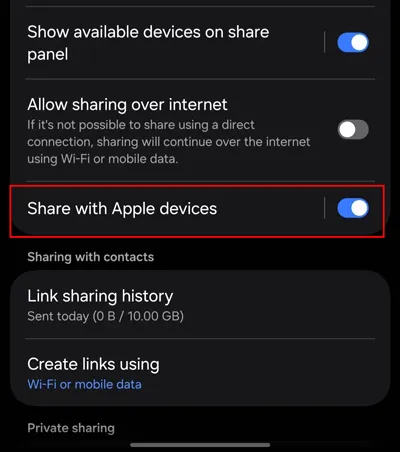
Go to Settings on Android, select "Connected Devices" > "Quick Share" and ensure "Share with Apple Devices" is toggled "ON". Set your visibility to "Everyone".
-
On the iPhone, locate the file, tap the "Share" button, and select "AirDrop". The Android phone should appear in the AirDrop menu. Tap it to send.
-
Then click "Accept" on the Android device. You will receive the file sent from the iPhone.
From Android to iPhone:
-
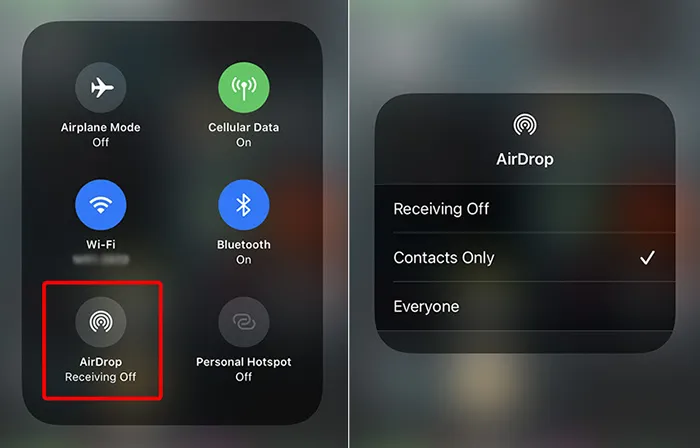
On your iPhone, swipe down to open "Control Center", long-press the network settings block, and set AirDrop to "Everyone for 10 Minutes".
-
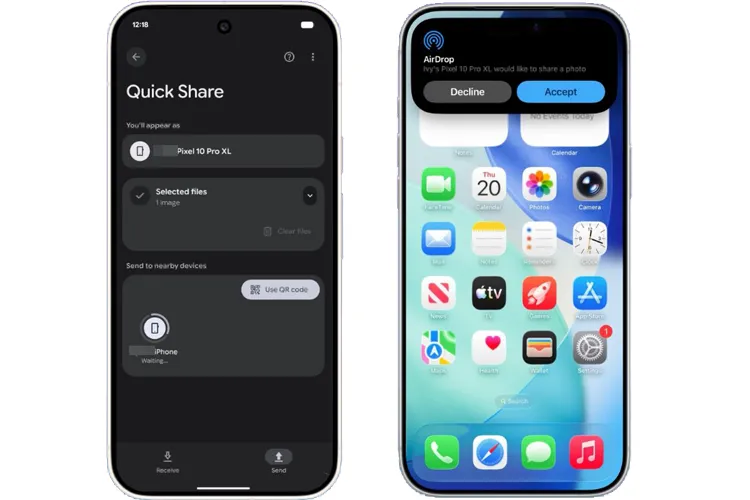
On your Android device, open the file you want to send and tap "Share" > "Quick Share". Look for the iPhone icon in the list of nearby devices.
-
The iPhone user will see a standard AirDrop notification. They just need to tap "Accept".
Part 3: Alternatives to AirDrop for Sharing Files Between iPhone and Android
If you are using a device that hasn't received the 2026 interoperability update yet, you can use the following "bridge" methods that function almost exactly like AirDrop.
3.1 Using iReaShare Phone Transfer
iReaShare Phone Transfer is a versatile app that can help users transfer various files between different mobile operating systems. It supports the transfer of contacts, photos, videos, audio files, and more. One of its key benefits is its ease of use and the ability to transfer files without needing an internet connection.
Main features of iReaShare Phone Transfer:
* Copy files from an iPhone to an Android phone directly with USB.
* Support the transfer of kinds of data types like photos, music, videos, text messages, contacts, etc.
* Allow you to select file types on the panel before transferring them.
* The data migration from Android to iPhone, iPhone to iPhone, and Android to Android is also supported.
* The transferred data will not replace your existing files on the receiver.
* Compatible with Android OS 6.0 or later and iOS 5.0 or higher, including Android 16 and iOS 26.
Download iReaShare Phone Transfer.
Download for Win Download for Mac
To share files from iPhone to Android via this AirDrop alternative:
-
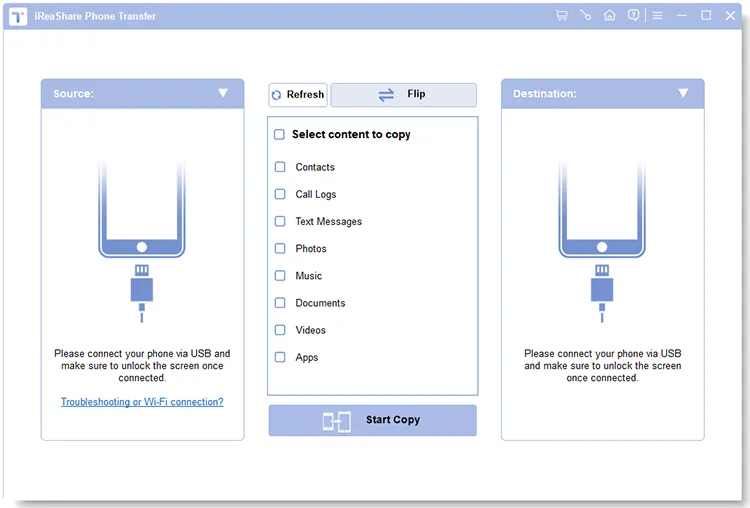
Download iReaShare Phone Transfer on your computer, and connect your iPhone and Android device to the computer with suitable USB cables.
-
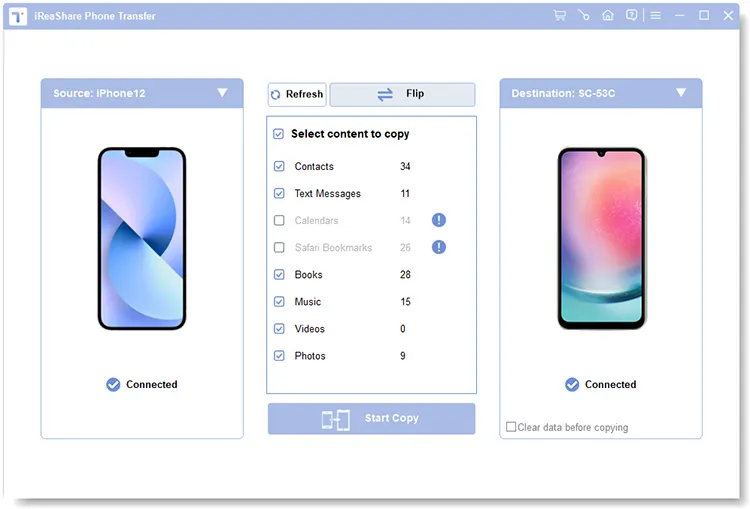
The program will guide you to enable USB debugging on Android and tap on "Trust" on iPhone. Once connected, ensure your Android phone is the "Destination" device. If not, click "Flip".
-
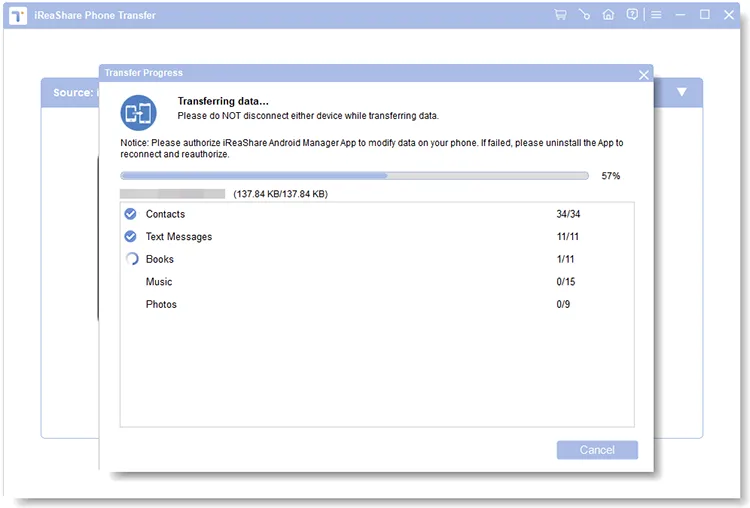
Select file types, and click "Start Copy" to transfer your iPhone data to your Android device.
3.2 Using LocalSend
LocalSend is perhaps the closest thing to an "open-source AirDrop". It is an incredibly popular, free app that works over your local Wi-Fi network. As long as both devices are on the same network and have the app open, they can "see" each other and send files instantly without size limits or cloud uploads.
To share files from iPhone to Android via LocalSend without AirDrop:
-
Download and install LocalSend on both your iPhone and Android phone. Ensure both your iPhone and Android are connected to the same network.
-
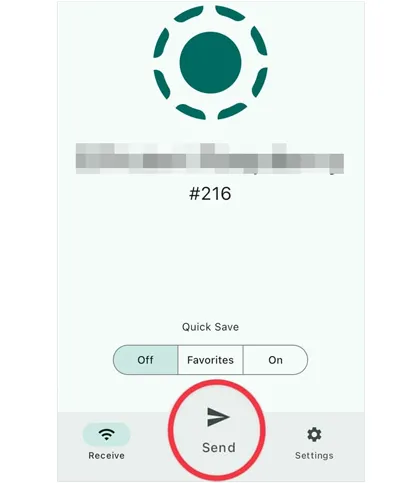
Launch LocalSend on both devices simultaneously. Then tap the "Send" tab at the bottom on your iPhone, and select what you want to send.
-
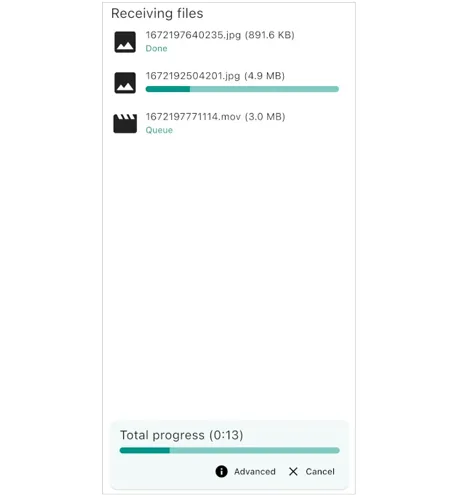
Under the "Nearby Devices" section, you will see a randomly generated nickname for your Android phone. Tap the device name. Then a transfer request will pop up on the Android device. Please click "Accept" to start receiving the files.
3.3 Using SHAREit
SHAREit is one of the oldest players in the game. It uses Wi-Fi Direct to achieve high-speed transfers without using mobile data. While it is very fast and widely used globally, it is worth noting that the app has become quite heavy with advertisements and additional features over the years.
To use SHAREit to send files from iPhone to Android without AirDrop:
-
Download and install SHAREit on both your iPhone and your Android device from their respective app stores. Launch the app on both devices and grant the necessary permissions (such as storage access and local network access).
-
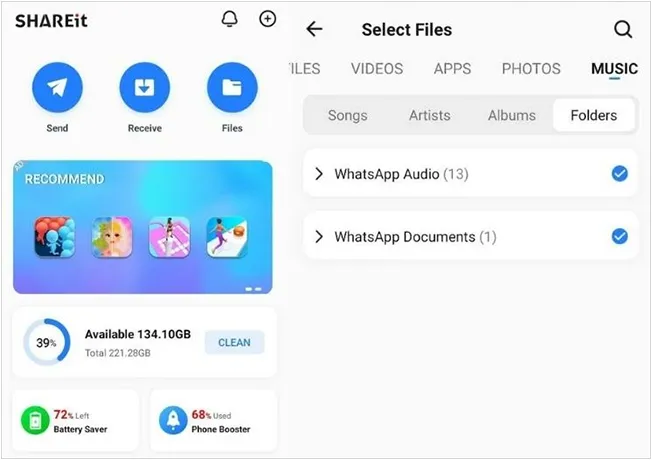
Ensure both devices are nearby. While SHAREit creates its own connection, having Wi-Fi and Bluetooth enabled often helps the initial discovery process. Next, open the SHAREit app and tap the "Send" button on your sender.
-
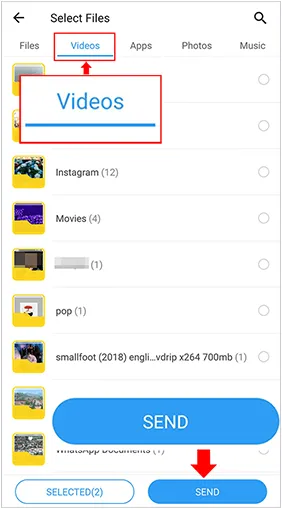
Select the files (photos, videos, documents, etc.) you want to transfer, and click "SEND" to proceed to the connection screen.
-
On the receiving Android phone, tap the "Receive" button. The device will start searching for the sender. When you see the Android device's icon/avatar appear on the iPhone's screen. Tap it to start the connection.
-
Once the connection is established, the file transfer will begin automatically. You can track the progress on both screens.
3.4 Using AirDroid Personal
AirDroid is a powerful alternative to AirDrop because it doesn't require both devices to be from the same manufacturer. Since you are looking to send files from an iPhone to an Android without using AirDrop, you can use AirDroid in two main ways: nearby share (for when you're in the same room) or remote transfer (for when you're far apart).
To share files from iPhone to Android via AirDroid's Nearby feature:
-
This is the closest experience to AirDrop and works best when the two phones are next to each other. Open AirDroid on both your iPhone and the Android device.
-
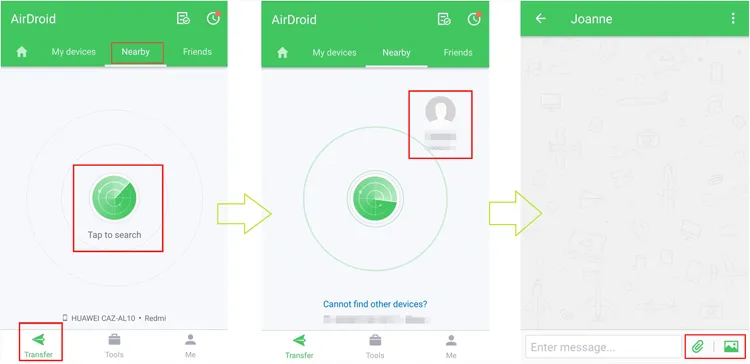
On both phones, tap the "Nearby" tab at the bottom. On the iPhone, tap on the "Tap to Search" icon. The Android device should appear in the list. Next, tap the Android device icon to establish a connection.
-
Once connected, tap the "Paperclip" or "Photo" icon to select photos, videos, or files from your iPhone. Finally, accept the files on the Android device.
Part 4: Q&A About AirDrop iPhone to Android
Q1: Do all Androids have Quick Share?
Most modern Android devices running Android 6.0 or higher have Quick Share (formerly known as Nearby Share). Google and Samsung recently unified their sharing protocols under the "Quick Share" name, making it the standard for almost the entire Android ecosystem.
Q2: Will all Android devices support AirDrop?
No, not every single Android device will support it, but in 2026, it is becoming a standard feature for new flagship and mid-range phones.
What you are seeing is a massive shift in the industry. For over a decade, AirDrop was a "walled garden", but Google has effectively "bridged" the gap through Quick Share (formerly Nearby Share).
Q3: What's the limit of Quick Share?
Quick Share does not have a hard file size limit, but practical limits are dictated by your device's storage and the stability of your Wi-Fi/Bluetooth connection. For very large transfers (e.g., 50GB+), speeds may throttle, and a physical cable or an external SSD might be more efficient.
Conclusion
While AirDrop is a convenient and popular option for file sharing within the Apple ecosystem, it is not available for all Android users. Fortunately, there are 4 practical alternatives that allow iPhone and Android users to exchange files without complex procedures. Apps like iReaShare Phone Transfer, LocalSend, SHAREit, and AirDroid offer seamless solutions for cross-platform file transfers.
Download for Win Download for Mac
Related Articles
How to Transfer eSIM from Android to iPhone Easily (3 Viable Ways)
iPhone to Android Transfer App: Detailed Review About 12 Transfer Tools
How to Transfer Music from iPhone to Android [Detailed Guide]
How to Send a Group Text on Android and iPhone (3 Proven Solutions)

