


When you switch from an iPhone to an Android phone, you need to transfer your eSIM to your new phone. Unlike physical SIM cards, eSIMs are embedded and require a few extra steps to move between devices—especially across different ecosystems. Fortunately, you can now effortlessly transfer eSIM from iPhone to Android. Go ahead and get the transfer methods.
- Part 1: What Do You Need to Prepare for eSIM Transfer from iPhone to Android?
- Part 2: Transfer eSIM from iPhone to Android via Settings
- Part 3: Transfer eSIM from iPhone to Android via Carrier Assistance
- Part 4: Transfer eSIM from iPhone to Android Without QR Code Scanning
- Part 5: Move Contacts and Data from iPhone to Android After Transferring SIM
- Part 6: Q&A About Transferring eSIM from iPhone to Android
Part 1: What Do You Need to Prepare for eSIM Transfer from iPhone to Android?
Before you start the eSIM transfer process, ensure you have the following ready to avoid any interruptions:
- Device Compatibility: Ensure your Android phone is "unlocked" and supports eSIM technology.
- Stable Wi-Fi: A steady internet connection is mandatory for downloading the new eSIM profile.
- Updated Software: Ensure both your iPhone and Android are running the latest available OS versions.
- Carrier Credentials: Have your carrier's app installed or your account login details (username/password) handy.
- Battery Life: Ensure both devices have at least 50% battery or are plugged into a charger.
Part 2: Transfer eSIM from iPhone to Android via Settings
While Apple has an "eSIM Quick Transfer" feature, it only works between iPhones. For Android, you can use the Settings menu on your new device to "pull" the service over.
Here's how:
-
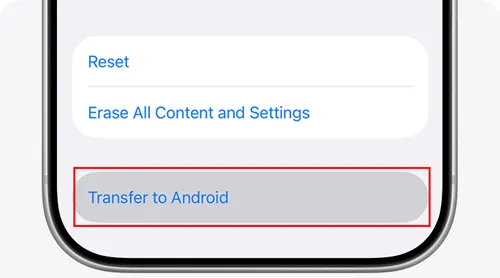
On your iPhone, please open the Settings app, and go to "Cellular". Then click "Transfer eSIM" under "Transfer to Android", and tap on "Continue".
-
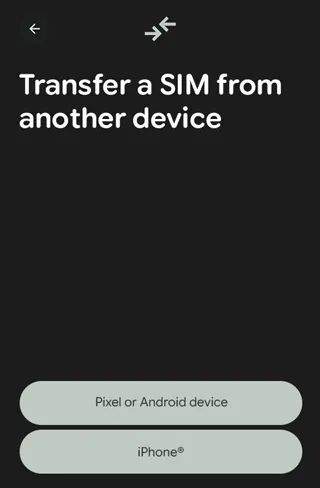
On your Android, go to Settings > "Network & internet" > "SIMs". Then tap "Add SIM" > "Transfer a SIM from another device" > "iPhone".
-
If your carrier supports it, you will receive a QR code provided by your carrier via SMS or email. Then use your iPhone to scan the QR code to complete the eSIM transfer.
Part 3: Transfer eSIM from iPhone to Android via Carrier Assistance
If your carrier does not support automatic transfer through the Settings menu, you must use their official tools. Apps like My Verizon, T-Mobile, or AT&T often have a "Replace SIM" or "Transfer eSIM" section.
To transfer eSIM from iPhone to Android via Carrier Assistance:
-
Ensure your Android is connected to Wi-Fi. Turn off iMessage on your iPhone (Settings > Messages).
-
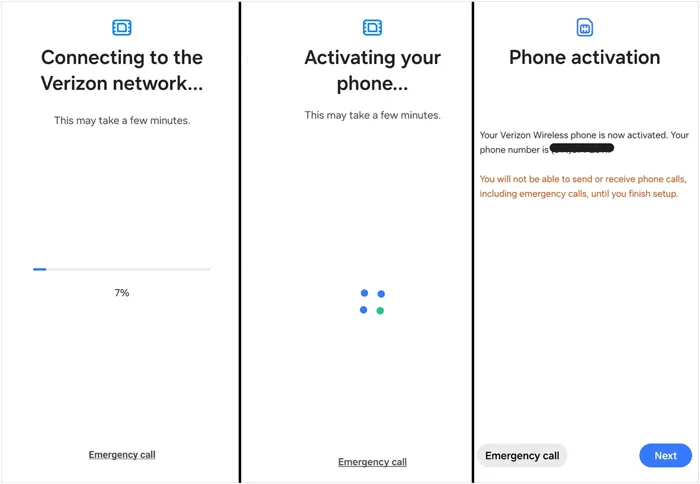
Open the My Verizon app or other carrier apps you are using on your Android (or access the website) and log in. Navigate to "Account" > "Devices" > "Activate or switch device".
-
Choose the line to transfer, and enter the IMEI 2 (or IMEI 1) of your new Android device. Next, choose the eSIM option when asked. Verizon will provide a QR code or push activation credentials.
-
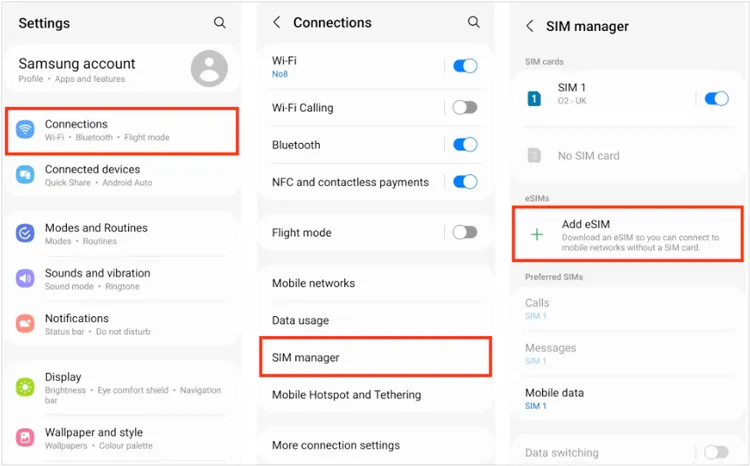
Go to Settings > "Connections" > "SIM manager" > "Add eSIM" on your Android device, and use your iPhone to scan the QR code provided by the carrier app.
-
Verify cellular service on the Android, then delete the old eSIM profile from the iPhone in Settings > "Cellular".
Part 4: Transfer eSIM from iPhone to Android Without QR Code Scanning
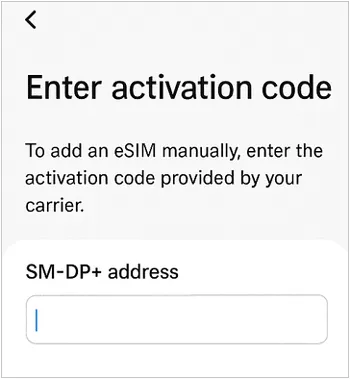
If you cannot scan a QR code (e.g., you only have one device available), you can enter the details manually. For example, you can enter an activation code sent by the carrier you use to your Android phone.
Here are the steps:
-
Go to the eSIM setup screen on your Android. Then select "Enter Code Manually" or "Need help?".
-
You will be asked for the SM-DP+ Address and an Activation Code.
-
These strings of characters are provided by your carrier (found in your account portal or via support). Paste these in to trigger the download.
Part 5: Move Contacts and Data from iPhone to Android After Transferring SIM
Once your eSIM is active, you'll likely want to transfer your personal data like contacts? If yes, you can try this one-stop data migration software - iReaShare Phone Transfer. It can copy various data from iOS to Android at once after the setup, including contacts, text messages, photos, videos, etc. You won't lose your current data on your destination device. Furthermore, it supports most Android and iOS devices, including iPhone, iPad, Samsung, OnePlus, Vivo, Motorola, TCL, etc.
Download iReaShare Phone Transfer.
Download for Win Download for Mac
Here's how to move your contacts and data from an iPhone to an Android phone after eSIM transfer:
-
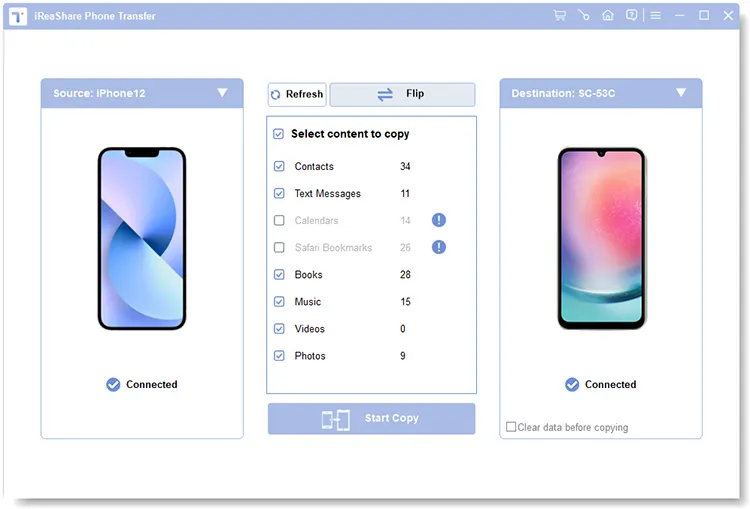
Download and install the data transfer software on your Windows PC or Mac, and connect both mobile devices to the computer with USB cables.
-
Once connected, please ensure your Android phone is the destination device. If not, click "Flip". Then select the data types you want to transfer on the panel.
-
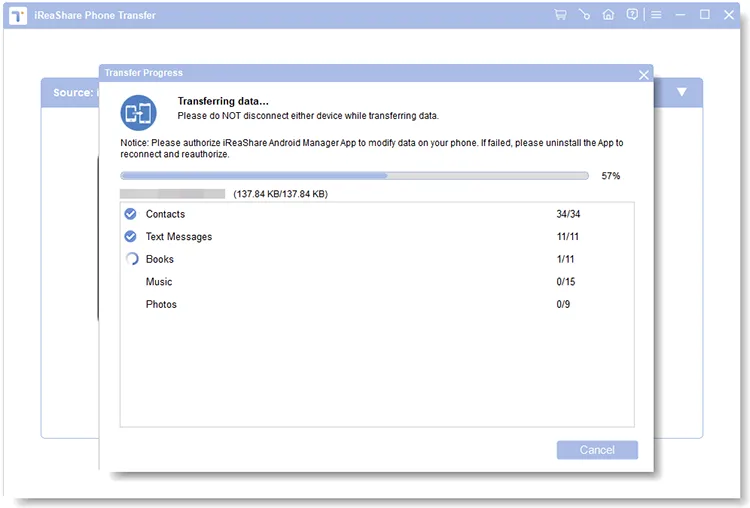
After selecting, click "Start Copy" to transfer your iOS contacts and other data to your Android phone directly. Once done, you can access the data on the Android device.
You can also watch the video tutorial to transfer your data:
Part 6: Q&A About Transferring eSIM from iPhone to Android
Q1: Why can't my Android phone generate a QR code?
Android devices typically do not generate QR codes for eSIM transfer. Instead, QR codes are issued by carriers to activate a new eSIM profile. If you don't have one, contact your carrier to obtain it.
Q2: Why is my eSIM taking forever to activate?
Activation usually takes minutes, but it can take up to 24 hours. This often happens if there is a pending port-in request or if the carrier's activation servers are congested. Try restarting your phone or toggling Airplane Mode.
Q3: Do I need Wi-Fi for eSIM transfer?
Yes. An eSIM is a digital file that must be downloaded from a server. Without Wi-Fi, your new Android phone has no way to connect to the internet to "grab" the cellular profile since the cellular service isn't active yet.
Conclusion
It involves more coordination than a simple SIM swap to transfer eSIM from an iPhone to an Android device, but it's entirely manageable with the right steps. Preparation, carrier support, and a stable connection are key to success. Whether you use a QR code, manual activation, or direct carrier assistance, the process becomes straightforward once you understand the workflow.
After activation, don't forget to migrate your data to complete the transition via iReaShare Phone Transfer, and then fully enjoy your new Android experience.
Download for Win Download for Mac
Related Articles
How to AirDrop iPhone to Android Easily and 4 Alternatives
5 Ways to Switch from iPhone to Android Step by Step
How to Screen Record on Android: A Practical Guide with 5 Approaches
How to Back Up Android Phone Before Factory Reset (No Data Loss)

