


Switching from iPhone to Android is a significant move that offers a fresh world of customization and hardware variety. However, leaving the "walled garden" of Apple requires a bit of preparation to ensure your photos, contacts, and messages make the trip safely. This guide will share 5 effective approaches for a seamless transition.
- Part 1: What Will I Miss Switch from iPhone to Android?
- Part 2: How to Switch from iPhone to Android via iReaShare Phone Transfer
- Part 3: How to Swap from iPhone to Android via Android Switch
- Part 4: How to Migrate from iPhone to Android via SnapDrop
- Part 5: How to Change from iPhone to Android via Google Account
- Part 6: How to Move from iPhone to Android via Samsung Smart Switch
- Part 7: Q&A About Switching from iPhone to Android
Take a quick look at these 5 methods:
| Method | Pros | Cons |
|---|---|---|
| iReaShare Phone Transfer |
1. Fast and stable. |
1. Requires a computer (PC/Mac) and physical cables to connect both devices. 2. Needs a license. |
| Android Switch App | 1. The official Google tool. 2. Wireless and easy to set up. 3. Helps with iMessage deactivation. |
1. Transfer speed depends on Wi-Fi quality. 2. Can be slow for very large photo libraries. |
| SnapDrop | 1. No app installation required. 2. Works instantly in a web browser. 3. Great for quick file sharing. |
1. Cannot transfer whole system backups. 2. Both devices must stay on the same Wi-Fi network. |
| Google Account | 1. Automatic syncing for contacts and calendars. 2. Data is accessible from any device anywhere. |
1. Cannot move text messages. 2. Limited to 15GB of free cloud storage for photos and files. |
| Samsung Smart Switch | 1. The most complete transfer. 2. Moves apps and home screen layouts. 3. Very reliable for Galaxy users. |
1. Limited to Samsung devices. 2. Will not work if you are switching to a Pixel or OnePlus. |
Part 1: What Will I Miss Switch from iPhone to Android?
Before switching platforms, it is helpful to understand what features you may lose or need to replace.
First, you will no longer have access to iMessage. Messages sent to iPhone users will appear as standard SMS or RCS messages, which may lack some advanced features such as high-quality media sharing and read receipts in certain regions.
Second, Apple's ecosystem integration will be absent. Features like AirDrop, FaceTime, iCloud synchronization, and continuity between Mac, iPad, and iPhone are exclusive to Apple devices.
Third, some apps and accessories designed specifically for iOS may not function the same way on Android. This includes Apple Watch, which does not fully support Android phones.
Despite these differences, Android provides alternative solutions for most functions, often with more customization and device flexibility.
Part 2: How to Switch from iPhone to Android via iReaShare Phone Transfer
iReaShare Phone Transfer is a robust desktop solution for those who want a stable, wired connection to move data without relying on cloud speeds. You can transfer your contacts, videos, photos, music, SMS, and more to your iPhone after setup. It can move your media files with quality.
Main features of iReaShare Phone Transfer:
* Move your Android data to your iPhone via USB.
* Allow you to select data types before transferring data.
* Support the data migration from iPhone to iPhone, Android to Android, and Android to iPhone.
* Compatible with Android 6.0 or later, and iOS 5.0 or higher, including iPhone 17/16/15/14/13/12/11, OnePlus 15/13/12/11/10, Google Pixel 10/9/8/7/6/5/4, Motorola, TCL, Tecno, itel, Vivo, OPPO, realme, etc.
Download iReaShare Phone Transfer.
Download for Win Download for Mac
Here's how to migrate from iPhone to Android via iReaShare Phone Transfer:
-
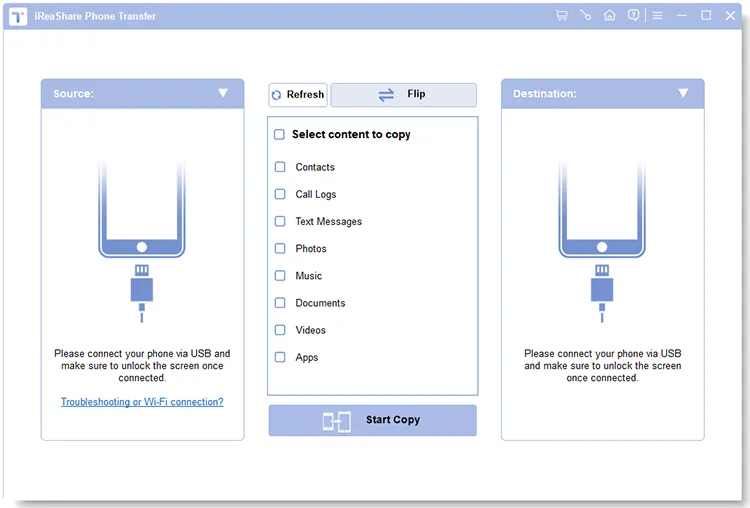
Install iReaShare Phone Transfer on your computer, and launch the software. Then connect both your iPhone and Android devices to the computer with USB.
-
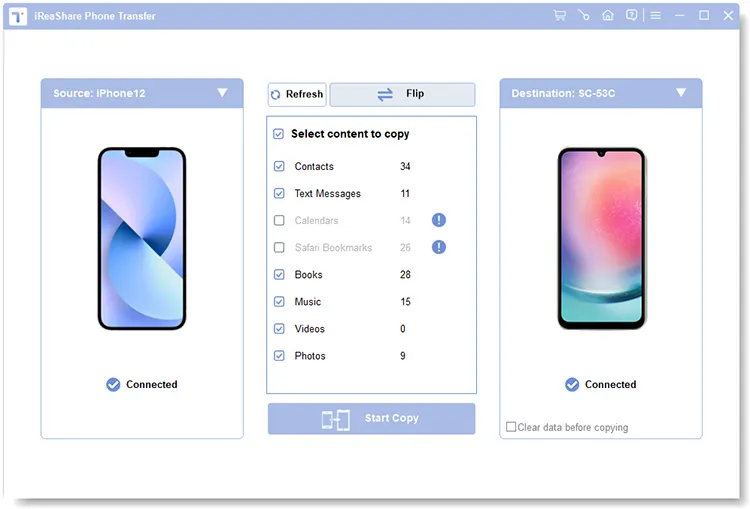
Enable the USB debugging mode on Android, and then choose the "Trust" option on the iPhone. Once connected, ensure iPhone is on the "Source" side, or click "Flip".
-
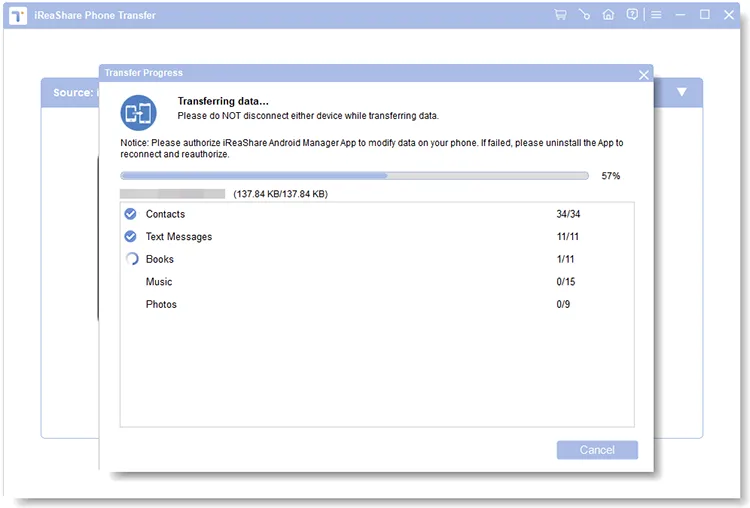
Select the data types you want, and tap the "Start Copy" icon. After finishing, you can access your iPhone data on your Android device.
Part 3: How to Swap from iPhone to Android via Android Switch
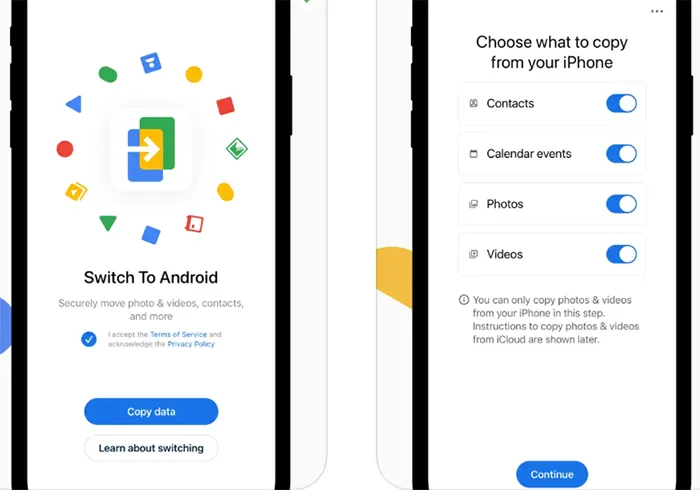
Google's official "Android Switch" app (formerly Switch to Android) is the most user-friendly method for most people. You can use it to move a lot of data from an iPhone to your new Android phone during the setup.
Here's a swap from iPhone to Android using Android Switch:
-
Install the Android Switch app from the Apple App Store on your iPhone.
-
On your new Android, follow the setup wizard until you see a QR code. Scan it with your iPhone.
-
Choose to move contacts, calendar events, photos, and videos. The app will remind you to turn off iMessage in your iPhone settings so you don't miss incoming texts.
Part 4: How to Migrate from iPhone to Android via SnapDrop
If you only need to move specific files (like a few high-res videos or documents) without a full sync, SnapDrop is a great web-based AirDrop alternative. You can send files from your iPhone to your Android devices without USB.
To move files from iPhone to Android via SnapDrop:
-
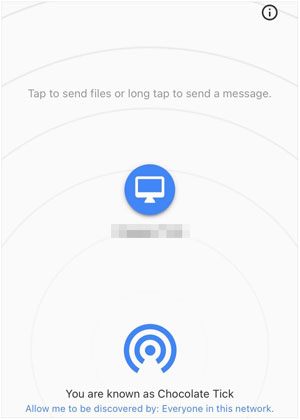
Open snapdrop.net on both your iPhone and Android (ensure both are on the same Wi-Fi).
-
Your Android icon should appear on the iPhone screen.
-
Tap the Android icon on your iPhone, select your files, and they will be "beamed" over the local network.
Part 5: How to Change from iPhone to Android via Google Account
This is the most "manual" but reliable way to ensure your cloud data is synced across both platforms. You can directly sync contacts, notes, calendars, and mails to your iPhone with your Google Account. If you want to sync your photos and other files, you can utilize Google Photos and Google Drive.
Guide on switching from Apple to Android via Google Account:
-
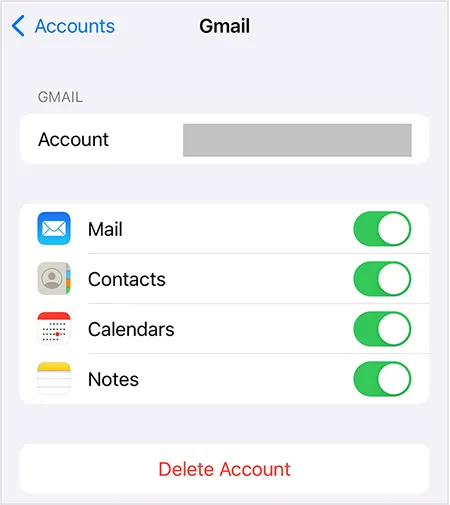
Go to Settings > "Mail" > "Accounts" and add your Google Account. Toggle on "Contacts", "Calendars", and other data types.
-
Download Google Photos on your iPhone and select "Back up & sync" to upload your entire library to the cloud.
-
Simply sign in to the same Google Account on your Android, and everything will populate automatically.
Part 6: How to Move from iPhone to Android via Samsung Smart Switch
If your new Android is a Samsung Galaxy, using Smart Switch is the gold standard for migration. You can use it to move your pictures, contacts, messages, videos, etc.
Here's how:
-
Open Smart Switch on your Samsung: Settings > "Accounts and backup" > "Smart Switch".
-
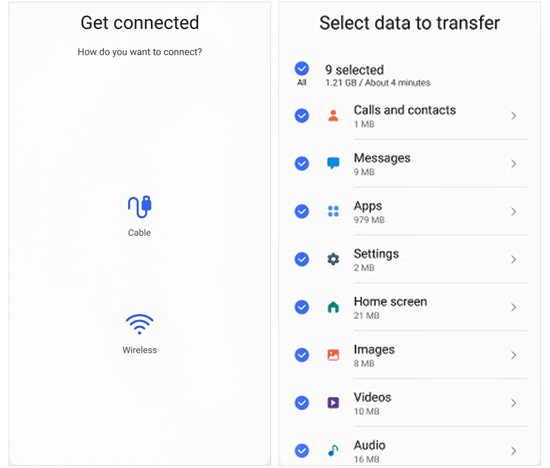
Tap "Receive data" and choose "iPhone/iPad". On your iPhone, tap "Trust" when the prompt appears and enter your passcode.
-
On the Samsung, select the content you want to move and tap "Transfer".
Part 7: Q&A About Switching from iPhone to Android
Q1: What are the disadvantages of Android over iPhone?
Android devices may vary in software update speed depending on the manufacturer. Some models receive updates later than iPhones. In addition, app optimization can differ across devices due to hardware diversity. Security and privacy controls may also feel less centralized compared to Apple’s system.
Q2: Can I transfer everything from an iPhone to an Android phone?
Most things. You can transfer contacts, photos, videos, and music. However, you cannot transfer paid apps (you must re-purchase them), and transferring WhatsApp chats usually requires a physical cable during the initial setup.
Q3: Is there a similar feature like FaceTime on Android?
Yes. Google Meet (formerly Duo) is the closest equivalent and comes pre-installed. Other popular alternatives include WhatsApp, Telegram, and Zoom.
Conclusion
Moving from an iPhone to an Android currently is smoother than ever. Whether you use a dedicated tool like iReaShare Phone Transfer to copy your data at once, or the Android Switch app, the process is largely automated. While you might miss the blue bubbles of iMessage, the flexibility and cutting-edge hardware of the Android world await you.
Download for Win Download for Mac
Related Articles
Switch from Android Phone to iPhone Quickly
iPhone Won't Send Pictures to Android: Solve It with Ease
iPhone to Android Transfer App: Detailed Review About 12 Transfer Tools
How to Send a Group Text on Android and iPhone (3 Proven Solutions)
