


"My iPhone isn't letting me send pictures to Android users. Does anyone know why this is? I need to send pics to my aunt and mom and they both have Androids."
- From Reddit
It can be incredibly disappointing when you're trying to share a memory or an important photo, only to find that your iPhone won't send pictures to Android. While iMessage works seamlessly between Apple users, sending media to Android relies on different protocols like SMS and MMS. If you are facing this issue, here is a comprehensive guide to troubleshooting the problem and an efficient alternative for bulk transfers.
Part 1: How to Fix It When iPhone Won't Send Pictures to Android
There can be several reasons that your iPhone can't send pictures to Android.
- MMS settings: If your iPhone's MMS (Multimedia Messaging Service) settings aren't configured correctly, it might prevent pictures from being sent to Android phones.
- iMessage vs. SMS: iPhones default to iMessage for sending multimedia, but if the recipient's phone isn't an iPhone, it will need to switch to SMS/MMS. Sometimes, this switch doesn't happen automatically.
- Network issues: A weak or unstable internet connection can prevent media from being sent.
- File size: If the picture is too large, it might not go through. Try compressing the image.
- Carrier issues: Some carriers may have restrictions or network problems affecting MMS.
1.1 Restart Your iPhone
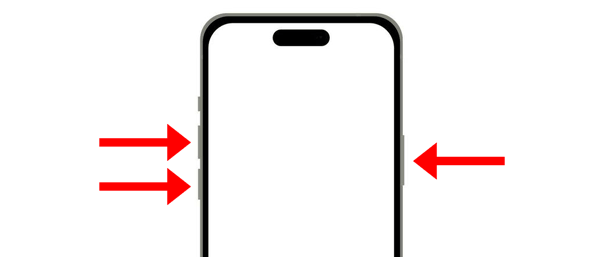
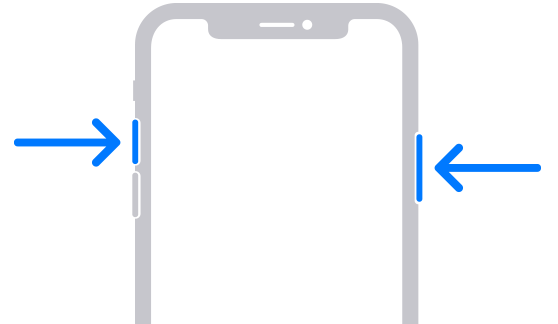
The simplest fix is often the most effective. A restart clears temporary software glitches and refreshes your network connections. Hold the "Power" and one "Volume" buttons to slide and power off, wait 30 seconds, and turn it back on.
1.2 Turn Off Then On Cellular Data
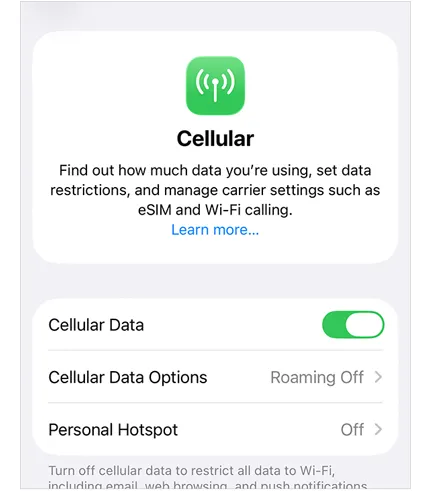
Sending pictures to Android requires a stable data connection (MMS does not work over standard Wi-Fi without specific carrier support). Go to Settings > "Cellular" and toggle "Cellular Data" off and then back on to jumpstart your connection.
1.3 Turn On MMS Messages Again
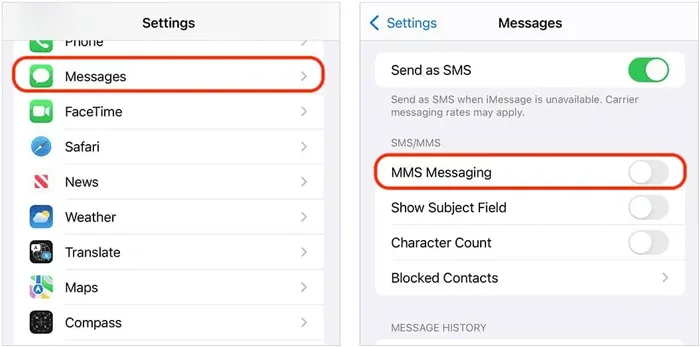
If MMS (Multimedia Messaging Service) is disabled, your iPhone will only send text-based SMS to non-iPhone users. In this situation, you will fail to send your pictures to an Android device. Please open the Settings app on your iPhone, choose "Messages", and ensure the "MMS Messaging" option is toggled "ON".
1.4 Enable Airplane Mode
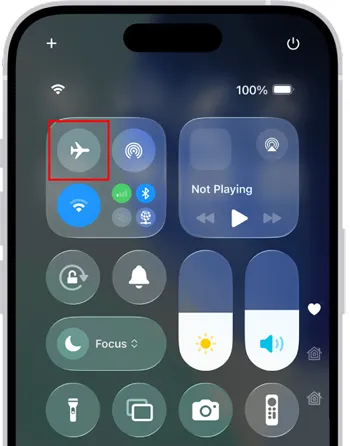
This acts as a "soft reset" for your phone's internal antennae. Swipe down to open the Control Center, tap the "Airplane" icon for 10 seconds, and turn it off. This forces your iPhone to reconnect to the nearest cell tower. After that, check if your iPhone can send photos to Android.
1.5 Reset Network Settings
If you try the fixes above but your iPhone is still unable to send pictures to Andorid, perhaps the issue is deeper within your configuration, you may need to reset your network. Go to Settings > "General" > "Transfer or Reset iPhone" > "Reset" > "Reset Network Settings".
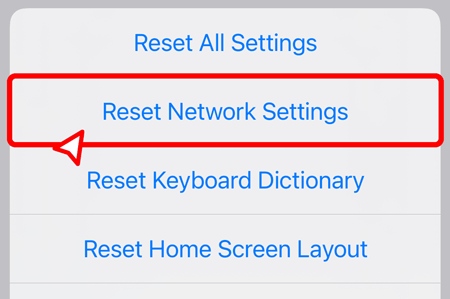
Note: This will erase saved Wi-Fi passwords, so have them handy.
1.6 Change Camera Format
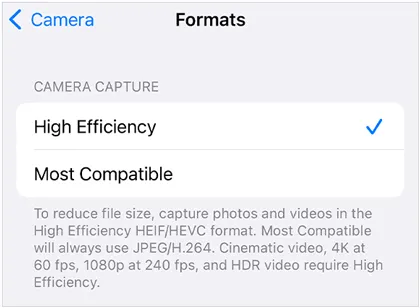
Newer iPhones (like the iPhone 17) use the HEIC format to save space. Some older Android devices or specific carrier networks struggle to process these files. If you want to send pictures to Android, you can change the photo format on your iOS device. Open Settings, and choose "Camera" > "Formats" > "Most Compatible". This ensures your phone saves photos as JPEGs, which are more widely accepted.
1.7 Check for Carrier Settings Updates
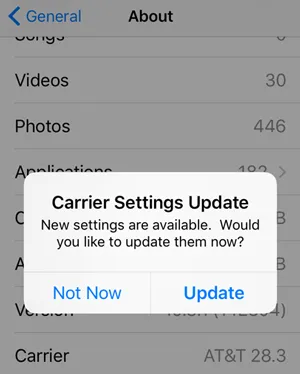
Carrier settings updates are released by your mobile carrier to improve network connectivity and performance. If your iPhone is not sending pictures, it could be due to outdated carrier settings. To check for updates, go to Settings > "General" > "About". If an update is available, you'll see a prompt to install it.
1.8 Take and Send Screenshots
High-resolution photos can sometimes exceed the file size limits set by carriers for MMS. If a specific photo won't send, try taking a screenshot of that photo and sending the screenshot instead. The file size will be significantly smaller. You can take a screenshot by pressing the "Power and "Volume Up" buttons simultaneously (for newer iPhones).
1.9 Use a Cell Booster
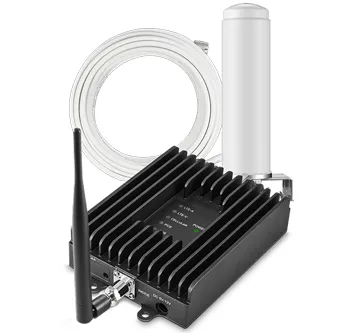
If you're in an area with a poor cellular signal, it may be affecting your ability to send photos. A cell booster or signal repeater can help amplify your signal, improving your ability to send and receive messages, including pictures. If you're consistently having trouble sending pictures, consider investing in a cell booster to improve your network connection.
Part 2: An Alternative Way to Send Pictures from iPhone to Android
If you have a large batch of photos to send, perhaps you've just upgraded to the latest iPhone 17 Pro Max/Air, and want to share your old gallery with an Android user, relying on MMS is slow and unreliable. In this case, iReaShare Phone Transfer will be your better option. It can copy all the pictures at once via USB with original quality.
Main features of this photo transfer software:
* Transfer pictures from iOS to Android without any network.
* Never change the quality and formats of media files during the transfer.
* Enable you to transfer contacts, SMS, videos, music, and more from an iPhone to an Android device.
* Compatible with iOS 5.0 or later and Android 6.0 or higher, including iOS 26 and Android 16.
* Support most iOS and Android devices, such as iPhone 17 Pro Max/17 Pro/17/Air/16/15/14/13/12/11/X, iPad Air, iPad Pro, iPad mini, iPad, Samsung, OnePlus, OPPO, realme, Xiaomi, Motorola, TCL, Honor, Tecno, itel, etc.
Download iReaShare Phone Transfer.
Download for Win Download for Mac
Here's how to send pictures from an iPhone to an Android phone via this software:
-
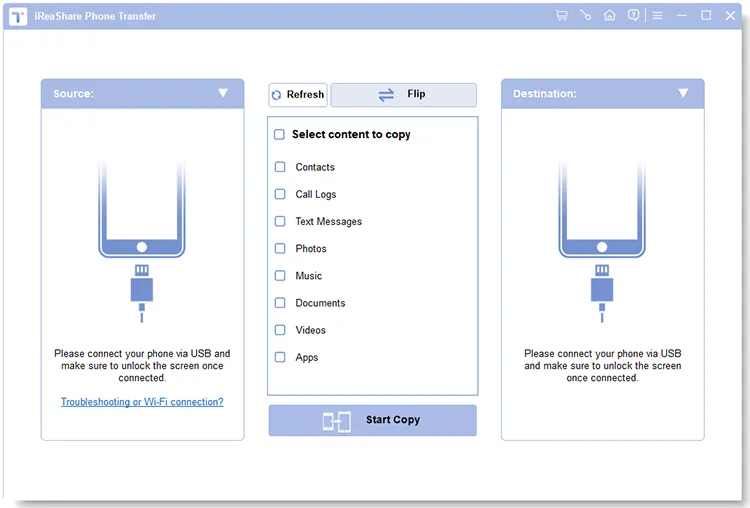
Please install iReaShare Phone Transfer on your computer after downloading it. Then launch it, and connect both your iPhone and Android phone to the PC/Mac via USB.
-
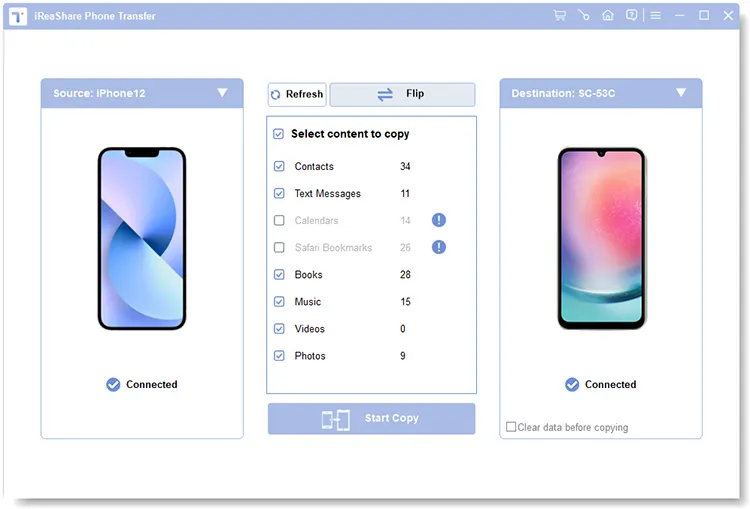
Enable USB debugging on Android, and choose "Trust" on the iPhone. Then the program will recognize your devices, and the connection will be completed. Make sure your iPhone is the "Source" device. If not, click "Flip".
-
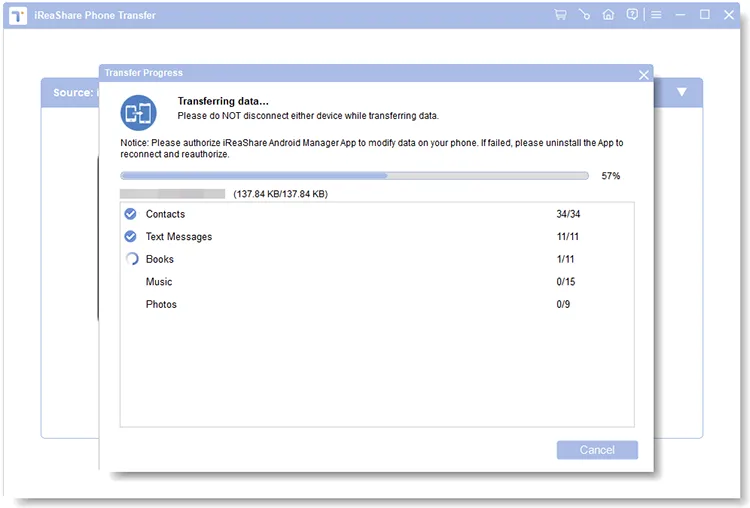
Select the "Photos" option on the panel, and click "Start Copy" to begin the process. Then the pictures on the iPhone will be copied to the Android device.
Watch the video guide to transfer your pictures from an iPhone to an Android phone easily:
Part 3: Q&A About iPhone Not Sending Pictures to Android
Q1: Why does my iPhone fail to send pictures over Wi-Fi?
Sending pictures over Wi-Fi might fail if your Wi-Fi connection is weak or unstable. It's better to try sending the picture using your mobile data or ensure your Wi-Fi network is strong and stable.
iPhones typically use cellular data to send MMS messages, even if you're connected to Wi-Fi. If you have data restrictions or Wi-Fi Assist turned off, this could prevent the picture from sending.
Q2: Can I use Bluetooth to send pictures from iPhone to Android?
Unfortunately, Bluetooth file transfer between iPhones and Android devices is not typically supported for photos. But if your Android phone is Google Pixel 10 series, you can use AirDrop and Quick Share to send pictures from your iPhone to your Android device.
Q3: Is there a limit to how many pictures I can send at once?
If you send your pictures via MMS, most carriers limit you to sending multiple photos via MMS from iPhone to Android, determined by your carrier (e.g., 1MB-3MB total), and they will be heavily compressed and look "blurry" or "pixelated" on the Android phone.
Conclusion
If you were unable to send pictures from an iPhone to an Android phone in the past, now you can fix it without any hurdle. Even though all the fixes don't work, you can use the alternative - iReaShare Phone Transfer to transfer your photos at one go. It will ensure a smooth transfer of media and other information between your devices.
Download for Win Download for Mac
Related Articles
How to Transfer Photos from iPad to PC Without iTunes (6 Ways)
How to Access iPhone Photos on PC Without Trouble (Solved)
How to Get Photos off iPhone: 5 Effective Solutions
Back Up Photos from iPhone: 5 Ways to Save Your iPhone Pictures

