


"Should I switch from Android to iPhone? What will I miss switching from Android to iPhone? I want to purchase a new iPhone 17 recently, but I am worried that I cannot transfer my important data to the new phone because my old phone is Android."
- From Reddit
Making the jump from Android to iOS is a significant change, but you won't have trouble switching from Android to iPhone, since we will answer all the questions that you want to know, and provide 4 effective methods for data migration.
Part 1: Is It Worth Switching from Android to iPhone?
Deciding to switch platforms often comes down to what you value most in a smartphone experience. Here's why users switch from Android to iPhone:
- Ecosystem Integration: If you use a Mac, iPad, or Apple Watch, the iPhone acts as the "glue" that connects them through features like Handoff, Universal Clipboard, and AirDrop.
- Consistent Software Updates: Apple provides iOS updates for many years, ensuring even older models stay secure and feature-rich.
- Resale Value: iPhones generally hold their value significantly better than most Android counterparts, making your next upgrade cheaper.
- App Quality: Many developers prioritize iOS, often releasing updates or new apps on the App Store before they reach Google Play.
Then what will you miss when switching from Android to iPhone?
- Advanced Notification Management: Android's notification system is still widely considered superior for organization.
- System-Wide Navigation & the "Universal Back": iOS does not have a universal back gesture. While many apps allow you to swipe from the left edge to go back, others require you to tap a tiny "Back" or "X" button at the top-left corner—the hardest place to reach on a large screen.
- File Management: If you are used to plugging your phone into a PC and dragging files like a USB drive, you're in for a change. While much better than it used to be, the iOS Files app is still a "sandbox". You can't access deep system folders or easily manage app caches.
- Sideloading: Unless you are in certain regions (like the EU), you cannot easily download apps from the web or third-party stores. You'll miss specialized tools like "revanced" apps or emulator platforms common on Android.
Part 2: 4 Methods for Switching from Android to iPhone
Switching from Android to iPhone involves transferring your data, settings, and apps to ensure a smooth transition. Below are some methods to help you move your important data.
2.1 Via Move to iOS
This is Apple's official app designed to migrate your data during the initial setup of a new iPhone. It transfers contacts, message history, photos, videos, web bookmarks, mail accounts, and calendars.
Here's how to use it:
-
Download the Move to iOS app on your Android device. Open it, and agree to the terms and conditions.
-
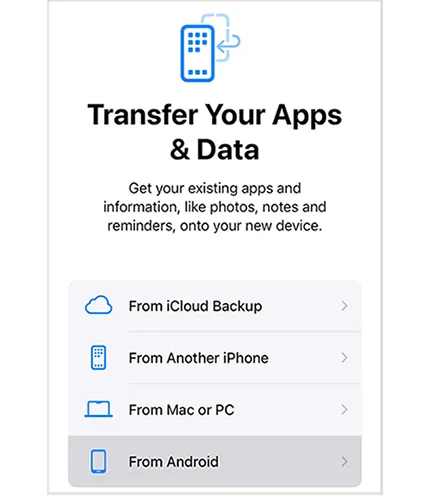
Power on your new iPhone, and follow the on-screen prompts on your new iPhone during setup. Choose "From Android" on the "Transfer Your Apps & Data" screen.
-
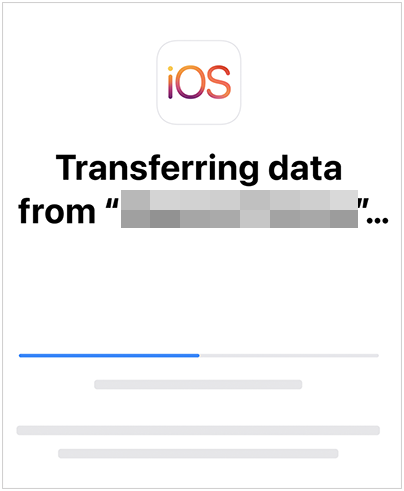
Enter the code displayed on the iPhone into your Android. Then select the data types you want to transfer, and start the process. Once done, check the data on your iPhone.
2.2 Via iReaShare Phone Transfer
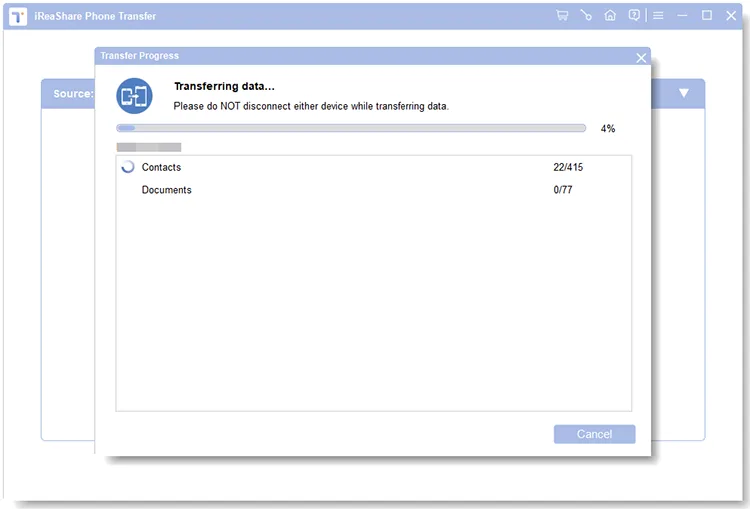
For those who want to complete transitioning from Android to iPhone after the setup, and don't want to erase content and settings again, iReaShare Phone Transfer will be a useful tool. It allows for a stable, wired transfer that doesn't rely on a strong Wi-Fi connection. You can copy your contacts and documents from Android to iOS at once.
Main features of iReaShare Phone Transfer:
* Copy data from Android to an iPhone at one go via USB.
* Transfer videos, music, books, SMS, contacts, and photos from iOS to Android.
* Allow selecting file types before transferring data.
* File transfer from iPhone to iPhone, and from Android to Android is supported.
* Support the Android and iOS devices running Android 6.0 or upper and iOS 5.0 or higher.
* Windows and Mac versions are available.
Download iReaShare Phone Transfer.
Download for Win Download for Mac
Guide on switching from Android to iOS with this data transfer software:
-
Connect both devices to your computer via USB, and download and install the software on your computer.
-
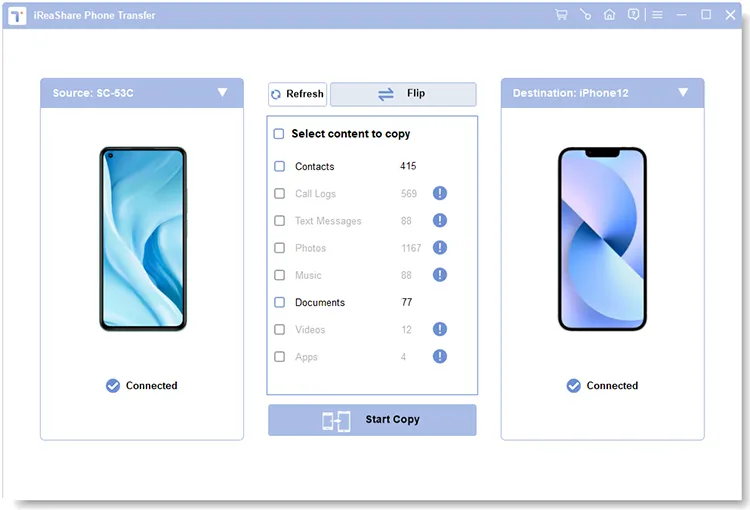
Launch the program, enable USB debugging on Android, and choose "Trust" on the iPhone. Once connected, check if your iPhone is the "Destination" device. Or click "Flip".
-
Select data types, and click "Start Copy" to initiate the data migration. After completing, you can access your data on your iPhone directly.
Watch the video guide to switch from Android to iPhone easily:
2.3 Via Google Account
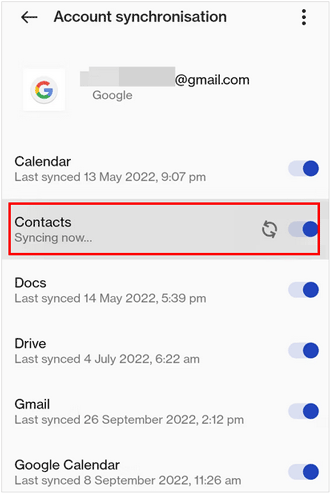
Since most Android data is already synced with Google, this is the easiest way to keep your "cloud" life intact without needing special apps. However, you can sync your contacts, calendar events, notes, and mail (Gmail).
Here are the steps:
-
On your Android device, go to Settings > "Accounts" > "Google" and make sure sync is turned on for contacts, calendar, and other data.
-
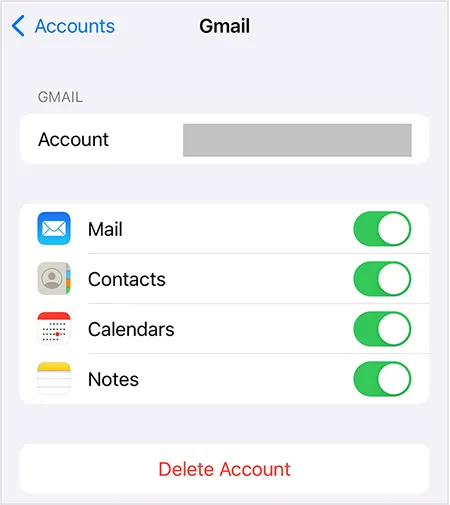
On your iPhone, go to Settings > "Mail" > "Accounts" > "Add Account" and select "Google".
-
Sign in with your Google account and enable syncing for contacts, calendars, notes, and mail.
2.4 Via SHAREit
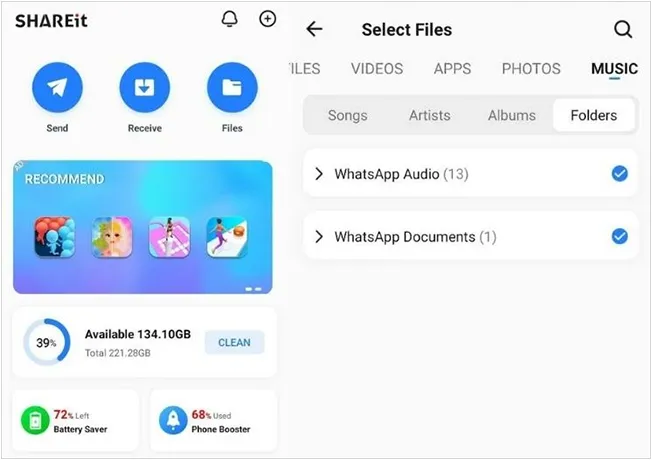
If you only need to move specific files—like a large folder of documents or music - SHAREit is a fast, wireless alternative that creates a local hotspot between the two devices. By the way, Send Anywhere also works.
UTo switch from Android to iOS with SHAREit:
-
Install the SHAREit app on both your Android and iPhone. Then open SHAREit, click "Send" and select the files you want to transfer on your Android phone.
-
Click "Receive" on your iPhone, and choose your Android device if the avatar appears on the screen.
-
After connecting, the app will send your selected files to your receiver directly. Then you can save the files to your local internal storage.
Part 3: Q&A About Changing from Android to iPhone
Q1: What can you not transfer from Android to iPhone?
While much data moves easily, you cannot transfer local call logs, SMS blocks/blacklists, or apps that do not exist on the App Store. Additionally, paid apps purchased on the Google Play Store will usually need to be repurchased on the Apple App Store.
Q2: Why does the transfer from Android to iPhone keep failing when I use Move to iOS?
A failed transfer could be caused by several reasons:
- Weak or intermittent Wi-Fi connection: Ensure you have a stable Wi-Fi connection for the transfer process.
- Incompatible data: Certain files, apps, or content may not be compatible with the iPhone.
- Software glitches: Make sure both your Android and iPhone are updated to the latest software versions before starting the transfer.
Q3: How do I transfer WhatsApp chats from Android to iPhone?
You can now do this directly via the Move to iOS app. During the setup process, ensure "WhatsApp" is checked in the list of data to transfer. Once the iPhone is set up, log into WhatsApp using the same phone number, and your chats will be waiting for you. If it fails to transfer your WhatsApp data, you can try WhatsApp Transfer, a tool to back up, restore, and transfer WhatsApp data.
Conclusion
Now, you know the advantages and disadvantages of changing from Android iPhone. Furthermore, switching from Android to iPhone is no longer the headache it used to be. Even if you finish the setup, you can still transfer your data to your iPhone with iReaShare Phone Transfer. It will not overwrite your existing data on your iPhone.
Download for Win Download for Mac
Related Articles
How to Switch Android Phones Easily (Bring Your Data to New Phone)
How to Switch iPhones with 4 Reliable Methods (Guide in 2026)
Which is the Best App to Transfer Data from Android to iPhone? Listed
How to Export Bookmarks from Safari on Different Apple Devices (Solved)

