


When you wonder how to remove background from a picture for preparing a professional headshot, creating a custom sticker, or designing a presentation, this guide will help. It provides 12 practical methods so that you can remove your image background on different devices, including a PC, Mac, Android device, iPhone, and iPad.

Part 1: How to Remove Background from Picture on Windows
If you want to remove the background from pictures on a Windows PC, here are 6 effective methods.
1.1 Using Paint App (Windows 11)
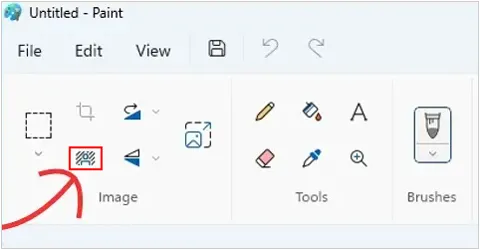
The updated Paint app in Windows 11 features a one-click background removal tool. You can try it if your PC is running Windows 11 OS.
Here's how:
-
Open your image in "Paint".
-
Click the "Remove Background" icon in the "Image" section of the toolbar.
-
The AI will automatically detect and erase the background.
1.2 Using Photos App
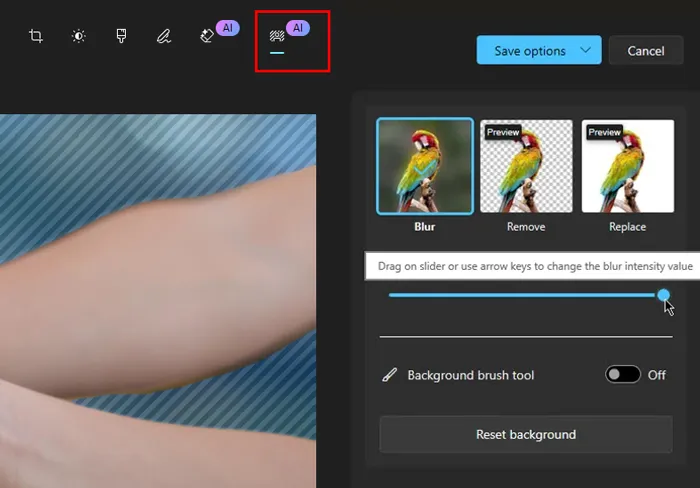
The native Windows Photos app recently introduced a "Background Blur" and "Remove Background" feature. If your PC is running Windows 10, using the Photos app will be available.
To remove background from images with the PC's Photos app:
-
Open an image with the Photos app on your PC, and click the "Edit Image" icon (Ctrl + E).
-
Select the "Background" tab. It will automatically recognize the background area on your photo.
-
Choose "Remove" to delete the backdrop entirely. Then save the picture to your PC.
1.3 Using Paint 3D
For those on older versions of Windows 10, Paint 3D is a reliable option.
To remove image background with Paint 3D on a Windows 10 PC:
-
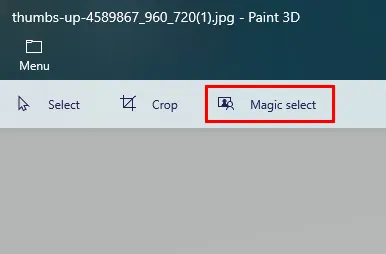
Open your photo with Paint 3D, and click "Magic Select".
-
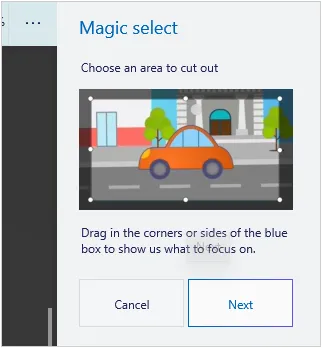
Adjust the selection box around your subject, refine edges manually if needed, and click "Next".
-
The tool will "lift" the subject. Now, the background is removed, and you can export the image as PNG.
See also: If you want to convert your images, follow this guide to use an image converter step by step.
1.4 Using Background Remover on iReaShare
Background Remover is a dedicated AI-powered background remover designed for batch processing. You can one-click to remove the background from your photos, replace backgrounds with your desired colors and templates. Additionally, it supports most image formats, such as PNG, JPG, JPEG, BMP, TIFF, etc.
Main features of this backgrounf remover software:
* Remove background from many photos at once without losing quality.
* Provides many custom templates to replace background.
* Built-in AI power ensures efficient processing.
* Help you create stunning visuals for your social media.
* Support real-time preview before finalizing your photos.
Download Background Remover.
To remove image background with this background remover:
-
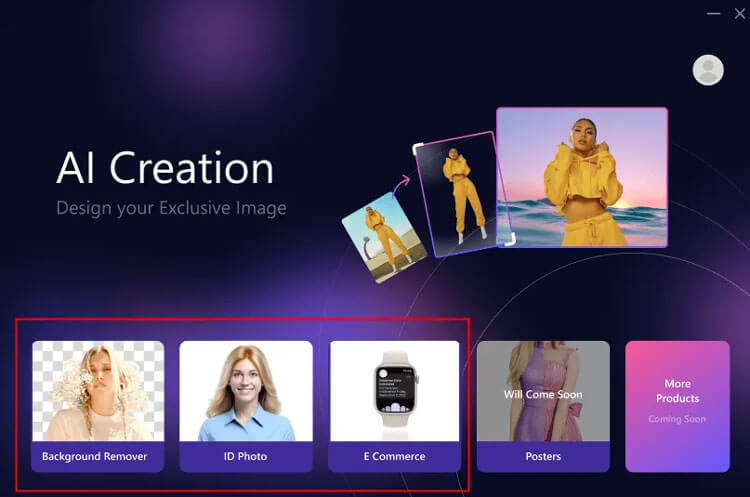
Launch the software on your PC after downloading and installing it. Then choose "Background Remover".
-
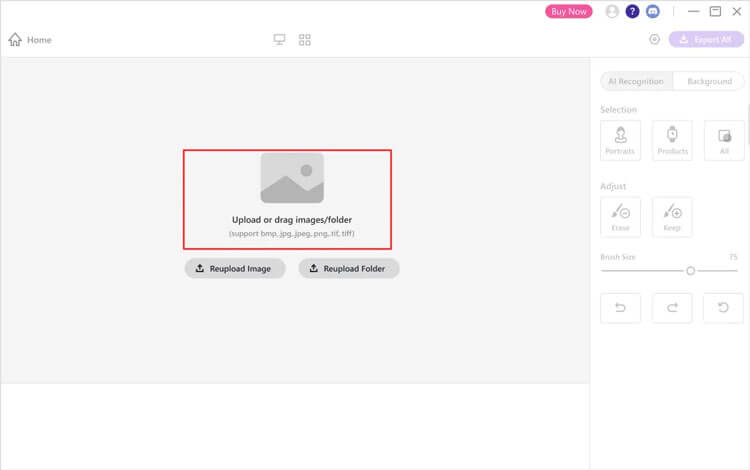
Click "Upload Image" or "Upload Folder" to add your photos to the program. Or directly drag and drop your pictures.
-
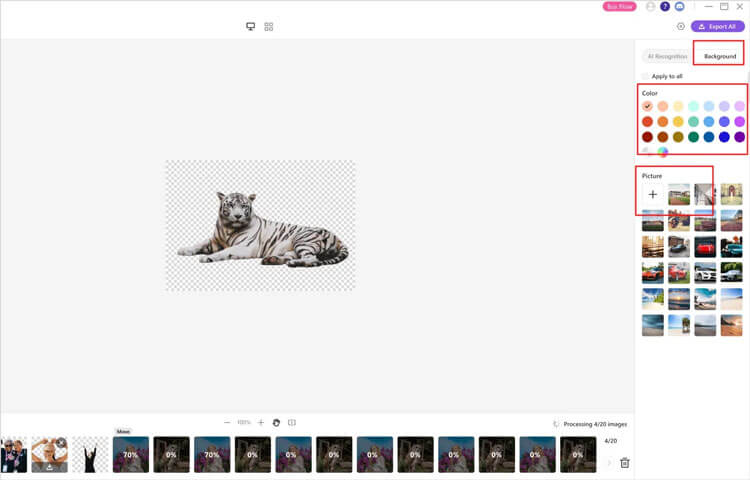
The software will automatically remove the background from your photos. Then you can use the colors and templates on the left panel to edit your photos. After that, click "Export all" to save the photos on your PC.
Tips: This is a detailed guide to use the Background Remover program with ease.
1.5 Using Google Slides
If you are working on a presentation, you can remove backgrounds without leaving your browser. While Google Slides doesn't have a "one-click" erase, you can adjust transparency and contrast, or use the "Mask image" tool to crop to specific shapes.
Here's how to remove photo background with Google Slides on a PC:
-
Navigate to Google Slides and log in. Then insert your image into a slide.
-
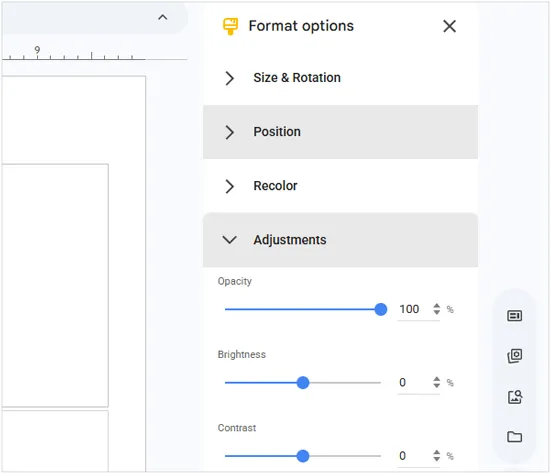
Right-click and select "Format options". On the right sidebar, click "Adjustments".
-
Move the "Opacity" slider. This makes the entire image see-through, so it works best if you just want a subtle watermark effect rather than a crisp cutout.
1.6 Using Adobe Express
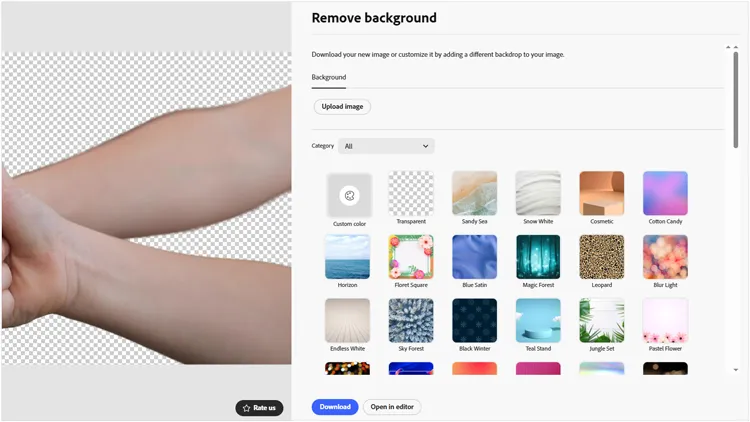
Adobe Express offers a free, high-quality online tool for removing picture background.
Here's the guide:
-
Upload your photo to the Adobe Express "Remove background" page.
-
The AI processes the image and provides a clean cutout.
-
Download the result as a transparent PNG.
Part 2: How to Remove Image Background on Mac via Preview App
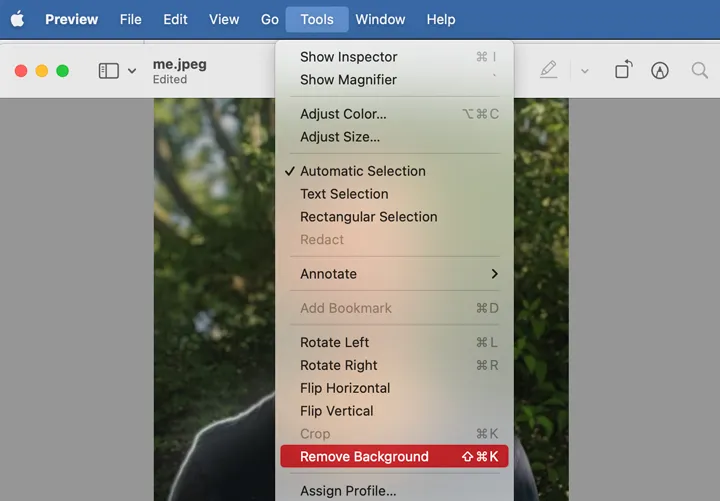
macOS has one of the fastest built-in removal tools via the Preview app. This works best for images with clear contrast between the subject and background.
To remove image background on Mac via the Preview app:
-
Open your image in Preview on your Mac computer. Click the "Tools" icon (the pen tip) and select the "Remove Background" option.
-
Click and drag on the background area you want to remove. The selection will turn red.
-
Press "Delete". If the file isn't a PNG, it will ask to convert it for you.
Part 3: How to Remove Background from Picture on Android Device
What if you want to remove the background from your pictures on an Android device? Here are 3 solutions.
3.1 Using Built-in Gallery App
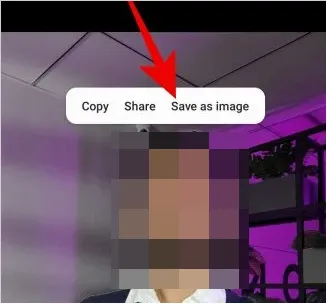
Many modern Android phones (like Samsung Galaxy or Google Pixel) have this feature built-in, so you can remove your photo background directly on your smartphone. However, you need to deal with your photos one by one.
Here's how:
-
Go to the Gallery app on your Android device, and choose your target photo.
-
Long-press the part of the image that you want to keep, and click "Save as image" to save it with a transparent background.
3.2 Using ibis Paint X
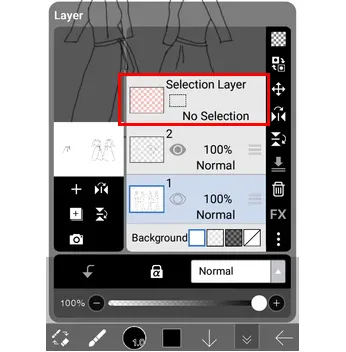
Removing a background in ibis Paint X can be done quickly using either the Selection Layer for precision or the Magic Wand for speed.
Here is an effective way to get a clean cutout with ibis Paint X:
-
Open the app, create a new canvas, and tap the "Layers" icon (the stack of squares) to import your image using the camera icon.
-
Tap the "Brush" icon in the toolbar to open the tool selection menu and choose "Magic Wand". Then tap the areas of the background you want to remove. You will see a "marching ants" dashed line around the selection.
-
Adjust the Threshold slider if the wand is selecting too much or too little of your subject. Open the "Selection Layer" menu (the square icon with a dashed border at the top of the screen) and tap "Clear Layer". The selected background will disappear.
-
Tap the same menu and select "Remove Selection Area" to stop the marching ants.
3.3 Using Google Photos
Google Photos doesn't have a single "Delete Background" button that leaves a transparent hole like ibis Paint X, but it offers several AI-powered ways to achieve a similar effect, depending on whether you want to remove distractions, change the scenery, or create a cutout. By the way, you can install this app on an iOS device to remove image background.
Here's how:
-
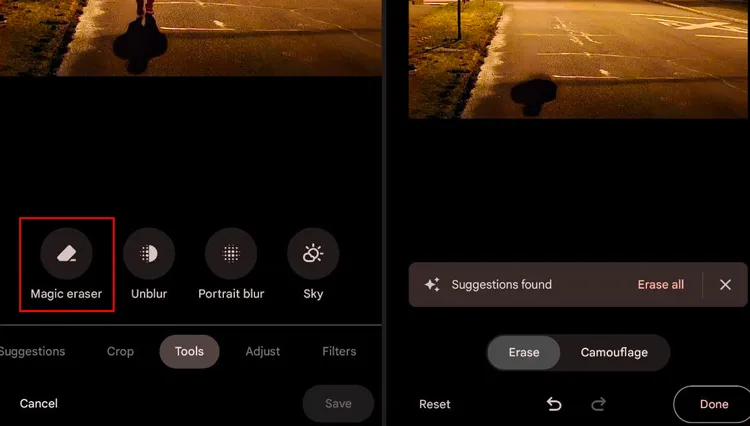
Install Google Photos on your Android device. Then open your photo and click "Edit".
-
Go to "Tools" and select "Magic Eraser". Google will automatically suggest things to erase (they'll glow). Tap "Erase all" or tap individual items.
-
If the AI misses something, use your finger to circle or brush over the area you want to remove. Finally, tap "Done" and then "Save copy".
Read more: What if Google Photos backup gets stuck? Fix it immediately.
Part 4: How to Remove Background from Photo on iPhone/iPad
If you use an iPhone or iPad, you can use the pre-installed Photos app or a feature on the Files app to remove the background from your photos.
4.1 Using Photos App
On an iPhone, removing a background is actually faster than using an app like ibis Paint X because the feature is built directly into the iOS system. You can do this in just a couple of taps without needing any AI editing tools.
Here are the steps:
-
Open the Photos app on your iOS device and select your photo.
-
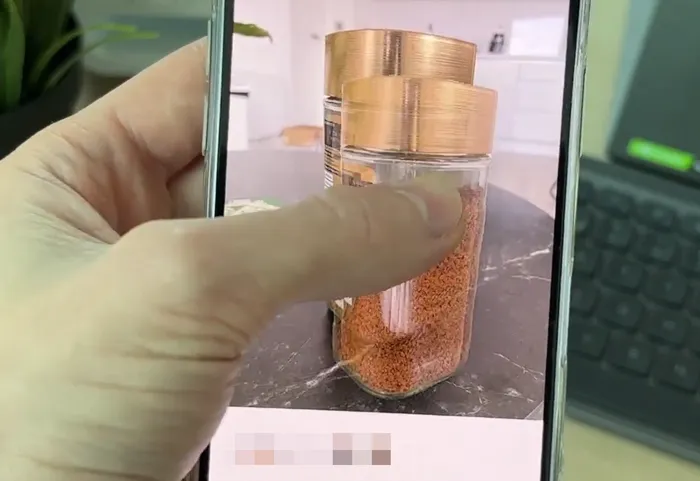
Press and hold on the main subject of the image. You will see a glowing white outline scan the subject. Lift your finger. A menu will appear with the options: Copy, Add Sticker, or Share. Now, choose "Share".
-
Sroll down and select "Save Image". A new version of the photo will appear in your library, consisting only of the subject with a white (or black) background that is actually transparent.
4.2 Using Quick Actions
Quick Actions is a useful feature to remove backgrounds on an iPhone or iPad, especially if you have multiple photos, because it processes them instantly without you having to open each image individually.
To remove picture background on an iPhone with Quick Actions:
-
If your photos are currently in your Gallery, you first need to send them to the Files app: Open the Photos app, select the images you want to process, and tap "Share" > "Save to Files" > choose a folder > "Save".
-
Open the Files app, and navigate to the folder where you just saved your photos.
-
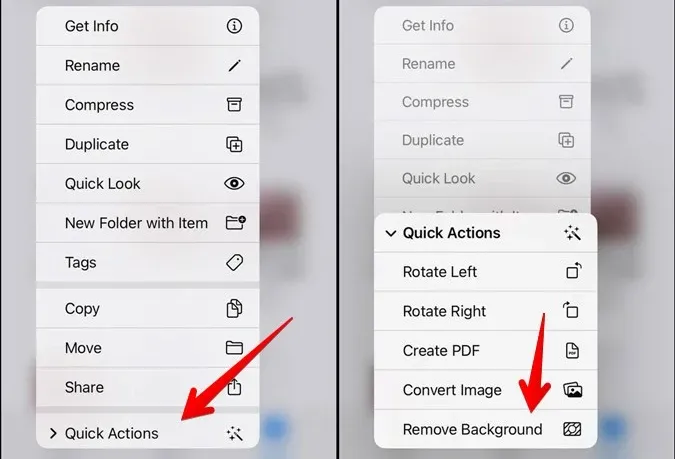
Long-press on the image thumbnail, tap the "three dots" menu in the top right > "Select", and check all the images you want.
-
Tap the "three dots" in the bottom right corner, and select "Quick Actions" from the menu. Then tap "Remove Background".
Part 5: Q&A About Removing Background from Picture
Q1: Can ChatGPT remove background from pictures?
Yes, if you have access to the Plus/Pro versions (GPT-4o), you can upload an image and ask the AI to remove the background. It will process the image and provide a downloadable link.
Q2: Is it possible to remove a background without an app?
Absolutely. You can use web-based tools like Remove.bg, Adobe Express, or Canva. These work entirely within your browser and don't require any software installation.
Q3: Is it safe to remove backgrounds from photos online?
Generally, yes, as long as you use reputable sites (like Adobe or Canva). However, always be cautious with highly sensitive or private photos on free, unknown websites, as they may store your images on their servers.
Conclusion
Removing backgrounds is no longer a task reserved for graphic designers. The Background Remover software enables you to eliminate the background from photos in bulk on your computer. Anyway, whether your device is a computer, Android gadget, iPhone, or iPad, you can remove image background effectively. By choosing the right approach, you can achieve clean, professional-looking results with minimal effort.
Related Articles
How to Bluetooth Photos from iPhone to Android (Latest Guide)
How to Move Photos to SD Card on Android Device (Solved)
How to Shred Photoshop Files Permanently (Step-by-Step Guide)
How to Access iPhone Photos on PC Without Trouble (Solved)

