


When it comes to sensitive design projects, simply dragging your Photoshop (PSD) files to the Recycle Bin isn't enough. Residual data often lingers on the hard drive, making it easy for recovery software to retrieve your private work. To ensure your creative assets are gone for good, you need a professional-grade solution to shred Photoshop files permanently.
Part 1: How to Shred Photoshop Files Permanently via iReaShare Data Wipe
To completely delete your files of Photoshop on your computer, you will need a professional data erasure tool, iReaShare Data Wipe. It provides 3 erasing modes, so you can select one to erase your PSD files.
Main features of iReaShare Data Wipe:
* Provide three modes for data erasure, File Shredder, Drive Wiper, and Free Space Wiper.
* Allow you selectively shred files and folders on your computer.
* Wipe a whole drive to erase all your files at once.
* Wipe the free space to remove deleted files without losing existing PSD files.
* Overwrite deleted data completely, making all your files unrecoverable.
* Erase data from external SD cards, USB flash drives, etc.
* Support Windows 11/10/8/7.
Download iReaShare Data Wipe.
Mode 1: Shred Photoshop Files Selectively via File Shredder
If you have specific PSD files or project folders that contain sensitive client information or proprietary designs, the File Shredder mode is your best bet. This targeted approach allows you to destroy specific items without affecting the rest of your drive.
To shred Photoshop files selectively with File Shredder:
-
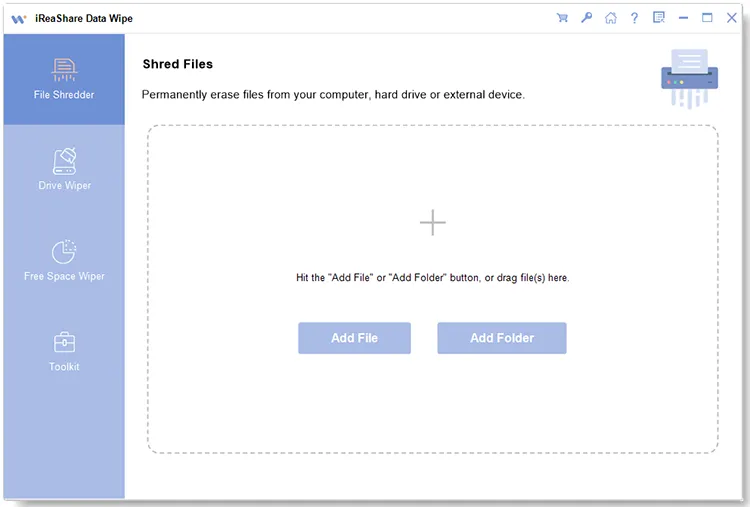
Launch iReaShare Data Wipe on your PC and select the "File Shredder" module from the left menu.
-
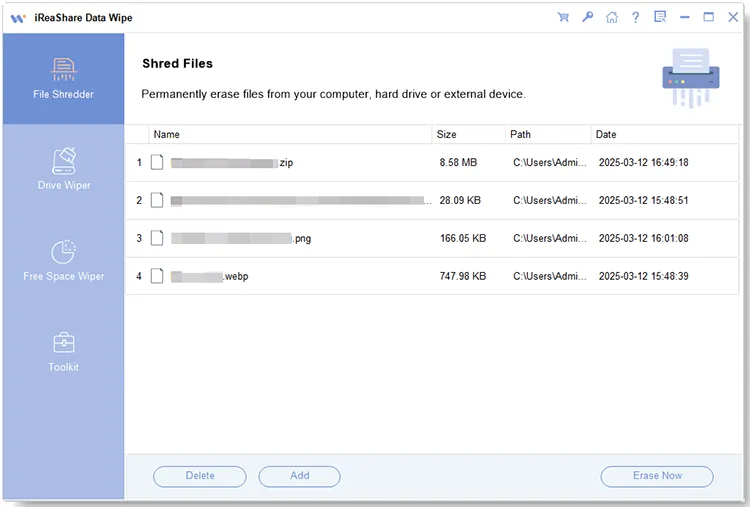
Click the "Add File" button to browse and select the specific Photoshop files you wish to destroy. You can also click "Add Folder" to add the folder saved your PSD images.
-
Tap "Erase Now", and confirm it by choosing "OK" on the pop-up window. Then your Photoshop files will be shredded completely.
Mode 2: Wipe PSD Files Completely via Drive Wiper
For users who want to ensure that all Photoshop files on a drive are permanently erased, the Drive Wiper mode is the best choice. This mode wipes an entire hard drive or external storage device, including all PSD files stored on it. Besides, Drive Wiper is especially useful when you plan to sell, donate, or repurpose a computer.
To wipe a hard drive to remove all PSD files permanently:
-
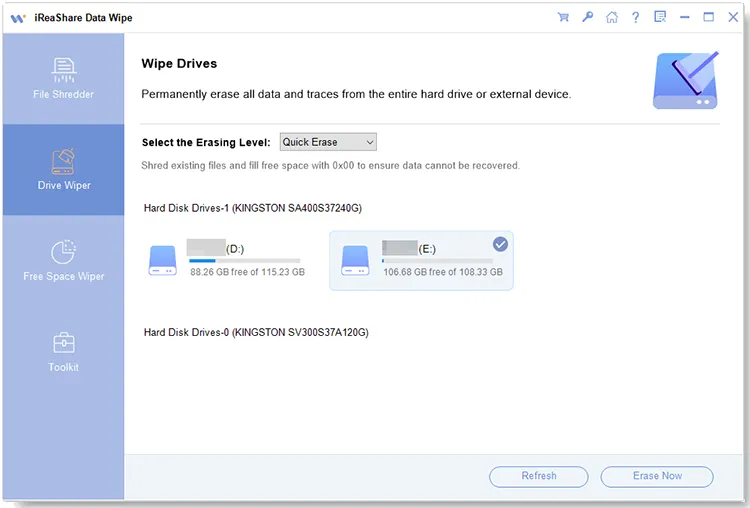
Open the software, and choose "Drive Wiper" from the main interface.
-
Choose the local disk or external drive where your Photoshop projects are stored. Be cautious, as this will remove all files, including software and documents.
-
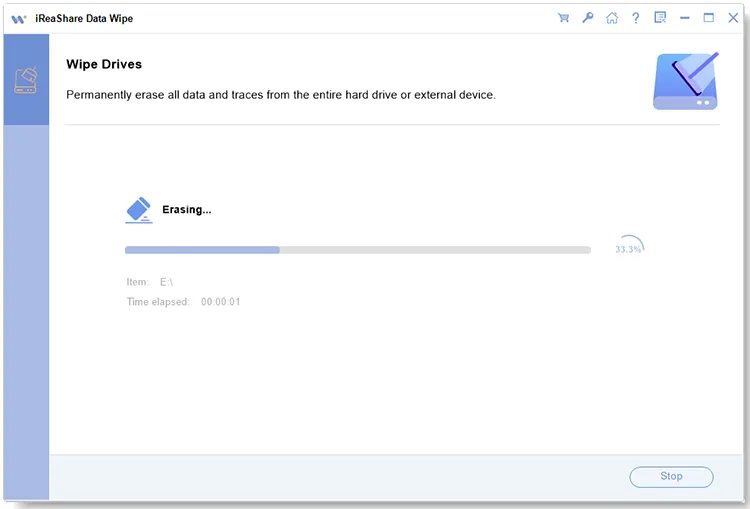
Select an erasing level: Quick Erase or Deep Erase. The Deep Erase level follows the US DoD 5220.22-M(E) standard with three overwrite passes. After that, click "Erase Now" > "OK" to begin the deep-cleaning process.
Mode 3: Erase Deleted Photoshop Files Thoroughly via Free Space Wiper
If you don't want to remove your existing PSD files but would like to erase the deleted data, you can utilize the Free Space Wiper function. This mode overwrites only the unused space on a drive, where deleted PSD files may still be recoverable.
To erase deleted PSD files thoroughly with Free Space Wiper:
-
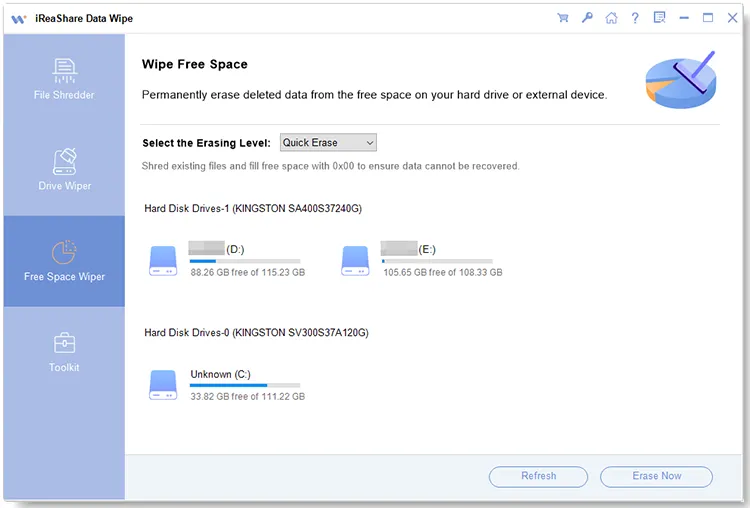
Launch the Data Wipe software on your computer, and select the third tab - "Free Space Wiper".
-
Select the drive that you want to erase deleted PSD data, and select a level for erasure.
-
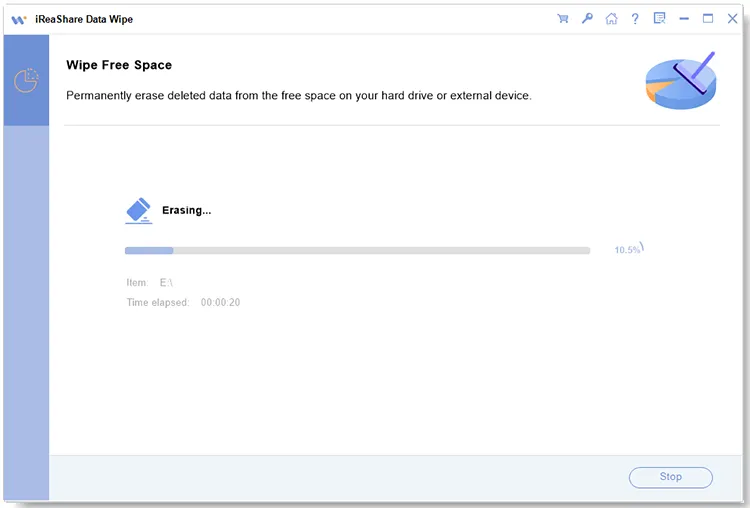
Click "Erase Now" > "OK" to begin the process. Then your deleted files will be removed forever.
Part 2: Q&A About Shredding Photoshop Files Permanently
Q1: Can I recover my PS images after shredding with iReaShare Data Wipe?
No. Unlike standard deletion, iReaShare Data Wipe uses advanced algorithms to overwrite the original data sectors multiple times. Once the shredding process is complete, the original PSD structure is destroyed, making recovery very difficult even for professional forensic tools.
Q2: Will Data Wipe shred the locked PSD files on my computer?
No, if your PSD files are locked by some third-party apps, iReaShare Data Wipe cannot erase the locked files. You need to unlock these files first.
Q3: How to clear the cache of Photoshop on a computer?
Photoshop often saves temporary "scratch" data and cache files that can take up space and store thumbnails of your work. To clear them:
- In Photoshop: Go to "Edit" > "Purge" > "All". This clears the undo history, clipboard, and histories.
- On your computer: Navigate to your temporary folder (usually %AppData%\Local\Temp) and delete files starting with "Photoshop Temp" or "pstemp". If you want to wipe the cache data completely, you can choose to use the File Shredder feature of iReaShare Data Wipe, and choose the folder.
Conclusion
Protecting your digital privacy is just as important as the creative process itself. By using iReaShare Data Wipe, you can move beyond simple deletion and ensure your confidential Photoshop files are permanently erased from existence. Whether you are cleaning up a specific project or wiping an entire drive, these three modes provide the security and peace of mind every designer needs.
Related Articles
Select Free Drive Wiper to Erase a Disk Without Any Hassle
How to Force Delete a File on a Computer Without Effort
Completely Overwrite Hard Drive on Windows 11/10 PC (Proven)
How to Erase Locked Hard Drive Effectively? Exhaustive Explanation

