


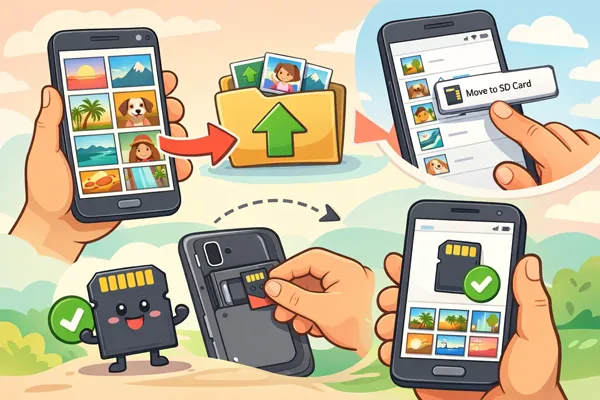
When your photos take up almost all the internal storage on your Android device, you may want to move photos to an SD card from Android. However, most Android phones and tablets don't support installing external memory cards. In this case, how can you move your pictures to your SD card? Don't worry about it. We've found 5 effective methods, and shared them below. Let's check it out.
- Part 1: How to Move Photos to SD Card on Android with File Manager
- Part 2: How to Move Pictures to SD Card from Android via iReaShare Android Manager
- Part 3: How to Transfer Pictures to SD Card on Android via Files by Google
- Part 4: How to Transfer Photos from Android to SD Card via Cx File Explorer
- Part 5: How to Move Pictures to SD Card on Android by Changing Default Save Location
- Part 6: Q&A About Moving Files to SD Card on Android
Take a quick look at these methods:
| Method | Pros | Cons |
|---|---|---|
| Built-in File Manager | 1. No download needed. 2. Simple and pre-installed. |
1. Interface varies by phone brand. 2. Can be basic. |
| iReaShare Android Manager | 1. Great for bulk management. 2. Clear view on a big screen. 3. Back up and restore Android data at once. 4. Support preview and selective file transfer. |
1. Requires a computer and a USB cable. 2. Not a "mobile-only" fix. 3. Require a license for all features. |
| Files by Google | 1. Very user-friendly. 2. Helps find and delete junk files too. |
1. Might not show hidden system folders. |
| Cx File Explorer | 1. Shows exact storage usage. 2. Move photos and other files very fast. |
1. Third-party app. 2. The interface is outdated slightly. |
| Changing Default Save Location | 1. Can save photos to an SD card automatically. 2. Saves time and prevents future storage issues. |
1. Doesn't move existing photos. 2. SD cards are slower for 4K video. |
Part 1: How to Move Photos to SD Card on Android with File Manager
All Android mobile devices come with a stock file manager app, so you can move your pictures to your SD card with this app. However, if you cannot install your card on your phone, you will need a card reader that has a Type-C plug, so that you can connect it to your Android phone.
To move pictures to an SD card on Android via File Manager:
-
Use a card reader to connect your SD card and your Android phone.
-
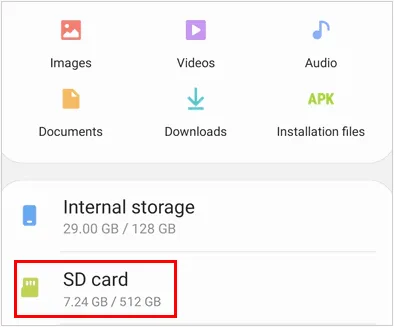
Open the My Files (Samsung) or File Manager app. Next, go to "Internal storage" > "DCIM" > "Camera" (this is where most photos live).
-
Long-press a photo to select it and other photos you want, then tap the "Move" icon to select your SD card. Once done, your pictures will be moved to your SD card,
-
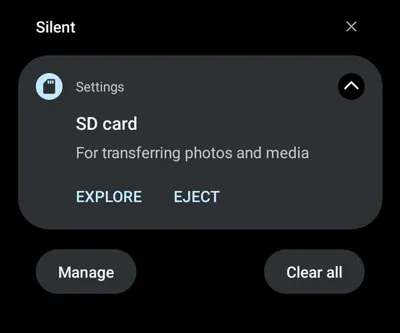
After moving photos, remove the card safely by scrolling down the screen and clicking "EJECT".
Part 2: How to Move Pictures to SD Card from Android via iReaShare Android Manager
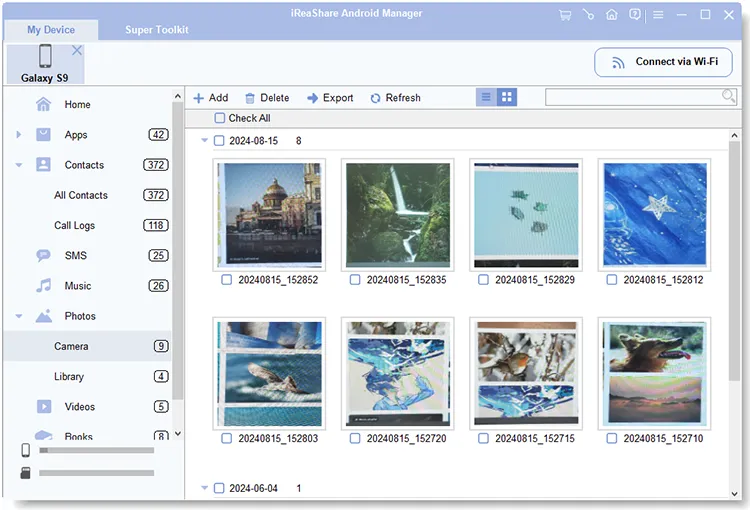
If you prefer using a desktop solution to manage your phone's files, iReaShare Android Manager offers an easy way to move photos to an SD card. This tool allows you to preview the thumbnails of your photos on the interface, select desired ones, and export them to your SD card that is connecting to the same computer.
Main features of iReaShare Android Manager:
* Transfer your photos from your Android device to your SD card on a computer.
* Back up all your photos from Android to your computer at once.
* Transfer your videos, music, documents, contacts, call logs, apps, and more.
* Import files from your SD card or computer to your Android device.
* Restore backup data to any Android devices without losing data.
* Compatible with Android 6.0 or later, including Android 16.
Download iReaShare Android Manager.
Download for Win Download for Mac
Here's how to move pics from Android internal storage to an SD card with this tool:
-
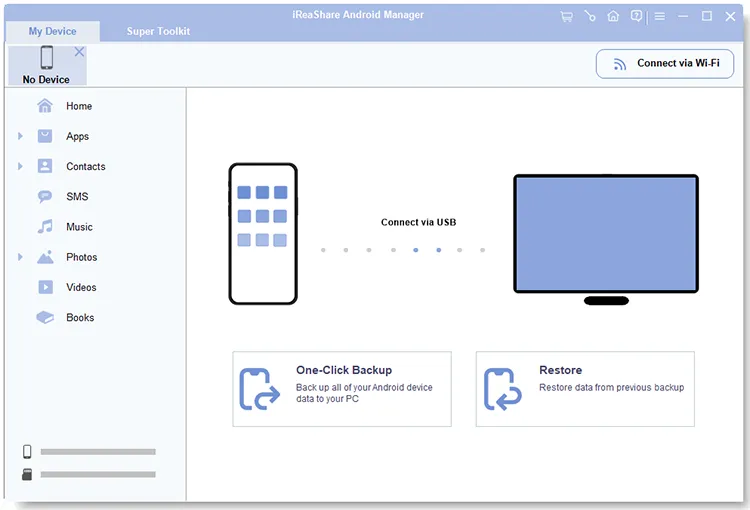
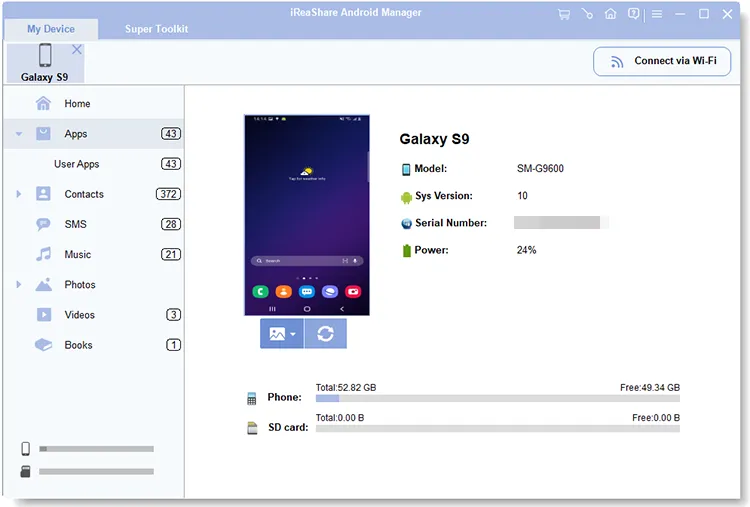
Download and install iReaShare Android Manager on your computer. Launch the app once it's installed.
-
Connect your Android device to your computer using a USB cable. Make sure to enable "File transfer" mode on your phone. Then enable USB debugging on the phone. Then the software will recognize it immediately.
-
Choose "Photos" on the left panel, and select the photos you want to move. Ensure you have inserted your memory card to the computer. Then click "Export", select your SD card, and start transferring them.
Part 3: How to Transfer Pictures to SD Card on Android via Files by Google
Files by Google is a free and intuitive app that helps you manage storage on your Android device, including moving photos to your SD card. If you want to clean up junk files from your device, it can also help.
To move pictures to an SD card on Android via Files by Google:
-
If you don't already have it, download and install the Files by Google app from the Google Play Store. Then open the app.
-
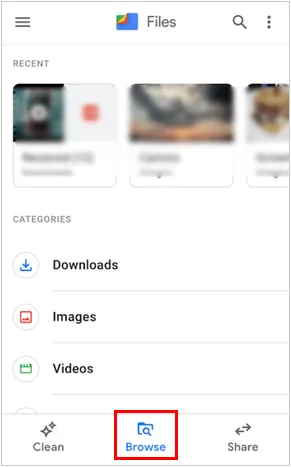
Tap on the "Browse" tab at the bottom. Under "Categories", tap "Images".
-
Navigate to the folder where your photos are stored. Select the photos or albums you want to move, tap the three-dot menu, choose "Move to SD card", and confirm the move.
-
Once the transfer is complete, go to the SD card section of Files by Google to ensure the photos are now stored there.
Part 4: How to Transfer Photos from Android to SD Card via Cx File Explorer
Cx File Explorer is a robust and user-friendly file manager that allows for easy photo transfers to SD cards. It is popular for its clean UI and "Storage Analysis" feature.
To transfer photos from Android to an SD card via this app:
-
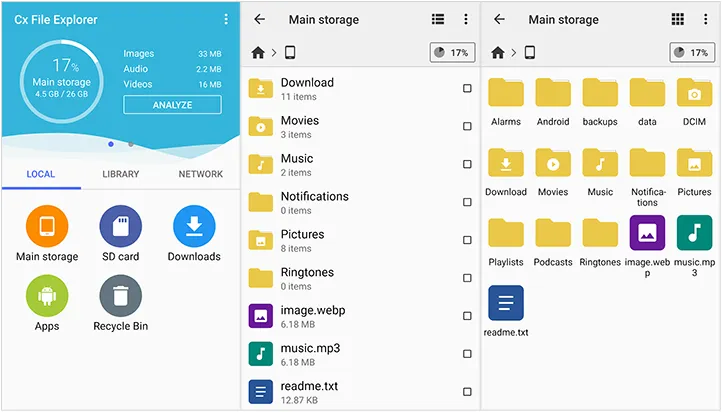
Download and install Cx File Explorer from the Google Play Store. Launch the app and tap "Main storage".
-
Navigate to your photos (usually DCIM/Camera). Then select the photos and tap "Move" (scissors icon).
-
Finally, tap the "Home" icon, and then select "SD Card". Your pictures will be moved to the external memory card.
Part 5: How to Move Pictures to SD Card on Android by Changing Default Save Location
One way to ensure all new photos are saved directly to your SD card is by changing the default save location on your Android phone. However, it only works for the phones that support installing SD cards.
Here's how:
-
Open the Camera app on your Android phone, and ensure you have installed your SD card in your Android device.
-
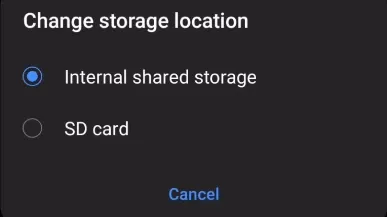
Tap the "Settings" icon like a gear, and scroll down to "Storage location".
-
Select "SD card". Once done, your new photos will be saved to your SD card automatically.
Part 6: Q&A About Moving Files to SD Card on Android
Q1: Why can't I move my photos to my SD card?
There could be several reasons why you can't move photos to your SD card:
- SD Card Compatibility: Ensure your SD card is properly inserted and compatible with your device.
- Corrupted SD Card: If the SD card is damaged or corrupted, it might prevent file transfers. Try formatting the card or using a different SD card.
- App Restrictions: Some apps might prevent moving certain files. Try moving files using a file manager instead of the app's internal storage options.
- Phone Settings: Your phone might be configured to save photos to internal storage only, so make sure to adjust the settings to save to the SD card.
- Write Protection: The SD card might be set to "Read Only" or the physical lock switch (on full-sized adapters) is on.
- Permissions: You may need to grant the File Manager app "All Files Access" in your phone's Settings.
Q2: How long will photos last on an SD card?
On average, data on an SD card is stable for 5 to 10 years if left unused. However, they are prone to "bit rot" (leaking electrical charge) if not powered on occasionally. They are not recommended for permanent archival storage without backups.
Q3: Is it better to store photos on an SD card?
Storing photos on an SD card can free up internal storage and help keep your device running smoothly. However, SD cards can wear out over time and are more vulnerable to damage than internal storage. It's always a good idea to back up important photos on a secondary storage device like cloud storage or a computer to avoid data loss.
Conclusion
It's simple to move photos to an SD card on an Android phone or tablet. You can utilize the built-in File Manager app, transfer many photos at once without losing quality with iReaShare Android Manager, etc. All the methods in this guide can move your photos easily.
Don't forget to back up your photos regularly to avoid any loss, and always ensure your SD card is in good working condition. With these tips, you can continue capturing memories without worrying about storage space.
Download for Win Download for Mac
Related Articles
How to Send Pictures from iPhone to Android Quickly (6 Methods)
How to Transfer Photos from Mac to Android: Full Guide with 6 Solutions
How to Transfer Photos from Android to Flash Drive Swiftly with Quality
How to Permanently Delete Photos from Android Device (Proven)

