TL;DR:
Learn how to record on Steam with 4 simple methods in 2026.
- Steam Game Recording — Best for quick gameplay recording without installing another recorder.
- Xbox Game Bar — Best for free Steam game recording on Windows 10/11.
- OBS Studio — Best for advanced users who need extensive recording and streaming controls.
- Screen Recorder — Best for flexible, high-quality gameplay recording on Windows and Mac.
If you only want to save a few gameplay clips, Steam Game Recording or Xbox Game Bar may be enough. If you need higher-quality output, flexible capture settings, webcam overlays, annotations, or other recording controls, a dedicated screen recorder is more practical.
Steam is one of the most popular gaming platforms in the world, and many players record their gameplay to capture memorable moments, such as impressive plays, game tutorials, funny bugs, or content for livestreams. But does Steam itself support game recording? How can you record gameplay on Steam? In this article, we'll introduce several simple methods to help you easily record on Steam and save high-quality gameplay videos.
Here's a quick comparison of the four methods to help you choose the best way to record on Steam based on your device, recording needs, and level of control.
| Method | Best For | Platform | Ease of Use | Key Advantage |
|---|---|---|---|---|
| Steam Game Recording | Quick Steam gameplay clips | Windows | Easy | Records directly through Steam without extra software |
| Xbox Game Bar | Free basic gameplay recording | Windows 10/11 | Easy | Built into Windows and requires no installation |
| OBS Studio | Streamers and advanced users | Windows/Mac | Moderate | Offers detailed control over scenes, sources, audio, and encoding |
| Screen Recorder | Flexible, high-quality gameplay recording | Windows/Mac | Easy | Supports gameplay, webcam, audio, annotations, and other recording features |
Part 1. How to Screen Record on Steam with Steam Game Recording
Best for: Users who want a simple way to capture Steam gameplay without installing additional software.
Steam Game Recording is the most convenient option if you want to record gameplay directly through Steam. It works inside the Steam client, so you don't need to install a separate recording program.
Before recording, open Steam and make sure Game Recording is available in your Steam settings. The exact options may vary depending on your Steam client version and the game.
How do I record on Steam? Follow the steps below:
Step 1. Log in to your Steam Client account and go to "Steam" > "Settings" > "Game Recording".
Step 2. Choose a recording mode based on your needs:
- Record in Background: Automatically records your gameplay, allowing you to review and save important moments later.
- Record Manually: Lets you start and stop recording whenever you want, giving you full control over the clips you capture.
Step 3. Make sure the "Steam Overlay" is enabled so you can access recording controls while playing. Go to "Steam" > "Settings" > "In Game", then turn on the "Enable the Steam Overlay while in-game" option.
Step 4. Start recording your Steam games. If you select Manual Recording, press the default hotkey "Ctrl" + "F11" to begin recording. If you enable Recording in Background, Steam will automatically capture your gameplay while you play.
Step 5. After recording, open the Steam recording interface to preview, edit, or save your gameplay clips.
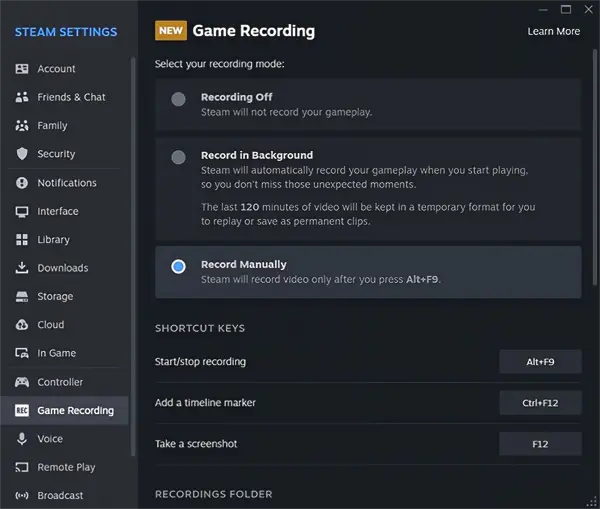
Record on Steam Shortcut
Here are the common keyboard shortcuts for Steam recording:
| Function | Shortcut Key |
|---|---|
| Overlay shortcut key(s) | Shift+Tab |
| Start/stop saving a clip | Ctrl+F11 |
| Add a timeline marker | Ctrl+F12 |
| Take a screenshot | F12 |
| Save the last seconds of gameplay as a clip | Backspace |
What Are the Limitations of Steam Game Recording?
Steam Recording only captures gameplay from games launched through the Steam Client. It cannot record your desktop, other applications, or non-Steam activities.
Part 2. How to Screen Record on Steam Windows 10/11 Using Xbox Game Bar
Best for: Windows 10/11 users who want a free and simple way to record Steam gameplay.
If you're playing Steam games on Windows 10 or Windows 11, Xbox Game Bar provides another free way to record gameplay. The major advantage is convenience: it is built into Windows, so you don't need to download a separate recorder.
Here is how to record Steam games on PC via Xbox Game Bar:
Step 1. Press "Windows" + "I" to open Windows Settings, then go to the Xbox Game Bar settings and make sure the "Game Bar" feature is enabled. After that, launch your Steam game.
Step 2. While the Steam game is running, press "Windows" + "G" to open the Xbox Game Bar overlay. Find the "Capture" widget on the screen.
Step 3. Click the "Record" button to start capturing your Steam gameplay. You can also use the keyboard shortcut "Windows" + "Alt" + "R" to start recording. Press the same shortcut again to stop recording.
Step 4. Once the recording is finished, your gameplay clips will be saved automatically in the "Videos" > "Captures" folder by default. Open File Explorer and navigate to this folder to find your Steam recordings.
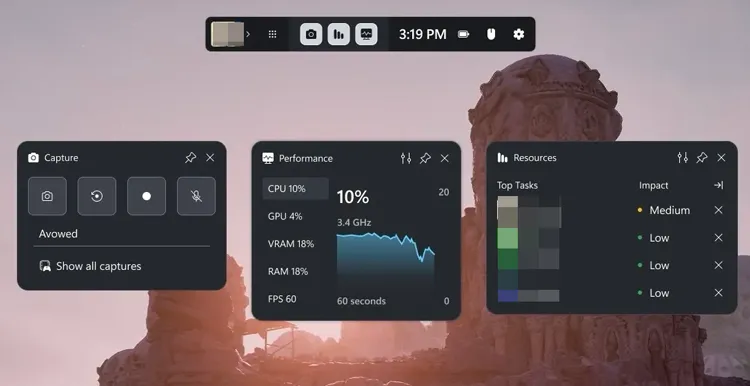
What Are the Limitations of Xbox Game Bar?
Xbox Game Bar is only available on Windows and cannot record on Mac or other operating systems. It also does not support recording the desktop or File Explorer and lacks advanced features such as real-time annotations, video editing, scene switching, and webcam layout customization.
Part 3. How to Screen Record Steam Games with OBS Studio
Best for: Advanced users, streamers, and creators who need detailed control over their recording setup.
OBS Studio is another popular option for recording Steam gameplay. Unlike simpler recording tools, OBS provides extensive control over scenes, sources, audio, encoding, and streaming. This makes it a strong choice for experienced users and content creators.
Here is how to screen record on Steam for free using OBS:
Step 1. Download and install OBS Studio on your computer, then open the program to prepare for recording your Steam games.
Step 2. Launch OBS Studio and click the "+" icon in the "Sources" section. Select "Game Capture" to record your Steam gameplay.
Step 3. Choose "Capture Specific Window" from the "Mode" drop-down menu, then select the Steam game you want to record. Click "OK" to apply the settings.
Step 4. Adjust your recording settings by going to "Settings" > "Output" > "Recording". You can customize the recording format, quality, encoder, and save location based on your needs.
Step 5. Click "Start Recording" in OBS Studio, then return to your Steam game and begin playing. OBS will capture your gameplay in the background.
Step 6. When you finish recording, return to OBS Studio and click "Stop Recording". Your Steam gameplay video will be saved automatically in the selected recording folder.
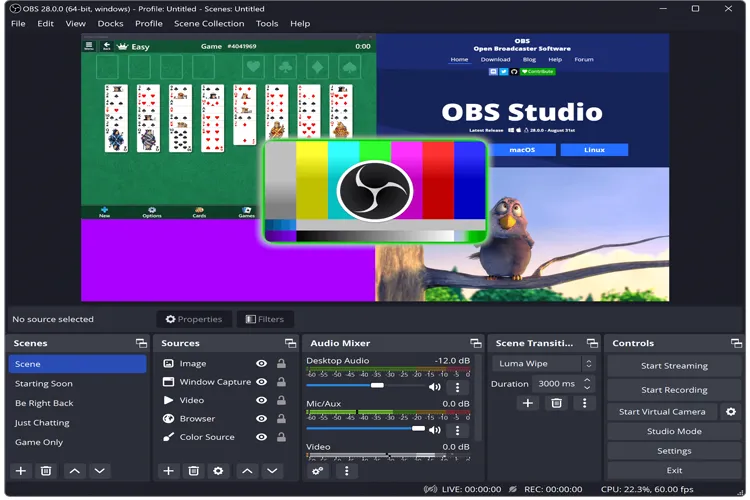
What Are the Limitations of OBS Studio?
OBS Studio is a powerful Steam game recorder, but it can be challenging for beginners due to its complex settings and learning curve. It requires manual configuration for sources, scenes, audio, and recording parameters. In addition, OBS does not include built-in video editing tools, and recording high-quality gameplay may consume significant system resources, which can affect performance on lower-end computers.
Part 4. How to Record Steam Games on PC/Mac via Screen Recorder
Best for: Windows and Mac users who need more recording flexibility than Steam Game Recording or Xbox Game Bar provides.
If you want a simpler recording experience while capturing higher-quality videos, you can use a professional game recording tool - Screen Recorder. It supports both Windows and Mac, allowing you to capture the full screen, selected areas, specific windows, webcam footage, system sound, and microphone audio. It also provides essential editing tools, making it easy to edit your videos after recording.
Key features of Screen Recorder:
- Record full screen, selected areas, or specific windows.
- Capture system sound and microphone audio.
- Support webcam overlays.
- Offer flexible recording settings.
- Provide real-time annotation tools.
- Support high-resolution recording.
- Include AI-powered noise cancellation, enhancement, and echo removal.
- Can also record phone screens through mirroring.
- Support scheduled recording for certain recording scenarios.
- Support Windows and Mac.
Download for Win Download for Mac
Here is how to record on Steam using Screen Recorder:
-
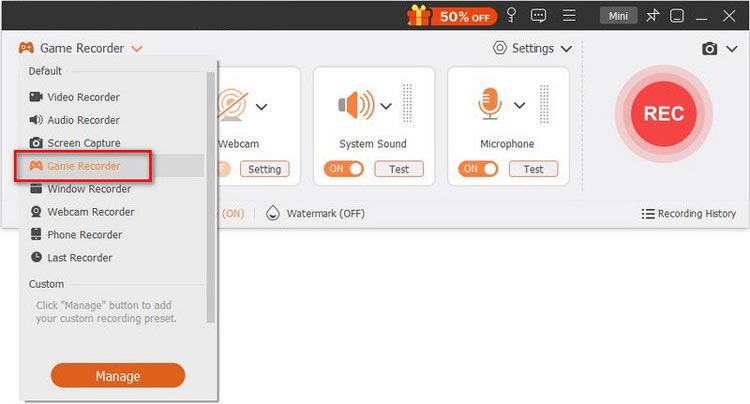
Download and install Screen Recorder on your computer. Open the floating toolbar and select "Game Recorder" to capture your Steam gameplay. Then open the Steam app and launch the game you want to record.
-
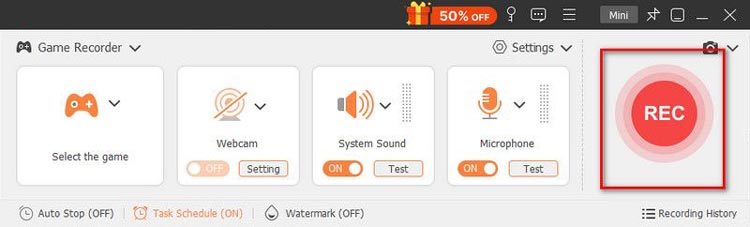
Click the drop-down menu in the "Game Recorder" mode and select the running Steam game. Adjust the recording settings as needed by enabling the webcam, system sound, and microphone options, then click "REC" to start recording.
-
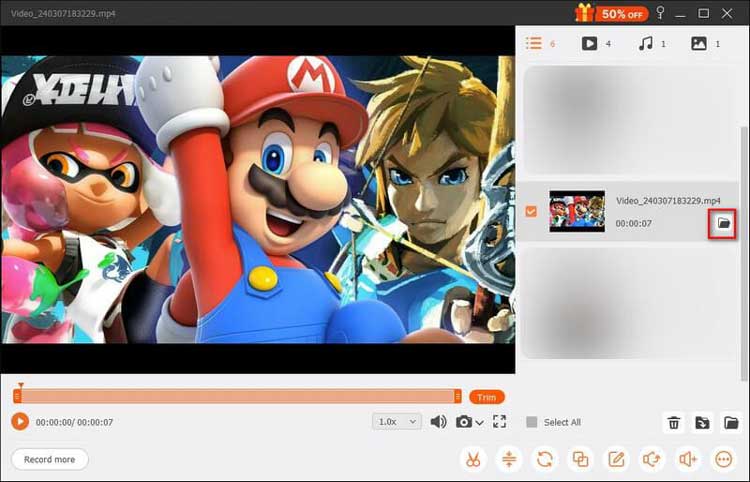
When you finish recording, click the "Stop" button and select "Done" to save the gameplay video. You can preview the recording and use the built-in editing tools to trim or enhance the video before sharing.
Things to Consider Before Using Screen Recorder
Screen Recorder is more flexible than basic built-in recording tools, but that doesn't mean it is automatically the best choice for everyone.
If you only need a short gameplay clip, installing dedicated software may be unnecessary. Some advanced features may also require a paid version, depending on the version and feature you use. For users who regularly create gameplay tutorials, walkthroughs, commentary videos, or other polished recordings, however, the additional controls can make it worth considering.
Part 5. FAQs on How to Record on Steam
Q1. Why can't I record on Steam?
If your Steam recording is not working, there are several possible reasons.
- First, check whether Game Recording is enabled in Steam's settings. You should also make sure that your Steam client is up to date.
- If recording still fails, check whether the problem occurs only with one particular game. Some games may behave differently because of their rendering technology, permissions, or other compatibility issues.
- You can also try restarting Steam and the game before testing again.
Q2. Where are Steam recordings saved on a PC?
By default, recorded Steam gameplay videos are saved in the "recordings" folder inside your Steam Library directory.
Q3. How to fix the Steam game recording no audio issue?
Go to "Steam" > "Settings" > "Game Recording" > "Audio Source" and make sure the correct audio input, such as "System" or "Microphone", is selected.
Q4. How to turn off Steam recording?
Go to "Steam" > "Settings" > "Game Recording", then select "Recording Off" to disable Steam Game Recording.
Q5. Does Steam recording affect performance?
Steam uses GPU encoding to minimize the impact on game performance, but lowering the recording resolution or bitrate can further reduce FPS drops and improve overall performance.
Q6. Can I record gameplay with friends in multiplayer games on Steam?
Yes, you can record multiplayer gameplay with friends on Steam. Steam Game Recording can capture the gameplay shown on your screen, including multiplayer sessions. However, make sure you respect your friends' privacy and obtain their consent when necessary before recording or sharing the footage.
Final Words
The best way to record on Steam depends on how much control you need.
- Steam Game Recording is the easiest option when you want to capture gameplay directly through Steam.
- Xbox Game Bar is a convenient free choice for Windows 10/11 users.
- OBS Studio is better suited to experienced creators who need detailed control over scenes, sources, audio, and encoding.
For users on either Windows or Mac who want a more flexible recording workflow, Screen Recorder is worth considering. It combines gameplay capture with system audio, microphone, webcam, annotations, and other recording controls, making it more suitable for tutorials, walkthroughs, commentary, and polished gameplay videos.
Download for Win Download for Mac
Related Articles
How to Record Google Meet Meetings: 3 Easy Methods for 2026
How to Record Screen on HP Laptop with Quick and Simple Steps
How to Record Screen on Windows with Audio (System and Microphone)
How to Record Live TV on Different Devices with Reliable Methods