


TL;DR:
Struggling with an OBS game capture black screen on Windows 10 or 11? Don't let a blank preview ruin your gameplay recordings or live streams! This guide covers 8 practical fixes to help you get OBS working again, from adjusting capture settings to improving compatibility and resetting game hook files. If OBS still gives you trouble, try Screen Recorder for a simpler way to record your gameplay, screen, and audio.
OBS Studio is great for recording gameplay and live streaming, but things can get frustrating when you hit Record or Go Live, and all you see is a black screen. Even worse, sometimes the game audio comes through just fine while the video stays completely blank!
If you're dealing with an OBS game capture black screen on Windows 10 or 11, you're not alone. This issue can be caused by anything from incorrect capture settings and GPU conflicts to overlay interference or permission problems.
The good news is that you don't have to give up on OBS just yet. In this guide, we'll walk you through 8 practical ways to fix the problem and get your gameplay back on screen. And if OBS still refuses to cooperate, we'll also introduce an easy-to-use alternative worth trying.
- Part 1. Why Is My OBS Game Capture Showing a Black Screen?
- Part 2. How to Fix OBS Game Capture Black Screen
- Fix 1. Use "Game Capture" Mode Properly
- Fix 2. Run OBS as an Administrator
- Fix 3. Enable Compatibility Mode
- Fix 4. Set OBS to Use the High-Performance GPU
- Fix 5. Close Conflicting Background Applications
- Fix 6. Disable Windows Game Mode
- Fix 7. Reset OBS Game Hook Files
- Fix 8. Try an OBS Alternative: Screen Recorder
Part 1. Why Is My OBS Game Capture Showing a Black Screen?
There are several possible reasons why OBS Game Capture displays a black screen instead of your gameplay. Identifying the cause can help you choose the right solution without wasting time changing unnecessary settings.
Here are some common reasons:
- Permission Mismatch: If the game runs as an administrator but OBS does not, OBS may fail to capture the gameplay.
- Incorrect GPU Selection: OBS and the game running on different GPUs may cause a black screen, especially on dual-GPU computers.
- Incorrect Capture Mode: The selected Game Capture mode may not be compatible with the game.
- Fullscreen Mode Conflicts: Exclusive fullscreen, borderless windowed mode, or certain graphics API settings may interfere with Game Capture.
- Anti-Cheat Restrictions: Some anti-cheat systems may block third-party software from hooking into or capturing gameplay.
- Software Conflicts: Discord Overlay, NVIDIA Overlay, Xbox Game Bar, or other recording tools may interfere with OBS.
- OBS or GPU Driver Issues: Outdated OBS versions, faulty graphics drivers, or incompatible settings may also cause a black screen.
Part 2. How to Fix OBS Game Capture Black Screen
If you are wondering how to fix OBS game capture black screen problems, try the following eight solutions.
Fix 1. Use "Game Capture" Mode Properly
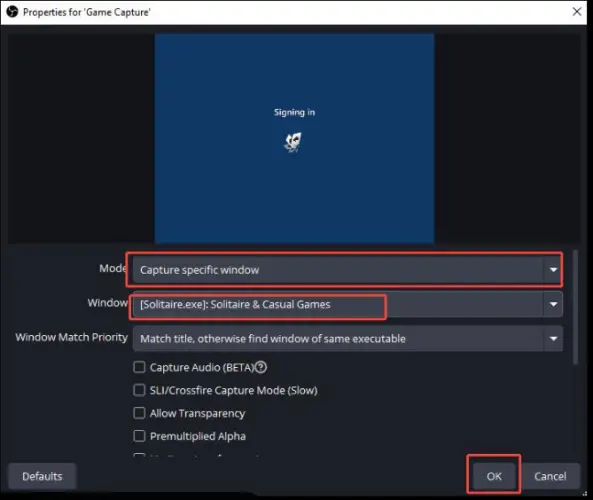
Always use the Game Capture source in OBS instead of Window Capture or Display Capture when recording gameplay. It's also better to capture a specific game window rather than relying on fullscreen capture, as some games may not work properly in fullscreen mode.
To do this, follow the steps below:
Step 1. In OBS, click the "+" button in the "Sources" dock and select "Game Capture".
Step 2. Set Mode to "Capture specific window", then select your game.
Step 3. Right-click the "Game Capture source" and select "Transform" > "Reset Transform".
Step 4. Right-click it again and choose "Transform" > "Center to Screen".
Fix 2. Run OBS as an Administrator
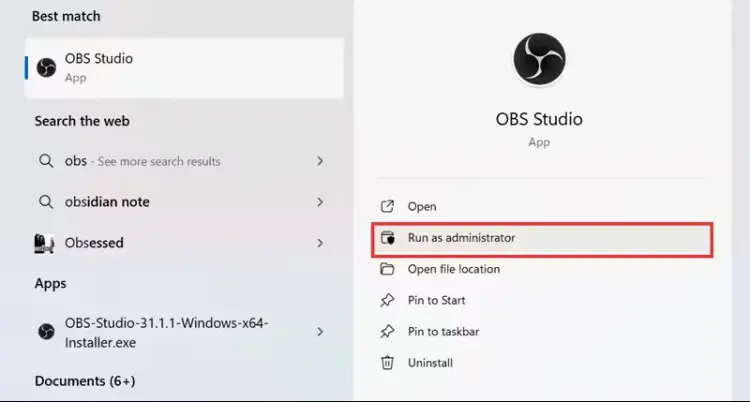
Some games require administrator privileges to run properly. If OBS does not have sufficient permissions, it may fail to capture the game window, resulting in an OBS game capture black screen, but audio still works. Running OBS as an administrator can help resolve permission-related conflicts.
To do it, right-click the OBS Studio shortcut on your desktop and select "Run as administrator". Alternatively, open the Windows Start menu, search for OBS Studio, and select "Run as administrator".
If this method works, you can also configure OBS to always run as an administrator:
Step 1. Right-click the OBS shortcut and select "Properties".
Step 2. Open the "Compatibility" tab.
Step 3. Check the box next to "Run this program as an administrator".
Step 4. Click "Apply", then "OK".
Fix 3. Enable Compatibility Mode
If you are using an older version of OBS Studio or experiencing compatibility problems on Windows 11, enabling compatibility settings may be worth trying. Although OBS generally supports modern Windows versions, certain system configurations or older software components can cause unexpected capture problems.
Follow these steps:
Step 1. Close OBS Studio.
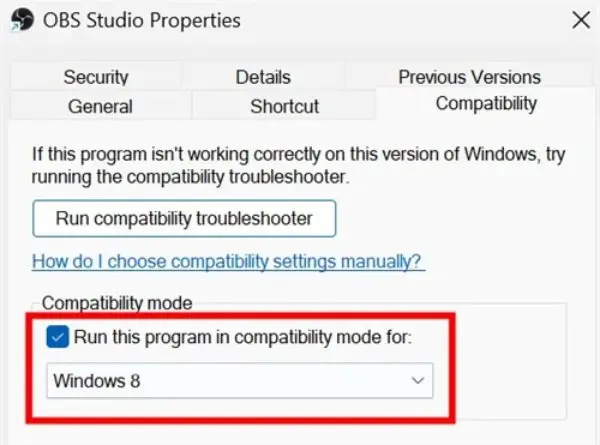
Step 2. Right-click the OBS shortcut and select "Properties".
Step 3. Navigate to the "Compatibility" tab.
Step 4. Check "Run this program in compatibility mode for".
Step 5. Select an appropriate Windows version from the drop-down menu, such as Windows 8.
Step 6. Click "Apply" and "OK".
Step 7. Reopen OBS and test Game Capture.
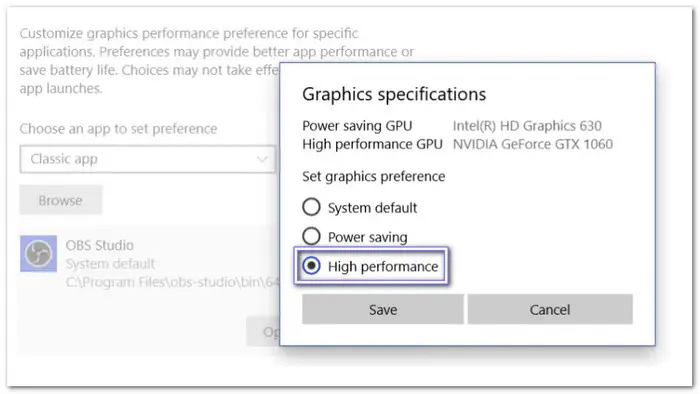
Fix 4. Set OBS to Use the High-Performance GPU
If your laptop or computer has both integrated and dedicated graphics, configure OBS to use the high-performance GPU. This helps ensure that OBS and your game run on the same graphics processor, reducing potential GPU conflicts.
Here are the steps:
Step 1. Open "Settings" > "System" > "Display" on your computer.
Step 2. Scroll down and select "Graphics" (or Advanced Graphics Settings).
Step 3. Find OBS Studio in the app list. If it isn't listed, browse to add it manually.
Step 4. Click "Options" and select "High Performance".
Step 5. Click "Save" and restart OBS.
Fix 5. Close Conflicting Background Applications
Other applications running in the background may interfere with OBS, especially if they are also trying to record, capture, or stream your screen. Closing these programs can help resolve the OBS Game Capture black screen issue on Windows 10/11.
To close potentially conflicting applications:
Step 1. Press "Ctrl" + "Shift" + "Esc" to open Task Manager.
Step 2. Check the list of running applications and background processes.
Step 3. Look for other screen recorders, streaming tools, or video capture programs.
Step 4. Right-click the application you want to close and select "End Task".
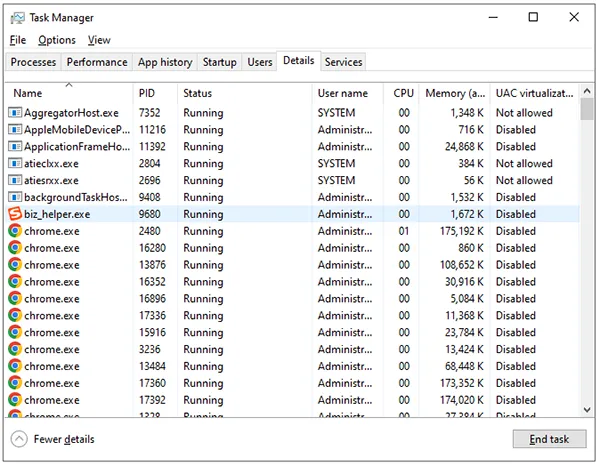
After closing these applications, restart OBS and check whether Game Capture works properly.
Fix 6. Disable Windows Game Mode
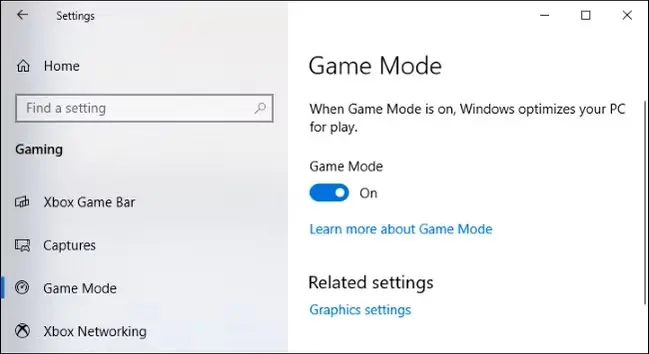
Windows Game Mode is designed to improve gaming performance, but it may occasionally interfere with OBS Game Capture. Try turning it off to see if this resolves the OBS Game Capture black screen issue.
Step 1. Open "Settings" > "Gaming" on your computer.
Step 2. Select "Game Mode".
Step 3. Toggle the switch off.
Step 4. Restart OBS and test Game Capture again.
Fix 7. Reset OBS Game Hook Files
If Display Capture and Window Capture work normally but Game Capture only shows a black screen, the problem may be related to OBS's game hook files. In an OBS forum discussion, a user reported that clearing the hook cache helped resolve the issue when other troubleshooting methods failed.
Try resetting the game hook files:
Step 1. Close OBS Studio completely.
Step 2. Navigate to "C:\ProgramData\obs-studio-hook". You may need to enable "Show hidden files" in File Explorer to access this folder.
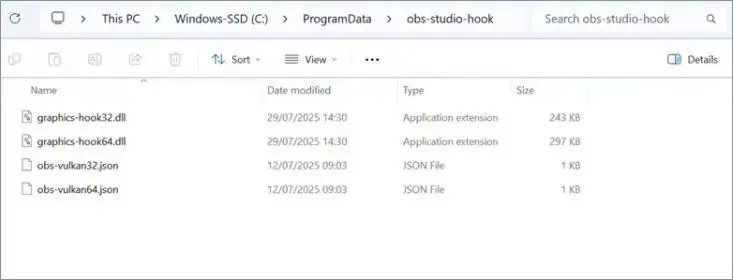
Step 3. Delete the files inside the folder.
Step 4. Reopen OBS and add a new Game Capture source.
Step 5. Check whether the game is captured correctly.
Fix 8. Try an OBS Alternative: Screen Recorder
If you have tried the previous solutions but still encounter an OBS Studio game capture black screen, you may want to consider another screen recording application.
One alternative worth trying is Screen Recorder. It is a desktop recording program for Windows and macOS that offers dedicated recording modes for different types of content, including gameplay, screen activity, audio, and webcam footage.
Unlike OBS, which provides extensive streaming and scene customization features, Screen Recorder focuses more on making screen and game recording straightforward.
Key Features:
- Game Recorder: Provides a dedicated mode for recording gameplay on your computer.
- Screen Recorder: Allows you to capture the full screen or a selected recording area.
- Audio Recorder: Records system sound and microphone input.
- Webcam Recorder: Captures webcam footage for tutorials, commentary, and reaction videos.
- Video Quality Settings: Supports different output formats, resolutions, and frame rate options depending on the recording mode and hardware.
- Annotation Tools: Lets you add text, drawings, arrows, and other annotations during screen recording.
- Scheduled Recording: Allows you to set recording start and stop times.
Download for Win Download for Mac
How to Record Gameplay with Screen Recorder:
-
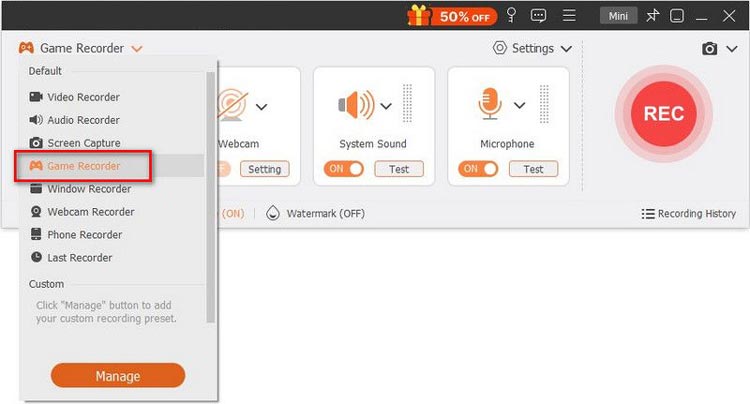
Download and install Screen Recorder, then launch the program and select "Game Recorder".
-
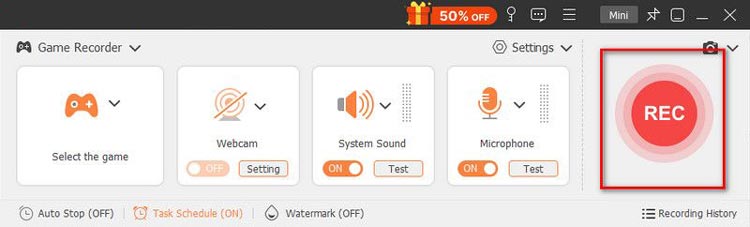
Choose the game window, adjust your audio and video settings, and click "REC" to start recording.
-
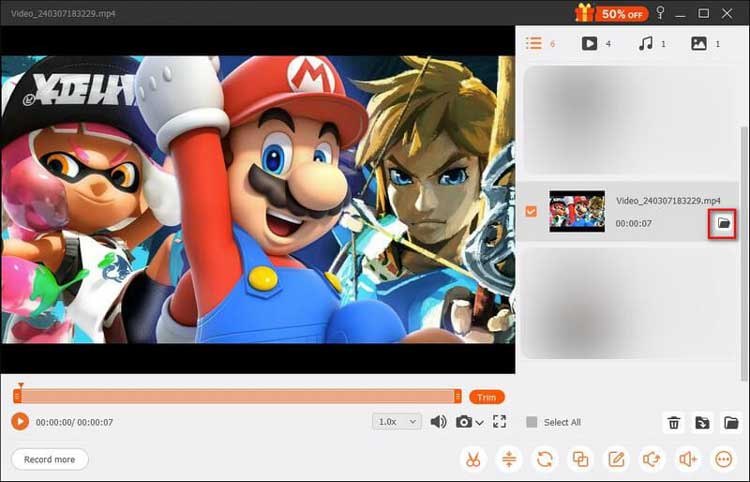
When finished, stop the recording, preview the video, and save it to your computer.
- Offer dedicated recording modes for different recording needs.
- Have a relatively straightforward interface for beginners.
- Support gameplay, screen, webcam, and audio recording.
- Provide useful annotation and scheduling features.
- Available for both Windows and macOS.
- Some advanced features require a paid license.
- The free trial has recording limitations.
- Does not offer the same advanced scene management and live streaming workflow as OBS.
- Recording performance depends on your computer hardware and game settings.
- It may not capture every game successfully, particularly when anti-cheat systems or DRM restrictions are involved.
Last Words
Dealing with an OBS game capture black screen can be frustrating, especially when you just want to record or stream your favorite games without interruptions. Hopefully, the fixes in this guide have helped you get OBS back to normal and capture your gameplay smoothly. If you're still not happy with the recording experience or simply want an easier way to record games, Screen Recorder is worth a try. With its dedicated Game Recorder and other handy recording features, it offers a convenient alternative for capturing gameplay, screen activity, and audio.
Download for Win Download for Mac
Related Articles
How to Screen Record on a Dell Laptop with/without Game Bar?
Record on Steam: 4 Easy Ways to Capture Gameplay in 2026
Game Recording Software: Select the Best One to Record Gameplay