

TL;DR:
If your iPhone screen looks yellow, try these solutions to restore its normal display color:
- Turn off Night Shift and True Tone to check whether display settings are causing the yellow tint.
- Disable Color Filters and adjust accessibility display settings.
- Restart your iPhone, update iOS, or reset all settings to troubleshoot potential software glitches.
- Use Fixppo or restore your iPhone with iTunes or Finder if the problem is related to iOS system issues.
- Contact Apple Support if the yellow screen persists or appears to be caused by physical display damage.
An iPhone yellow screen can make everything look warmer than usual, with white backgrounds appearing cream-colored or even orange. Sometimes, the entire display changes color, while in other cases, only certain areas of the screen look yellow. This issue can affect your viewing experience, especially when browsing websites, watching videos, or editing photos.
Fortunately, a yellowish iPhone screen does not always indicate hardware damage. Display settings, accessibility configurations, temporary iOS glitches, and outdated system software can all contribute to unusual screen colors. In this guide, we will explore 10 practical ways to fix an iPhone yellow screen, helping you identify the possible cause and choose an appropriate solution.
- Part 1. Why Is My iPhone Screen Yellow?
- Part 2. How Can I Fix a Yellowish Screen on My iPhone?
- Method 1. Turn Off Night Shift
- Method 2. Disable True Tone
- Method 3. Turn Off Color Filters
- Method 4. Adjust Display Accessibility Settings
- Method 5. Restart iPhone
- Method 6. Update iOS
- Method 7. Reset All Settings
- Method 8. Fix iOS System Issues with Fixppo
- Method 9. Restore iPhone with iTunes or Finder
- Method 10. Contact Apple Support
Part 1. Why Is My iPhone Screen Yellow?
An iPhone screen may turn yellow for several reasons, ranging from temporary software issues to physical display problems. Sometimes, the color change is barely noticeable, while in other cases, the entire screen or certain areas may develop a distinct yellow tint. Common causes include:
- Changes in Display Color Temperature: Environmental lighting and display color adjustments can make your iPhone screen appear warmer or more yellow than usual.
- iOS Software Glitches: System bugs or corrupted software components may interfere with normal display behavior, resulting in unexpected color changes.
- Display Aging: Over time, screen components may deteriorate, potentially causing uneven colors or a persistent yellow tint.
- Physical or Liquid Damage: Accidental drops, pressure, or liquid exposure may damage internal display components and cause yellow discoloration.
- Poor-Quality Replacement Screens: If your iPhone has undergone screen replacement, an incompatible or low-quality display may produce inaccurate colors.
Part 2. How Can I Fix a Yellowish Screen on My iPhone?
If your iPhone screen suddenly turns yellow, try the following methods one by one. Start with simple display adjustments and move on to system repair or professional assistance if necessary.
Method 1. Turn Off Night Shift
Night Shift is a built-in iPhone feature that reduces blue light by shifting display colors toward the warmer end of the spectrum. When enabled, it can make your screen look yellow or orange, particularly in the evening. Turning it off may immediately restore the display's normal color if Night Shift is responsible for the yellow tint.
Step 1. Open the "Settings" app on your iPhone.
Step 2. Tap "Display & Brightness".
Step 3. Select "Night Shift".
Step 4. Turn off "Scheduled" if it is enabled.
Step 5. Also disable "Manually Enable Until Tomorrow" if the feature is currently active.
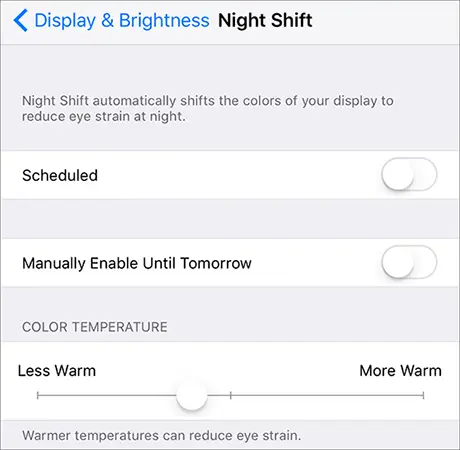
You can also open Control Center, touch and hold the brightness slider, and tap the "Night Shift" button to turn it off. After disabling this feature, check whether the screen color looks normal again.
Method 2. Disable True Tone
True Tone uses the iPhone's ambient light sensors to automatically adjust the display's color and intensity according to surrounding lighting conditions. Although this feature helps make the screen look more natural, it can sometimes produce a warmer appearance. If your iPhone screen looks yellow even during the daytime, try disabling True Tone.
Step 1. Open "Settings" on your iPhone.
Step 2. Go to "Display & Brightness".
Step 3. Find the "True Tone" option.
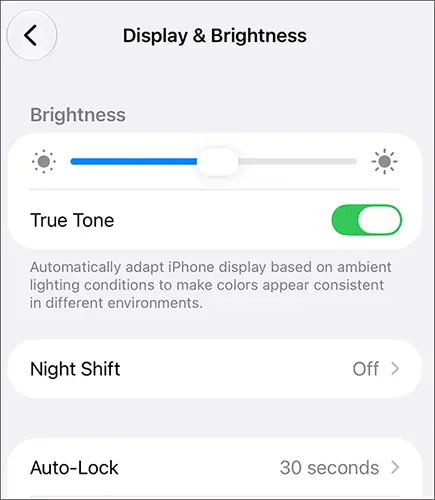
Step 4. Toggle it off.
Step 5. Check whether the screen's white areas look less yellow.
You can also access True Tone through Control Center by touching and holding the brightness slider.
Method 3. Turn Off Color Filters
Color Filters is an accessibility feature that changes how colors appear on your iPhone screen. It offers different filters for people with color vision deficiencies and also allows custom color tint adjustments. If a filter has been enabled accidentally, it may make the entire display look yellow or otherwise unusual. Turning it off is worth trying.
Step 1. Open "Settings" on your iPhone.
Step 2. Tap "Accessibility".
Step 3. Select "Display & Text Size".
Step 4. Tap "Color Filters".
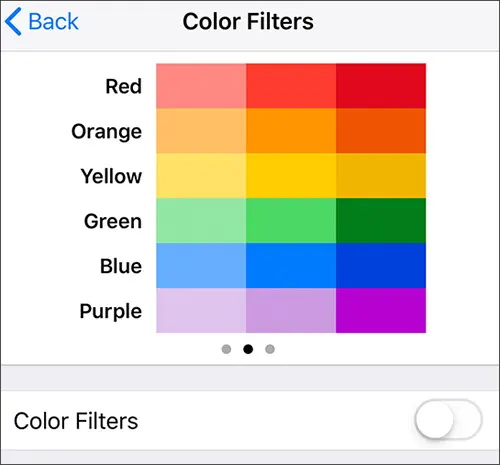
Step 5. Turn off the Color Filters switch.
Once disabled, return to your Home Screen and check whether the display colors have returned to normal.
Method 4. Adjust Display Accessibility Settings
Besides Color Filters, other accessibility display settings can affect the appearance of your iPhone screen. For example, Color Tint can apply a customized color across the display, while Smart Invert and Classic Invert change how colors are displayed. If your screen still looks yellow after disabling Color Filters, review these settings.
Step 1. Open "Settings" and select "Accessibility".
Step 2. Tap "Display & Text Size".
Step 3. Check whether "Smart Invert" or "Classic Invert" is enabled, and turn off any unwanted setting.
Step 4. If Color Filters is enabled, check whether a custom Color Tint has been selected.
Step 5. Review "Reduce White Point" and disable it temporarily if the display looks unusually dim or dull.
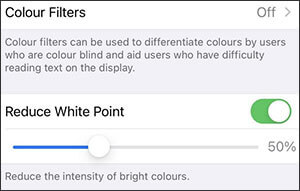
Step 6. Return to the Home Screen and see whether the colors have improved.
Reduce White Point primarily lowers the intensity of bright colors rather than directly correcting yellow discoloration. If the yellow tint remains, proceed to the next method.
Method 5. Restart iPhone
A temporary iOS glitch may sometimes cause your iPhone screen to display unusual colors, including a yellow tint. Restarting your device can refresh its system processes and resolve minor software issues. If your iPhone is unresponsive or cannot restart normally, you can try a force restart instead.
Option 1. Restart Your iPhone
Step 1. Open "Settings" on your device.
Step 2. Tap "General".
Step 3. Scroll down and select "Shut Down".
Step 4. Drag the power-off slider to turn off your iPhone.
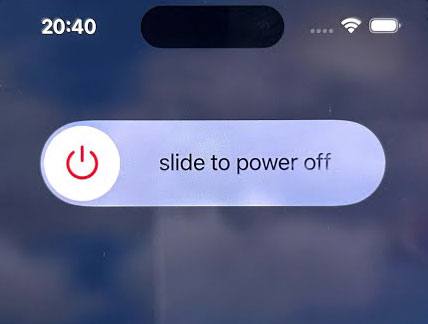
Step 5. Wait for approximately 30 seconds.
Step 6. Press and hold the "Side" button until the Apple logo appears.
Option 2. Force Restart Your iPhone
The force restart procedure varies depending on your iPhone model.
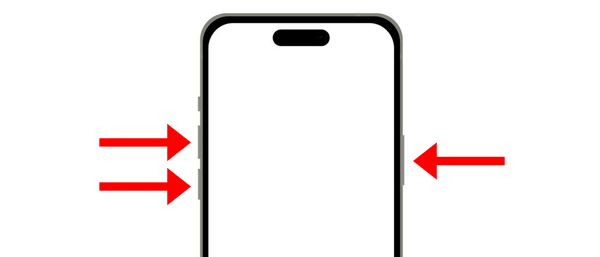
iPhone 8 and later (including iPhone SE 2nd generation and later):
Step 1. Quickly press and release the "Volume Up" button.
Step 2. Quickly press and release the "Volume Down" button.
Step 3. Press and hold the "Side" button until the Apple logo appears.
iPhone 7 and iPhone 7 Plus:
Step 1. Press and hold the "Volume Down" button and the "Sleep/Wake" button simultaneously.
Step 2. Keep holding both buttons until the Apple logo appears.
iPhone 6s and earlier (including iPhone SE 1st generation):
Step 1. Press and hold the "Home" button and the "Sleep/Wake" button simultaneously.
Step 2. Release both buttons when the Apple logo appears.
Method 6. Update iOS
Running an outdated iOS version may expose your iPhone to software bugs that affect its normal operation, including display behavior. If the yellow screen appeared after a system update or started without an obvious reason, checking for another available update may help. Apple regularly releases iOS updates to address bugs and improve system performance.
Step 1. Open "Settings" on your iPhone.
Step 2. Go to "General".
Step 3. Tap "Software Update".
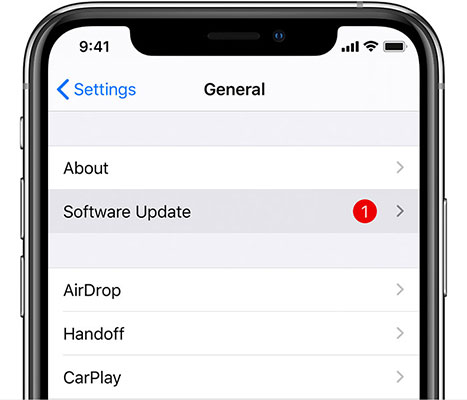
Step 4. Wait while your iPhone checks for available updates.
Step 5. If an update is available, tap "Download and Install".
Step 6. Follow the on-screen instructions to complete the installation.
Before updating, back up your important iPhone data and make sure your device has sufficient battery power and a stable internet connection.
Method 7. Reset All Settings
Incorrect system configurations may sometimes interfere with normal iPhone behavior. If you have already checked the display settings and updated iOS without success, resetting all settings is another option.
This operation restores your iPhone's system settings to their defaults without intentionally deleting personal data, such as photos, videos, contacts, and installed apps.
Step 1. Open "Settings" on your iPhone.
Step 2. Select "General".
Step 3. Scroll down and tap "Transfer or Reset iPhone".
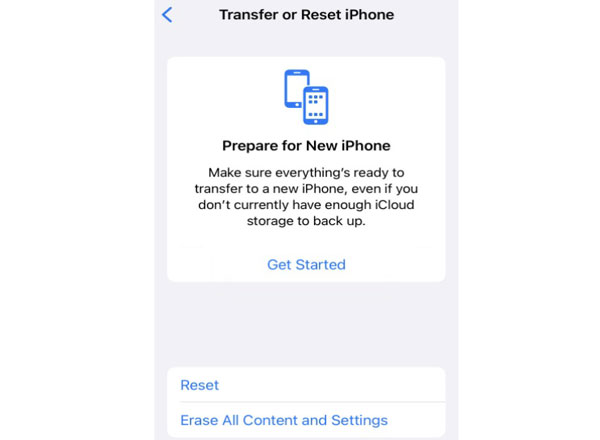
Step 4. Select "Reset".
Step 5. Choose "Reset All Settings".
Step 6. Enter your passcode if requested and confirm your choice. Wait for your iPhone to restart.
Once the process is complete, review the display settings again and see whether the yellow screen has been fixed.
Keep in mind that this operation resets saved Wi-Fi passwords, network configurations, privacy settings, and other customized preferences. You may need to configure them again.
Method 8. Fix iOS System Issues with Fixppo
If your iPhone screen remains yellow after trying the previous methods, an underlying iOS system issue may be responsible. In this situation, you can try Fixppo, an iOS system repair tool designed to address various iPhone software problems.
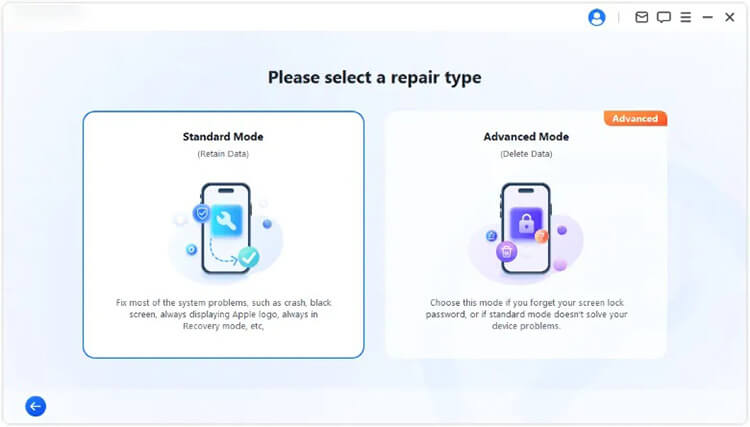
Its Apple System Repair feature offers Standard Mode and Advanced Mode. For troubleshooting a yellow screen that may be related to an iOS glitch, Standard Mode is the recommended option to try first. It is designed to repair common iOS problems while preserving existing device data.
Key Features of Fixppo:
- Repairs various common iOS system problems, like yellow screen, stuck on Apple logo, boot loop, black screen.
- Provides Standard Mode and Advanced Mode for different repair needs.
- Supports firmware downloads for compatible iOS devices.
- Includes additional features for iOS upgrading, downgrading, and Recovery Mode management.
Steps to fix iPhone yellow screen with Fixppo:
-
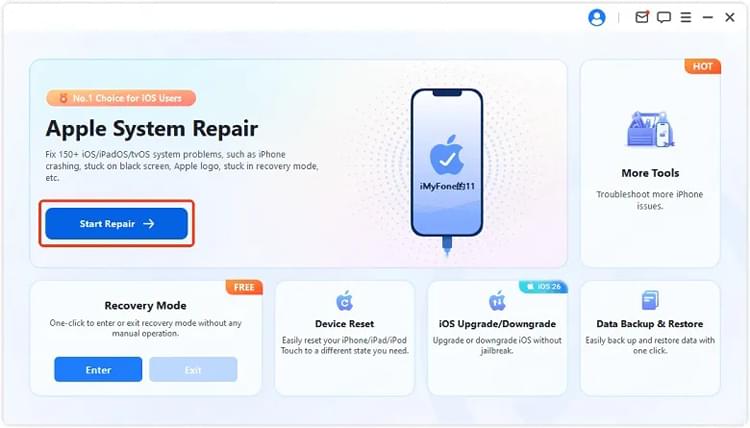
Download and install Fixppo on your Windows PC or Mac. Launch the program and select "Apple System Repair". Then, connect your iPhone to the computer using a USB cable.
-
Choose "Standard Mode" from the available repair options.
-
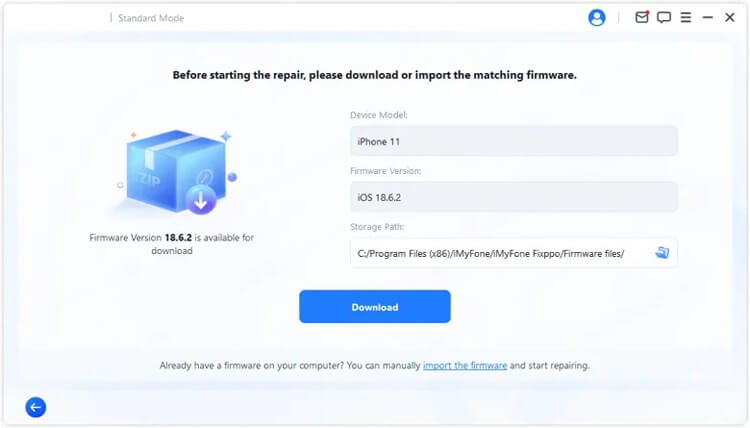
Check your iPhone's device information as prompted. Then, download the matching firmware package and let Fixppo verify the downloaded files.
-
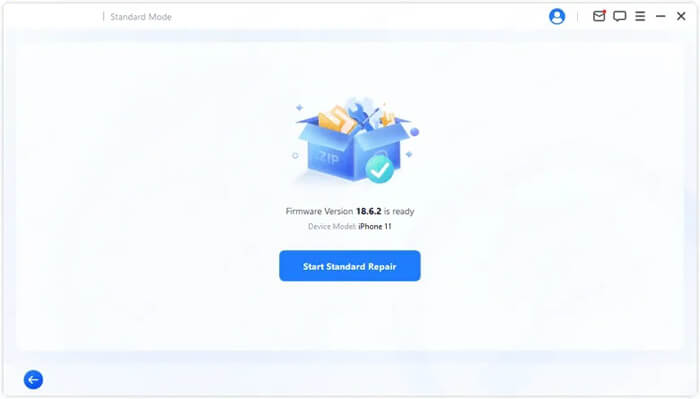
After the firmware is ready, click "Start Standard Repair" to begin repairing your iPhone. Keep your device connected until the repair process is complete.
Method 9. Restore iPhone with iTunes or Finder
If your iPhone screen is still yellow after trying the previous methods, reinstalling iOS through Recovery Mode may help resolve underlying system problems. You can perform this process using Finder, Apple Devices, or iTunes on a compatible computer. It is best to try the Update option first because it reinstalls iOS without intentionally deleting your personal data. If that doesn't work, you can use Restore as a more thorough solution.
Steps to update or restore your iPhone with iTunes or Finder:
Step 1. Connect Your iPhone to Your Computer.
Use a USB cable to connect your iPhone to a Mac or Windows PC. Launch Finder on macOS or the Apple Devices app on Windows. If your computer uses a supported version of iTunes, you can open that instead.
Step 2. Put Your iPhone into Recovery Mode.
The button combination depends on your iPhone model. Follow the corresponding instructions below:
- iPhone 8 and Later: Press and quickly release the "Volume Up" button, followed by the "Volume Down" button. Then, keep holding the "Side" button until the Recovery Mode screen appears.
- iPhone 7 and 7 Plus: Hold down the "Volume Down" and "Side" buttons together until the Recovery Mode screen appears.
- iPhone 6s and Earlier: Press and hold the "Home" button together with the "Side" or "Top" button until the Recovery Mode screen appears.
Step 3. Reinstall iOS Using the Update Option.
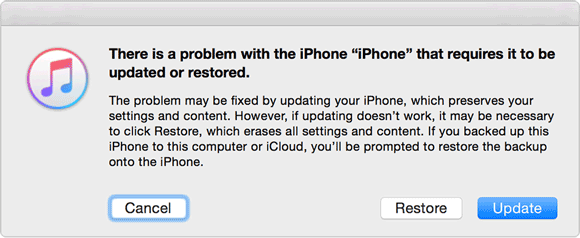
When Finder, Apple Devices, or iTunes recognizes your iPhone in Recovery Mode, it will display a prompt with two choices: Update and Restore. Select "Update" to reinstall iOS while attempting to keep your personal data intact. Leave your iPhone connected to the computer until the installation is finished.
Step 4. Choose Restore If the Update Doesn't Work.
If reinstalling iOS through Update does not fix the yellow screen, return to Recovery Mode and select "Restore". Your computer will download and install the latest compatible iOS version, then reset your iPhone to its factory state. Since this process deletes all existing data, make sure you have a backup before continuing.
Once the restoration is complete, set up your iPhone and check whether its display colors have returned to normal.
Method 10. Contact Apple Support
If none of the above methods work, the yellow screen may be caused by a hardware problem rather than an iOS software issue. For example, a damaged display, aging screen components, or an improperly installed replacement screen may cause persistent discoloration.
In this case, contacting Apple Support is a sensible next step.
How to get help from Apple Support:
Step 1. Visit the Apple Support website.
Step 2. Select iPhone from the available product categories.
Step 3. Choose the relevant support topic or describe your display problem.
Step 4. Follow the available troubleshooting recommendations.
Step 5. If necessary, arrange an appointment at an Apple Store or Apple Authorized Service Provider. Have your iPhone examined to determine whether the display needs repair or replacement.

Before visiting a repair center, back up your important data and explain when the yellow discoloration started, whether your iPhone has been dropped or exposed to liquid, and which troubleshooting methods you have already tried. If the display is physically damaged, professional inspection and repair may be necessary to restore normal screen colors.
Conclusion
In this article, we have explored the common causes of the iPhone yellow screen and walked you through 10 possible ways to address this issue. Whether the discoloration is related to display settings, iOS glitches, or hardware problems, understanding its underlying cause can help you choose the right solution. If you suspect an iOS system issue is responsible, you can also try Fixppo to repair potential software problems with its Standard Mode. Hopefully, this article has helped you restore your iPhone display and get back to enjoying a normal viewing experience.
Related Articles
How to Fix iPhone Frozen on Lock Screen [Step-by-Step Guide]
7 Best Solutions to Fix Pink Line on iPhone Screen [Solved]
iPhone Keeps Restarting? Causes and Troubleshooting Steps
[iOS 27] iPhone Overheating After Update: 9 Quick Ways to Fix It