


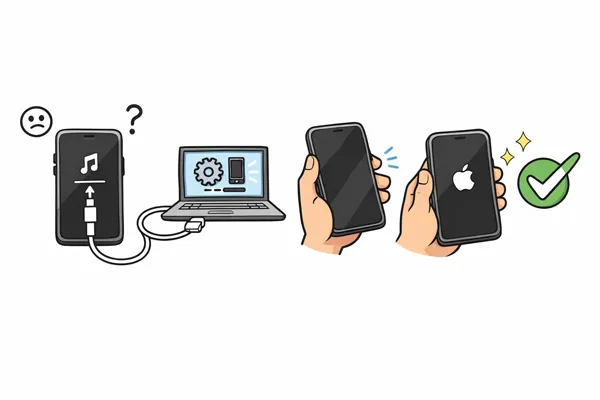
When an iPhone is stuck in Recovery Mode, how can you exit it? This question has been asked many times, but many people have yet to find an effective solution. Whether it happened during a routine software update, a restore process, or a sudden system crash, being unable to access your home screen feels like your device is sidelined.
Luckily, we can now step by step to exit Recovery Mode on an iPhone. Even if you cannot do it with iTunes or Finder, you still have other effective methods. Let's check it out.
Part 1: Why Is My iPhone Not Getting Out of Recovery Mode?
Before jumping into the fixes, it helps to understand why your iPhone is "hanging" in this state. Recovery Mode is a failsafe designed to allow the device to communicate with a computer when the internal iOS software is corrupted or non-functional. Common reasons include:
- Interrupted Software Update: If your phone loses power or internet connection while installing an update, the system files may be left in an incomplete state.
- Jailbreaking Issues: Attempts to modify the iOS software can lead to system instability.
- Hardware Malfunction: Faulty charging ports, damaged logic boards, or failing batteries can prevent the boot process from completing.
- Corrupted Backup Restore: If you tried to restore an old backup and the data was compromised, the phone may default back to Recovery Mode.
Part 2: How to Exit Recovery Mode on iPhone
If your iPhone is stuck in Recovery Mode, work through these solutions starting from the simplest to the most advanced.
2.1 Force Restart iPhone
A force restart (or hard reset) can often break the loop by cutting the power to the processor and forcing a fresh boot. If your iPhone 17/16/15/14/14/13/12/11/X/8/7/6, etc., gets stuck in Recovery Mode, force restart your device.
On iPhone 8 and later: Press and quickly release the "Volume Up" button, then the "Volume Down" button. Press and hold the "Side" button until the Apple logo appears.
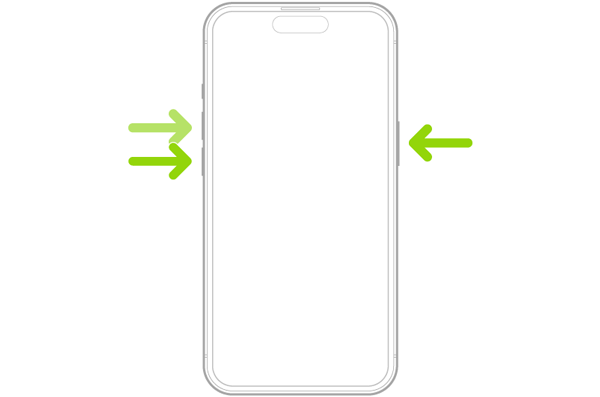
On iPhone 7/7 Plus: Press and hold both the "Volume Down" and "Sleep/Wake" buttons simultaneously until you see the logo.
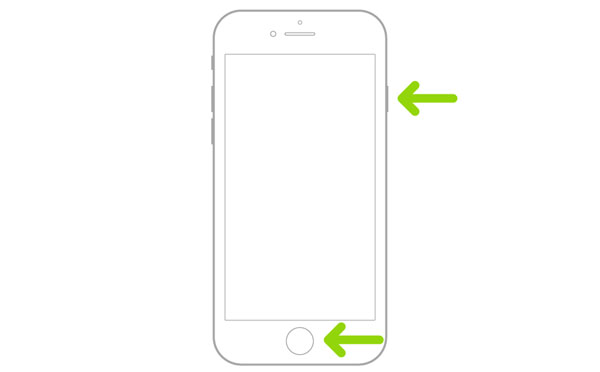
On iPhone 6s and earlier: Hold the "Home" and "Top" or "Side" buttons until the logo appears.
2.2 Use Another USB Cable
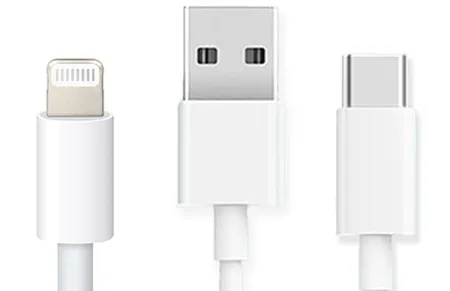
Sometimes, the problem could be due to a faulty USB cable or connection. If the iPhone's recovery mode isn't responding to the initial attempts, try switching to a different USB cable. A damaged cable or unreliable connection to your computer can cause the phone to stay stuck in recovery mode.
Ensure that you're using an Apple-certified USB cable, and check both ends for any visible damage.
2.3 Update or Restore iPhone with iTunes or Finder
If a force restart doesn't work, you may need to update or restore your iPhone via iTunes (on Windows or older macOS) or Finder (on macOS Catalina or later).
Restore your iPhone with iTunes or Finder to solve the stuck problem:
-
Use a USB cable to connect your iPhone to a Mac or Windows computer. If you're using macOS Catalina or later, open Finder. For earlier versions or Windows, open iTunes.
-
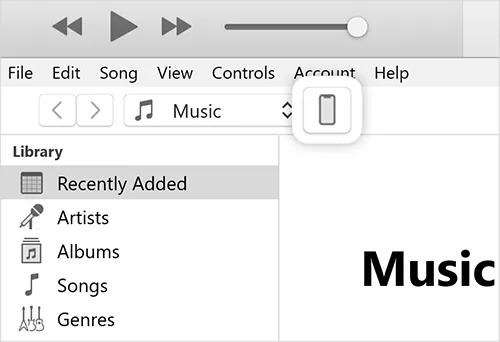
In Finder, click on your iPhone under Locations. In iTunes, click on the iPhone icon.
-
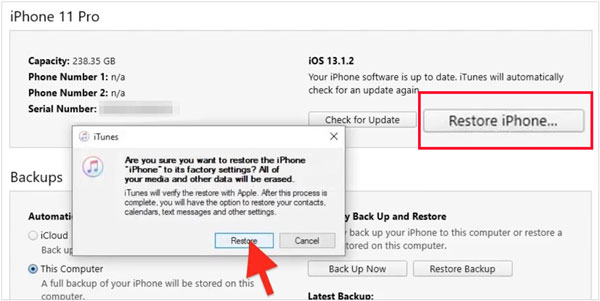
Then you can update your iPhone to the latest iOS version without erasing data. If the update fails, "Restore iPhone" will wipe the device and install a clean version of iOS. Use this as a last resort if you have a backup.
2.4 Fix iPhone via iOS System Recovery
If the standard Apple methods fail, you can use iOS System Recovery, a dedicated program that easily repairs various system issues. It is designed to "kick" the iPhone out of Recovery Mode or repair the firmware problem without hassle. It essentially automates the process of downloading the correct IPSW file and applying it to the device.
Main features of iOS System Recovery:
* Fix not only getting stuck in Recovery Mode but also iPhone disabled, iOS installation issue, loop restarts, battery drain, or "No Service" errors, etc.
* The standard mode can repair iOS devices without data loss.
* The advanced mode provides a deeper repair for more stubborn issues.
* Allow you to select a specific iOS version for update with simple clicks.
* Support upgrade and downgrade an iOS version.
* Compatible with all iOS devices, ranging from older models like iPhone 4S to the latest iPhone 16 and 17 series, as well as all iPad Pro, Air, and mini models.
* Support versions from iOS 5 up to the most recent releases.
Download iOS System Recovery.
Download for Win Download for Mac
Here's how to fix an iPhone stuck in Recovery Mode without restoring:
-
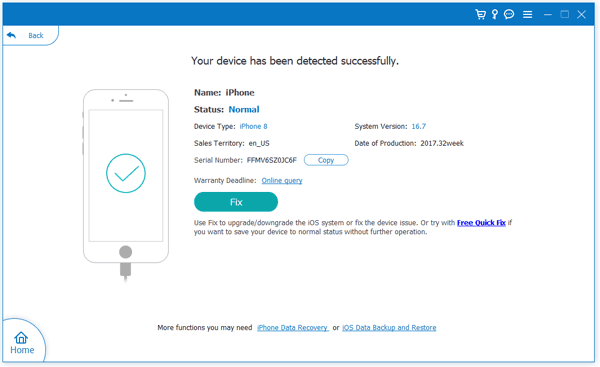
Launch the software on your PC or Mac and select "iOS System Recovery" from the main interface. Then connect your iPhone to the computer using a USB cable. The software should automatically detect your device.
-
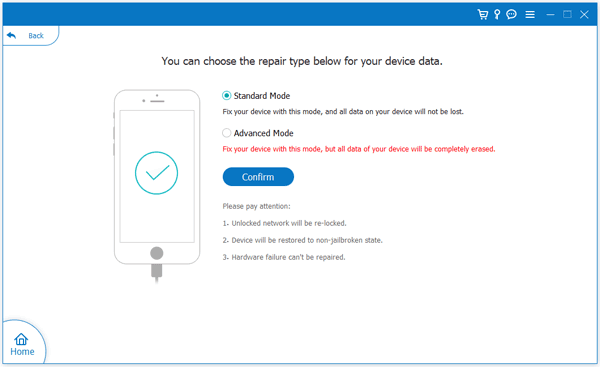
Once the device is detected, click the "Start" button. You will be presented with two repair options: Standard Mode and Advanced Mode. If you don't want to lose your data, you can choose the "Standard Mode" option, and click "Confirm".
-
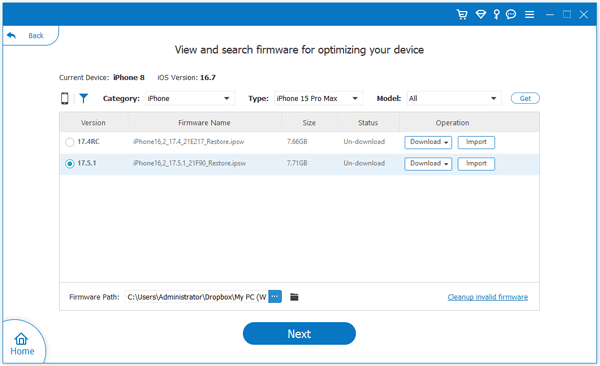
The software will display the category, type, and model of your iPhone. Ensure these details are correct so the tool can match the appropriate firmware. If you wish to update or stay on a specific iOS version, you can select it from the drop-down menu here.
-
Click "Download" to download the necessary firmware package to repair the iOS system, and click "Next". Now, click "Fix" to start repairing your iPhone. Once the process is complete, your iPhone will automatically reboot and exit Recovery Mode.
Tips: Regular backup for your iPhone is important to protect your useful data.
2.5 Go to Apple Authorized Service Provider
If none of the above methods work, your iPhone may have a more severe hardware or software issue. At this point, visiting an Apple Authorized Service Provider or Apple Store is the best option. A technician can diagnose and fix the problem professionally.

Part 3: Q&A About iPhone Stuck in Recovery Mode
Q1: How to avoid getting my iPhone stuck in Recovery Mode again?
Keep your iPhone updated to the latest stable iOS version, ensure you have at least 10% free storage space for updates to "breathe", and always use official Apple charging accessories.
Q2: Is Recovery Mode the same as factory reset on iPhone?
No. Recovery Mode is a state that allows for repairs. A factory reset is the action of wiping all data. You can be in Recovery Mode and perform an "Update" which keeps your data, or a "Restore" which performs a factory reset.
Q3: How to hard reset iPhone in Recovery Mode?
To perform a hard reset in recovery mode, simply follow the steps for a force restart as described in Section 2.1. This will reboot your iPhone and can help it exit recovery mode without erasing any data. If the force restart doesn't work, you might need to proceed with restoring the device via iTunes or Finder.
Conclusion
While seeing the Recovery Mode screen can be alarming, it is usually a software hurdle that can be cleared with a Force Restart or a quick update via a computer. If they are invalid, you can use iOS System Recovery to fix your iPhone without effort.
By following the steps above, you can safely navigate the troubleshooting process and regain access to your device. If the problem persists despite a full restore, don't hesitate to seek professional hardware support.
Download for Win Download for Mac
Related Articles
How to Fix Move to iOS Not Working: 9 Effective Solutions
Aiseesoft FoneLab iOS System Recovery Review: In-Depth Assessment
iPhone Won't Send Pictures to Android: Solve It with Ease
iTunes Could Not Back Up iPhone Because an Error Occurred: Fix It in 10 Ways

