


Backing up your iPhone is one of those tasks that is easy to ignore until you actually need it. Whether you are upgrading to a new device, preparing for a software update, or simply want peace of mind, having a local copy of your data on a laptop is a smart move.
While iCloud is convenient, a physical backup on your computer is often faster to restore and doesn't require monthly storage fees. Read this guide to learn about how to back up iPhone to a laptop with 4 secure methods.
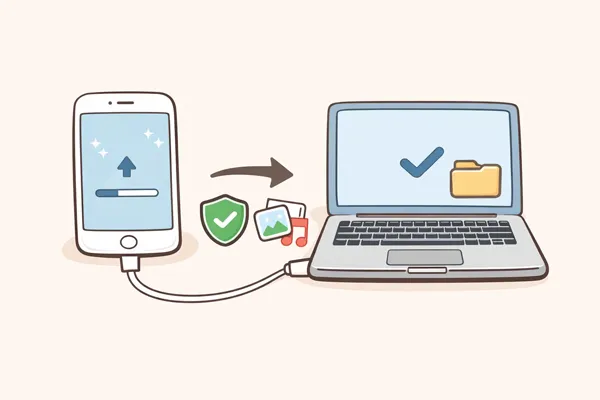
Take a quick look at the pros and cons of 4 backup methods:
| Method | Pros | Cons |
|---|---|---|
| iTunes Backup | 1. Official Apple tool. 2. Supports full-device backup. 3. Works offline. 4. Allows encrypted backups. |
1. Interface can be confusing. 2. Backup files cannot be viewed directly. 3. Still can be downloaded but not updated. |
| Apple Devices App | 1. iTunes alternative for Windows PC. 2. Simpler interface than iTunes. 3. Easy full-device backup. 4. Regularly updated |
1. Only available on newer Windows systems. 2. Fewer advanced features. |
| iReaShare iPhone Manager | 1. Supports selective backup. 2. Easy data transfer. 3. User-friendly interface. 4. Various data types are supported. |
1. Requires a separate installation on your laptop. 2. The free trial can connect devices and preview data only; advanced features need a license. |
| External Hard Drive Backup | 1. Saves laptop storage space. 2. Provides extra backup security. 3. Good for long-term storage. |
1. Requires additional hardware. 2. Must create backup with other software first. |
Part 1: How to Back Up iPhone to Laptop with iTunes?
For Windows users and those on older versions of macOS (Mojave or earlier), iTunes remains the standard gateway for data management. However, it has been replaced by the Apple Devices app.
To back up an iPhone to a laptop with iTunes:
-
Use a lightning or USB-C cable to plug your iPhone into your laptop. If prompted on your iPhone, tap "Trust" and enter your passcode.
-
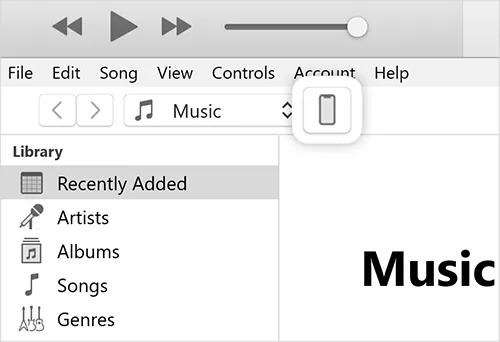
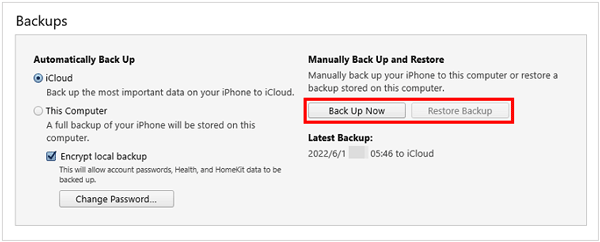
Click the small "Device" icon near the top left of the iTunes window. Under the "Summary" tab, locate the "Backups" section. Select "This Computer".
-
Check "Encrypt local backup" if you want to save your health data and passwords. Next, click "Back Up Now" to start the backup process. Keep the device connected until the progress bar at the top finishes.
Part 2: How Do I Back Up My iPhone to My Laptop Without iTunes?
If you prefer to avoid iTunes - or if you are using a modern laptop where iTunes no longer exists - there are several efficient alternatives.
2.1 Using Apple Devices App
For Windows 10 and 11 users, Apple has introduced the Apple Devices app, a streamlined replacement for iTunes. As for MacBook, you can use Finder to back up your iPhone data to your laptop.
Here's back up your iPhone to a laptop via the Apple Devices app:
-
Download the Apple Devices app from the Microsoft Store.
-
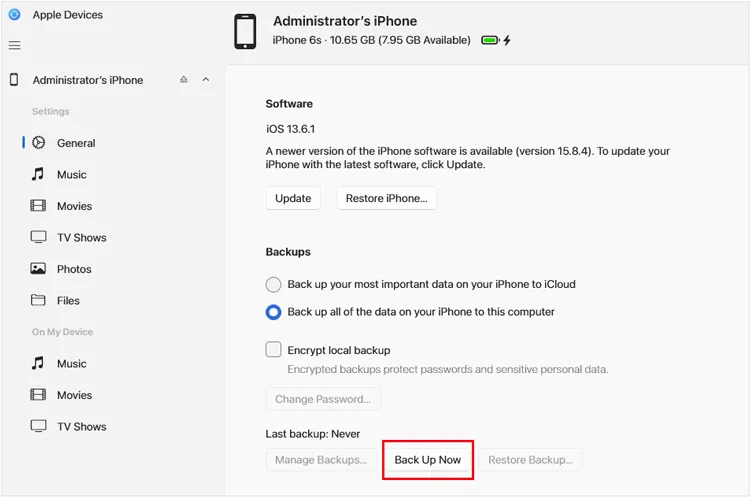
Connect your iPhone and select it in the sidebar.
-
Under the "General" tab, select "Back up all of the data on your iPhone to this computer" and click "Back Up Now".
2.2 Using iReaShare iPhone Manager
If you want more control over specific files, like just your photos, messages, notes, calendar events, books, bookmarks, etc., rather than a full system image, a comprehensive tool - iReaShare iPhone Manager are excellent. It allows you to preview and selectively back up your iOS data.
Main features of this iPhone backup software:
* Back up your iPhone data to your computer with USB.
* Allow you to preview and access your iPhone data on your Windows PC or Mac.
* Export your media files from your iOS device to your laptop without losing quality.
* Selectively back up your contacts, text messages, camera roll, photos, notes, books, bookmarks, and more.
* One-click backup and restore is also supported.
* Compatible with iOS 5.0 or later, including iOS 26.
* Follow read-only mode and no ads.
Download iReaShare iPhone Manager.
Download for Win Download for Mac
Here's how to back up an iPhone to a laptop with this program:
-
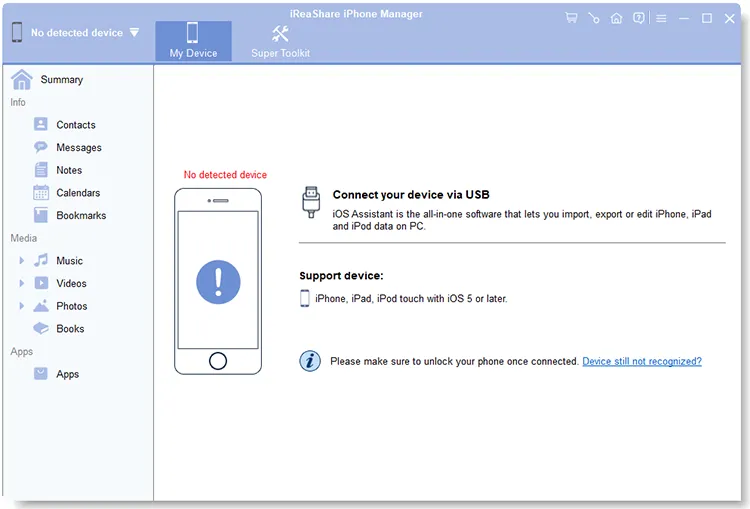
Install and open iReaShare iPhone Manager on your laptop. Then connect your iPhone with a USB cable.
-
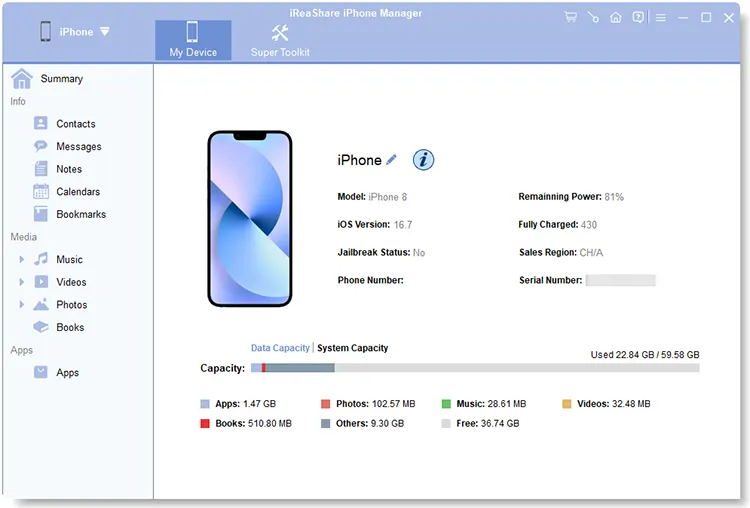
Allow the device to be recognized by the software by tapping "Trust" on your iPhone. Then you can click a categorty on the left panel.
-
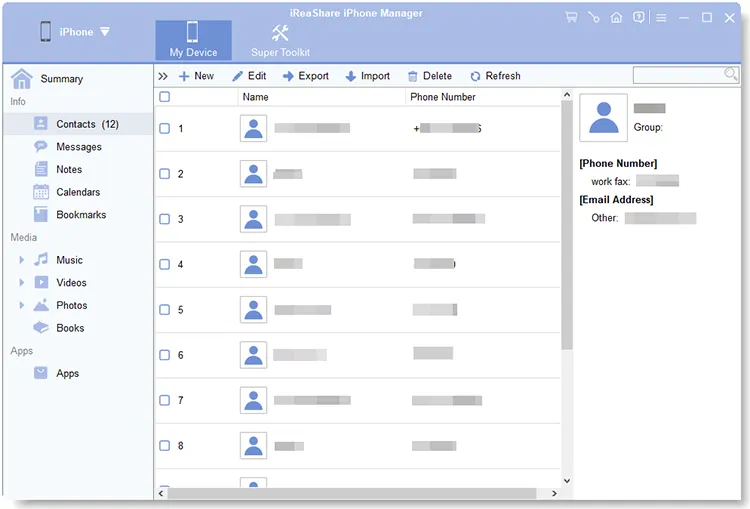
Then select the data you want and click "Export" to save it to your laptop for backup. By the way, if you want to back up your iPhone at one go, you can go to "Super Toolkit".
You can also watch the video guide to back up your iPhone to your laptop:
2.3 Using External Hard Drive
If your laptop is low on storage, you can direct your backup to an external drive.
How it works:
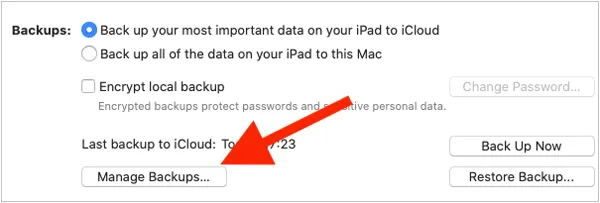
On Mac: Connect your iPhone and your external drive. Open Finder, select your iPhone, and click "Manage Backups" to find your current folder. You can then move the backup folder to your external drive and create a "symlink" (symbolic link) so future backups go directly to the external disk.
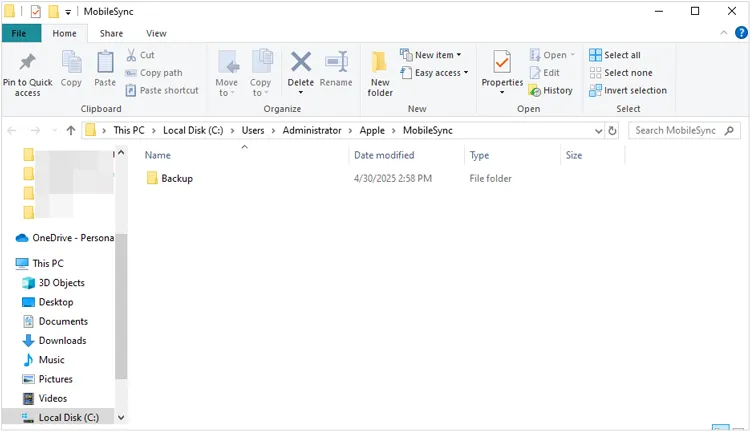
On Windows: Similarly, you can move the MobileSync folder from your C: drive to your external drive and use a Command Prompt junction to redirect the path.
Part 3: Q&A About iPhone Backup on Laptop
Q1: Can I download my backup file from iCloud to my laptop?
Technically, you cannot download a "backup file" package to run as a local restore. However, you can sign in to iCloud.com on your laptop browser to download individual files like photos, contacts, and documents. For a full backup, you must use the recovery process on the iPhone itself.
Q2: How long should it take to back up an iPhone to a computer?
The first backup usually takes between 15 minutes to an hour, depending on how much data you have (especially photos and videos). Subsequent backups are much faster because the computer only copies the "changes" made since the last session.
Q3: What is the difference between iCloud and computer backup?
- iCloud: Stores data in the cloud; requires Wi-Fi and often a paid subscription for extra space. It happens automatically every night.
- Computer: Stores data on your hard drive; it is free and generally faster for large restores, but it requires you to manually plug your phone into your laptop.
Conclusion
Backing up your iPhone to a laptop is a reliable way to safeguard your important data. Even if you don't want to use iTunes, you can easily back up your iPhone data with iReaShare iPhone Manager. This software can load and display various iPhone data on your laptop, and allow you to access your backup data on your computer without effort.
Download for Win Download for Mac
Related Articles
How to Back Up iPhone to Mac Without Data Loss (Proven)
How to Delete Everything on iPhone Effectively in 4 Ways (Secure Guide)Effortlessly Back Up Messages to iCloud on iPhone (New Guide)
What to Do Before Getting a New iPhone: Important Steps You Need to Know

