


TL;DR:
An iPhone that stays on while showing a black screen can often be fixed by addressing temporary system glitches, power issues, or iOS errors before turning to professional service. The main solutions include:
- Force restart the iPhone to clear temporary system freezes that may prevent the display from working.
- Charge the iPhone to rule out insufficient power as the cause of the black screen.
- Update or restore iOS using a computer when the device cannot start normally.
- Use Fixppo to repair iOS system problems with Standard Mode while preserving existing data.
- Seek Apple Support if software-based solutions fail or the black screen is caused by physical or liquid damage.
"This morning my iPhone 14 Pro (iOS 17.1.1) was stuck on a black screen (screen completely off) although the phone was still on (when clicking on side buttons I got haptic responses). I am wondering if this is a known problem and if there is an official solution to this black screen problem?"
- From the Apple Community
Seeing an iPhone with a completely black screen can be alarming, especially when the device still seems to be running. You may hear notifications, feel vibrations, or notice other signs that the iPhone is powered on, yet nothing appears on the display.
Fortunately, a black screen does not always mean that your iPhone needs a screen replacement. You can try several practical solutions before seeking professional service. Below, we will explain the common reasons behind an iPhone black screen but still on and walk you through effective ways to restore normal operation.
Part 1. Why Is My iPhone Black Screen But Still On?
An iPhone can remain powered on while its display stops showing anything. This usually happens when the system or display process encounters an unexpected error, although hardware damage can also cause the problem.
Here are some common causes:
- Temporary iOS glitches: A system crash or software freeze can prevent the display from responding even though the iPhone remains powered on.
- Failed iOS updates: An interrupted or unsuccessful update may leave the system unable to start or display the normal interface.
- Insufficient battery power: When the battery is critically low, the iPhone may not have enough power to start the display properly.
- System errors: Corrupted or malfunctioning iOS components can cause startup and display-related problems.
- Physical or liquid damage: A damaged screen, display connection, or internal component can leave the iPhone running while the screen remains black.
Part 2. How to Fix iPhone Black Screen But Still On
What to do when the iPhone screen goes black but is still on? Try the following solutions in order. Start with the simpler methods before moving on to system reinstallation or professional repair.
2.1 Force Restart iPhone
A force restart is one of the quickest ways to fix an iPhone that is stuck with a black screen. It forces the device to restart without requiring you to interact with the display.
For iPhone 8 or later:
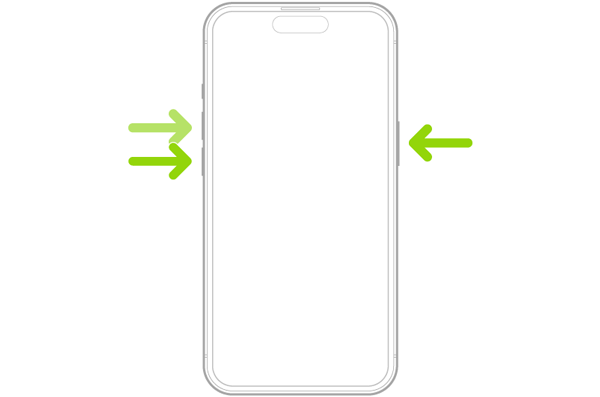
Step 1. Quickly press and release the "Volume Up" button.
Step 2. Quickly press and release the "Volume Down" button.
Step 3. Press and hold the "Side" button.
Step 4. Keep holding it until the Apple logo appears, then release the button. Apple notes that the Apple logo may take more than 10 seconds to appear, so keep holding the Side button instead of releasing it too quickly. (iPhone stuck on the Apple logo? Solved i with 6 solutions.)
For an iPhone 7 or 7 Plus, press and hold the "Side" and "Volume Down" buttons together until the Apple logo appears.
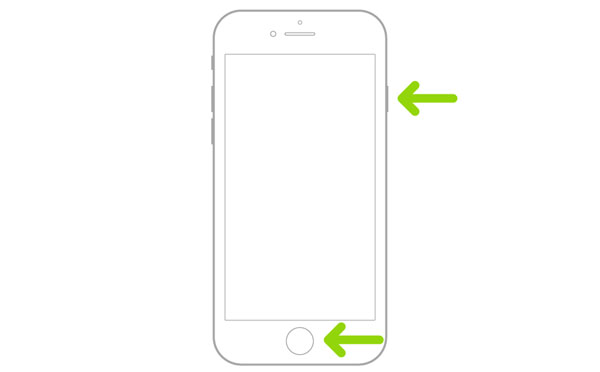
For an iPhone 6s or earlier, press and hold the "Home" and "Side/Top" buttons together until you see the Apple logo.
If the iPhone restarts and the screen works normally, the problem was likely caused by a temporary system freeze. If the screen remains black, move on to the next solution.
2.2 Charge iPhone
A critically low battery can prevent an iPhone from starting normally. Even if the device appeared to be working before the screen went black, it is worth giving it enough time to charge before attempting another restart.
Try the following:
Step 1. Connect the iPhone to a working power adapter and charging cable.
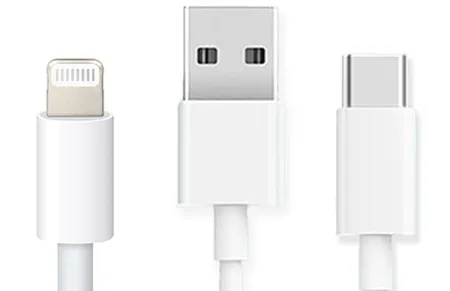
Step 2. Leave it charging for at least 30 minutes.
Step 3. If there is still no response, continue charging for up to an hour.
Step 4. Try the force-restart procedure again.
Apple recommends charging an iPhone for up to an hour when it will not turn on, then trying to restart it again. If possible, use another compatible charging cable, power adapter, or outlet to rule out a charging accessory problem. If charging and a force restart still leave the screen black, the issue may involve the iOS system rather than simply a lack of power.
2.3 Update or Restore iPhone Through a Computer
If your iPhone has a more serious iOS startup problem, you can use a computer to update or restore the system. On a Mac, you can use Finder. On Windows, Apple now provides the Apple Devices app for managing iPhones and other Apple devices. It has replaced many of the device-management functions that Windows users previously relied on iTunes for. If you still have a compatible version of iTunes, its device management features may also be used.
For an iPhone 8 or later:
Step 1. Connect your iPhone to the computer with a USB cable.
Step 2. Quickly press and release the "Volume Up" button.
Step 3. Quickly press and release the "Volume Down" button.
Step 4. Press and hold the "Side" button.
Step 5. Keep holding it until the recovery-mode screen appears.
Step 6. Open Finder, Apple Devices, or iTunes and select your iPhone.
Step 7. When "Update" or "Restore" appears, choose "Update" first. Wait for the computer to reinstall iOS and complete the process.
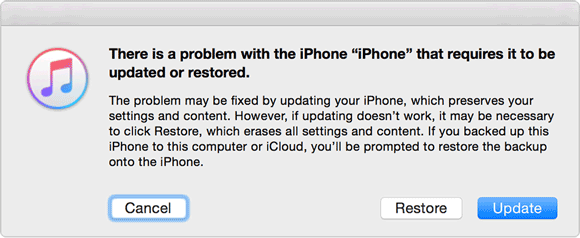
If the update fails repeatedly, you can consider Restore as a later option. However, keep in mind that Restore erases the iPhone and reinstalls iOS. Therefore, if possible, back up your iPhone before proceeding with Restore to avoid losing important data.
2.4 Use iOS Repair Tool
If your iPhone remains powered on but its screen stays black after a force restart, charging, or a computer-based update, the problem may be related to an iOS system error. In this case, an iOS repair tool can help reinstall or repair damaged system components without requiring complicated technical procedures.
Fixppo is designed to resolve various iOS system issues and provides two repair modes for different situations. It supports iPhone, iPad, iPod touch, and Apple TV, making it suitable for more than just iPhone black-screen problems.
Key Features of Fixppo:
- Repair various iOS system issues without requiring complex technical knowledge.
- Offer Standard Mode and Advanced Mode to handle different types and severity of system problems.
- Fix issues such as black or frozen screens, iPhone startup failures, Apple logo freezes, repeated restarts, and iOS update errors.
- Support iOS downgrading and upgrading when you need to install a different supported iOS version.
How to use Fixppo to fix the iPhone black screen but still on issue?
-
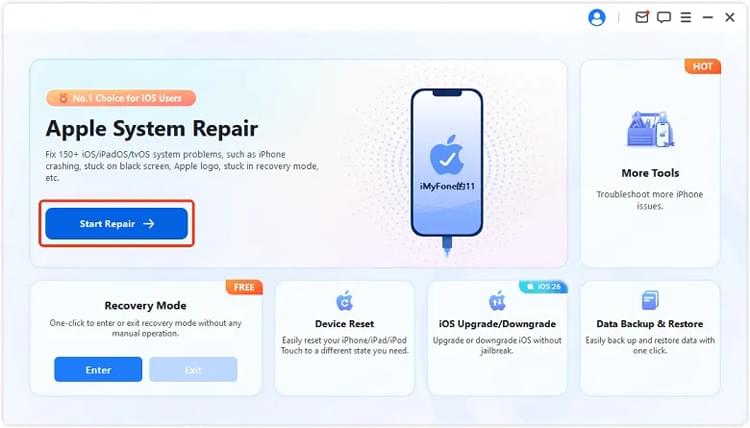
Install and launch Fixppo on your computer. Connect the iPhone with a USB cable, then select "Apple System Repair" once the program detects your device.
-
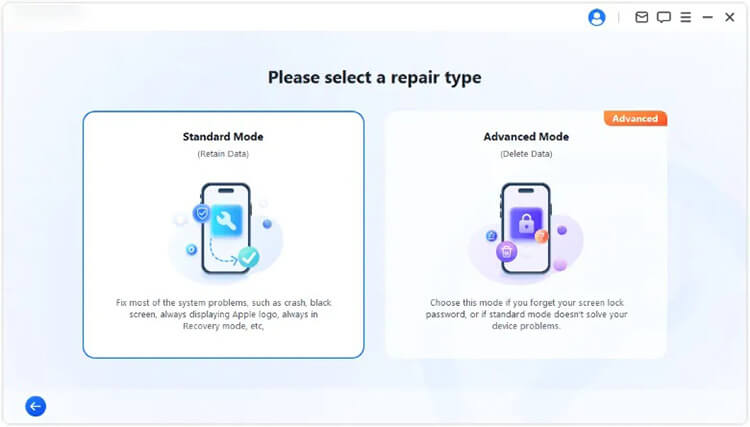
Select "Standard Mode" to repair the iOS system while keeping the existing data on your iPhone.
-
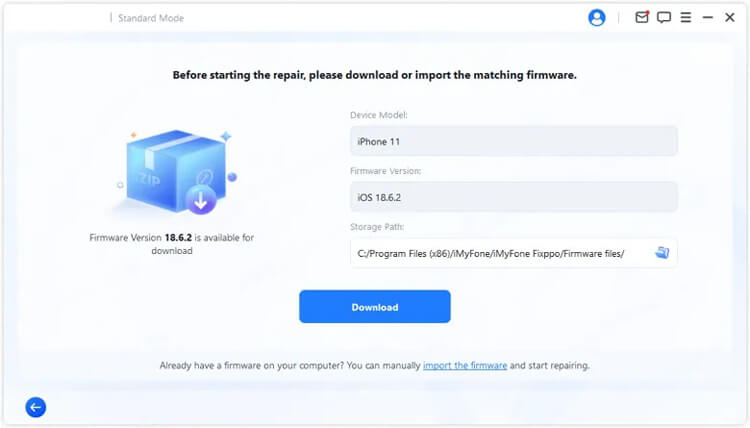
Follow the on-screen instructions to confirm your device information, then download the appropriate firmware package. Wait for Fixppo to finish downloading and verifying the firmware.
-
Once the firmware is ready, click "Start Standard Repair" to begin the repair process. Keep your iPhone connected to the computer and wait for Fixppo to finish repairing the system; the display should return to normal.

2.5 Seek Apple Support
If your iPhone screen is still black after trying the software-based solutions above, the problem may be related to the display or another internal hardware component. This is especially likely if the issue started after the iPhone was dropped, physically damaged, or exposed to liquid.
In these cases, it is better to have the device inspected by Apple Support or an Apple Authorized Service Provider. A technician can check the display, internal connections, battery, and other components to determine whether the black screen is caused by hardware damage.
Professional service is particularly recommended if:
- Your iPhone was recently dropped or physically damaged.
- The device has been exposed to water or another liquid.
- The screen has visible damage or other display abnormalities.
- The display or touch function has stopped working properly.
- The black screen persists even after the available software repair methods have been tried.
Conclusion
An iPhone that has a black screen but is still on does not necessarily need a screen replacement. A temporary iOS glitch, insufficient power, failed update, or other system problem can sometimes prevent the display from working normally.
Start with a force restart and sufficient charging. If those methods fail, try updating iOS through a computer before considering a full restore. For persistent software-related problems, Fixppo provides another option for repairing the iOS system while aiming to preserve your existing data. If none of these solutions work, especially after physical or liquid damage, professional Apple service is the safest next step.
Related Articles
Why Is iPhone Stuck on Update Requested? Fix It with Easy Steps
How to Fix iOS 27 Unable to Check for Update on iPhone/iPad [Solved]
iPhone Stuck on Preparing Update? 9 Proven Fixes for iOS 27
How to Fix iPhone Stuck on Verifying Update in iOS 27

