TL;DR:
If your iPhone is stuck on Verifying Update, try these fixes in order:
- Lock and wake your iPhone to refresh the update screen.
- Check your Wi-Fi connection and Apple System Status.
- Force restart your iPhone to clear temporary software glitches.
- Disable VPNs or network filters that may interfere with verification.
- Check your iPhone's date and time settings.
- Delete and redownload the iOS update.
- Update your iPhone through Finder or Apple Devices on a computer.
- Use Fixppo to repair potential iOS system problems when regular fixes fail.
"iPhone XR is stuck on the lock screen 'verifying update'. I can't even do a hard restart (toggle volume up, down, hold power button) because the screen is unresponsive and won't let me swipe right to power down. I've tried locking and waking dozens of times to no success. Help!"
- From the Apple Community
Seeing your iPhone remain on "Verifying Update" can be frustrating, especially when the progress does not change for a long time. Although the verification stage is normally part of the iOS update process, it can occasionally stop responding and prevent the installation from moving forward.
If you are dealing with an iPhone stuck on verifying an update, this guide explains why an iPhone is stuck on verifying an update, how long the verification process should normally take, and walks you through practical ways to get the update working again, starting with the simplest solutions and ending with a dedicated iOS repair tool.
Part 1. Why Is My iPhone Stuck on Verifying Update?
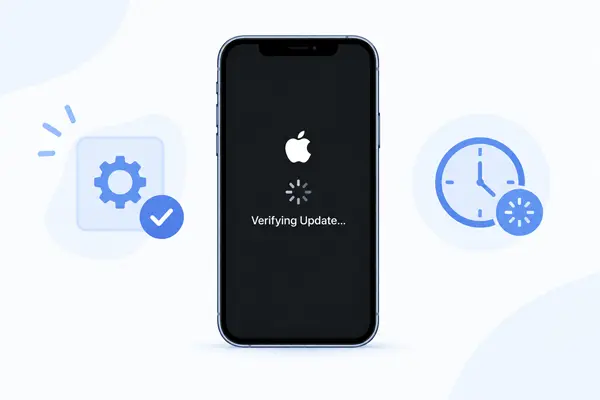
When you update your iPhone, the Verifying Update stage checks whether the downloaded iOS package is valid and ready to be installed. Normally, this process finishes automatically, but it can sometimes stop progressing and leave your iPhone stuck on the same screen.
Several factors may cause this to happen, including:
- Temporary iOS glitches: A minor system error can prevent the update process from moving to the next stage.
- Network problems: The iPhone needs a stable connection during the update process, and an unstable or restricted network may interrupt verification.
- Apple server issues: Heavy traffic or temporary service problems on Apple's side can slow down or interrupt update verification.
- Update file problems: An incomplete or corrupted update package may fail to pass the verification process.
- Limited storage: Not having enough available space can interfere with the iOS update process.
- System-related issues: Existing software problems on the iPhone may also prevent an update from being verified or installed properly.
Part 2. How Long Should an iPhone Be Stuck on Verifying an Update?
In most cases, an iPhone should take around 5 to 15 minutes to verify an iOS update. The exact time can vary depending on the update size, network conditions, device performance, and Apple's server traffic. A major iOS release may also take slightly longer when many users are updating at the same time.
If your iPhone has been on "Verifying Update" for more than 20 to 30 minutes without any noticeable progress, the process is more likely to be stuck rather than simply taking longer. At this point, you can start troubleshooting instead of continuing to wait.
A simple rule of thumb is:
- 5 - 15 minutes: Usually within the normal range. Give the verification process some time to finish.
- 15 - 20 minutes: It may still be normal, especially during a major iOS release. Check whether the iPhone is still responsive.
- 20 - 30+ minutes: The update may be stalled. Start with the fixes below to get the verification process moving again.
Part 3. What to Do If My iPhone Is Stuck on Verifying an Update?
If your iPhone has been stuck on "Verifying Update", try the following solutions in order. Start with the least invasive methods and move to more advanced options only if necessary.
3.1 Lock and Wake Your iPhone
If your iPhone is still responsive, locking and waking the device can sometimes refresh the Software Update screen without restarting the entire phone. This is one of the quickest things to try before moving on to more involved troubleshooting.
- Press the "Side" button to lock your iPhone.
- Wait for a few seconds.
- Press the "Side" button again to wake the screen.
- Unlock your iPhone with your passcode or Face ID.
- Return to the update screen and check whether the verification process has resumed.
3.2 Check Your Wi-Fi Connection
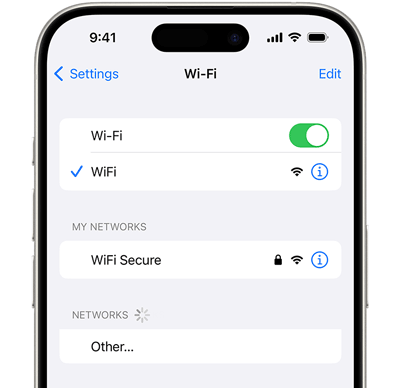
A stable internet connection is important while your iPhone communicates with Apple's update services. If Wi-Fi is weak, frequently disconnects, or has network restrictions, the verification process may not complete properly.
- Open "Settings" on your iPhone.
- Tap "Wi-Fi".
- Make sure you are connected to a stable Wi-Fi network.
- If the connection is weak, move closer to the router.
- If possible, connect to another Wi-Fi network.
- Return to "Settings" > "General" > "Software Update" and check the update again.
3.3 Check Apple System Status
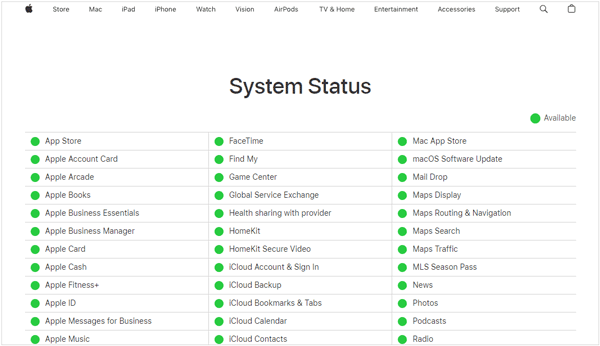
Sometimes the problem is not with your iPhone at all. If Apple's update-related services are experiencing an outage or temporary disruption, your device may have difficulty completing the verification process.
Checking Apple's system status can help you determine whether it is worth troubleshooting your iPhone immediately or waiting for Apple's services to recover.
- Open a browser on your iPhone or another device.
- Go to Apple's System Status page.
- Look for any reported issues affecting software updates or related Apple services.
- If Apple reports an outage, wait until the service returns to normal.
- Try checking for the iOS update again.
3.4 Force Restart Your iPhone
A temporary iOS glitch may cause the update screen to stop responding. A force restart can refresh the system without requiring you to erase your data.
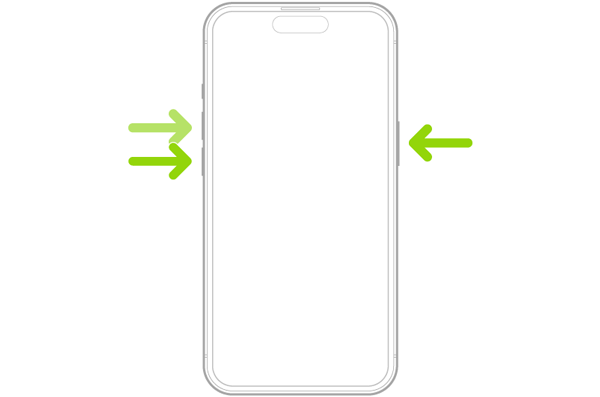
Here are the steps for iPhone 8 and later:
- Quickly press and release the "Volume Up" button.
- Quickly press and release the "Volume Down" button.
- Press and hold the "Side" button.
- Keep holding it until the Apple logo appears.
- Release the button and allow your iPhone to restart.
- After restarting, go to "Settings" > "General" > "Software Update" and try again.
3.5 Disable VPN and Network Filters
VPNs, DNS filters, security applications, and other network-level tools can sometimes interfere with connections to Apple's update services. Temporarily disabling them can help determine whether your network configuration is preventing verification.
- Open "Settings" on your iPhone.
- Disable any active VPN connection.
- If you use a DNS filter, security app, or network filtering service, temporarily disable it.
- Reconnect to a normal Wi-Fi network.
- Open "Settings" > "General" > "Software Update".
- Try the update again.
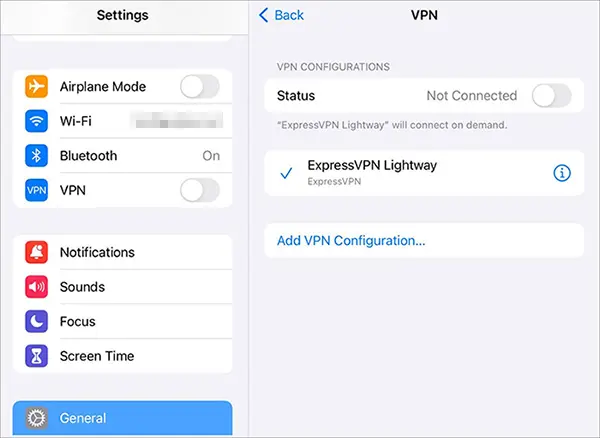
If the update works after disabling these services, you can identify the network filter or VPN as a possible source of the problem.
3.6 Check Date & Time Settings
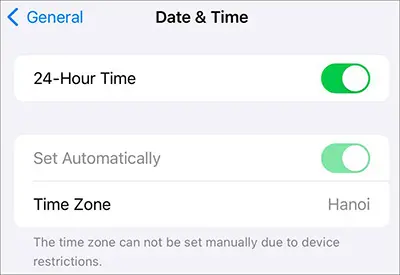
Your iPhone uses system date, time, and time-zone information for various network and security functions. If these settings have been changed manually or are incorrect, it is worth restoring them to automatic settings before trying the update again.
- Open "Settings".
- Go to "General" > "Date & Time".
- Turn on "Set Automatically".
- Make sure the displayed time and time zone are correct.
- Return to Software Update and try the update again.
3.7 Delete and Redownload the Update
If the downloaded update package is incomplete or has become corrupted, deleting it and downloading a fresh copy can resolve verification problems. This is especially useful when the same update repeatedly gets stuck at the verification stage.
- Open "Settings".
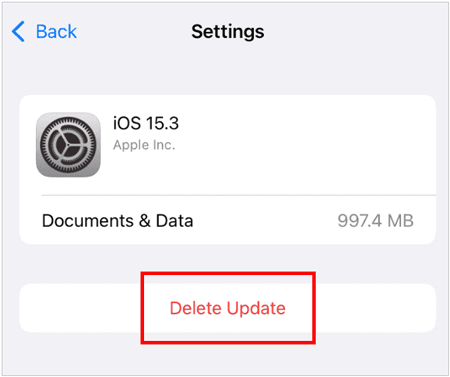
- Tap "General" > "iPhone Storage".
- Find the downloaded iOS update in the list.
- Tap the update.
- Select "Delete Update" and confirm.
- Go back to "Settings" > "General" > "Software Update".
- Download the update again.
- Keep your iPhone connected to Wi-Fi and power while the update is being prepared and installed.
3.8 Update iPhone with a Computer
If your iPhone remains stuck on Verifying Update, updating it through a computer provides an alternative to the usual over-the-air installation. This can be helpful when the update cannot be completed directly on your iPhone. Before starting the update, back up your iPhone if possible to protect your important data.
Steps:
- Connect your iPhone to a Mac or Windows PC with a USB cable.
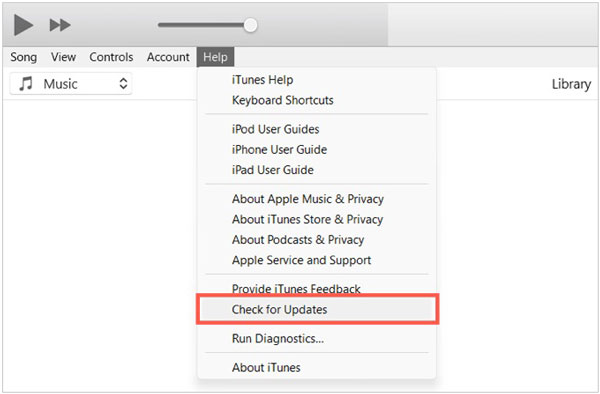
- Open Finder on a Mac, or Apple Devices on Windows. If you still use iTunes, you can also open iTunes.
- Select your iPhone and look for the option to check for a software update.
- Click "Update" or "Check for Update", depending on the app you are using.
- Follow the on-screen instructions to download and install the latest iOS version.
- Keep your iPhone connected to the computer until the update is complete.
3.9 Repair iOS System with Fixppo
If your iPhone remains stuck on Verifying Update after trying the methods above, the problem may be related to the iOS system itself rather than the update connection.
Fixppo is an iOS system repair tool designed to troubleshoot various iPhone system problems without requiring a factory reset as the first step. It can be useful when normal update methods do not resolve persistent software-related issues.
What can Fixppo do for you?
- Repairs 150+ iOS, iPadOS, and tvOS system issues, including update stuck and frozen screen.
- Automatically downloads the correct firmware for your device.
- Downgrades iOS or updates iOS with ease.
- Provides tools for iOS repair, firmware installation, backup, restore, device reset, and Recovery Mode.
- Supports iOS 27.
Steps to repair an iPhone stuck on verifying update with Fixppo:
-
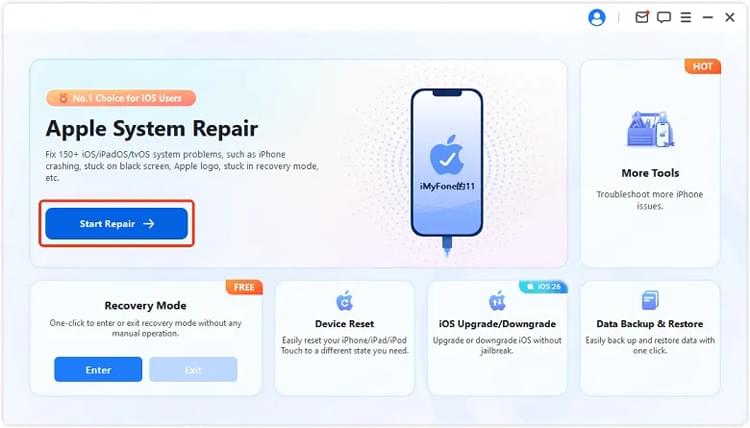
Start Fixppo on your computer and connect the iPhone that is stuck on Verifying Update with a USB cable.
-
From the main interface, select "Apple System Repair".
-
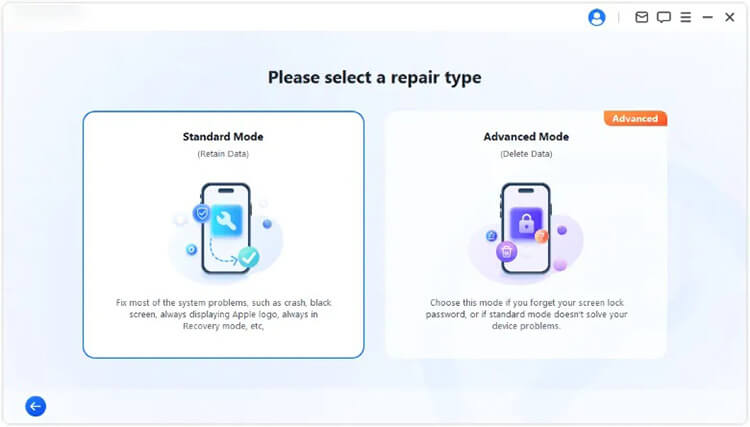
Choose "Standard Mode" to proceed with the system repair while preserving your iPhone data.
-
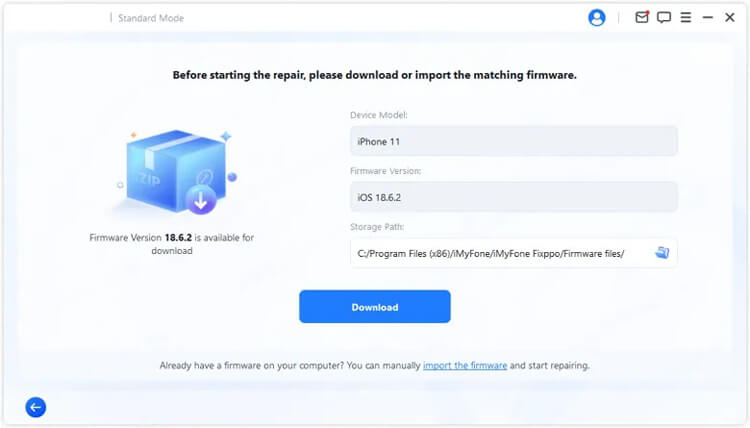
Follow the on-screen prompts to download the firmware required for your iPhone.
-
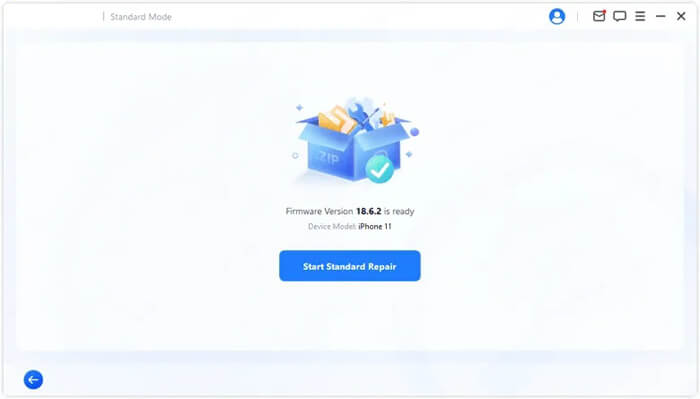
Once the firmware download is complete, click "Start Standard Repair" to begin repairing the iOS system. Keep the iPhone connected until the repair process finishes.
Conclusion
An iPhone stuck on Verifying Update does not necessarily mean that the device has a serious problem. Start with simple solutions such as locking and waking the screen, checking Wi-Fi and Apple's system status, then move on to a force restart, network adjustments, or a fresh update download. You can also update through a computer if the normal OTA process continues to fail.
If these methods do not work, the issue may be related to the iOS system itself. In that case, Fixppo provides a more targeted way to repair system-related problems and get your iPhone ready for the update without immediately resorting to a factory reset.
Related Articles
Why Is iPhone Stuck on Update Requested? Fix It with Easy Steps
iOS 27 Update Paused: Causes and Fixes to Resume iPhone Update
iPhone Stuck on the Apple Logo? Solved with 6 Solutions
How to Fix iPhone Stuck in SOS Mode Without Hassle [7 Ways]