


TL;DR:
If your iPhone is stuck in SOS mode, it may be caused by poor cellular coverage, network issues, SIM/eSIM problems, incorrect settings, or iOS glitches. You can try these solutions to restore normal cellular service:
- Check your cellular signal and network connection.
- Drain and recharge your iPhone.
- Force restart your iPhone.
- Reset network settings.
- Use an iOS system repair tool to fix potential system issues.
- Restore your iPhone with iTunes or Finder.
- Contact your carrier or Apple Support if the problem persists.
"Hi everyone, this afternoon my iPhone 15 Pro (iOS 17.6) suddenly got stuck in the SOS emergency call screen. I was using TikTok when the screen suddenly turned black and then jumped to the SOS screen, with "Emergency Call"flashing at the top and a red "Connecting to Rescue Center" progress bar at the bottom, but I couldn't do anything at all. Is there a simple way to fix iPhone stuck in SOS mode?"
- From Microsoft Community Hub
SOS on an iPhone indicates that the device can't connect to your regular cellular network. Although you may still be able to make emergency calls, regular calls, text messages, and cellular data may not work while your iPhone is in this state.
Seeing SOS occasionally isn't necessarily a problem, especially in an area with poor coverage. However, if your iPhone is stuck in SOS mode and doesn't return to normal even when you have cellular coverage, you'll need to troubleshoot the issue. Below, we'll explain the possible causes and walk you through several ways to get your iPhone out of SOS mode.
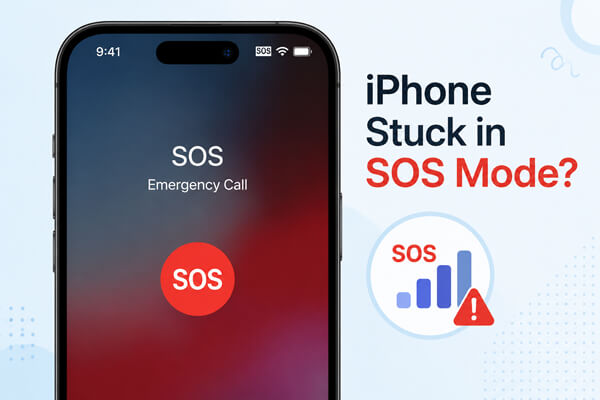
Part 1. Why Is My Phone Stuck in SOS Mode?
An iPhone usually shows SOS or SOS Only when it cannot connect to your carrier's cellular network. Several factors can cause an iPhone to remain in SOS mode:
- Poor or unavailable cellular coverage: You may be in an area where your carrier has weak or no signal.
- Temporary network problems: Your carrier may be experiencing an outage or network interruption.
- SIM or eSIM issues: A physical SIM may not be inserted correctly, while an eSIM may be disabled or improperly configured.
- Incorrect network settings: Corrupted or outdated network settings can prevent your iPhone from connecting to the carrier.
- Outdated carrier settings or iOS: Your device may need a carrier settings or system update.
- Temporary system glitches: An iOS error can sometimes interfere with cellular connectivity.
Part 2. How to Fix iPhone Stuck in SOS Mode
Now that you know what can cause an iPhone to remain in SOS mode, it's time to troubleshoot the problem. Start with the simplest solutions first, then move on to more advanced methods if the issue persists.
2.1 Check Cellular Signal and Network Connection
Before changing any settings, check whether the problem is simply caused by poor cellular coverage. Move to an open area or a location where you normally receive a strong signal. You can also ask someone using the same carrier whether they are experiencing the same problem. If their phone also shows no signal, the issue may be related to the carrier rather than your iPhone.
You can also refresh the cellular connection by turning Airplane Mode on and off:
- Open "Control Center".
- Tap "Airplane Mode" to turn it on.
- Wait for about 10 - 15 seconds.
- Turn "Airplane Mode" off.
- Wait a few seconds and check whether the SOS indicator disappears.
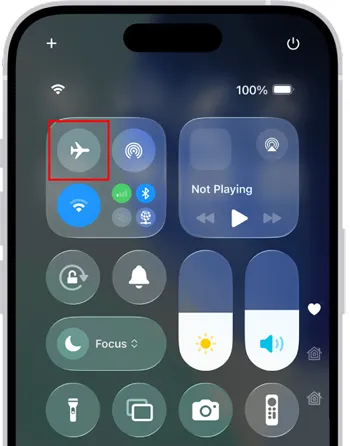
If your iPhone still shows SOS, move on to the next method.
2.2 Drain and Recharge Your iPhone
If the SOS status is caused by a temporary system or power-related glitch, letting the battery run out and then charging the iPhone may help refresh the device.
You can try the following:
- Continue using your iPhone normally until the battery is completely depleted.
- Let the iPhone power off automatically.
- Connect it to a charger.
- Leave it charging until it has enough power to turn on.
- Turn on your iPhone and check the cellular connection.
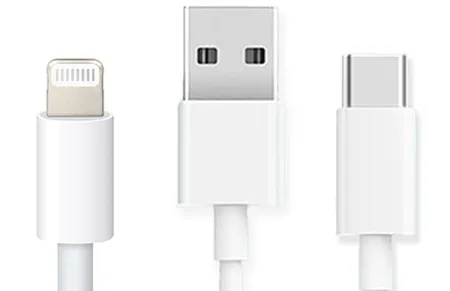
This method takes longer than a normal restart, so try the other simpler solutions first if you don't want to wait for the battery to drain.
2.3 Force Restart iPhone
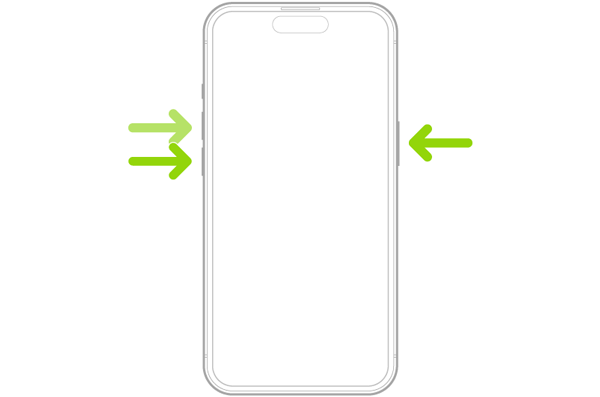
A force restart can clear temporary system glitches without deleting your personal data. It's worth trying if your iPhone remains in SOS mode despite having a stable cellular connection.
For an iPhone 8 or later:
- Quickly press and release the "Volume Up" button.
- Quickly press and release the "Volume Down" button.
- Press and hold the "Side" button.
- Release it when the Apple logo appears.
- Wait for the iPhone to restart completely, then check whether it can reconnect to your carrier.
2.4 Reset Network Settings
If your iPhone's network configuration is causing the SOS issue, resetting the network settings can give your cellular connection a fresh start. This won't delete your personal data, but it will remove saved Wi-Fi networks, passwords, VPN settings, and other network configurations.
Follow these steps:
- Open the Settings app on your iPhone.
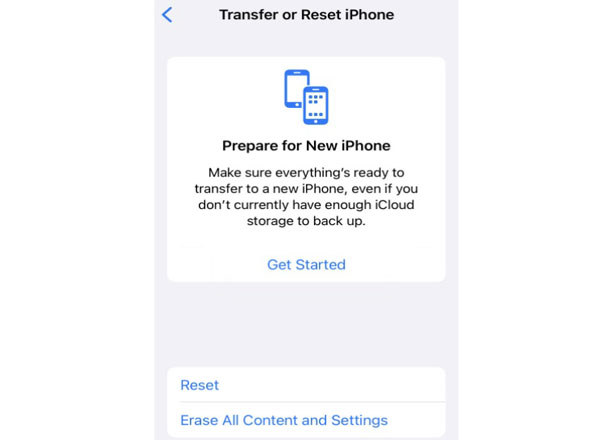
- Tap "General" and scroll down to "Transfer or Reset iPhone".
- Tap "Reset", then select "Reset Network Settings".
- Enter your iPhone passcode if prompted.
- Tap "Reset Network Settings" again to confirm.
- Your iPhone will restart automatically. Wait for it to boot up completely.
- Check the status bar to see if the SOS indicator has disappeared.
- If necessary, reconnect to your Wi-Fi network and check whether your cellular service is working normally.
2.5 Fix iPhone Stuck on SOS Mode with System Repair Tool
If your iPhone remains in SOS mode after trying the basic fixes, the issue may be caused by an underlying iOS system problem that prevents the device from connecting to the cellular network properly. In such cases, Fixppo can help troubleshoot and repair system-related issues without requiring complicated technical operations.
It provides different repair modes for various situations and is designed to address common iOS problems while minimizing the risk of data loss. If the SOS issue is caused by a software or system glitch rather than a carrier or hardware problem, this method is worth trying before moving on to a full device restore.
Key features of Fixppo:
- Fix various iOS system issues, including stuck in SOS mode, startup failures, frozen screens, repeated restarts, and update errors.
- Offer Standard Mode and Advanced Mode for different repair needs.
- Support iPhone, iPad, iPod touch, and Apple TV.
- Repair iOS system issues without requiring complicated technical operations.
- Support iOS upgrades and downgrades.
How to use Fixppo to fix an iPhone stuck in SOS mode:
-
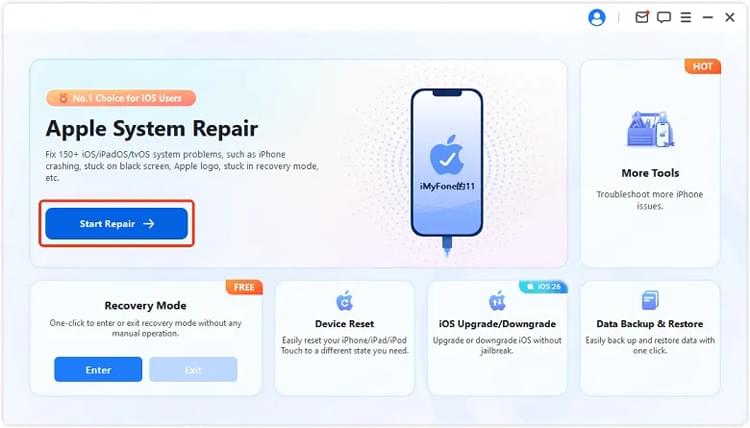
Open Fixppo on your computer and connect the affected iPhone using a USB cable. From the main interface, select "Apple System Repair".
-
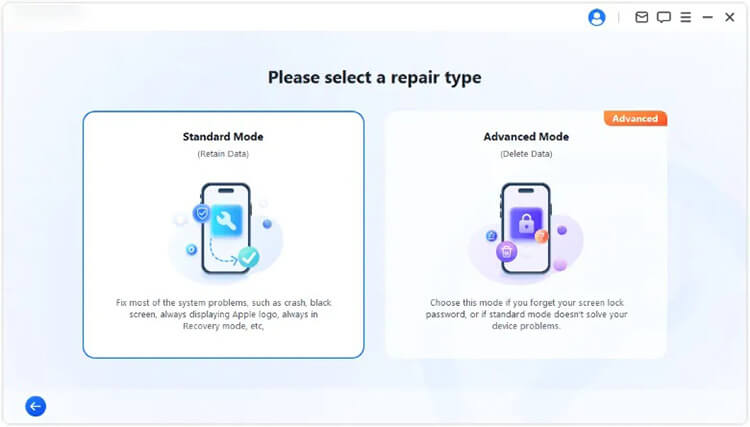
Select "Standard Mode" when you want to repair the system while preserving the data currently stored on your iPhone.
-
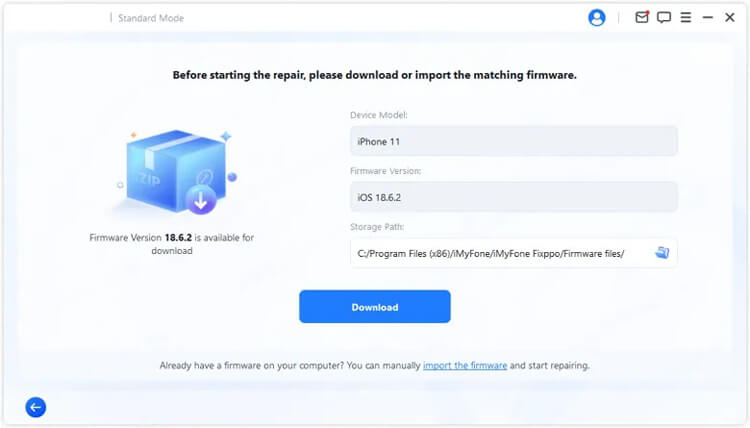
Check the device information shown on the screen and follow the provided instructions to get the appropriate firmware package.
-
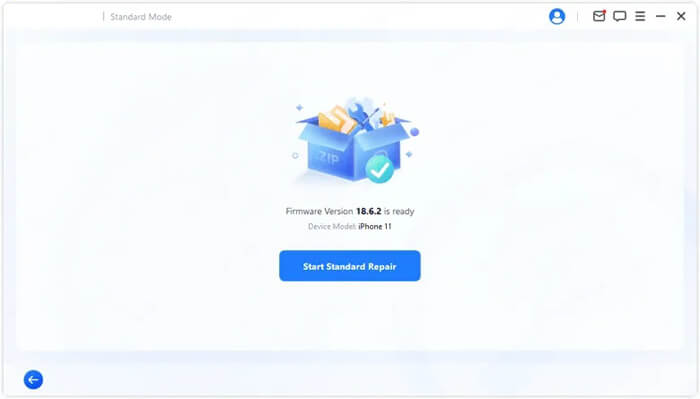
After the firmware has been downloaded and prepared, click "Start Standard Repair" to initiate the repair process.
Leave your iPhone connected to the computer while the repair is running. When the process finishes, restart the device and check whether it has exited SOS mode and regained its normal cellular connection.
2.6 Restore iPhone with iTunes or Finder
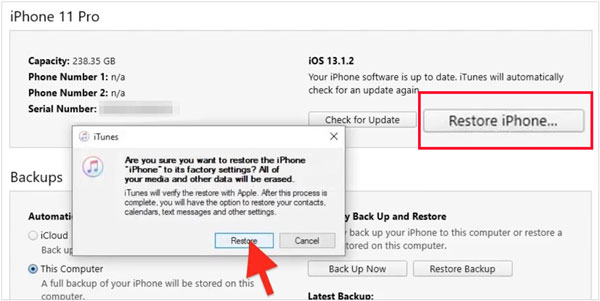
If your iPhone remains stuck in SOS mode after trying the methods above, you can restore it using iTunes on Windows or Finder on a Mac. Before you start, back up your iPhone if possible. A restore can erase the device and return it to factory settings.
For Windows:
- Install and open the latest version of iTunes.
- Connect your iPhone to the computer.
- Select your iPhone in iTunes.
- Choose "Restore iPhone".
- Follow the on-screen instructions to complete the process.
For macOS Catalina and later:
- Connect your iPhone to your Mac.
- Open Finder.
- Select your iPhone under Locations.
- Click "General".
- Select Restore iPhone and follow the instructions.
After the restore, set up your iPhone and check whether the SOS issue has been resolved.
2.7 Contact Your Carrier or Apple Support
If none of the methods above work, the problem may not be something you can fix through iPhone settings. Contact your carrier if you suspect an account, SIM/eSIM, coverage, or network outage issue. They can check whether your number and cellular service are active.
You should also contact Apple Support or visit an Apple Store if the problem continues, particularly if the iPhone was recently dropped, exposed to liquid, repaired, or has other hardware problems.
Conclusion
An iPhone stuck in SOS mode can often be fixed by checking the cellular connection, restarting the device, or resetting network settings. If these basic solutions don't work, the problem may be related to an iOS system issue. In that case, Fixppo is worth trying before restoring your iPhone with iTunes or Finder. It provides a simple way to repair common iOS problems and can help get your iPhone back to normal without complicated operations.
Related Articles
iPhone Stuck on the Apple Logo? Solved with 6 Solutions
iTunes Could Not Connect to This iPhone - 9 Fixes and 2 Alternatives
iPhone Stuck in Recovery Mode: How to Fix It (Step-by-Step Guide)
iOS 17 Not Installing on Your iPhone? Resolve the Problem Easily

