


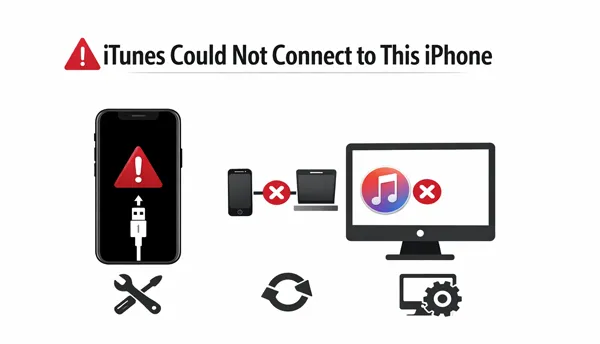
If you've ever tried to connect your iPhone to iTunes and encountered the frustrating message "iTunes could not connect to this iPhone", you're not alone. This issue can arise due to software glitches, outdated drivers, faulty hardware, or compatibility problems. Fortunately, there are multiple ways to resolve it. This guide provides proven solutions and modern alternatives for you, and answers to common questions.
Part 1: iTunes Could Not Connect to This iPhone - 9 Solutions
How do you fix "iTunes could not connect to this iPhone" because an unknown error occurred? In this case, follow these steps in order to isolate and fix the issue.
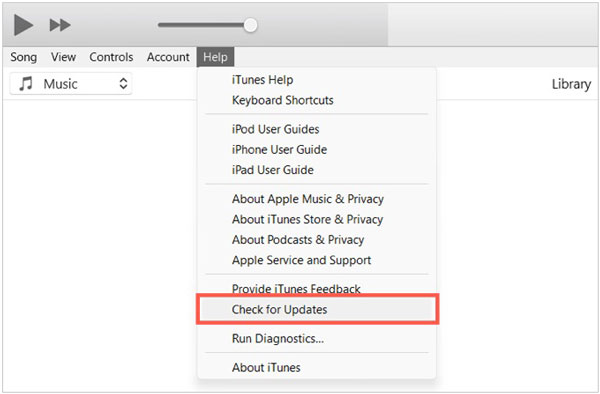
1.1 Update iTunes to the Latest
Outdated software is a common cause of connection failures. Make sure you're running the latest version of iTunes, as updates often include bug fixes and improved compatibility with newer iOS versions.
Please open iTunes, go to "Help" > "Check for Updates", and install any pending versions.
1.2 Reinstall iTunes
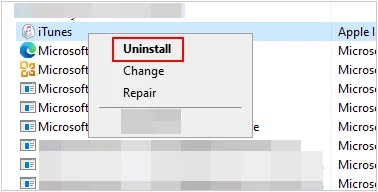
If updating doesn't work, reinstalling iTunes can eliminate corrupted files or incomplete installations. Uninstall it completely, restart your computer, and then install a fresh copy.
Please completely uninstall iTunes, Apple Software Update, and Apple Mobile Device Support from your Control Panel, then download and reinstall the latest version from the official Apple website.
1.3 Use Another USB Cable
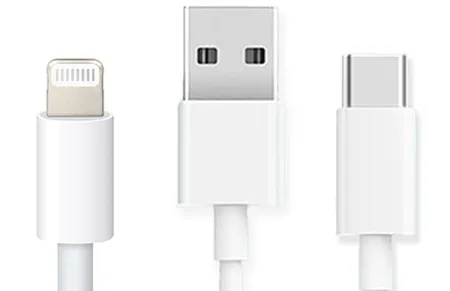
iTunes could not connect to the iPhone because an error occurred while reading from the device? Physical damage to cables is a common culprit. Ensure you are using a certified Apple Lightning or USB-C cable. Avoid third-party, low-quality cables that may only support charging but not data transfer.
1.4 Restart Both Devices
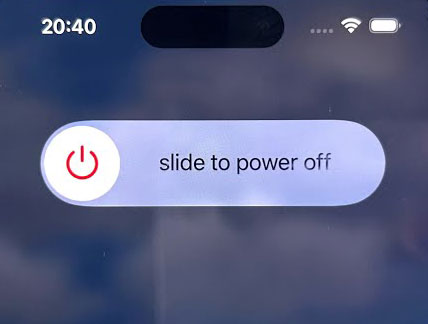
Sometimes, a simple restart can resolve temporary glitches. Reboot both your iPhone and your computer, then reconnect and try again.
1.5 Use a Different Computer
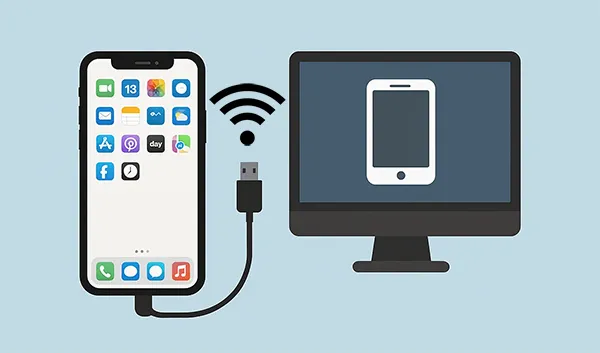
To determine if the connection issue is with your phone or your PC, try connecting your iPhone to a different computer. If it connects successfully elsewhere, the issue lies within your original computer's software or USB port.
1.6 Update Apple Drivers
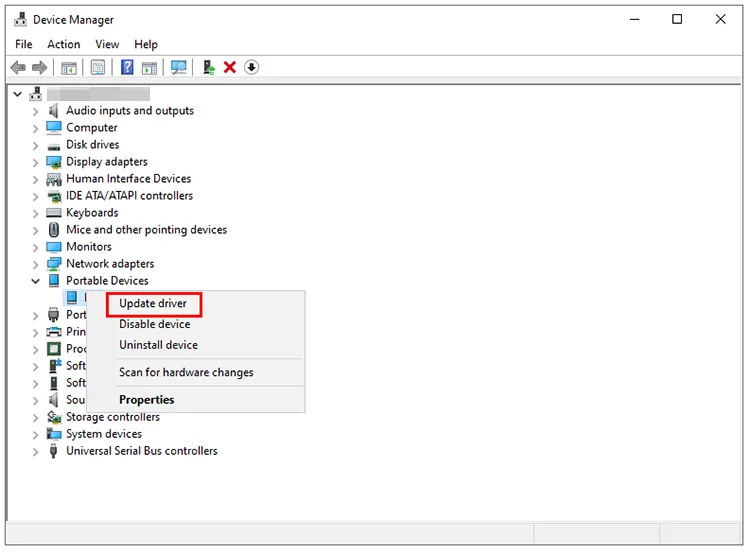
On Windows systems, outdated or missing Apple drivers can prevent iTunes from recognizing your iPhone. Update the Apple Mobile Device USB Driver via Device Manager.
Right-click the "Start" button, open "Device Manager", locate "Portable Devices", right-click your iPhone, and select "Update driver".
1.7 Reset Trust Settings
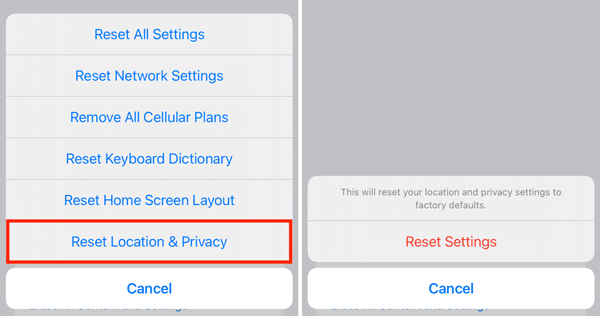
When you connect an iPhone to a new computer, you must tap "Trust" on the device. If this prompt didn't appear, go to Settings > "General" > "Transfer or Reset iPhone" > "Reset" > "Reset Location & Privacy". This clears old trust settings so the prompt appears again upon reconnection.
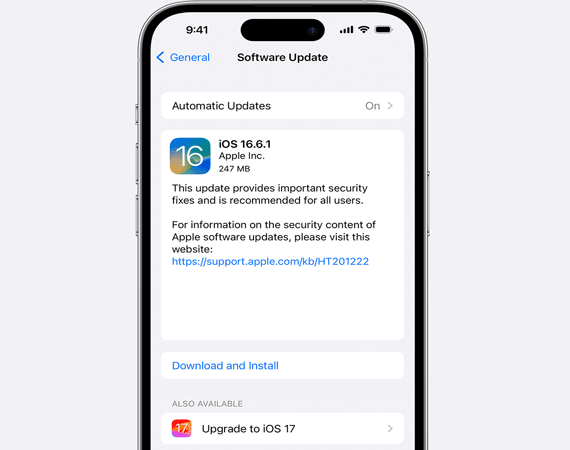
1.8 Update Software on iPhone
Ensure your iPhone is running the latest iOS version. Software mismatches between iTunes and iOS can lead to compatibility issues.
Please navigate to Settings > "General" > "Software Update".
1.9 Fix iTunes with iTunes Repair
If standard troubleshooting fails, consider using a professional repair tool - iTunes Repair - specifically designed to fix iTunes connection components without data loss. This app desktop app can repair a wide range of iTunes glitches and errors, such as 0xe80000a, error 3014, 75, 3004, 3194, 14, 17, etc.
Main features of iTunes Repair:
* Easily detect iTunes errors.
* Effectively fix iTunes backup errors and update issues.
* Work for all versions of iTunes.
* Support various errors of iTunes.
* Repair the damaged components of iTunes.
Download iTunes Repair.
Download for Win Download for Mac
To fix the "iTunes could not connect to this iPhone" unknown error with iTunes Repair:
-
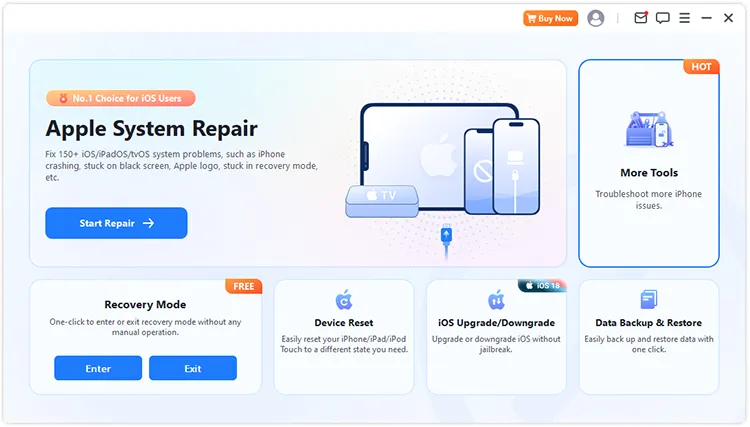
Download and install iTunes Repair on your computer, and click "More Tools".
-
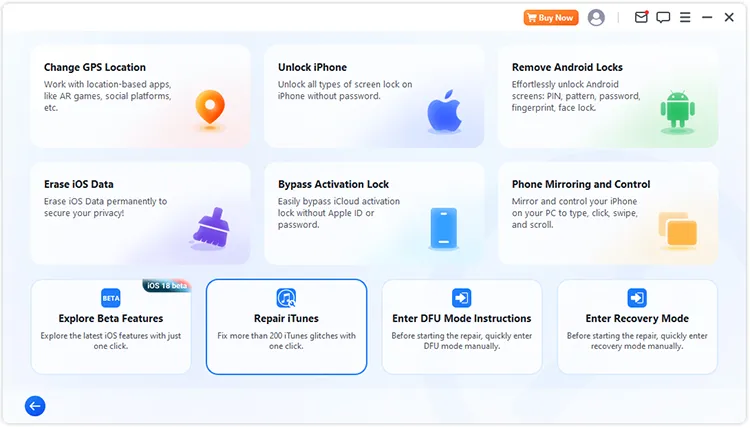
Choose "Repair iTunes" to launch it. Then it will detect your installed iTunes automatically.
-
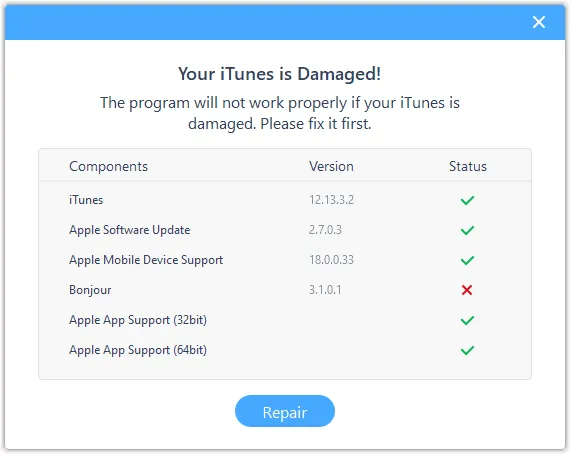
Once detected, click "Repair" to download the repair driver and fix iTunes directly.
Part 2: Connect iPhone and Transfer Data with iTunes Alternatives
If iTunes still displays "iTunes could not connect to the iPhone, an unknown error occurred 0xe80000a", you can use an alternative to transfer and back up your iPhone data.
2.1 Using Apple Devices App
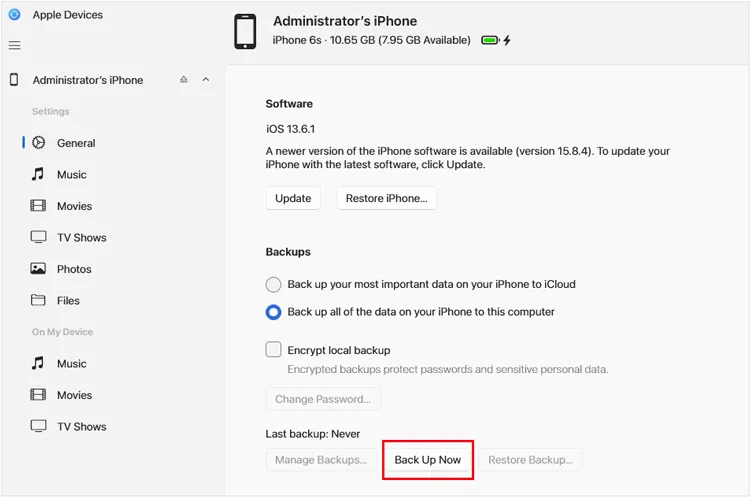
For users on Windows 10 and 11, Apple has introduced the Apple Devices app. It is designed specifically to handle syncing, backing up, and restoring your iPhone, providing a much faster and more stable experience than the legacy iTunes software.
Use the Apple Devices app to replace iTunes for iPhone backup:
-
Download and open the Apple Devices app from Microsoft Store on your PC. Then connect your iPhone to the PC with USB.
-
Make your iPhone trust your PC if prompted. Then select your iPhone device in the sidebar, and click "General".
-
Choose a backup location, and click "Back Up Now" to start the process.
2.2 Using iReaShare iPhone Manager
Specialized solutions like iReaShare iPhone Manager offer a more user-friendly interface for managing files. This tool allows for selective transfers of photos, music, contacts, text messages, and more, from your iPhone to your computer, bypassing the limitations and sync restrictions often found in iTunes. Besides, it can back up iPhone to a computer, and restore backup data to any iOS device without overwriting existing files.
Download iReaShare iPhone Manager below.
Download for Win Download for Mac
To transfer iPhone data to a computer without iTunes:
-
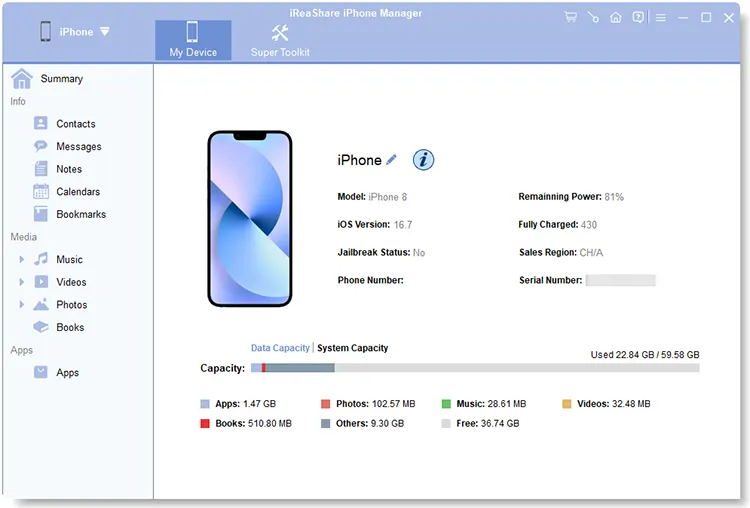
Launch iReaShare iPhone Manager on your computer, and connect your iPhone to the computer via a USB cable.
-
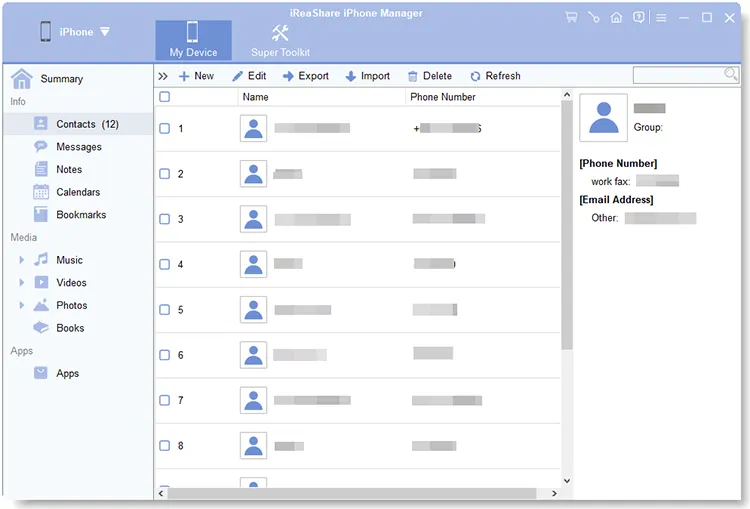
Unlock the iPhone and click "Trust". Then the software will quickly recognize your device. Once connected, choose a data type.
-
Select specific files, and click "Export" to transfer them to your computer.
Part 3: Q&A About Fixing iTunes Not Connecting to iPhone
Q1: How do I force iTunes to recognize my iPhone?
Ensure your iPhone is unlocked and on the Home screen. Try a different USB port on your computer, preferably one directly on the motherboard (for desktops) rather than a front-panel or hub port, which may provide insufficient power for data synchronization.
Q2: Is iTunes no longer supported by Apple?
Apple has phased out iTunes on macOS in favor of Finder and the Music/TV apps. However, it remains available and supported for Windows users, although Apple is actively encouraging migration to the new "Apple Devices" app.
Q3: Which iOS models does iTunes not support?
iTunes supports almost all iPhones, but extremely old versions of iTunes may struggle to communicate with the latest iOS 26 iterations due to outdated security encryption protocols. Always ensure your iTunes version is at least 12.10 or higher.
Conclusion
The "iTunes could not connect to this iPhone" error can stem from multiple sources, but it's usually fixable with systematic troubleshooting. From updating software to checking hardware and resetting trust settings, and using iTunes Repair to fix it directly, all the solutions are straightforward.
If iTunes continues to fall short, modern alternatives like the Apple Devices app and iReaShare iPhone Manager offer more flexibility and convenience.
Related Articles
Transfer Files from PC to iPhone Without iTunes (7 Methods)
How to Access iPhone Files on PC Without iTunes: 7 Alternatives
iPhone Stuck in Recovery Mode: How to Fix It (Step-by-Step Guide)
How to AirDrop iPhone to Android Easily and 4 Alternatives

