


TL;DR:
If your iPhone is stuck on the Apple logo and won't start normally, try these solutions:
- Charge and wait to rule out low battery or temporary startup issues.
- Force restart your iPhone to clear a temporary system freeze.
- Repair iOS with Fixppo to fix possible system-related problems without immediately restoring the device.
- Use Recovery Mode to update or restore iOS through a computer.
- Enter DFU Mode for deeper firmware-level troubleshooting when other methods fail.
- Contact Apple Support if the problem persists or may be related to hardware damage.
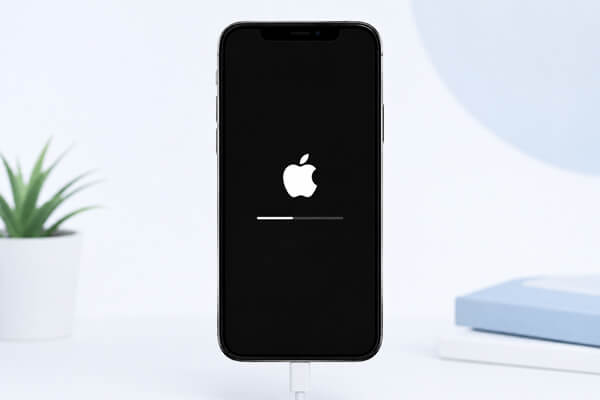
Seeing your iPhone stuck on the Apple logo can be frustrating, especially when the screen remains unchanged and the device seems unable to start normally. This issue can happen because of an iOS glitch, a failed update, corrupted system files, low battery, or even a hardware problem.
Fortunately, being stuck on the Apple logo doesn't always mean that your iPhone needs to be restored or repaired. In this guide, we'll explain the common causes of this issue and walk you through several ways to fix it, from charging and force restarting your iPhone to repairing iOS with Fixppo, using Recovery Mode or DFU Mode, and contacting Apple for professional help.
Part 1. Why Is My iPhone Stuck on the Apple Logo Screen?
If your iPhone remains stuck on the Apple logo, the problem may be caused by a temporary software glitch, failed iOS update, corrupted system files, low battery, or hardware issues. Identifying the possible cause can help you choose the right solution.
Common causes include:
- iOS system glitches: Temporary software bugs can prevent the system from completing the startup process.
- Failed iOS updates: An interrupted or unsuccessful update may leave the iPhone unable to boot normally.
- Corrupted system files: Damaged iOS components can interfere with the startup process.
- Insufficient battery power: A critically low battery may prevent the iPhone from starting properly.
- Failed data transfer or restore: Problems during data migration or backup restoration can sometimes cause startup failures.
- Hardware problems: A damaged battery, storage component, logic board, or other internal hardware may also cause the iPhone to remain stuck on the Apple logo.
Part 2. How to Fix iPhone Stuck on the Apple Logo
Try the following solutions in order. Start with the methods that are least likely to affect your data before moving on to Recovery Mode or DFU Mode.
2.1 Charge and Wait Safely
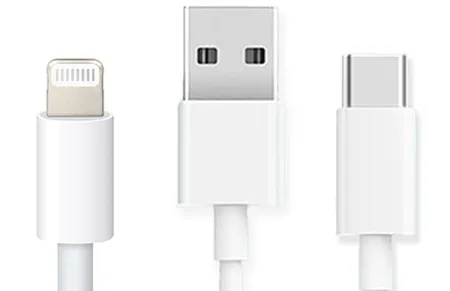
A low battery or temporary power issue may prevent your iPhone from starting properly. Connect it to a reliable charger and leave it charging for at least 30 minutes. Then, try turning it on again. If the iPhone is still stuck on the Apple logo, make sure the charging cable and adapter are working properly, and then move on to the next solution.
2.2 Force Restart iPhone
If your iPhone remains stuck on the Apple logo, a force restart can help resolve temporary system freezes without erasing your data. The button combination varies depending on your iPhone model.
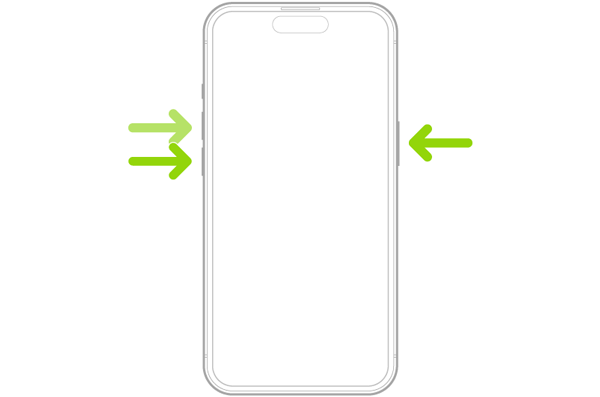
For iPhone 8 and later, including iPhone SE (2nd generation and later):
- Quickly press and release the "Volume Up" button.
- Quickly press and release the "Volume Down" button.
- Press and hold the "Side" button until the Apple logo appears.
- Release the button when the Apple logo appears.
For iPhone 7 and iPhone 7 Plus:
- Press and hold the "Side" and "Volume Down" buttons at the same time.
- Keep holding them until the Apple logo appears.
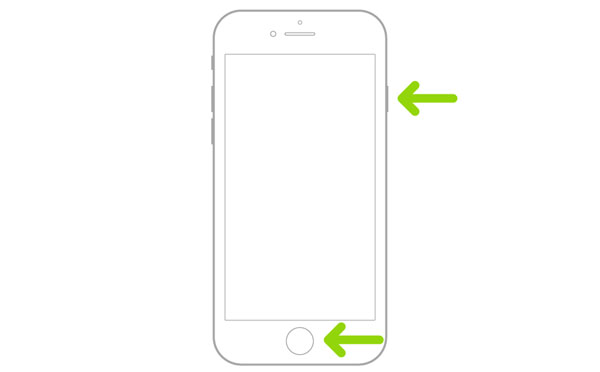
For iPhone 6s and earlier, including iPhone SE (1st generation):
- Press and hold the "Home" and "Side/Top" buttons together.
- Keep holding them until the Apple logo appears.
2.3 Repair iPhone with Fixppo
If a force restart doesn't resolve the problem, the issue may be related to the iOS system itself. In this situation, a dedicated iOS system repair tool can be an alternative before resorting to a complete restore.
Fixppo is designed to troubleshoot various iOS system problems, including devices that become stuck during startup, remain in Recovery Mode, repeatedly restart, or encounter update-related problems. It provides Standard Mode and Advanced Mode, allowing users to choose a repair approach based on the severity of the problem. Standard Mode is intended to repair certain system problems without erasing device data, while Advanced Mode is designed for more serious situations.
Key features of Fixppo
- Repair various iOS system problems without complicated technical operations.
- Provide Standard Mode and Advanced Mode for different repair situations.
- Support iPhone, iPad, iPod touch, and Apple TV.
- Help address problems such as iPhone stuck on the Apple Logo, startup failures, frozen screens, repeated restarting, and iOS update errors.
- Support iOS upgrading and downgrading.
How to use Fixppo to fix an iPhone stuck on the Apple logo:
-
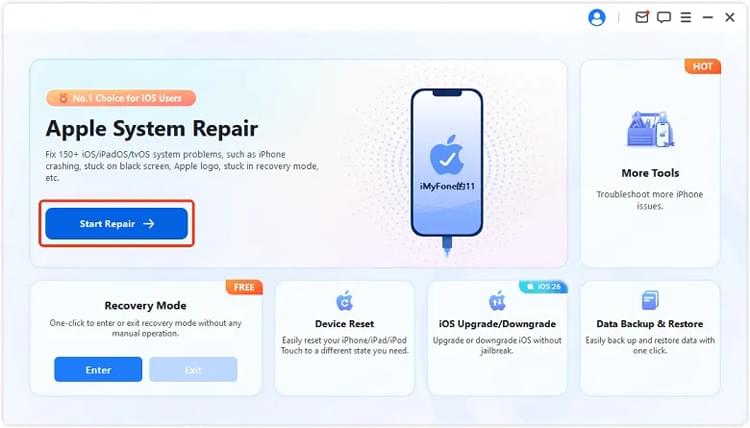
Launch Fixppo on your computer and connect your iPhone with a USB cable. Then, select "Apple System Repair".
-
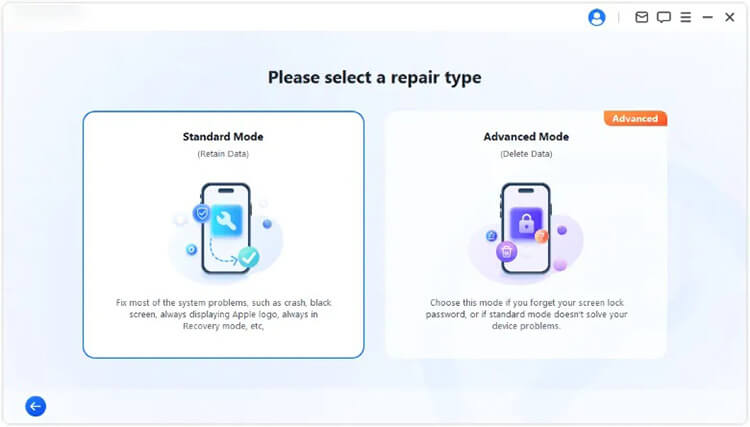
Choose "Standard Mode" to repair the iOS system while keeping your iPhone data.
-
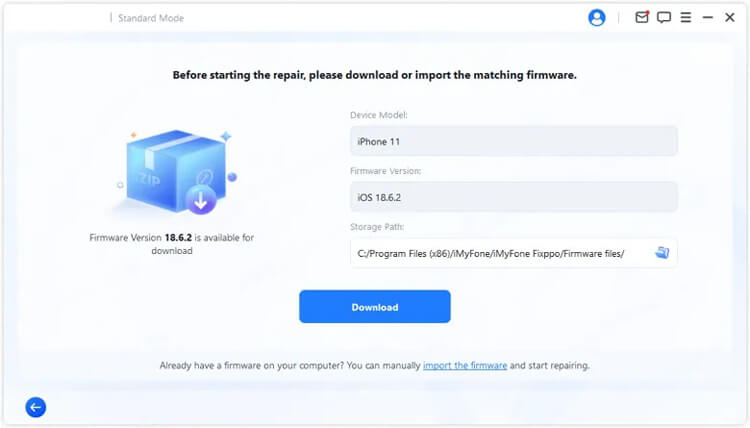
Follow the on-screen instructions to download the matching firmware package.
-
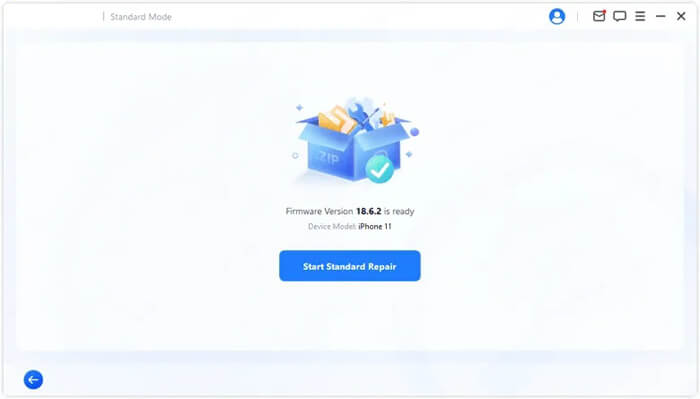
Once the firmware is ready, click "Start Standard Repair" to begin repairing the iOS system.
Keep your iPhone connected throughout the process. Once the repair is complete, check whether the device is no longer stuck on the Apple logo and can start normally.
2.4 Restore in Recovery Mode
Recovery Mode is Apple's built-in troubleshooting method for reinstalling or updating iOS when an iPhone cannot start normally.
This method is particularly useful if the Apple logo remains on the screen without a progress bar or if the device repeatedly fails during startup. Apple recommends trying Update before choosing Restore, because Restore erases the iPhone.
Step 1. Connect Your iPhone to a Computer
Connect the iPhone to a Mac or Windows PC using a USB cable.
- On a Mac running macOS Catalina or later, open Finder.
- On Windows, open the Apple Devices app or iTunes if applicable.
Step 2. Enter Recovery Mode
For iPhone 8 and later:
- Quickly press and release "Volume Up".
- Quickly press and release "Volume Down".
- Press and hold the "Side" button.
- Continue holding it until the "Connect to Computer" screen appears.
For iPhone 7/7 Plus:
- Press and hold the "Volume Down" and "Side/Top" buttons together.
- Keep holding them until the recovery screen appears.
For iPhone 6s and earlier:
- Press and hold the "Home" and "Side/Top" buttons together.
- Continue holding them until the "Connect to Computer" screen appears.
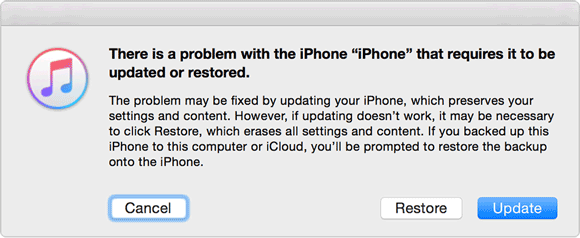
Step 3. Choose Update First
When your computer detects the iPhone and displays the Update or Restore options, choose "Update" first. This attempts to reinstall iOS without immediately erasing your personal data.
If the update finishes successfully, your iPhone should restart and hopefully boot normally.
If the update fails and the iPhone still cannot start, you can return to Recovery Mode and choose "Restore". However, Apple states that Restore reinstalls iOS and erases all data on the device, so back up your iPhone first and use this option only when necessary.
2.5 Get iPhone Enter DFU Mode
If Recovery Mode doesn't fix the issue, you can try DFU (Device Firmware Update) Mode. It provides a deeper way to restore the iPhone and may help when the device remains stuck on the Apple logo.
Before starting, connect your iPhone to a computer with a USB cable and open iTunes. On newer Macs, you can use Finder instead.
For iPhone 8 and later:
- Connect your iPhone to the computer and launch the latest iTunes.
- Quickly press and release the "Volume Up" button.
- Quickly press and release the "Volume Down" button.
- Press and hold the "Side" button until the iPhone screen turns black.
- As soon as the screen goes black, press and hold the "Side" and "Volume Down" buttons together for about 5 seconds.
- Release the "Side" button while continuing to hold the "Volume Down" button.
- Keep holding "Volume Down" until the computer detects your iPhone.
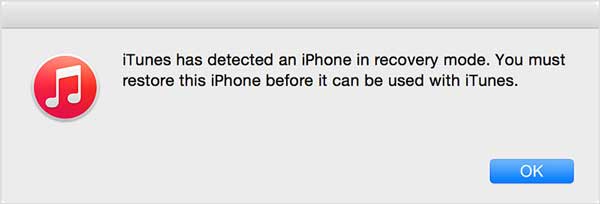
When your iPhone successfully enters DFU mode, iTunes will display a message saying "iTunes has detected an iPhone in recovery mode...". Click "OK", then use iTunes to restore your iPhone.
Keep in mind that restoring your iPhone in DFU mode will erase all data on the device. Back up your iPhone beforehand if possible, and keep the device connected to the computer throughout the restoration process.
2.6 Contact Apple for Help
If your iPhone is still stuck on the Apple logo after trying all the methods above, the problem may be related to hardware or a more serious system failure. In this case, contacting Apple Support or visiting an Apple Authorized Service Provider is recommended.
You can get help by:
- Visiting the Apple Support website or opening the Apple Support app.
- Choosing iPhone and describing the issue.
- Following Apple's troubleshooting steps or scheduling a repair appointment if needed.
If your iPhone has experienced physical damage, water damage, or continues to get stuck on the Apple logo after a restore, professional inspection may be necessary.
FAQs of iPhone Stuck on the Apple Logo
1. Does an iPhone stuck on the Apple logo mean it is broken?
Not necessarily. In many cases, the issue is caused by software problems that can be fixed with troubleshooting methods. However, if the device has physical damage or still cannot start after repairs, hardware failure may be the cause.
2. How long will an iPhone be stuck on an Apple logo?
An iPhone may stay on the Apple logo for a few minutes during startup, but it should not remain there for an extended period. If it stays stuck for a long time, there may be a software or hardware issue that needs troubleshooting.
3. Can I fix an iPhone stuck on the Apple logo without losing data?
Yes. Some solutions, such as charging your iPhone or performing a force restart, do not erase your data. However, restoring the device through Recovery Mode or DFU Mode may remove all content.
Conclusion
When your iPhone is stuck on the Apple logo, don't immediately assume that your device needs to be erased or repaired. Start by giving it enough time to finish an ongoing update or restoration, then try a force restart. If the problem persists, Fixppo can be an option for repairing possible iOS system issues before moving on to Apple's Recovery Mode or the more advanced DFU Mode.
Related Articles
iDevice Fails to Restart? Follow 3 Effective Approaches
iTunes Could Not Back Up iPhone Because an Error Occurred: Fix It in 10 Ways
iOS 17 Not Installing on Your iPhone? Resolve the Problem Easily
Solve Notes Not Syncing Between iPhone and Mac in 9 Ways

