


TL;DR:
Want to downgrade iOS from iOS 27 to iOS 26? This guide explains what to prepare before downgrading and introduces different ways to return to a previous iOS version:
- Back up your iPhone and prepare the required firmware before starting the iOS downgrade process.
- Use Fixppo to downgrade iOS 27 to iOS 26 without jailbreaking.
- Restore iOS 26 through iTunes/Finder with the correct IPSW firmware file.
- Remove the iOS 27 beta profile and understand the limitations of downgrading iOS without a computer.
"For a work project, I need an iOS version 16 or under, and my phone updated to iOS 17. This was a while ago, but the internet didn't help much in finding a way to get the iphone back to iOS 16. Does anyone here know a way to do it? It's an iphone 13, if it matters. Thank you for your time."
- From Reddit
Downgrading iOS is a common choice for iPhone users who experience problems after installing a newer system version. Although new iOS updates usually bring performance improvements and new features, some users may encounter issues such as battery drain, app compatibility problems, system crashes, or unexpected bugs after upgrading to iOS 27. In these situations, many people want to downgrade iOS and return to a more stable version like iOS 26.
However, downgrading iOS is not as simple as installing an update. Apple controls which iOS versions can be installed through its signing system, meaning some downgrade methods only work when the target firmware is still available. This guide will explain what to prepare before you downgrade iOS, how to downgrade iOS 27 to iOS 26 using different methods.
Part 1. What to Do Before Downgrading iOS?
Before downgrading from iOS 27 to iOS 26, it is important to prepare your iPhone properly. A failed downgrade process may cause data loss or leave your device stuck in recovery mode, so completing the following steps first can help avoid unnecessary problems.
1. Check Whether iOS 26 Is Still Signed by Apple
Apple uses a signing system to control which iOS versions can be installed on an iPhone. When Apple stops signing an older iOS version, users can no longer restore that version through normal methods.
Before starting the downgrade:
- Check whether iOS 26 IPSW is still signed.
- Make sure your iPhone model supports iOS 26.
- Download the correct IPSW file for your device.
If iOS 26 is no longer signed, normal downgrade methods using iTunes/Finder may fail.
2. Back Up Your iPhone Data
Before downgrading iOS, it is important to back up your iPhone data because the downgrade process may erase all content on your device. You can create a complete backup using iCloud Backup, Finder on Mac, or iTunes/Apple Devices on Windows. Make sure your important data, including photos, contacts, messages, app data, and WhatsApp chats, are safely stored before starting the downgrade process.
3. Make Sure Your iPhone Has Enough Battery and Storage
A downgrade requires your iPhone to stay connected throughout the process.
Before beginning:
- Charge your iPhone to at least 50%.
- Use a reliable USB cable.
- Ensure your computer has enough storage for the IPSW file.
Part 2. How to Downgrade from iOS 27 to iOS 26
There are several ways to downgrade iOS 27 depending on whether iOS 26 is still signed and whether you want to use a computer. Choose the method that best fits your situation.
2.1 How to Go Back to iOS 26 from iOS 27 Without Jailbreak
If you want to downgrade iOS 27 to iOS 26 without jailbreaking your iPhone, using a professional iOS downgrade tool can be a convenient option. Fixppo allows you to download the compatible firmware package and complete the downgrade process through a simple interface, making it easier for users who are not familiar with manual firmware installation.
With Fixppo, you can downgrade iOS without modifying the system or using jailbreak methods. It supports firmware management and provides step-by-step guidance throughout the process, helping users return to a previous iOS version more smoothly.
Key features of Fixppo:
- Downgrade iOS without jailbreak.
- Automatically detect your iPhone model and provide the compatible firmware package required for the downgrade.
- Simplify the iOS downgrade process with a clear interface and step-by-step instructions, making it suitable for beginners.
- Support iOS upgrade and downgrade functions, allowing users to return to a previous iOS version when the firmware is available.
- Help fix common iOS system issues that may occur after updates, such as being stuck on the Apple logo, recovery mode, or update failures.
Steps to downgrade iOS 27 to iOS 26 without iTunes:
-
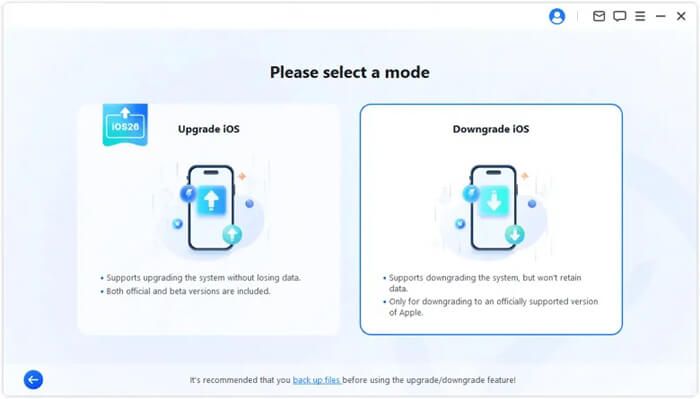
Launch Fixppo on your computer and choose the "iOS Upgrade/Downgrade" tab from the main interface. Then, enter the "Downgrade iOS" mode.
-
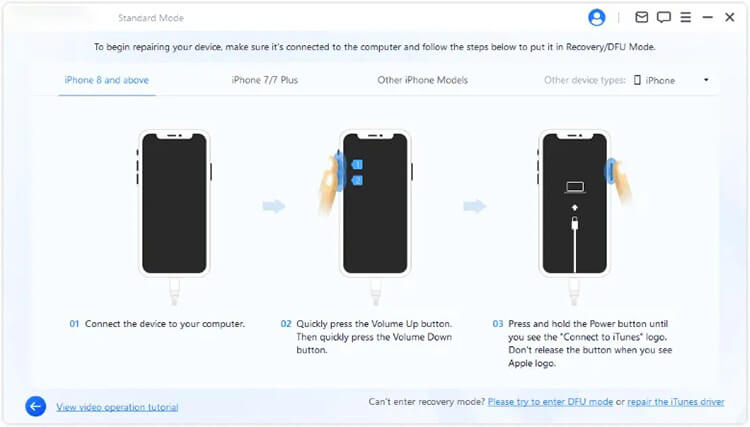
Connect your iPhone to the computer with a USB cable and follow the instructions provided by the program to put your device into Recovery Mode.
-
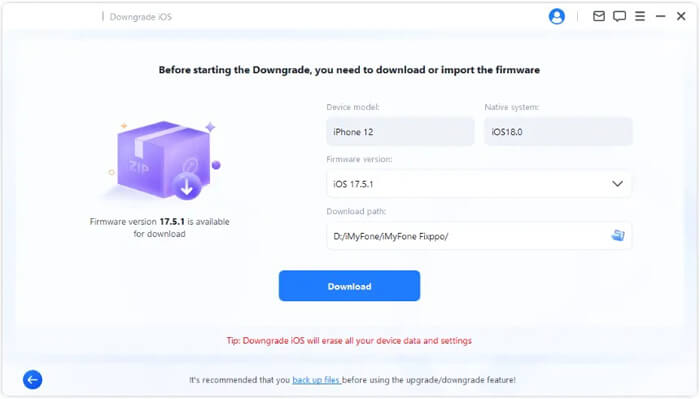
Once your iPhone is detected, Fixppo will display the available firmware version for downgrading. Select the required iOS 26 firmware, choose a download location if needed, and click the "Download" button to get the firmware package.
-
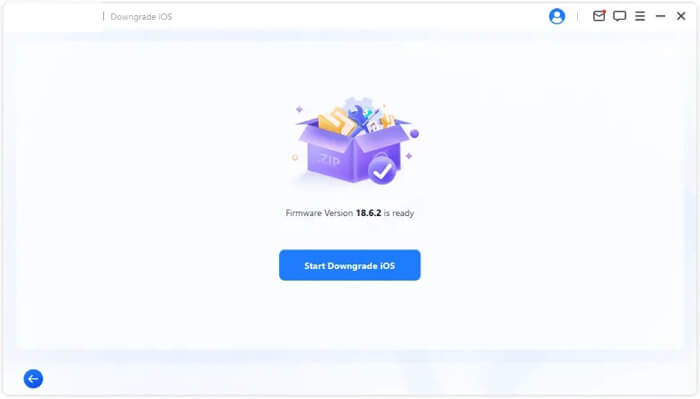
After the firmware is downloaded successfully, click the "Start Downgrade iOS" button to begin downgrading your iPhone from iOS 27 to iOS 26. Keep your device connected until the process is completed.
2.2 How to Downgrade iOS 27 to iOS 26 Using iTunes/Finder
If you prefer using Apple's official method, you can downgrade iOS 27 to iOS 26 through iTunes or Finder when the target iOS version is still being signed by Apple. This method requires downloading the correct IPSW firmware file and restoring your iPhone through a computer. Since the restore process may erase your existing data, make sure to create a backup before starting.
Steps to downgrade iOS 27 to iOS 26 using iTunes/Finder:
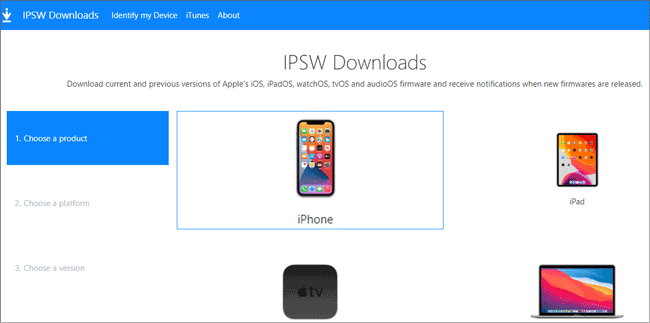
Step 1. Visit ipsw.me, select your iPhone model, and download the signed iOS 26 IPSW file. Make sure the firmware version is marked as available for signing before downloading, as iTunes/Finder can only restore iOS versions that Apple is currently authorizing.
Step 2. Turn off Find My iPhone on your device by going to "Settings" > [Your Name] > "Find My" > "Find My iPhone" and disabling this option. You may need to enter your Apple ID password to confirm.
Step 3. Connect your iPhone to the computer using a USB cable and put it into Recovery Mode.
- For iPhone 8 or later: Quickly press and release the "Volume Up" button, then the "Volume Down" button. Hold the "Side" button until the Recovery Mode screen appears.
- For iPhone 7/7 Plus: Press and hold the "Volume Down" and "Side" buttons together until the Recovery Mode screen shows.
- For iPhone 6s or earlier: Press and hold the "Home" and "Power" buttons until the Recovery Mode screen appears.
Step 4. Open iTunes or Finder after your iPhone enters Recovery Mode. Hold the "Option" key on Mac or the "Shift" key on Windows, then click the "Restore iPhone" button.
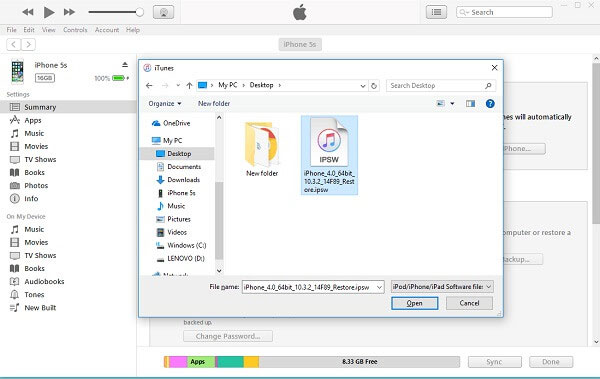
Step 5. Select the downloaded iOS 26 IPSW file and confirm the restore process. iTunes/Finder will install the firmware and begin downgrading your iPhone from iOS 27 to iOS 26.
After the downgrade is complete, your iPhone will restart with iOS 26. You can restore your previous backup to recover your data. If no backup is available, you will need to set up the iPhone as a new device.
2.3 How to Downgrade from iOS 27 to iOS 26 Without Computer
Many users look for a way to downgrade iOS 27 to iOS 26 without using a computer. However, Apple does not offer a direct option to downgrade iOS through iPhone settings. Unlike updating iOS, downgrading requires installing an older IPSW firmware file, which normally needs to be completed through a computer.
If you only want to stop receiving iOS 27 beta updates, you can remove the iOS 27 beta profile directly from your iPhone. Please note that removing the beta profile will not downgrade your device to iOS 26. Your iPhone will remain on the current iOS 27 version until you perform a proper downgrade using an available firmware restore method.
Steps to remove iOS 27 beta profile without a computer/iTunes:
Step 1. Open the Settings app on your iPhone.
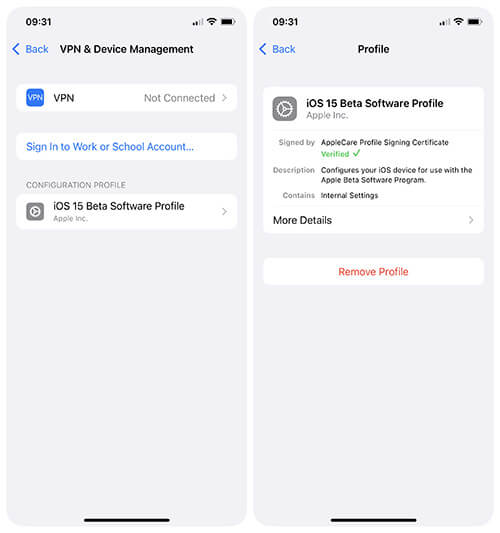
Step 2. Tap "General" and select "VPN & Device Management" (or "Device Management" depending on your iOS version).
Step 3. Find and tap the "iOS Beta Software Profile", then choose the option to remove the iOS 27 beta profile.
Step 4. Restart your iPhone to complete the removal process.
FAQs About iOS Downgrade
1. Is it possible to downgrade iOS after Apple stops signing the version?
No. Once Apple stops signing an iOS version, you usually cannot downgrade to that version using iTunes/Finder. Only iOS versions that are still signed by Apple can be installed through the official restore process.
2. Can I downgrade iOS to any previous version?
No. You can only downgrade to iOS versions that are compatible with your device and still supported by Apple's signing system. Older unsigned versions generally cannot be installed through normal methods.
3. How long does it take to downgrade iOS?
The downgrade time depends on factors such as the IPSW file size, internet speed, and iPhone model. Usually, the entire process may take several minutes to complete, but downloading the firmware may take longer.
Conclusion
Downgrading iOS from iOS 27 to iOS 26 depends mainly on whether Apple is still signing the older firmware version. If iOS 26 is available, you can use iTunes/Finder to restore your iPhone officially. However, if you only want to fix problems caused by a new iOS update, using an iOS system repair tool like Fixppo can be a safer option without jailbreaking.
Before attempting any downgrade, remember to back up your data and verify firmware compatibility to avoid unexpected errors during the process.
Related Articles
iPhone Stuck in Recovery Mode: How to Fix It (Step-by-Step Guide)
Compare iPhone 17 Series and iPhone Air: Hardware, Software & Pricing
Google Pixel 10 vs iPhone 17: Which Is More Suitable for You?
iOS 17 Not Installing on Your iPhone? Resolve the Problem Easily

