TL;DR:
iPhone stuck on preparing update is a common issue when installing major iOS versions such as iOS 27. Here are the most effective solutions:
- Check your Wi-Fi connection and Apple server status first.
- Restart your iPhone and re-download the iOS update file if the problem is caused by a temporary update error.
- Free up storage space or reset network settings when system requirements are not met.
- Update your iPhone through Finder/iTunes if OTA updating keeps failing.
- Use an iOS system repair tool when the issue is caused by deeper software problems.
- Restore your iPhone in DFU mode only as a last resort because it will erase your data.
"Bought a used phone from neighbor. Attempting to update iOS to 17.4.1 from 17.1. Downloaded successfully but now stuck on preparing update....What should I do?"
- From the Apple Community
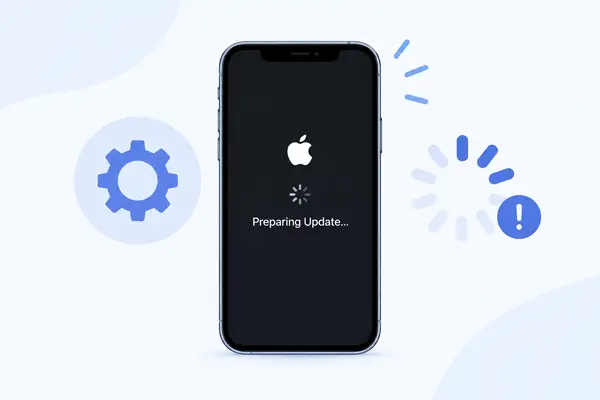
Updating an iPhone to the latest iOS version should be a smooth process, but many users encounter the iPhone stuck on Preparing Update issue when installing new versions like iOS 27. In this situation, the update screen may remain on "Preparing Update" for a long time, leaving users unsure whether the process is still running or has stopped completely.
If your iPhone is stuck on Preparing Update during an iOS upgrade, this guide will explain the possible reasons behind the problem, how long you should wait before taking action, and 9 effective ways to fix it. From simple troubleshooting methods to advanced iOS system repair solutions, you can find the right approach to complete the update without unnecessary risks.
Part 1. Why Is the Update Stuck on Preparing?
When your iPhone stays on "Preparing Update" for a long time, it usually means the update process cannot complete the verification or preparation stage. This issue may happen because of:
- Unstable internet connection.
- Apple server delays or temporary outages.
- Insufficient iPhone storage space.
- Corrupted iOS update files.
- Temporary iOS system glitches.
- Incomplete previous update attempts.
Part 2. How Long Should an iPhone Be Stuck on Preparing an Update?
An iPhone usually stays on the "Preparing Update" screen for about 5 to 15 minutes. For larger iOS updates, such as iOS 27, the process may take up to 30 minutes depending on the update size, iPhone model, available storage, and network conditions.
If your iPhone has been stuck on Preparing Update for more than 45 minutes to an hour without any progress, it is likely experiencing an update issue rather than normal processing. In this case, you can try the fixes below to complete the iOS update.
Part 3. How to Fix iPhone Stuck on Preparing Update
3.1 Check Internet Connection
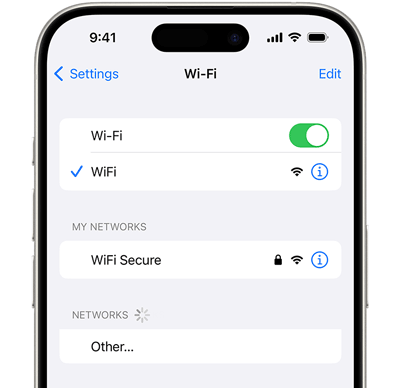
A stable internet connection is required when updating iOS. Even if the update file has already been downloaded, your iPhone still needs to communicate with Apple servers during the preparation and verification process. If your Wi-Fi connection is unstable or interrupted, your iPhone may fail to complete the update preparation and stay stuck on the same screen.
Try these steps:
- Make sure your iPhone is connected to a reliable Wi-Fi network.
- Move closer to your router if the signal is weak.
- Disable VPN or network-related apps temporarily.
- Restart your router and reconnect your iPhone.
When to use this method:
* Your Wi-Fi connection frequently disconnects;
* The update started failing after a network interruption;
* Other devices also have slow or unstable internet access.
If your network works normally but your iPhone is still stuck, continue with the following solutions.
3.2 Check Apple Server Status
Sometimes, the problem is not with your iPhone but with Apple's update servers. When a new iOS version, like iOS 27, is released, a large number of users may try updating at the same time, causing temporary delays. If Apple servers cannot properly verify update requests, your iPhone may remain on Preparing Update for a long time.
How to check Apple server status:
- Open Apple's System Status page.
- Look for services related to iOS Software Update.
- Check whether any service reports an outage.
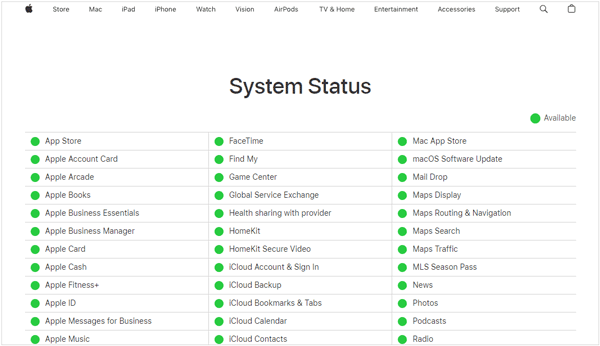
If Apple is experiencing a temporary service issue, waiting until the problem is resolved may be the best option.
This method is especially useful when:
* A new iOS version such as iOS 27 was recently released;
* Many users are reporting similar update problems;
* Your iPhone suddenly cannot update after previously working normally.
3.3 Force Restart iPhone
A force restart can help fix temporary iOS freezes that prevent the update process from continuing. It refreshes the system without deleting your personal data.
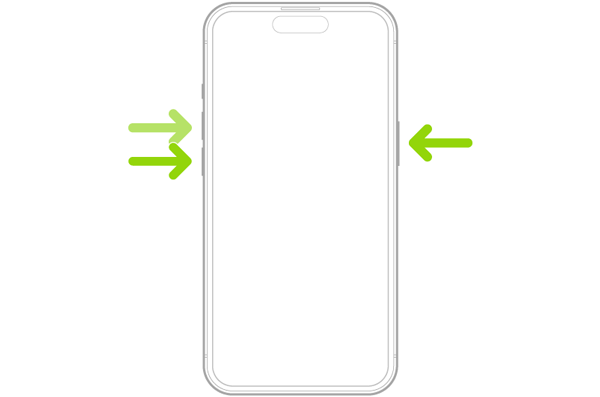
For iPhone 8 and later:
- Quickly press and release the "Volume Up" button.
- Quickly press and release the "Volume Down" button.
- Press and hold the "Side" button until the Apple logo appears.
For iPhone 7:
- Press and hold the "Volume Down" button and "Side" button together.
- Release them when the Apple logo appears.
For iPhone 6s and earlier:
- Press and hold the "Home" button and "Power" button together.
- Release them when the Apple logo appears.
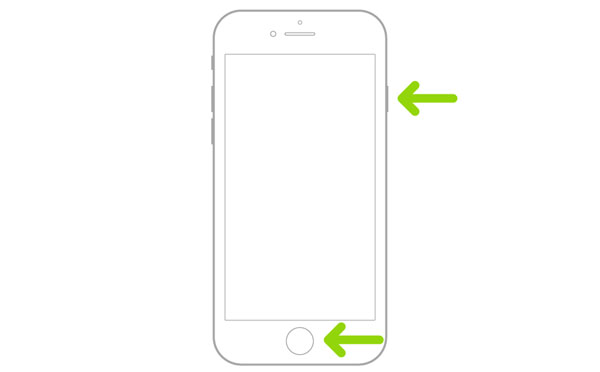
After restarting your iPhone, go to "Settings" > "General" > "Software Update", and try installing the update again.
Force restarting is helpful when:
* The update screen is frozen;
* The progress bar has not changed;
* Your iPhone becomes unresponsive during the update process.
3.4 Delete the iOS Update File and Re-Download
A damaged or incomplete iOS update file can prevent your iPhone from finishing the preparation process. Removing the existing update file allows your device to download a fresh copy.
Steps:
- Open "Settings".
- Go to "General" > "iPhone Storage".
- Find the downloaded iOS update file.
- Tap "Delete Update".
- Restart your iPhone.
- Return to "Software Update" and download the update again.
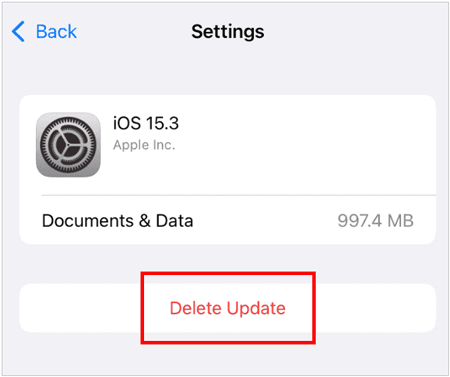
This solution is useful if:
* The update was interrupted while downloading;
* Your iPhone repeatedly gets stuck on Preparing Update;
* The problem appeared after a failed update attempt.
3.5 Free Up iPhone Storage
Insufficient storage space is another common reason why an iPhone cannot complete an update. iOS needs extra space to unpack update files and prepare the installation process.
Check your storage: Go to "Settings" > "General" > "iPhone Storage".
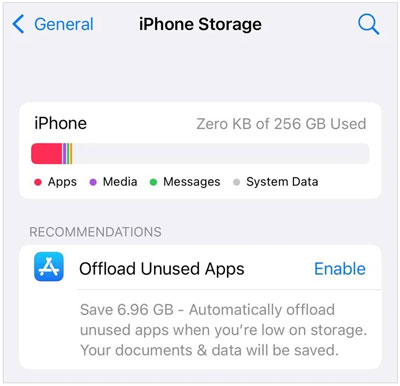
You can remove unnecessary files, such as unused apps, large videos and photos, downloaded files, and old message attachments.
Freeing up storage can help if:
* Your iPhone storage is almost full;
* The update stops during preparation or installation;
* You receive storage-related warnings.
3.6 Reset Network Settings
If your Wi-Fi connection is working but iOS still cannot complete the update, incorrect network settings may be interfering with the verification process. Resetting network settings restores network-related configurations to their default state.
- Open "Settings".
- Tap "General".
- Select "Transfer or Reset iPhone".
- Tap "Reset".
- Choose "Reset Network Settings".
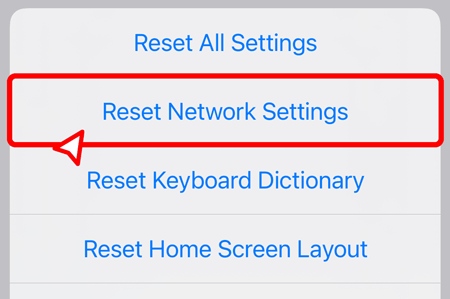
After the reset: saved Wi-Fi passwords will be removed; network settings will return to default; your photos, apps, and personal data will remain unchanged.
Resetting network settings is helpful when:
* Your iPhone can connect to Wi-Fi, but the update remains stuck on Preparing Update;
* The issue continues after restarting your router or reconnecting to the network;
* Network-related settings, such as VPN configurations or saved connections, may be interfering with the iOS update process.
3.7 Update iPhone Using Finder or iTunes
If your iPhone update remains stuck through the wireless method, updating through a computer can be an effective alternative. Unlike OTA updates, Finder or iTunes downloads and installs the update through your computer, which can help avoid some wireless update problems.
Update using Finder on Mac:
- Connect your iPhone to your Mac with a USB cable.
- Open Finder.
- Select your iPhone.
- Click "Check for Update".
- Follow the instructions to install the latest iOS version.
Update using iTunes on Windows:
- Connect your iPhone to your computer.
- Open iTunes.
- Select your device.
- Click "Check for Update".
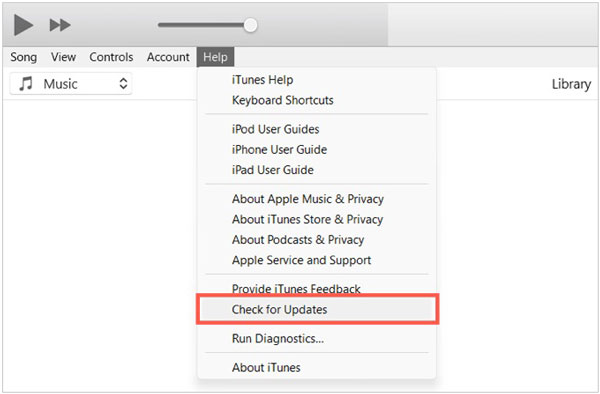
This method is suitable when:
* Your iPhone can still connect to a computer;
* OTA updating repeatedly fails;
* You want a more stable update method.
3.8 Use iOS System Repair Tool
If your iPhone is still stuck on Preparing Update after trying the previous methods, the problem may be related to deeper iOS system issues. In this case, an iOS system repair tool can help repair software-related problems and restore normal update functions without immediately erasing your device.
For example, Fixppo provides a simple way to repair various iOS problems, including update failures, frozen screens, startup issues, and other system errors.
Key features of Fixppo
- Repair common iOS system issues through a guided process without requiring advanced technical skills.
- Offer Standard Mode and Advanced Mode to handle different levels of system problems.
- Work with iPhone, iPad, iPod touch, and Apple TV devices.
- Fix issues such as iPhone update failures, stuck screens, boot problems, and repeated restarts.
- Support iOS downgrades and updates when users need to switch between iOS versions.
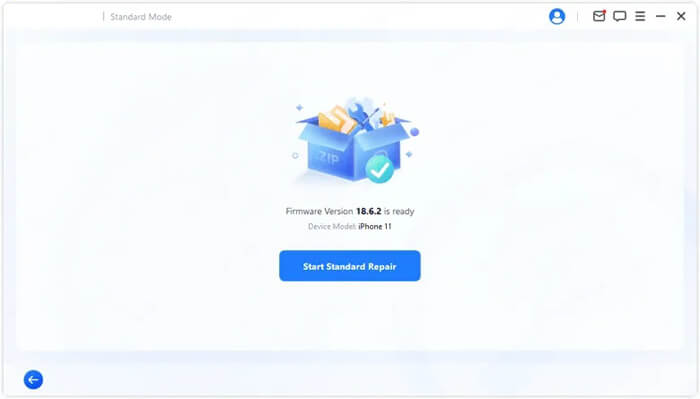
How to use Fixppo to fix an iPhone stuck on Preparing Update:
-
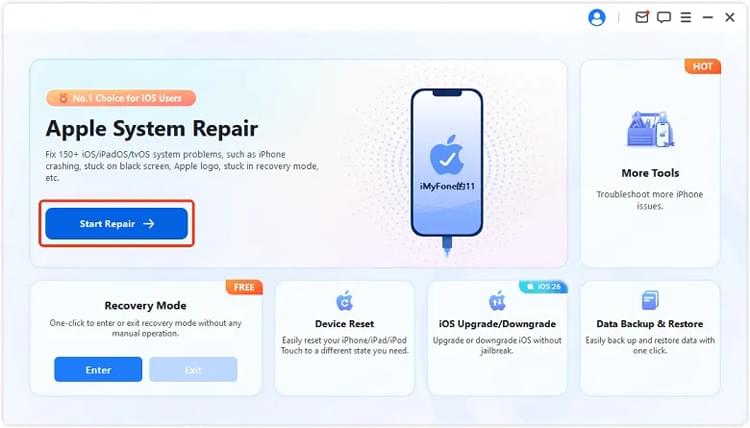
Open Fixppo on your computer and connect your iPhone using a USB cable. Then, select "Apple System Repair".
-
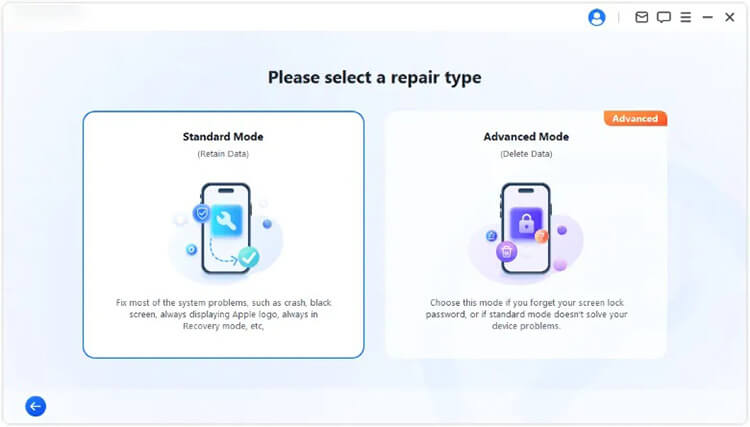
Choose "Standard Mode" to repair the iOS system while keeping your existing iPhone data.
-
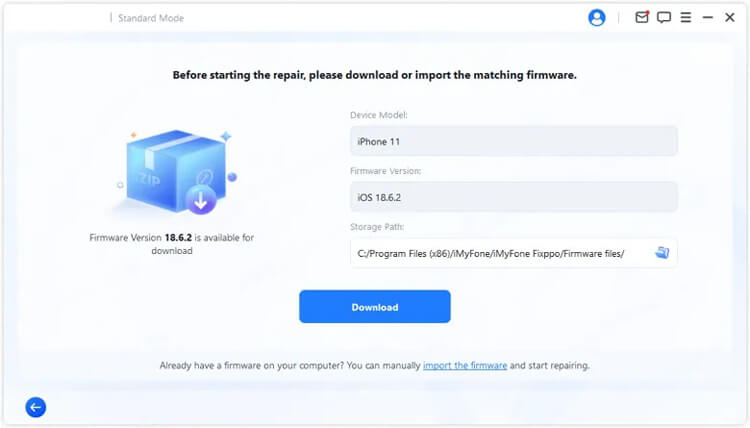
Follow the instructions displayed on the screen to download the appropriate firmware package for your device.
-
After the firmware is prepared, click "Start Standard Repair" to begin fixing the iOS system.
3.9 Restore iPhone in DFU Mode
DFU (Device Firmware Update) mode is one of the most advanced ways to restore an iPhone and reinstall iOS. It allows your computer to communicate with your iPhone even when the system cannot start normally, making it useful for serious update failures.
However, DFU restoration should only be considered as a last resort because it will erase all data on your iPhone.
Before using DFU mode:
- Back up your iPhone data if possible;
- Make sure you remember your Apple ID and password;
- Keep your computer connected to power during the restore process.
Steps to restore iPhone in DFU mode:
- Connect your iPhone to a computer using a USB cable.
- Open Finder on Mac or iTunes on Windows.
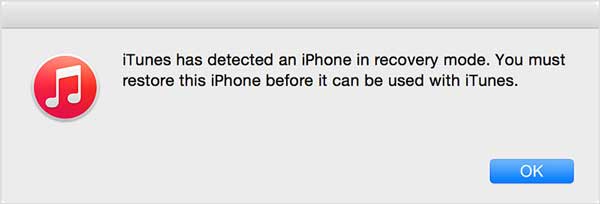
- Put your iPhone into DFU mode. Quickly press and release the "Volume Up" button, then the "Volume Down" button. After that, press and hold the "Side" button until the screen turns black. Continue holding the "Side" button and press the "Volume Down" button for about 5 seconds. Release the "Side" button but keep holding the Volume Down button until Finder or iTunes detects your iPhone.
- When your computer detects the device, click "Restore iPhone" and follow the on-screen instructions to reinstall iOS.
- After the restore process is complete, set up your iPhone again or restore it from a backup.
DFU restore is suitable when:
* Your iPhone repeatedly fails to update;
* The device cannot boot normally;
* Other solutions, including system repair tools, do not solve the issue.
Conclusion
The iPhone stuck on preparing update issue can happen when installing iOS 27 or other iOS versions due to network problems, Apple server delays, insufficient storage, damaged update files, or iOS system errors. In many cases, simple solutions like checking your connection, restarting your iPhone, or downloading the update again can help complete the process.
If your iPhone remains stuck after trying these common methods, the problem may involve deeper system issues. In this situation, an iOS system repair tool - Fixppo, can be a useful alternative before choosing a full restore that may erase your data. By following the solutions above, you can find the right way to fix the update problem and successfully install the latest iOS version.
Related Articles
Why Is iPhone Stuck on Update Requested? Fix It with Easy Steps
iOS 27 Update Paused: Causes and Fixes to Resume iPhone Update
iPhone Keeps Restarting? Causes and Troubleshooting Steps
How to Fix iPhone Stuck in SOS Mode Without Hassle [7 Ways]