


TL;DR:
If your iPhone keeps restarting itself, the problem may be caused by software glitches, faulty apps, insufficient storage, battery issues, or system errors. You can try these fixes:
- Force restart your iPhone to fix temporary system glitches.
- Check battery health and remove problematic apps.
- Free up storage space and update iOS to the latest version.
- Remove the SIM card to rule out network-related issues.
- Reset all settings or restore your iPhone using iTunes/Finder.
- Use an iOS system repair tool to fix system-related restarting issues.
- Contact Apple Support if the problem is caused by hardware damage.
"my iPhone SE keeps restarting every 2 minutes and won't let me update it. I have cleared storage but the problem hasn't stopped. How can I fix my iPhone SE that keeps restarting every few minutes?"
- From the Apple Community
An iPhone that randomly restarts can be frustrating, especially when it happens repeatedly and prevents you from using your device normally. Sometimes the issue only occurs occasionally, while in more serious cases, the iPhone may enter a continuous restart loop and keep showing the Apple logo repeatedly.
This problem can happen on different iPhone models and iOS versions. It may be related to software conflicts, damaged system files, hardware problems, or incorrect settings. In this guide, we will explain the common reasons why your iPhone keeps restarting and provide practical solutions to help you restore your iPhone to normal.
- Part 1. Why Is My iPhone Continuously Restarting?
- Part 2. How to iPhone Keeps Restarting Itself
- Solution 1. Force Restart the iPhone
- Solution 2. Check Battery Health
- Solution 3. Delete Faulty Apps
- Solution 4. Free Up More Space
- Solution 5. Update iOS System
- Solution 6. Remove the SIM Card
- Solution 7. Reset All Settings
- Solution 8. Restore iPhone via iTunes or Finder
- Solution 9. Use Fixppo
- Solution 10. Contact Apple Support
Part 1. Why Is My iPhone Continuously Restarting?
Before trying to fix the issue, it is helpful to understand what causes an iPhone to restart repeatedly. In most cases, the problem is not caused by a single factor but by a combination of software and hardware issues.
Here are some common reasons why your iPhone keeps turning on and off:
- 1. Software Glitches or iOS Bugs
Temporary iOS errors, corrupted system files, or bugs in a recent iOS update may cause your iPhone to crash and restart automatically. This is especially common after updating to a new iOS version.
- 2. Faulty or Incompatible Apps
Some third-party apps may contain bugs, fail to work properly with your iOS version, or consume excessive system resources. When an app causes system instability, your iPhone may restart frequently.
- 3. Low Storage Space
When your iPhone storage is almost full, iOS may not have enough space to perform normal operations. This can lead to performance issues, app crashes, and unexpected restarts.
- 4. Battery Problems
A degraded or damaged battery may not provide stable power to your iPhone. If the battery cannot support normal operation, the device may suddenly shut down and restart.
- 5. Hardware Damage
Physical damage, liquid exposure, or faulty internal components can also cause repeated restarting. If software solutions do not work, the issue may require professional repair.
Part 2. How to iPhone Keeps Restarting Itself
After identifying the possible causes, you can try the following solutions one by one. Start with simple troubleshooting methods first, then move on to more advanced fixes if the problem continues.
Solution 1. Force Restart the iPhone
A force restart is one of the easiest ways to fix an iPhone that keeps restarting due to temporary system errors. It does not delete any data and can refresh the device when the normal restart process is not working.
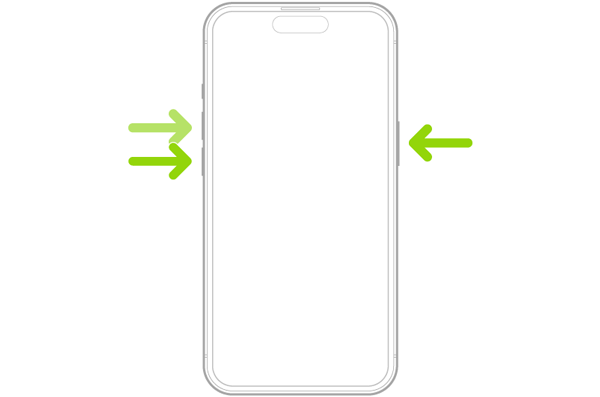
For iPhone 8 and later models:
- Quickly press and release the "Volume Up" button.
- Quickly press and release the "Volume Down" button.
- Press and hold the "Side" button until the Apple logo appears.
For iPhone 7/7 Plus:
- Press and hold the "Volume Down" button and the "Side" button at the same time.
- Release both buttons when the Apple logo appears.
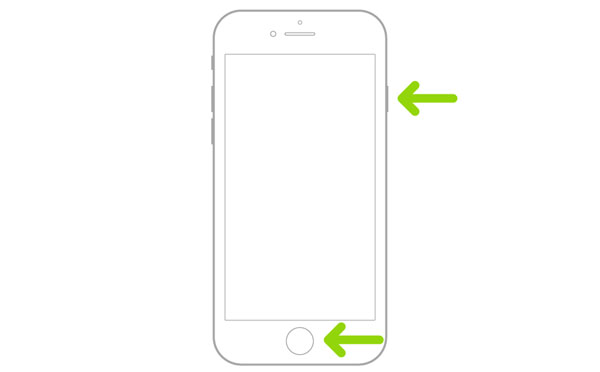
For iPhone 6s and earlier models:
- Press and hold the "Home" button and the "Power" button together.
- Release them when you see the Apple logo.
Solution 2. Check Battery Health
A weak battery is another common reason why an iPhone keeps turning on and off. When the battery capacity drops significantly, the device may shut down unexpectedly, especially during demanding tasks.
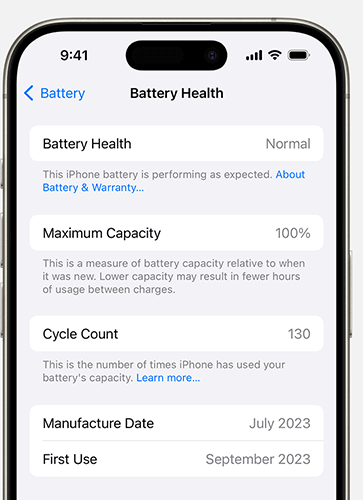
To check your iPhone battery health:
- Open "Settings" on your iPhone.
- Tap "Battery".
- Select "Battery Health & Charging".
- Check the "Maximum Capacity" percentage.
If the maximum capacity is significantly reduced or you see a battery service recommendation, consider replacing the battery through Apple or an authorized repair provider.
Solution 3. Delete Faulty Apps
If your iPhone started restarting after installing a specific app, that application may be causing system conflicts. Removing recently installed or suspicious apps can help solve the issue.
Follow these steps:
- Find the problematic app on your Home Screen.
- Press and hold the app icon.
- Tap "Remove App".
- Select "Delete App" to confirm.
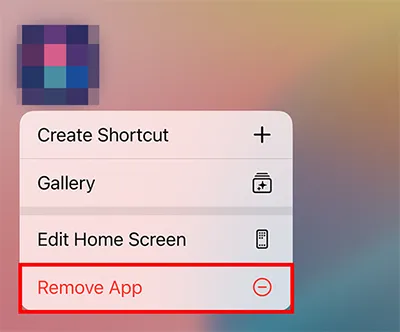
You can also check which apps consume the most resources:
- Go to "Settings" > "Battery".
- Review battery usage by app.
- Remove apps with unusual activity.
Solution 4. Free Up More Space
Insufficient storage can affect iOS performance and may cause your iPhone to restart repeatedly. Keeping enough free space allows the system to run properly.
To check your storage:
- Open "Settings".
- Go to "General" > "iPhone Storage".
- Review the storage usage.
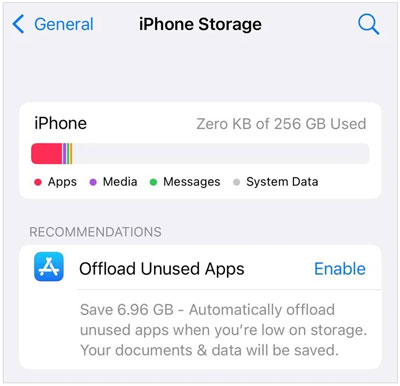
You can free up space by:
- Deleting unnecessary photos, videos, and files.
- Removing unused apps.
- Clearing large message attachments.
- Using iCloud or another backup service to store important data.
Solution 5. Update iOS System
Apple regularly releases iOS updates to fix bugs, improve stability, and solve compatibility issues. If your iPhone keeps restarting because of an outdated or buggy system version, updating iOS may help.
To update your iPhone:
- Open "Settings".
- Tap "General".
- Select "Software Update".
- Download and install the latest available iOS version.
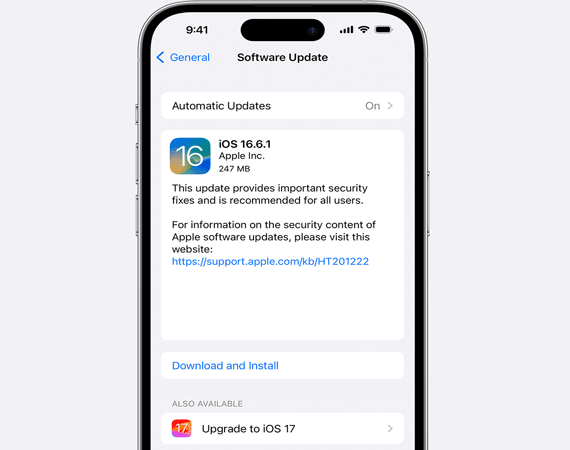
Make sure your iPhone has enough battery power and a stable Wi-Fi connection before starting the update process.
Solution 6. Remove the SIM Card
Although it is less common, a faulty SIM card or network-related issue may sometimes cause your iPhone to restart repeatedly. Removing the SIM card can help determine whether the problem is related to your cellular connection.
Follow these steps:
- Turn off your iPhone completely.
- Use a SIM eject tool to remove the SIM card tray.
- Take out the SIM card and check whether it is damaged or dirty.
- Turn on your iPhone without inserting the SIM card.
- Check whether your iPhone still keeps restarting.
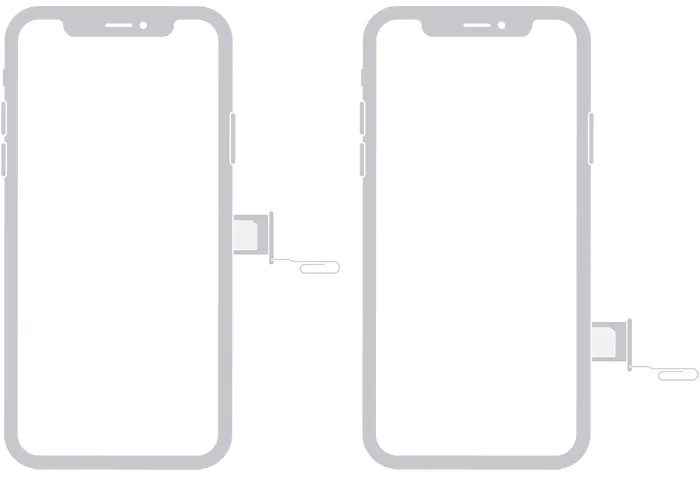
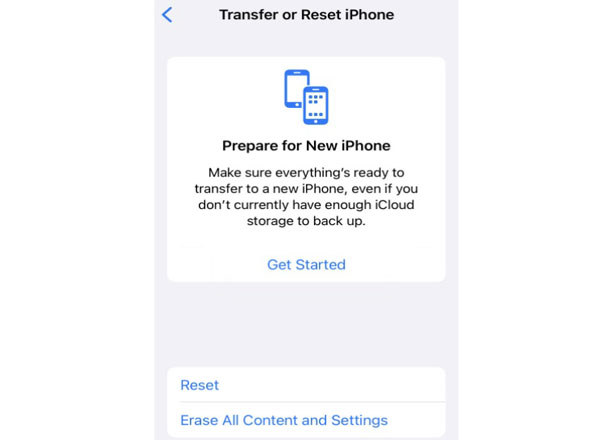
Solution 7. Reset All Settings
Incorrect settings or conflicts between system configurations may cause unexpected iPhone restarts. Resetting all settings can restore system preferences to their default state without deleting your personal data, such as photos, apps, and messages.
To reset all settings on your iPhone:
- Open "Settings".
- Tap "General".
- Scroll down and select "Transfer or Reset iPhone".
- Tap "Reset".
- Choose "Reset All Settings".
- Enter your iPhone passcode and confirm the action.
- After the process is complete, your iPhone will restart automatically. Check whether the restart issue has been fixed.
Solution 8. Restore iPhone via iTunes or Finder
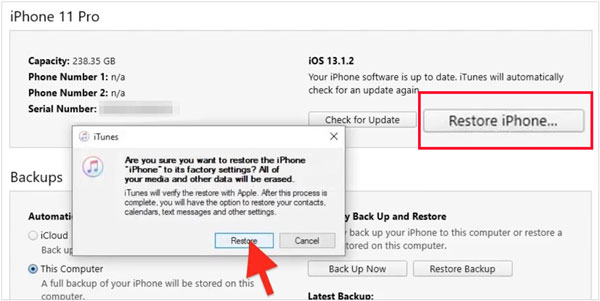
If your iPhone keeps restarting because of serious system corruption, restoring it through iTunes or Finder may help. This method reinstalls iOS and returns your device to factory settings. Before restoring your iPhone, make sure you have backed up your iPhone because this process may erase all data on your device.
Restore iPhone using iTunes/Finder:
- Connect your iPhone to a computer using a USB cable.
- Open iTunes on Windows or older macOS versions. For newer macOS versions, open Finder.
- Select your iPhone when it appears.
- Click "Restore iPhone".
- Follow the on-screen instructions to complete the restoration.
Solution 9. Use Fixppo
If your iPhone keeps restarting after trying common troubleshooting methods, the issue may be caused by deeper iOS system problems, such as corrupted system files or failed system processes. In this situation, an iOS system repair tool can help fix system-related errors without requiring complicated technical knowledge.
Tools like Fixppo provides a simple way to repair various iOS issues, including restart loops, Apple logo stuck problems, recovery mode errors, and other iOS-related failures without requiring complicated technical operations.
Key features of Fixppo:
- Fix various iOS system problems without complicated operations.
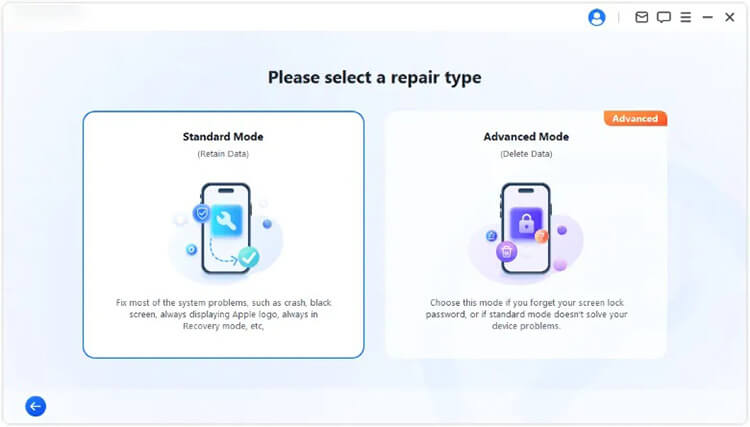
- Provide Standard Mode and Advanced Mode for different repair needs.
- Support iOS upgrading and downgrading.
- Repair issues such as iPhone keeps restarting, Apple logo stuck, startup failures, and system update errors.
- Work with multiple Apple devices, including iPhone, iPad, iPod touch, and Apple TV.
How to use Fixppo to fix iPhone keeps restarting?
-
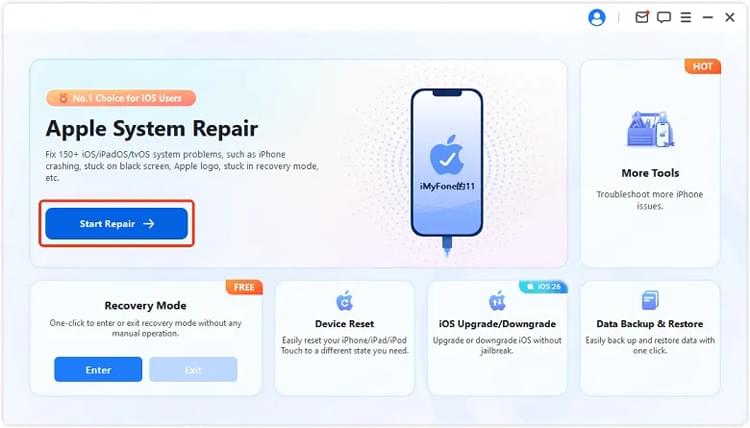
Launch the iOS system repair tool on your computer and connect your iPhone using a USB cable.
Select "Apple System Repair" from the main interface.
-
Choose "Standard Mode" to repair iOS system issues while keeping your iPhone data safe.
-
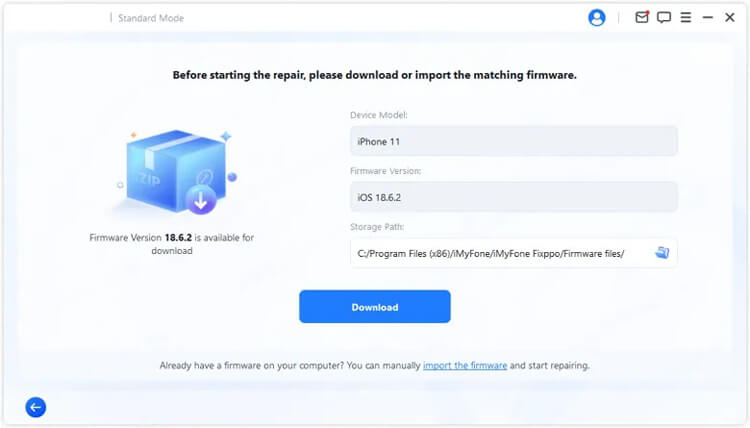
Follow the on-screen instructions to download the matching firmware package for your iPhone.
-
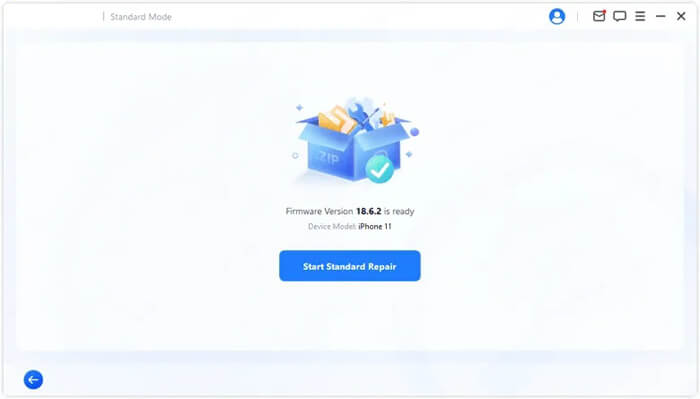
Once the firmware package is ready, click "Start Standard Repair" to begin repairing the iOS system. Keep your iPhone connected during the entire repair process. When the repair is completed, restart your iPhone and check whether the random restarting or restart loop issue has been resolved.
Solution 10. Contact Apple Support
If none of the above methods solve the problem, your iPhone may have a hardware-related issue. Problems such as a damaged battery, faulty internal components, or liquid damage may require professional inspection.
You can contact Apple Support or visit an Apple Store for further diagnosis. Apple technicians can check your device and provide suitable repair options based on the actual cause.
Conclusion
Do not treat every iPhone restart as the same problem. Random restarts caused by faulty apps, insufficient storage, or temporary iOS glitches can often be fixed with basic troubleshooting, while restart loops caused by deeper system errors may need a more advanced solution. Fixppo can be a practical way to fix system-related restarting issues without complicated steps. However, if the problem continues due to battery health, charging issues, or physical damage, contacting Apple Support may be the right choice.
Related Articles
iTunes Could Not Back Up iPhone Because an Error Occurred: Fix It in 10 Ways
iDevice Fails to Restart? Follow 3 Effective Approaches
What to Do If My iDevice Fails to Connect? Fix It Swiftly
Why Is iPhone Stuck on Update Requested? Fix It with Easy Steps

