


TL;DR:
If your iOS update is paused on your iPhone, you can try these solutions:
- Check your Wi-Fi connection and make sure your iPhone has enough battery and storage.
- Reset network settings, remove the iOS beta update file, or force restart your iPhone.
- Use Fixppo to repair potential iOS system issues without losing data in Standard Mode.
- Update your iPhone through iTunes or Finder if the update remains paused.
"Why does my ios update get paused even though Wi-Fi is good, mobile data is also selected & good. It happens during daytime and update while I sleep. Can I force the 'paused' update somehow?"
- From Apple Community
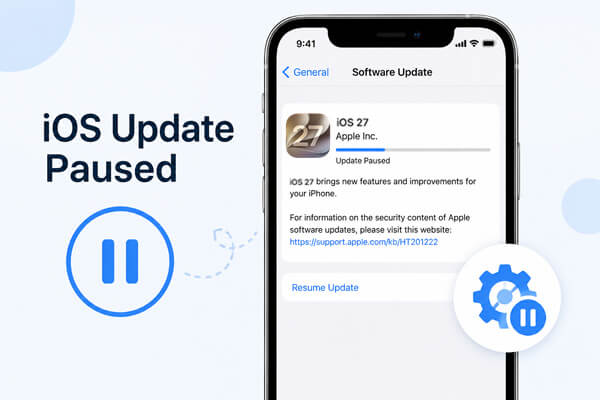
When updating your iPhone to the latest iOS 27, you may see the message "iOS Update Paused" and find that the update process stops unexpectedly. This issue can prevent your device from completing the installation and accessing the latest features, improvements, and security updates.
If your iPhone update is stuck on paused, you can try several practical solutions to resume the update process. In this guide, we will walk you through effective ways to fix the iOS update paused issue and help your iPhone complete the update successfully.
Part 1. What Cause iOS Update Paused?
Why does it say iOS update paused? Some common reasons include:
- Unstable Wi-Fi connection: A weak or interrupted network may stop the update download.
- Apple server issues: Temporary problems with Apple's update servers can affect the update process.
- Insufficient iPhone storage: Not enough free space may prevent the update from being downloaded or installed.
- Low battery level: Your iPhone may pause the update when the battery power is too low.
- iOS update bugs: Temporary software issues during the update process can also cause the update to stop.
Part 2. How to Fix iOS Update Paused
After understanding the possible reasons behind the paused update, you can try the following methods to resume the iOS update and complete the installation successfully.
Fix 1. Ensure a Stable Internet Connection
A poor or interrupted Wi-Fi connection is one of the most common reasons why an iOS update gets paused. Before trying other solutions, check your network connection.
You can try these steps:
- Make sure your iPhone is connected to a reliable Wi-Fi network.
- Move closer to the router to improve signal strength.
- Turn Airplane Mode on and off to refresh the connection.
- Restart your router if other devices are also experiencing network problems.
- Avoid using mobile data for large iOS updates.
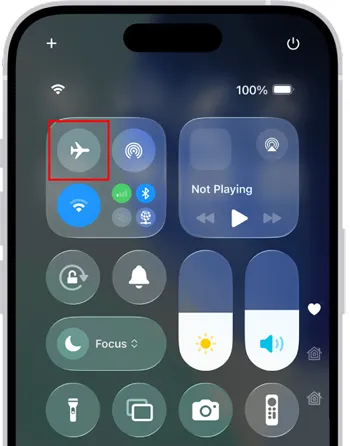
After reconnecting to a stable network, go to "Settings" > "General" > "Software Update" and check whether the update continues.
Fix 2. Reset Network Settings
If your Wi-Fi connection works normally but the iOS update remains paused, incorrect network settings may be causing the problem. Resetting network settings can remove saved Wi-Fi configurations and refresh network-related system settings.
Follow these steps:
- Open "Settings" on your iPhone.
- Tap "General".
- Select "Transfer or Reset iPhone".
- Tap "Reset".
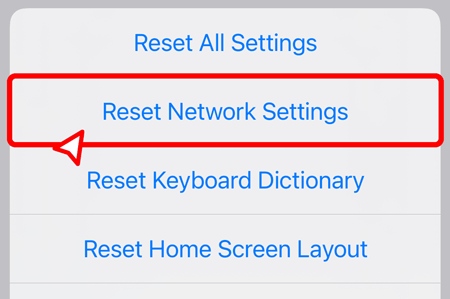
- Choose "Reset Network Settings".
- Enter your passcode and confirm.
- After the reset, reconnect to Wi-Fi and try updating iOS again.
Fix 3. Charge iPhone
Your iPhone needs enough power to download and install iOS updates. If the battery level is too low, the update may pause automatically.
To fix this issue:
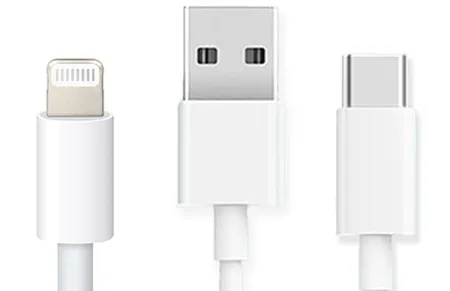
- Connect your iPhone to a charger.
- Keep it plugged in during the update process.
- Make sure your battery level is above the minimum requirement before restarting the update.
Fix 4. Remove the iOS Beta Update File
If you previously joined the iOS beta program, an old beta profile or update file may prevent your iPhone from installing the official version properly.
To remove the beta profile:
- Open "Settings".
- Tap "General".
- Select "VPN & Device Management".
- Tap the "iOS Beta Software Profile".
- Choose "Remove Profile".
- Restart your iPhone.
- After restarting, check for updates again.
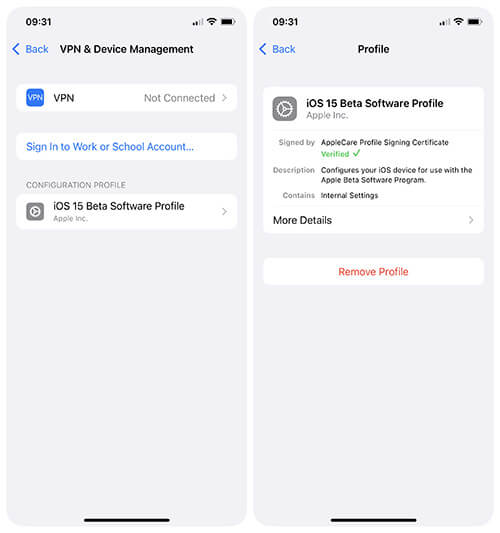
Note: Removing the beta profile will stop future beta updates, but it will not downgrade your current iOS version.
Fix 5. Check iPhone Storage
A lack of storage space can cause iOS updates to pause during downloading or preparation. You should check your available storage before updating.
To check storage:
- Open "Settings".
- Tap "General".
- Select "iPhone Storage".
- Review the available space.
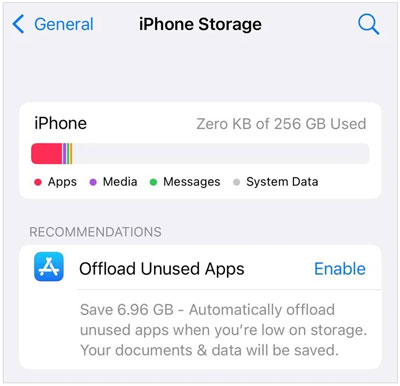
If storage is insufficient, you can:
- Delete unnecessary apps.
- Remove large videos and photos.
- Clear files.
- Offload unused apps.
Fix 6. Force Restart iPhone
A temporary system glitch may cause the update process to become frozen. A force restart can refresh the iPhone system without deleting your data.
For iPhone 8 and later models:
- Quickly press and release the "Volume Up" button.
- Quickly press and release the "Volume Down" button.
- Press and hold the "Side" button until the Apple logo appears.
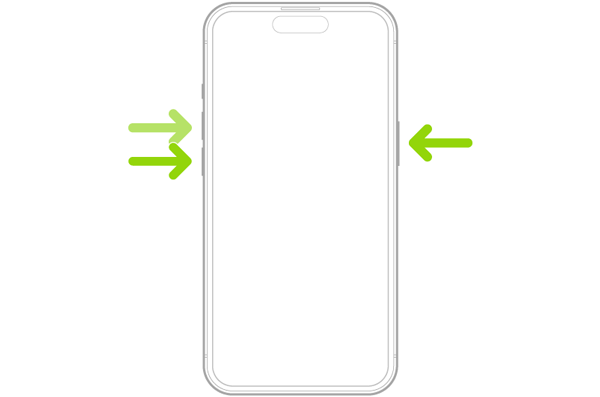
After your iPhone restarts, reconnect to Wi-Fi and check the software update status.
Fix 7. Repair Paused Update with Fixppo
If the iOS update remains paused after trying basic solutions, the problem may be related to underlying iOS system errors. In some cases, corrupted system files, failed update processes, or software glitches can prevent your iPhone from completing the update normally.
Instead of trying complicated troubleshooting steps, you can use an iOS system repair tool like Fixppo to detect and repair possible system errors that prevent your iPhone from completing the update.
Key features of Fixppo:
- Repair various iOS system issues, including update failures, stuck in recovery mode, and software errors.
- Fix iPhone system problems without deleting personal data in Standard Mode.
- Support the latest iOS versions and a wide range of iPhone models.
- Provide a simple repair process with clear on-screen instructions.
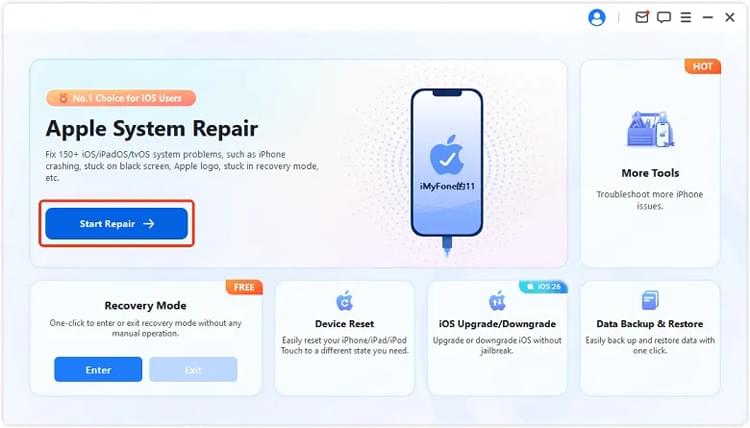
How to fix iOS update paused with Fixppo:
-
Download and install Fixppo on your computer, then open the program and click the "Apple System Repair" button.
-
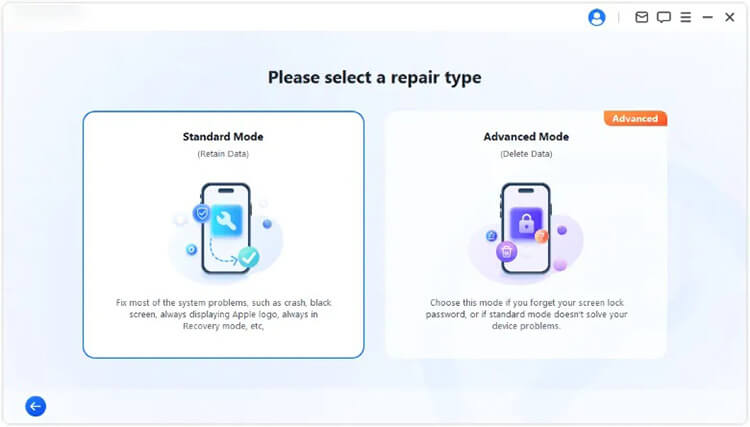
Connect your iPhone to the computer with a USB cable. After your device is recognized, select "Standard Mode" to repair the iOS update paused issue without losing your data.
-
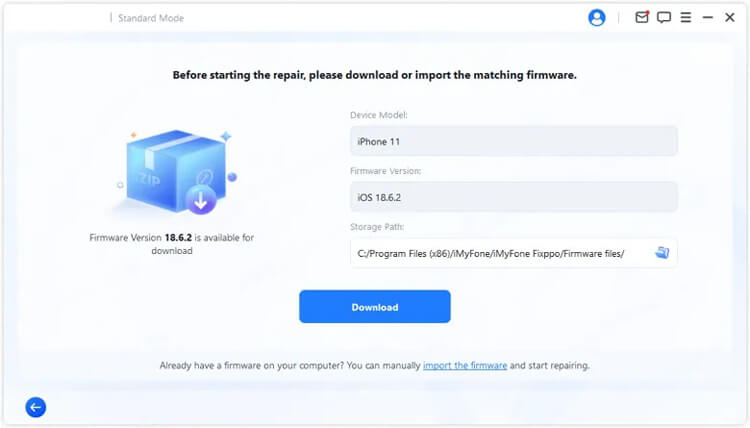
Fixppo will automatically detect your iPhone information and display the available firmware package. Click the "Download" button to get the required firmware.
-
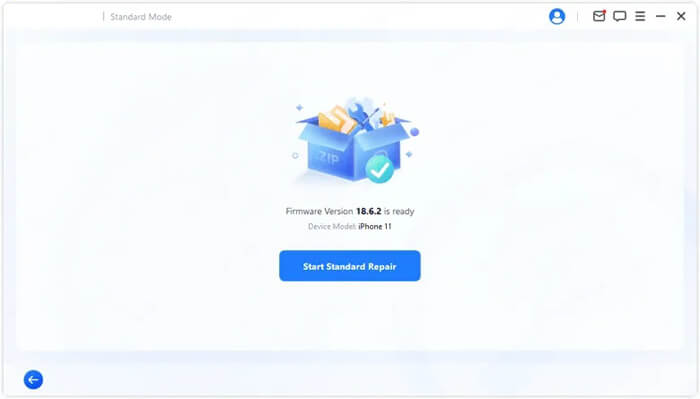
Once the firmware download is complete, click "Start Standard Repair" to begin the repair process. Fixppo will fix the system issue and your iPhone will restart automatically after completion. Then, check whether the iOS update can continue normally.
Fix 8. Update via iTunes/Finder
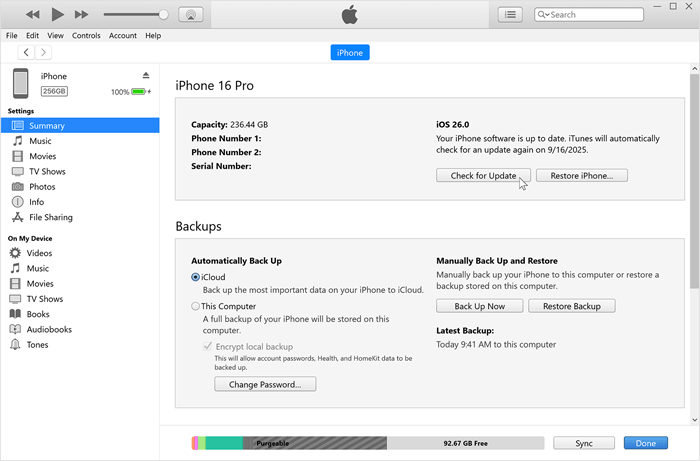
If you cannot complete the update directly on your iPhone, you can update iOS through a computer using iTunes on Windows or Finder on Mac. Updating through iTunes/Finder can help avoid download interruptions caused by iPhone-side update errors.
Before starting, make sure you have a USB cable and the latest version of iTunes (if using Windows).
Steps:
- Connect your iPhone to your computer.
- Open iTunes or Finder.
- Select your iPhone from the device list.
- Click "Check for Update".
- Choose "Download and Update".
- Follow the on-screen instructions to complete the installation.
FAQs About iOS 27 Update
1. What is the difference between an iOS update being paused and stuck?
An iOS update paused message usually means the update process has been temporarily stopped and may resume after the related issue is resolved. An update that is stuck generally means the process is no longer progressing, even after waiting or meeting the required conditions. (Why is iPhone stuck on update requested? Fix it with easy steps.)
2. How long does an iOS update stay paused?
An iOS update should normally resume once the related issue is fixed. If it remains paused for a long time, try restarting your iPhone, checking storage, or updating through a computer.
3. Can I update iOS without Wi-Fi?
Most iOS updates require Wi-Fi because of their large file size. Some newer iPhone models may support updates through cellular data, but Wi-Fi is still recommended for a stable installation.
Conclusion
The iOS update paused issue can happen because of network problems, insufficient storage, low battery, beta profiles, or temporary system errors. You can usually fix it by checking your connection, charging your iPhone, freeing up storage, resetting network settings, or restarting the device.
If normal solutions do not work, you can use Fixppo to repair possible iOS system problems or update your iPhone through iTunes/Finder. Following these methods should help you complete the iOS update and enjoy the latest features without interruptions.
Related Articles
iPhone Keeps Restarting? Causes and Troubleshooting Steps
iPhone Stuck on the Apple Logo? Solved with 6 Solutions
How to Fix iPhone Stuck in SOS Mode Without Hassle [7 Ways]
What to Do Before Getting a New iPhone: Important Steps You Need to Know

