


TL;DR:
Tapping "Delete" on an iPhone merely moves files to the Recently Deleted folder or removes database pointers, leaving raw data intact in NAND flash memory. To permanently delete files on iPhone beyond recovery, you must either: 1) Empty all Recently Deleted folders across iOS apps; 2) Perform a full device Cryptographic Factory Reset; or 3) Use dedicated privacy software like iReaShare iPhone Data Eraser to execute a multi-pass zero-fill overwrite on specific individual files without resetting your device.
- Why Standard Deletion Doesn't Permanently Remove Files from iPhone
- 5 Official Free Methods to Delete Files on iPhone
- How to Permanently Wipe iPhone Files Beyond Recovery with iReaShare (Ultimate Solution)
- Troubleshooting: iPhone Files Won't Delete or Keep Reappearing
- Frequently Asked Questions (FAQs)
- Conclusion
Why Standard Deletion Doesn't Permanently Remove Files from iPhone
When you tap "Delete" on a photo, document, or thread inside iOS, Apple does not immediately destroy the raw data blocks stored on your iPhone's flash memory chip. Instead, iOS utilizes a multi-layered file system mechanism that manages data for user convenience and system efficiency:
- The 30-Day Buffer: Apps like Photos, Files, and Voice Memos move deleted items to a Recently Deleted folder, retaining them for up to 30 days before automatic cleanup.
- Database Pointer Unlinking: When files are cleared from "Recently Deleted", iOS unlinks the file entry from the SQLite database index and marks the underlying NAND flash sectors as "available for writing." The actual binary data remains physically intact until new data happens to write over those specific sectors.
- iCloud Synchronization Delay: If iCloud Drive or iCloud Photos is enabled, deleting a local copy may leave synced copies stored in cloud caches or queued across other linked Apple devices.
Because of these mechanisms, professional iPhone data recovery software can easily scan unallocated flash memory and reconstruct "deleted" files. To achieve true permanent deletion, the underlying physical storage sectors must be systematically overwritten with random zero-data passes.
Comparison: Built-In iOS Deletion vs. Professional Erasure Tool
To help you decide the best approach, here is a breakdown comparing standard built-in deletion methods against professional software erasure:
| Feature | Standard iOS Deletion | Factory Reset (Erase All) | iReaShare iPhone Data Eraser |
|---|---|---|---|
| Selective Deletion | Yes | No (Wipes entire device) | Yes |
| Forensic Unrecoverability | No (Recoverable via scan) | Yes (Destroys master key) | Yes (100% Irrecoverable) |
| Storage Sector Overwriting | No (Only unlinks index) | No (Key invalidation) | Yes (DoD 5220.22-M Standard) |
| Erases Latent Deleted Fragments | No | N/A | Yes |
| Preserves System & Apps | Yes | No | Yes |
5 Official Free Methods to Delete Files on iPhone
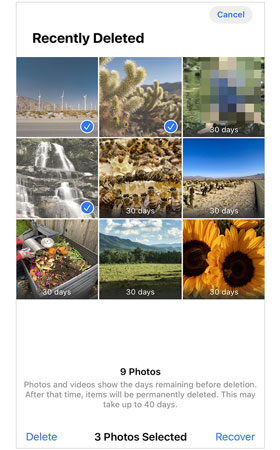
Method 1: Empty the "Recently Deleted" Folder (Photos, Files & Notes)
iOS retains deleted media and files for 30 days before automatic purge. You must manually empty these safety buffers to clear index pointers.
- Photos: Open Photos > Albums > scroll to Recently Deleted > authenticate with Face ID/Touch ID > tap Select > Delete All.
- Files App: Open Files > Browse > Recently Deleted > tap Select > Delete All.
- Notes App: Open Notes > Folders > Recently Deleted > tap Edit > Delete All.
Method 2: Remove Files from iCloud Drive & Sync Storage
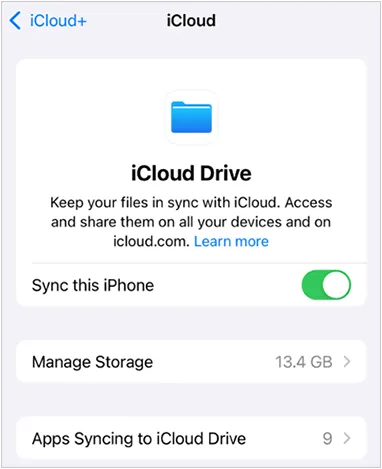
If iCloud Sync is turned on, deleting a file locally on your iPhone may not destroy the remote server copy or sync caches.
- Go to Settings > [Your Name/Apple ID] > iCloud.
- Tap Storage Management (or Manage Account Storage).
- Select iCloud Drive or specific apps to locate and remove synced document backups.
- Log into iCloud.com via a web browser, navigate to Account Settings, and click Restore Files > Permanently Delete to clear web-based backup copies.
Method 3: Clear Safari History, Web Caches, and App Data
Website cookies, offline database stores, and Safari download histories store sensitive file previews.
- Go to Settings > Safari.
- Scroll down and tap Clear History and Website Data.
- Select All History and confirm Clear History.
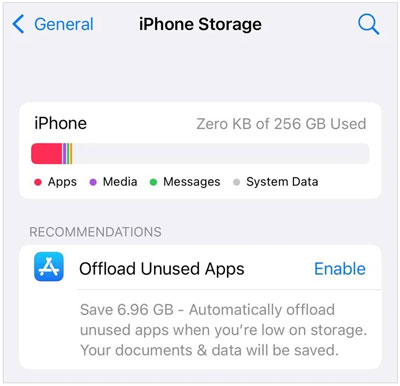
- To clear specific heavy app caches (e.g., social media or messaging apps), go to Settings > General > iPhone Storage, select the app, and tap Delete App (offloading only keeps user data).
Method 4: Delete System Attachments in iMessage and WhatsApp
Media files sent via chat applications remain hidden inside app caches even if deleted from the main Camera Roll.
- Go to Settings > General > iPhone Storage > Messages.
- Review Photos, Videos, and GIFs/Stickers categories.
- Tap Edit, select large file attachments, and tap the trash icon.
Method 5: Factory Reset (Erase All Content and Settings)
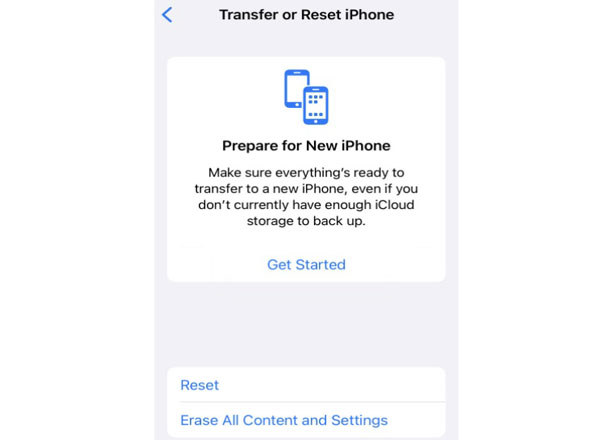
A full factory reset on iPhone triggers iOS Cryptographic Erasure. The system destroys the file system encryption keys managed by the Secure Enclave processor, rendering all stored data instantly unreadable.
- Go to Settings > General > Transfer or Reset iPhone.
- Tap Erase All Content and Settings.
- Enter your passcode and Apple ID password to confirm.
Note: This method deletes ALL device contents and operating settings. It cannot selectively target individual files while keeping your phone configured.
How to Permanently Wipe iPhone Files Beyond Recovery with iReaShare (Ultimate Solution)
If you need to permanently delete individual confidential files, WhatsApp attachments, personal photos and more beyond recovery, built-in iOS options are insufficient. Standard iPhone factory resets wipe the whole device, while manual deletion leaves recoverable NAND memory remnants.
The most effective solution is using specialized data sanitation software: iReaShare iPhone Data Eraser.
Why Choose iReaShare iPhone Data Eraser?
- Military-Grade Overwrite Algorithms: Utilizes advanced zero-fill and multi-pass sector overwriting standards (DoD 5220.22-M) to guarantee 100% irrecoverable deletion.
- Full iPhone File Wiping: Permanently delete iPhone private photos, messages, call logs, Safari caches, or voice memos while keeping your operating system and other apps completely intact.
- Erase Already-Deleted Files: Deep-scans your iPhone's SQLite databases and raw flash storage to overwrite hidden, orphaned "ghost" files that were previously deleted via standard iOS methods.
- Zero Recovery Guarantee: Prevents all professional iPhone data recovery software, hardware forensic tools, and disk analysts from retrieving your files.
- Broad Compatibility: Fully compatible with most iOS like iOS 27/26, and all major models including iPhone 17/16 series, iPad Pro, and iPod Touch.
Download for Win Download for Mac
Step-by-Step: How to Use iReaShare iPhone Data Eraser to Wipe iPhone Files
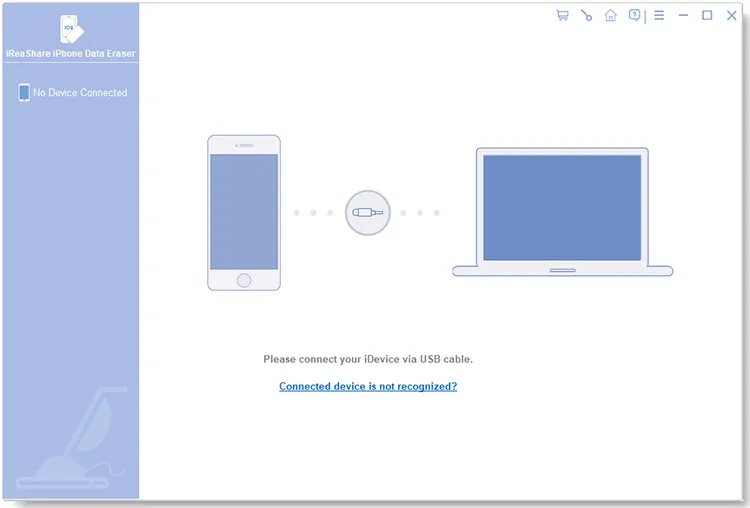
Step 1. Connect iPhone: Download and launch iReaShare iPhone Data Eraser on your Windows PC or Mac. Connect your iPhone via a USB cable and tap Trust This Computer on your iOS device screen.
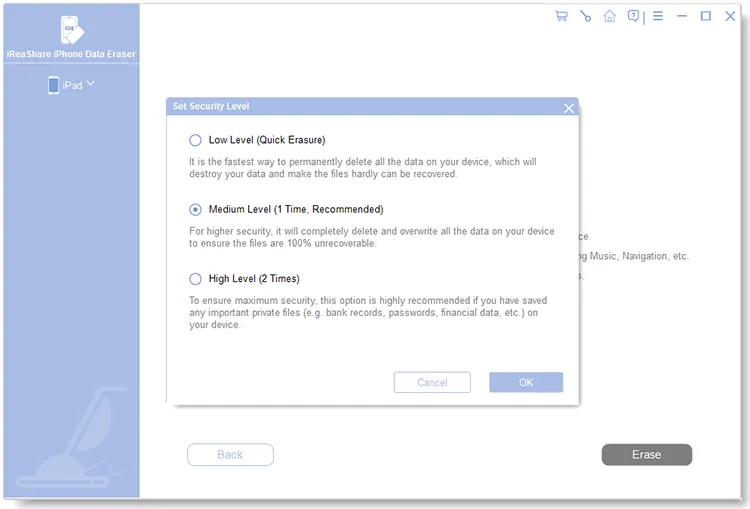
Step 2. Select Overwrite Security Level: Click Erase, choose your preferred security tier (Low, Medium, or High Level DoD 5220.22-M multi-pass overwriting), and type "delete" to confirm it.
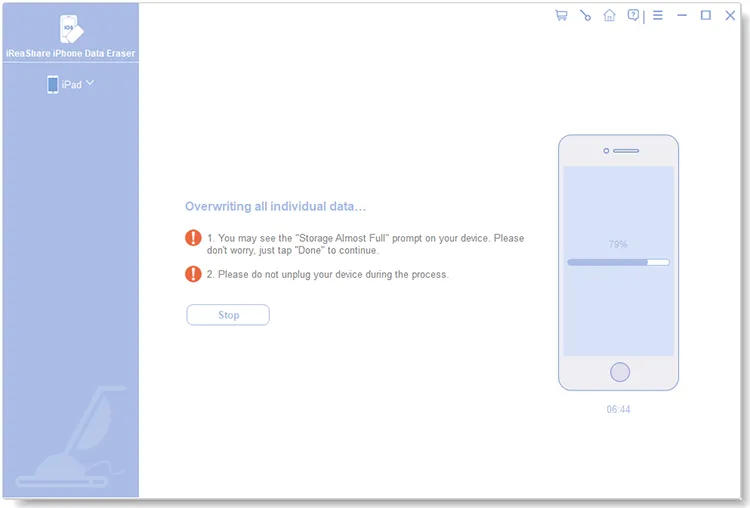
Step 3. Permanently Erase: The software begins the quick scanning and deep overwriting. Follow the onscreen prompts and do not disconnect the phone until the process finishes. See more detailed steps >>
Video Guide:
Watch the video guide to permanently erase iPhone files with iReaShare iPhone Data Eraser.
Tips: If needed, please see more about how to prepare iPhone securely before selling/trading in here.
Troubleshooting: iPhone Files Won't Delete or Keep Reappearing
Issue 1: Photos or Documents Reappear Immediately After Deletion
Cause: Active iCloud Photo Library or iCloud Drive background syncing. When network connection glitches occur, iCloud pushes remote server files back to local cache.
Fix: Disable iCloud Sync temporarily under Settings > [Your Name] > iCloud > Photos (toggle off). Delete the items, clear the Recently Deleted folder, and re-enable iCloud sync.
Issue 2: "Storage Full" Error Remains After Deleting Large Video Files
Cause: System index lag or corrupted SQLite database logs failing to release storage space pointers.
Fix: Force restart your iPhone (Press Vol Up, Vol Down, then hold Side Power Button until the Apple logo appears) to force iOS to rebuild its file index table.
Frequently Asked Questions (FAQs)
Q1: Can deleted files on iPhone be recovered by police or recovery tools?
Yes. Standard manual deletion only marks file system sectors as available. Forensic recovery tools can read raw NAND flash blocks and assemble original files unless those specific memory sectors are overwritten with new zero-fill data.
Q2: Does emptying the "Recently Deleted" album permanently delete photos?
No. Emptying Recently Deleted removes the user-facing index pointer, but raw file bits remain in physical flash memory until iOS writes new data over those sectors. To guarantee immediate deletion, use iReaShare iPhone Data Eraser to overwrite the storage space.
Q3: Is factory reset enough to make iPhone data 100% unrecoverable?
For modern iPhones with hardware encryption (Secure Enclave), a factory reset destroys the master encryption keys, making raw flash data unreadable. However, it wipes everything on your phone and cannot be used if you only want to clear specific sensitive files.
Conclusion
Understanding how iOS handles file deletion is critical to maintaining digital privacy. Standard manual deletion is merely a surface-level action that leaves data recoverable in flash memory. To ensure your confidential files, photos, and personal records are 100% permanently deleted on iPhone, make sure to purge all Recently Deleted containers, wipe iCloud sync copies, or utilize iReaShare iPhone Data Eraser to execute irreversible sector-level overwriting.
Download for Win Download for Mac
Related Articles:
How to Back Up and Restore iPhone: Avoid Data Loss (5 Ways)
How to Delete Everything on iPhone Effectively in 4 Ways (Secure Guide)
Easily Back Up iPhone to External Hard Drive (4 Ways)
iPhone Data Eraser Software Review (Latest and Comprehensive)

