Need a quick and complete way to wipe your iOS device? iReaShare iPhone Data Eraser allows you to permanently delete all data from your iPhone, iPad, or iPod touch in just one click. Once erased, no data recovery software can retrieve your deleted files.
Follow this step-by-step guide to get started with iReaShare iPhone Data Eraser.
Part 1: How to Connect and Detect Your iPhone/iPad/iPod Touch
Quick Connection Guide: Plug in USB cable > Unlock screen > Tap "Trust" on your phone > Connection complete.
Step 1. Download and Launch the Software on Your Computer
Download and install iReaShare iPhone Data Eraser on your Windows PC or Mac.
Download for Win Download for Mac
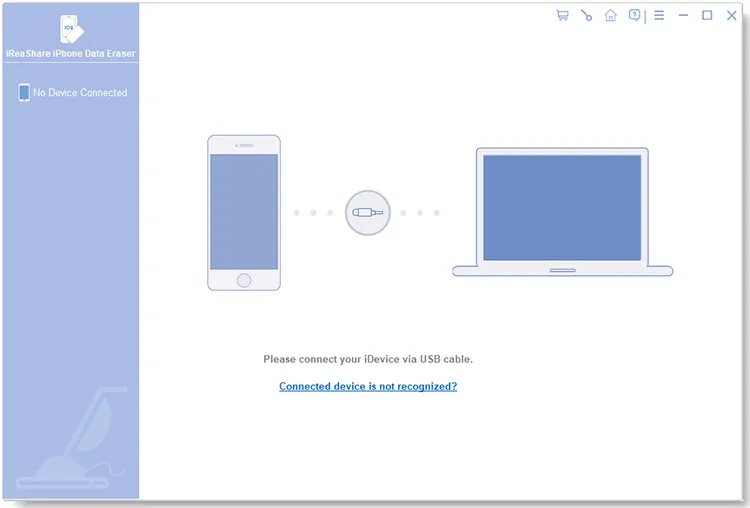
Run the program after installation, and you will see the main screen below.

Step 2. Connect your iPhone/iPad/iPod touch and unlock your screen
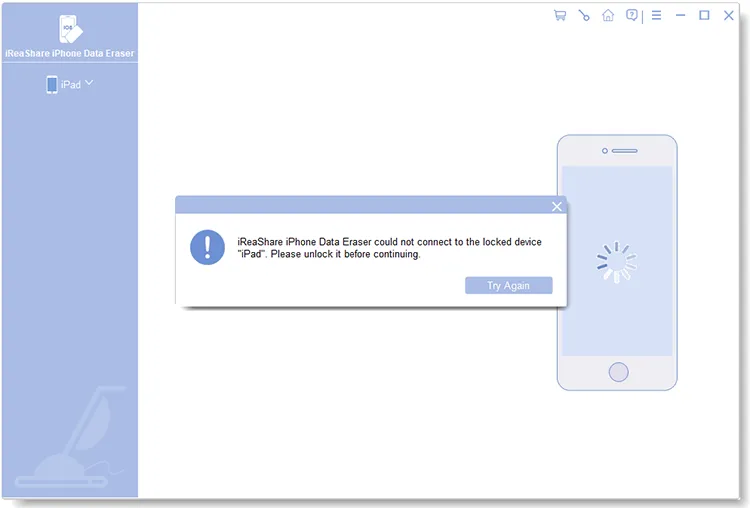
Plug your device into the computer using an original Apple USB cable, and make sure your screen is unlocked.
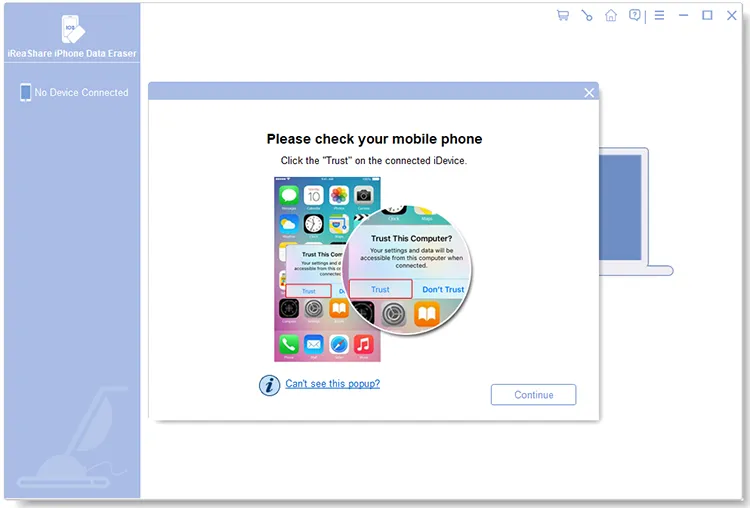
When the "Trust This Computer" notification pops up on your device screen, tap "Trust", then click "Continue" in the software. The application will recognize your device automatically.
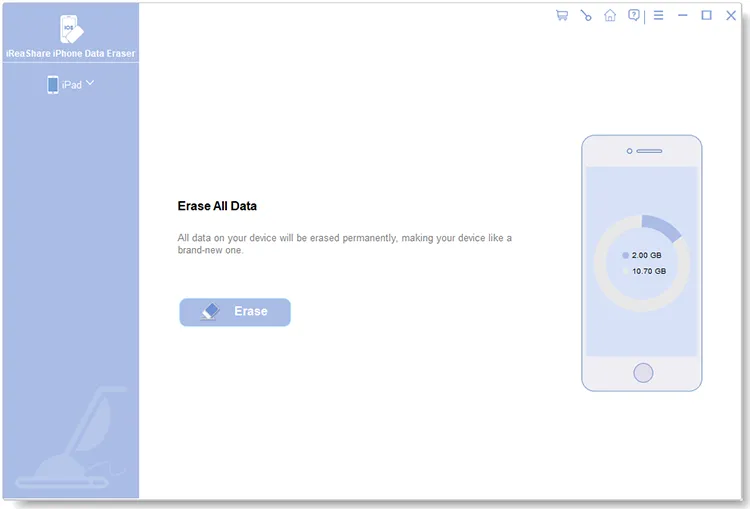
After a successful connection, you will enter the main dashboard and can begin erasing your files.

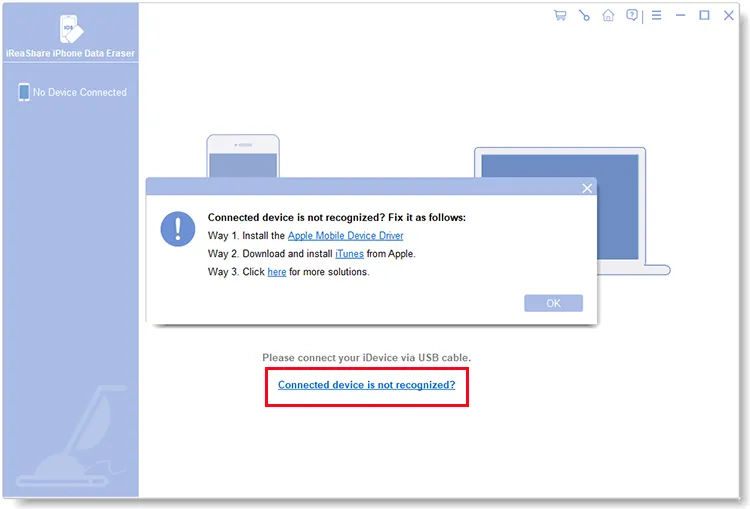
Click "Connected device is not recognized?" to try these solutions:
Option 1. Reinstall the Apple Mobile Device Driver manually, then restart the application.
Option 2. Download and install the desktop version of iTunes (iTunes 64-bit for Windows or iTunes 32-bit for Windows) from Apple's official website, then restart the application. (Note: If you installed iTunes from the Microsoft Store, please uninstall it first.)
Option 3. Need more help? Check out our complete guide on how to fix iDevice connection issues.

Part 2: How to Completely Erase All Data on iOS Devices with 1 Click
1. Data erased by this tool is permanently deleted and 100% unrecoverable. Please back up your important data beforehand.
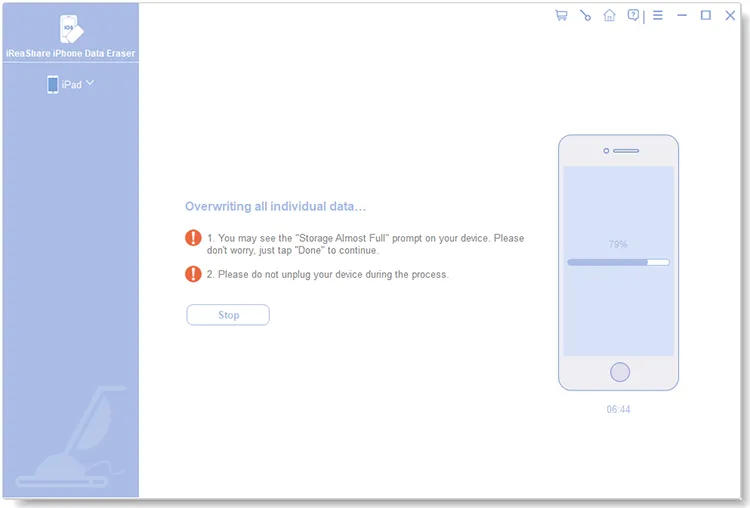
2. DO NOT disconnect your iOS device during the whole erasing process.
3. Close iTunes before starting to prevent automatic sync from conflicting with the process.
4. Turn off "Find My iPhone" on your device so the program can access your system smoothly.
Step 1. Initiate by Clicking "Erase"
Once your device is connected, click the "Erase" button on the main screen to begin.

(1) Close iTunes: If iTunes is running on your computer, a prompt will show up. Simply click "Close iTunes" to close it and prevent automatic synchronization.
(2) Turn Off Find My iPhone: If "Find My iPhone" is enabled, disable it on your device and click "Continue". (Path: Open "Settings" > tap [your name] > "iCloud" > disable "Find My iPhone".)
Step 2. Select Your Wiping Security Level
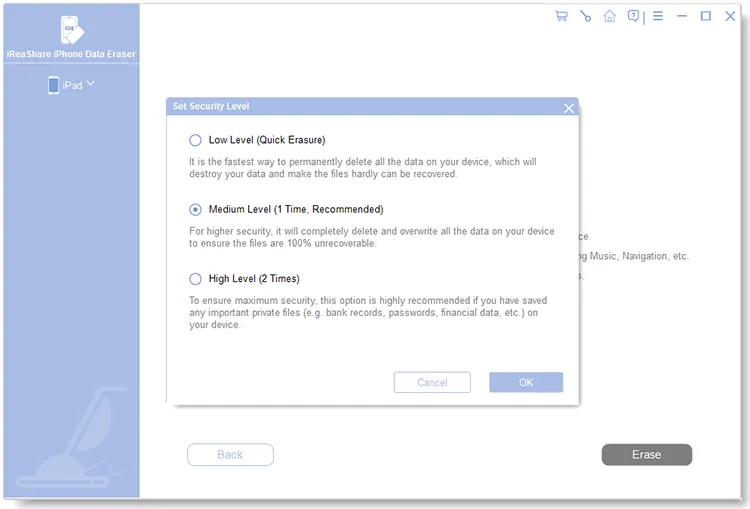
(1) The default security level is set to Medium. You can click on "Medium" next to Security Level to select another option.
(2) There are three erasure modes available: Low Level, Medium Level, and High Level. Pick the standard you need and click "OK".

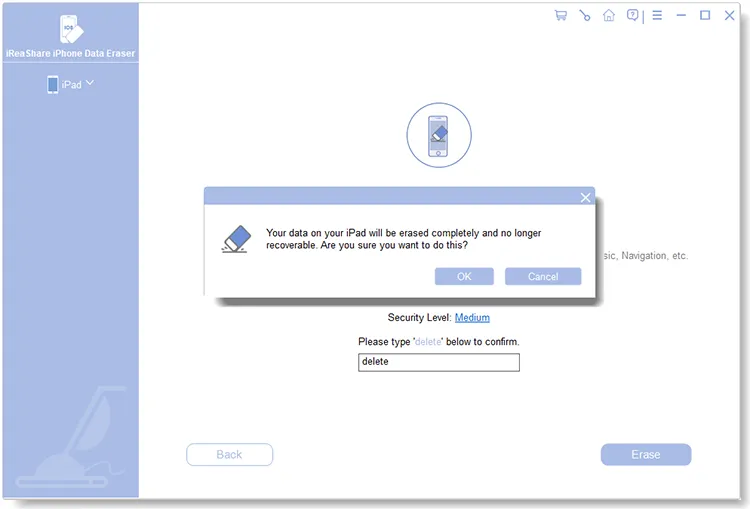
(3) Type the keyword "delete" in the box to confirm your action, then click "Erase".

Step 3. Perform "Erase All Content and Settings" Reset
To ensure maximum erasing efficiency and prevent data recovery, please reset your device using "Erase All Content and Settings" before moving forward.
Case 1: Your device has NOT been reset yet
(1) Choose "No, the device has not been reset." and hit "Next".

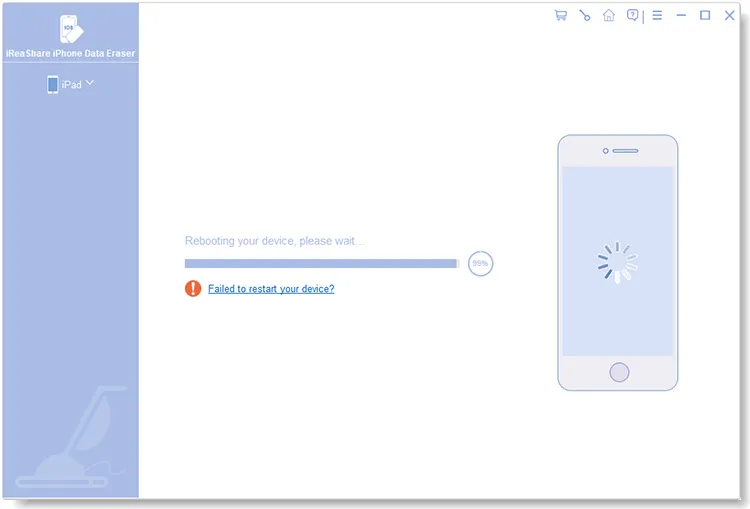
(2) Follow the instructions on the screen to reset your device using "Erase All Content and Settings". Your phone will reboot and temporarily disconnect during this process; DO NOT exit the program.
When the phone restarts, finish the initial setup steps, unlock your device, and reconnect it to the computer via USB.
Device failed to reboot? Check solutions here.

(3) After reconnecting, click "Erase", recheck your security level, and enter "delete" in the box to confirm.

(4) Now pick "Yes, the device has been reset". When the final prompt appears, click "OK" and then "Next".

Case 2: Your device HAS already been reset
Select "Yes, the device has been reset." When asked to verify permanent data destruction, click "OK" followed by "Next" to proceed.

Step 4. Overwrite Data to Ensure Permanent Deletion
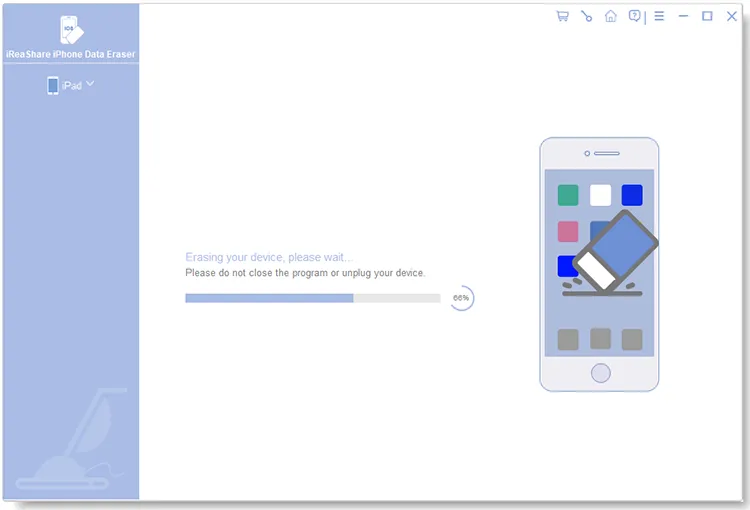
(1) Overwriting Storage: After the reset, the tool overwrites device memory to ensure that erased data cannot be restored.

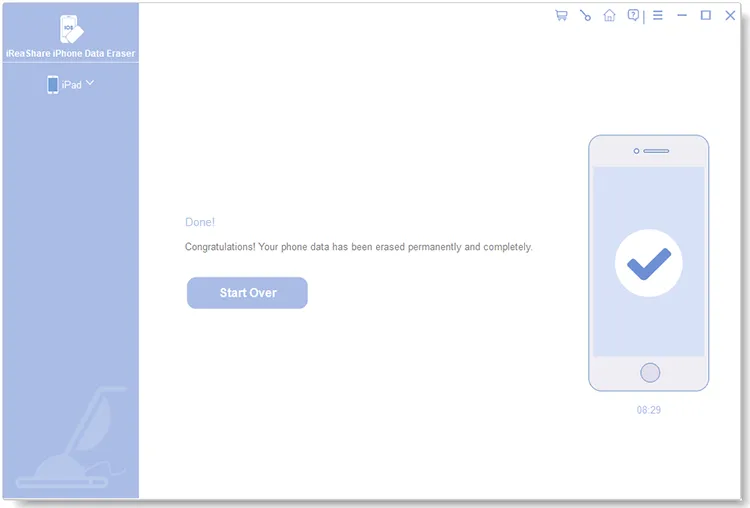
(2) Erasure Complete: Once finished, all data on your device is erased permanently with zero chance of recovery.

(3) Save Report (Optional): You can click "Save Report" to export an erasure log to your PC. It records details like device information, security level, overwrite passes, and final status.

That's how to use iReaShare iPhone Data Eraser to wipe out everything on iOS devices. All the steps are displayed above, so you can now erase your iOS data breezily.