TL;DR:
If your iPhone or iPad shows "Unable to Check for Update", try these solutions:
- Check Apple's System Status and your internet connection.
- Make sure your iPhone or iPad has enough available storage.
- Check the date and time settings on your device.
- Restart your iPhone or iPad or reset its network settings.
- Update your iPhone or iPad using a computer if the wireless update still fails.
- Use Fixppo to repair potential iOS or iPadOS system issues.
"iPhone 13 running IOS 16.4.1 (a) is telling me there is a software update, but every time I try I get the message 'Unable to check for update. An error occurred while checking for a software update'. I have restarted, force restarted, tried turning off wifi, toggled on airplane mode, turned off aut updates and searched this thread. Any ideas or fixes?"
- From Reddit
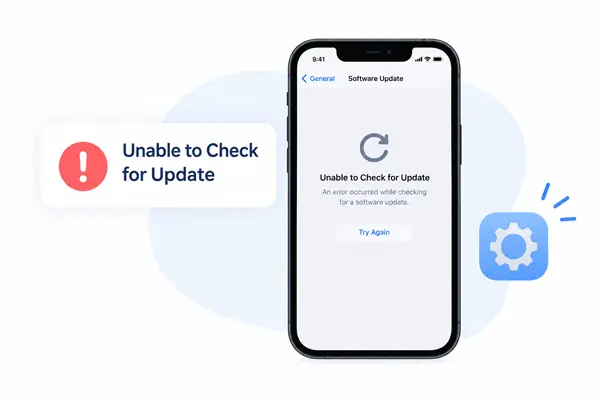
Trying to install iOS 27 or the latest iPadOS update but seeing "Unable to Check for Update" on your iPhone or iPad? This message appears when your device cannot successfully check for available software updates, leaving you unable to proceed with the normal update process.
Fortunately, this issue is usually manageable with a few troubleshooting steps. In this guide, we'll explain what may cause the "Unable to Check for Update" error and walk you through practical ways to get your iPhone or iPad checking for updates normally again.
Part 1. Why Is My iPhone Saying Unable to Check for an Update?
The "Unable to Check for Update" message does not always mean there is a problem with your iPhone or iPad itself. Several factors can prevent your device from connecting to Apple's update service or completing the update check.
Here are some common causes:
- Apple server issues: Apple's software update service may be temporarily unavailable or experiencing heavy traffic.
- Internet connection problems: An unstable or restricted Wi-Fi or cellular connection can interrupt communication with Apple's update service.
- Not enough storage: Your iPhone or iPad may not have sufficient free space for the update process.
- Incorrect settings: Settings such as date, time, VPN, or network configurations may interfere with the update check.
- Temporary software glitches: A minor iOS or iPadOS issue may cause the Software Update feature to malfunction.
- System problems: Underlying issues with the iOS or iPadOS system can sometimes prevent the device from checking for updates properly.
Part 2. Things to Check Before Fixing "Unable to Check for Update"
Before trying more advanced solutions, go through the following checks. They can help you determine whether the problem is caused by Apple's servers, your network, or your device settings.
2.1 Check Apple's System Status
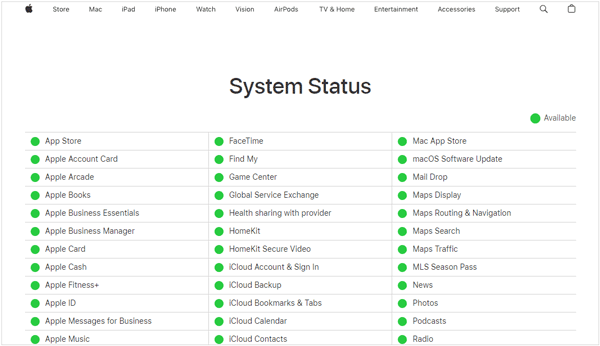
If Apple's update service is temporarily unavailable, your iPhone or iPad may be unable to check for new software regardless of what you change on the device.
Visit Apple's System Status page and look for any issues affecting software update services. If Apple reports an outage or service interruption, wait until the service returns to normal and then try checking for the update again.
This is particularly useful when the problem starts suddenly or occurs shortly after a major iOS or iPadOS release.
2.2 Check Your Internet Connection
Your iPhone or iPad needs a stable internet connection to communicate with Apple's update servers. A weak or unstable connection can cause the update check to fail.
Try these steps:
- Make sure your iPhone or iPad is connected to a reliable Wi-Fi network.
- Toggle Wi-Fi off and back on from "Settings".
- Move closer to your Wi-Fi router if the signal is weak.
- Try connecting to another Wi-Fi network.
- If supported by your carrier and plan, try using cellular data instead.
- Temporarily disable any VPN or proxy connection and check for the update again.
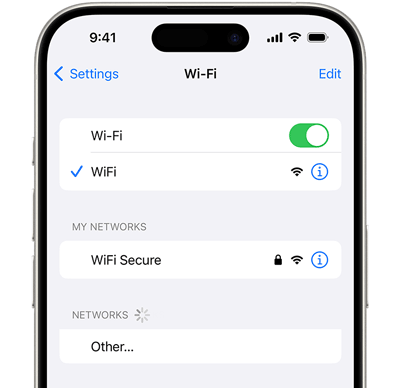
If the update works after switching networks, the original connection was likely causing the problem.
2.3 Check Available Storage
Insufficient storage can prevent your iPhone or iPad from downloading or preparing a software update.
To check your available storage:
- Open "Settings" on your iPhone or iPad.
- Tap "General".
- Select "iPhone Storage" or "iPad Storage".
- Review the available space and remove unnecessary apps, videos, photos, or other large files if needed.
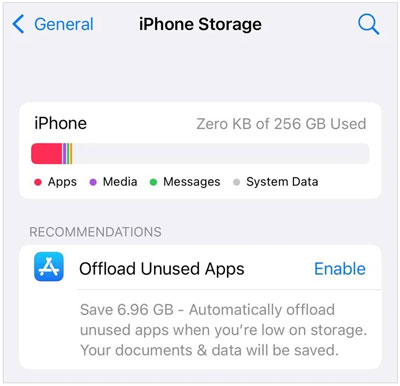
After freeing up some storage, return to "Settings" > "General" > "Software Update" and try checking for the update again.
2.4 Check Date & Time Settings
Incorrect date or time settings may interfere with connections to Apple's services. Make sure your iPhone or iPad is using the correct time automatically.
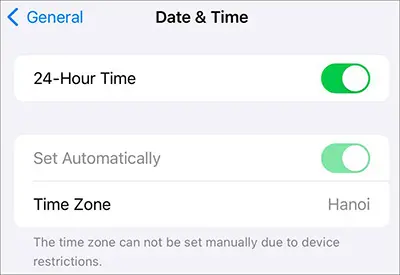
- Open "Settings".
- Go to "General" > "Date & Time".
- Turn on "Set Automatically".
- If the option is already enabled, turn it off and back on.
- Return to "Software Update" and try again.
Part 3. Effective Ways to Fix "Unable to Check for Update"
If the basic checks above do not solve the problem, try the following fixes in order. Start with the simplest option and move to more advanced solutions if your iPhone or iPad still cannot check for an update.
3.1 Restart Your iPhone
A simple restart can clear temporary software glitches that may be preventing the Software Update service from working correctly.
For an iPhone with Face ID or an iPad without a Home button:
- Press and hold the "side/top" button and either volume button until the power-off slider appears.
- Drag the slider to turn off the device.
- Wait a few seconds.
- Press and hold the "side/top" button until the Apple logo appears.
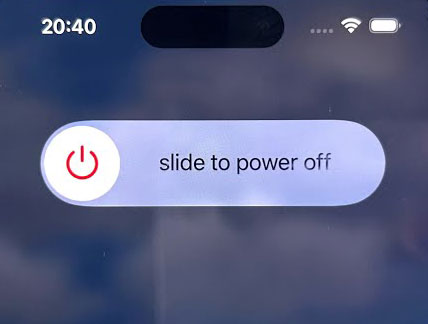
For devices with a Home button, press and hold the "power" button until the power-off slider appears, then turn the device off and back on.
Once your iPhone or iPad restarts, connect it to Wi-Fi and go to "Settings" > "General" > "Software Update" to check again.
3.2 Reset Network Settings
If the problem is related to corrupted or incorrect network configurations, resetting network settings may help restore the connection to Apple's update service.
Follow these steps:
- Open "Settings".
- Tap "General".
- Scroll down and select "Transfer or Reset iPhone" or "Transfer or Reset iPad".
- Tap "Reset".
- Select "Reset Network Settings".
- Enter your device passcode if prompted and confirm the reset.
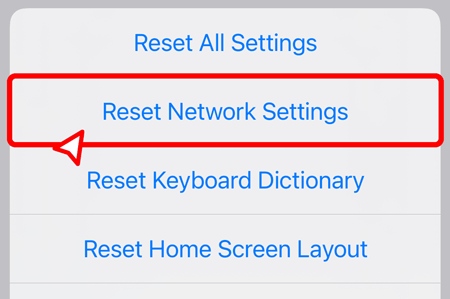
After the reset, your iPhone or iPad will restart. You will need to reconnect to your Wi-Fi network and enter the Wi-Fi password again.
3.3 Update Your iPhone Using a Computer
If your iPhone or iPad cannot check for an update wirelessly, updating the device through a computer can provide an alternative way to install the latest compatible software. This method is especially useful when the Software Update screen on your iPhone or iPad is not working properly.
On a Mac
- Connect your iPhone or iPad to your Mac using a USB cable.
- Open Finder.
- Select your device from the sidebar.
- Click "General".
- Select "Check for Update".
- If an update is available, follow the on-screen instructions to download and install it.
On Windows
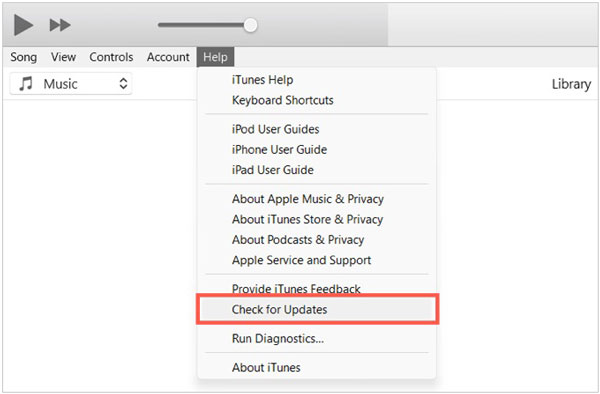
Depending on your setup, you can use the Apple Devices app or iTunes to manage your iPhone or iPad.
- Connect your iPhone or iPad to the computer.
- Open Apple Devices or iTunes.
- Select your device.
- Choose the option to check for an update.
- Follow the instructions to complete the update.
3.4 Repair iOS System with Fixppo
If your iPhone or iPad continues to show "Unable to Check for Update" after trying the methods above, the issue may be related to an underlying system problem. In this case, a dedicated iOS system repair tool such as Fixppo can be another option.
Fixppo is designed to repair various iOS and iPadOS system issues without requiring you to troubleshoot the underlying system manually.
Highlights of Fixppo:
- Repair issues such as iPad/iPhone stuck on the Apple logo, recovery mode, boot loop, black screen, or unable to update or restore.
- Offer a simple repair process that beginners can follow without advanced technical knowledge.
- Repair system issues without affecting existing data on the iPhone or iPad.
- Support a wide range of iPhone and iPad models and iOS/iPadOS versions, including iOS 27, iOS 26, and other supported versions.
Here is how to use Fixppo to fix iPhone/iPad unable to check for update:
-
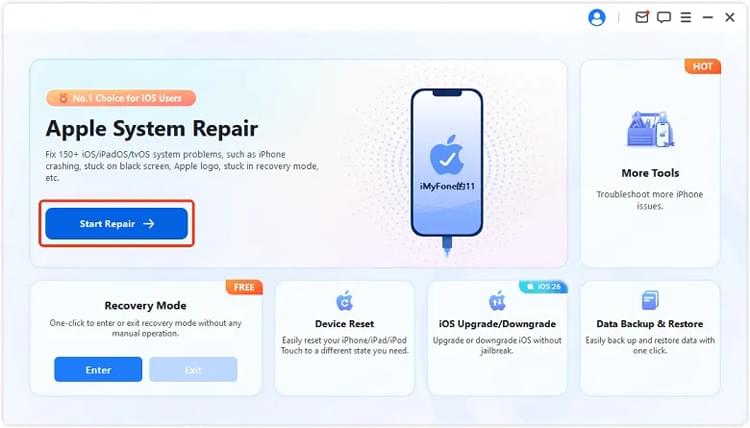
Install and open Fixppo on your computer, then use a USB cable to connect the iPhone or iPad that cannot check for an update. Once the device is detected, select "Apple System Repair".
-
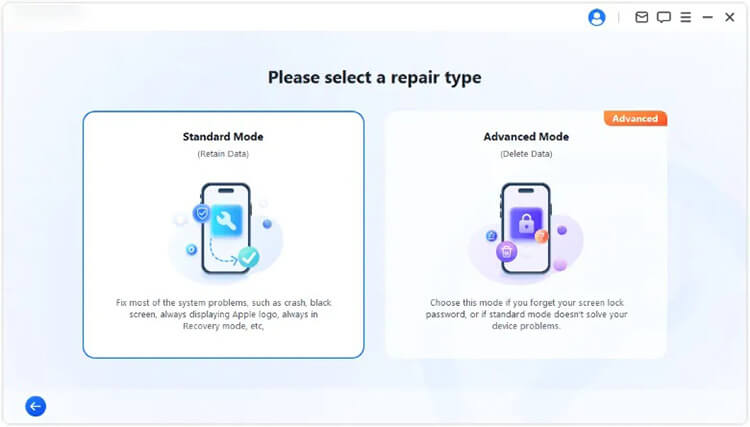
Choose "Standard Mode" to repair the iOS or iPadOS system while preserving the existing data on your device.
-
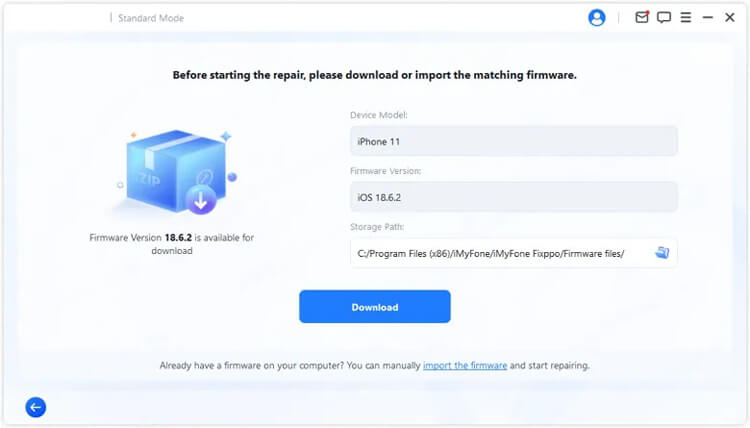
Follow the on-screen instructions to select and download the firmware package that matches your connected iPhone or iPad. Wait until the firmware download and verification process is completed.
-
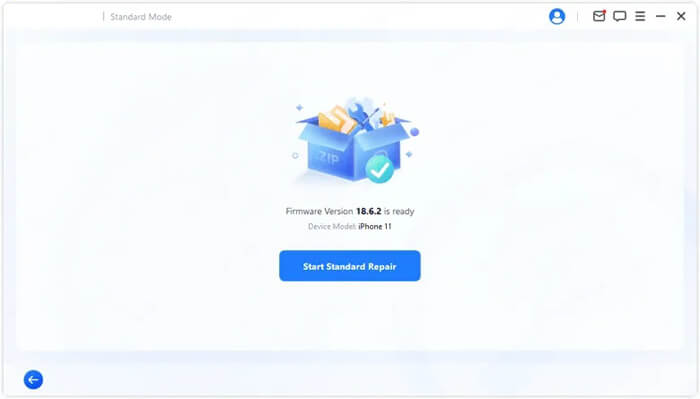
After the firmware is ready, click "Start Standard Repair" to begin repairing the system. Keep your device connected throughout the process and wait for Fixppo to complete the repair.
Conclusion
If your iPhone or iPad is unable to check for an update, start with the basic checks and work through the fixes in this guide. In many cases, reconnecting to a reliable network, restarting the device, resetting network settings, or updating through a computer can help get the software update process back on track.
If none of these methods work, the problem may require deeper system troubleshooting. In that case, Fixppo can provide a simpler way to repair iOS or iPadOS system issues and prepare your iPhone or iPad for the update again.
Related articles
Why Is iPhone Stuck on Update Requested? Fix It with Easy Steps
iOS 27 Update Paused: Causes and Fixes to Resume iPhone Update
iPhone Stuck on Preparing Update? 9 Proven Fixes for iOS 27
A Complete Guide to Downgrade iOS on iPhone [iOS 27 to iOS 26]