


TL;DR:
A pink line on an iPhone screen may indicate an iOS software glitch, a faulty display connection, or physical screen damage. You can try restarting your iPhone, updating iOS, resetting system settings, or using an iOS repair tool like Fixppo to troubleshoot potential software issues. If these solutions don't work, Recovery Mode and DFU Mode offer additional system recovery options. However, persistent pink lines often require professional screen inspection and repair.
Seeing a pink line on your iPhone screen can be frustrating, especially when it interferes with reading messages, watching videos, or using apps. The line may appear vertically or horizontally, and it can sometimes become more noticeable over time. Although this issue is often associated with display hardware, software glitches and system errors may also contribute to abnormal screen behavior.
Before paying for a screen replacement, it is worth checking whether the problem can be resolved through software troubleshooting. In this article, we will explain why a pink line appears on an iPhone screen and introduce several practical ways to address it.
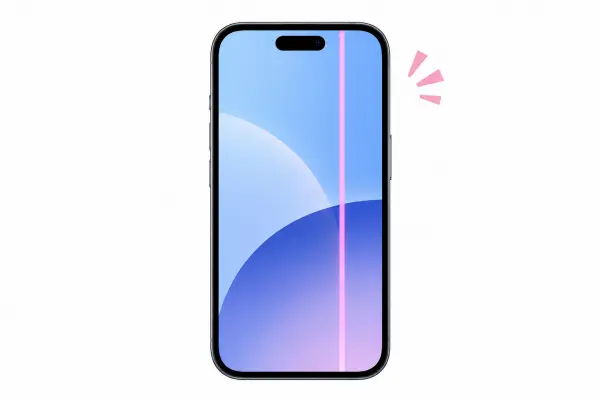
Part 1. Why Does My iPhone Screen Have a Pink Line?
A pink line on an iPhone screen usually indicates an abnormality in the display system, but the exact cause can vary. In some cases, it is related to iOS software, while in others, it points to a physical problem with the screen or its internal connections.
Here are some common causes:
iOS software glitches: Temporary system errors or display rendering problems may cause unusual colors or lines on the screen.
iOS update issues: An interrupted update or an unexpected software error may affect how the display operates.
Screen damage: Dropping your iPhone, applying excessive pressure, or exposing it to moisture may damage the display panel.
Display connection problems: A damaged or loose display cable may interfere with the signals sent to the screen.
Aging display components: Over time, internal display components may deteriorate and develop visible lines or other abnormalities.
Part 2. How Do I Fix the Pink Line on My iPhone Screen?
The following methods focus on potential software-related causes. Start with the simplest options and proceed to more advanced recovery methods if the pink line remains.
Solution 1. Restart Your iPhone
Restarting your iPhone is one of the easiest ways to address temporary software glitches. If the pink line is caused by a minor system error, restarting the device may help restore normal display behavior.
To restart your iPhone:
Step 1. Press and hold the "Side" button and either "Volume" button until the power-off slider appears.
Step 2. Drag the slider to turn off your iPhone.
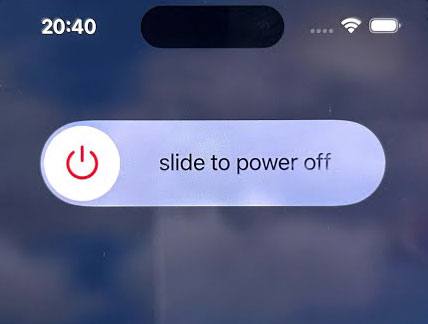
Step 3. Wait about 30 seconds.
Step 4. Press and hold the "Side" button until the Apple logo appears. Check whether the pink line has disappeared.
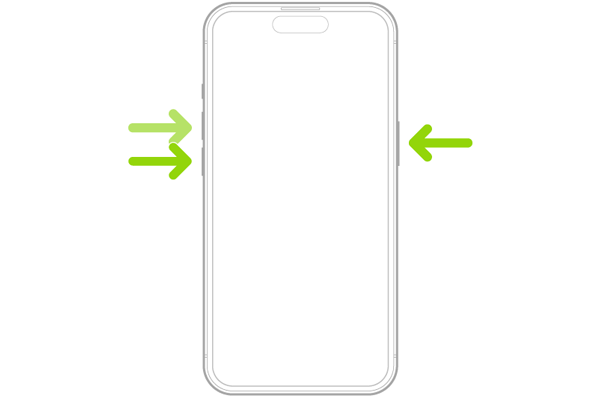
If your iPhone is unresponsive, you can try a force restart instead. On an iPhone 8 or later, quickly press and release the "Volume Up" button, quickly press and release the "Volume Down" button, and then press and hold the "Side" button until the Apple logo appears.
Solution 2. Update iOS
An outdated iOS version or a software bug may contribute to display abnormalities. Installing an available update can help resolve known system issues and improve overall stability.
Before updating, back up your iPhone and connect it to a stable Wi-Fi network. Then follow these steps:
Step 1. Open "Settings" on your iPhone.
Step 2. Go to "General" > "Software Update".
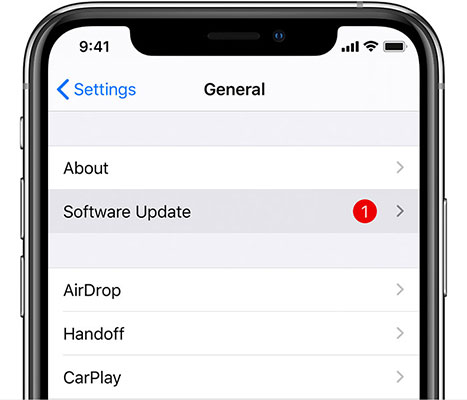
Step 3. Wait for your iPhone to check for available updates.
Step 4. If an update is available, tap "Update Now" or "Download and Install".
Step 5. Follow the on-screen instructions to complete the installation.
Step 6. After the update, check whether the pink line is still visible.
Updating iOS will not repair a damaged display panel or a faulty screen connection.
Solution 3. Reset All Settings
Incorrect system settings may occasionally contribute to unexpected iPhone behavior. Resetting all settings can help eliminate configuration-related problems without deleting your personal files.
To reset your iPhone settings:
Step 1. Open "Settings".
Step 2. Go to "General" > "Transfer or Reset iPhone".
Step 3. Tap "Reset".
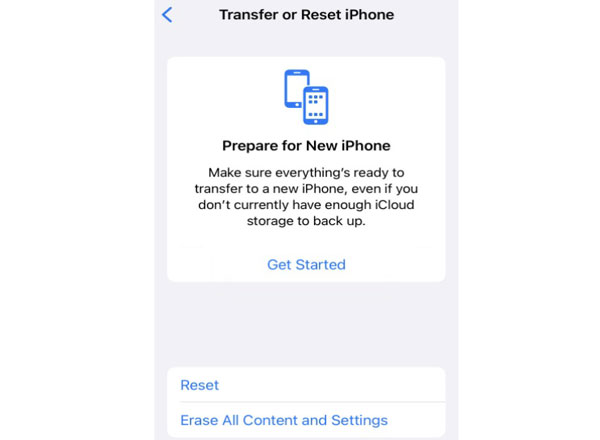
Step 4. Select "Reset All Settings".
Step 5. Enter your passcode if prompted and confirm the action.
Your iPhone will restart after the reset. Photos, videos, apps, and other personal data will remain on the device, but settings such as network configurations, privacy preferences, and location settings will be reset.
Solution 4. Use an iOS System Repair Tool
If the pink line on your iPhone screen is caused by an iOS system glitch rather than physical display damage, using a professional iOS system repair tool may help. Fixppo is one option worth considering. It is designed to repair various iOS system issues without requiring complex technical knowledge.
Fixppo provides two repair modes, allowing you to choose an appropriate option based on the type and severity of the system problem. It can address issues such as pink line on the screen, black or frozen screens, and other system errors.
Key Features of Fixppo:
- Repair various iOS system issues through a straightforward process.
- Provide Standard Mode and Advanced Mode for different system repair needs.
- Fix common problems such as pink line on the screen, frozen screens, startup failures, Apple logo freezes, and iOS update errors.
- Support iOS upgrading and downgrading to install a different compatible system version.
If you want to try fixing the pink line caused by a software issue, follow these steps:
-
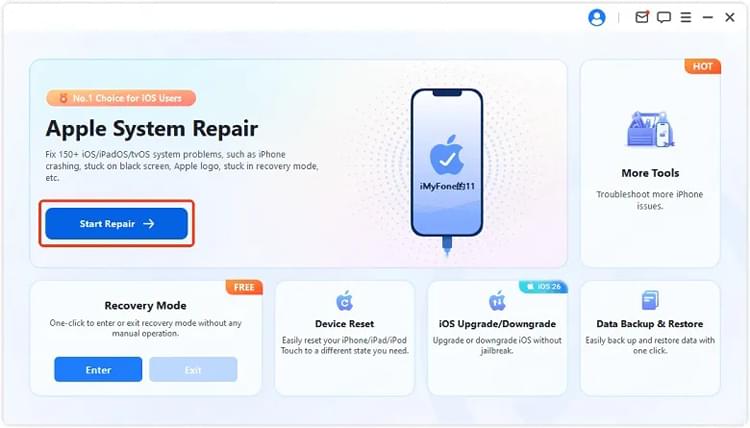
Download, install, and launch Fixppo on your computer. Connect your iPhone using a USB cable. Once the program detects your device, select "Apple System Repair".
-
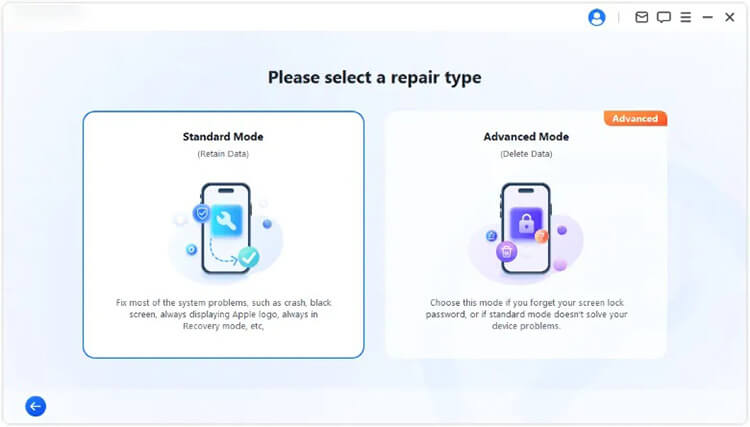
Choose "Standard Mode" to attempt to repair the iOS system while keeping your existing iPhone data.
-
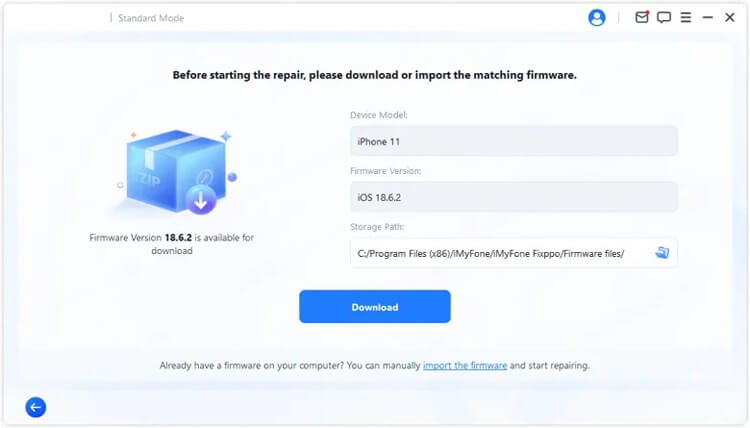
Follow the on-screen instructions to confirm your device information. Then download the appropriate firmware package and wait for Fixppo to finish downloading and verifying it.
-
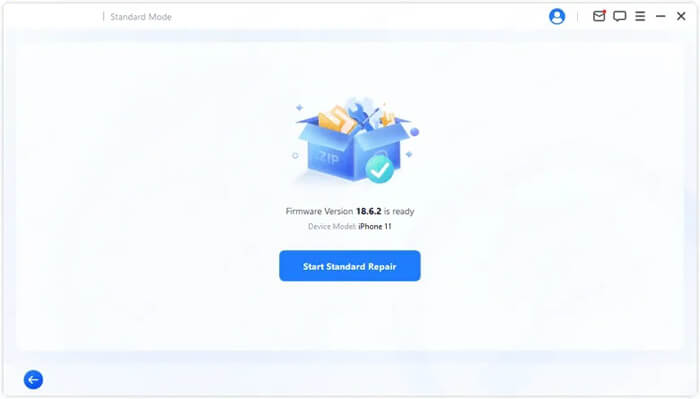
Once the firmware is ready, click "Start Standard Repair" to begin. Keep your iPhone connected to the computer until the repair process is complete.
Solution 5. Restore iPhone in Recovery Mode
If the pink line on your iPhone screen is caused by corrupted iOS files or a persistent system error, you can try using Recovery Mode to update or restore the operating system. This method allows you to reinstall iOS through a computer and may help resolve certain software-related display problems.
Recovery Mode provides two options: Update and Restore. Update attempts to reinstall iOS while keeping your personal data, whereas Restore erases your iPhone and installs a fresh copy of iOS. You can try Update first to avoid data loss.
To restore your iPhone in Recovery Mode, follow these steps:
Step 1. Connect your iPhone to a computer using a USB cable.
Step 2. Open Finder on your Mac or Apple Devices (or iTunes on supported Windows systems).
Step 3. Put your iPhone into Recovery Mode. For an iPhone 8 or later, quickly press and release the "Volume Up" button, then the "Volume Down" button. After that, press and hold the "Side" button until the Connect to Computer screen appears.
Step 4. Select your iPhone in Finder, Apple Devices, or iTunes. When prompted, choose "Update" first. If updating does not resolve the software issue, you can try "Restore" instead.
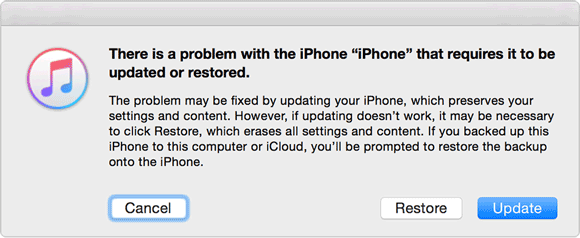
Step 5. Follow the on-screen instructions to complete the process. Keep your iPhone connected to the computer until iOS has been reinstalled.
After your iPhone restarts, check whether the pink line has disappeared.
The Update option is designed to preserve your personal data, but Restore will erase all content and settings. Back up your iPhone before choosing Restore whenever possible. Also, Recovery Mode cannot fix physical damage to the display panel or its internal connections.
Solution 6. Put iPhone into DFU Mode
If Recovery Mode does not resolve the pink line and you suspect a deeper iOS software or firmware issue, you can try Device Firmware Update (DFU) Mode. Unlike Recovery Mode, DFU Mode allows your computer to restore the iPhone's firmware and iOS through a lower-level recovery process. It may help when standard recovery methods are unsuccessful.
However, DFU restoration erases all data on your iPhone. Make sure you have a backup before proceeding if possible.
To put your iPhone into DFU Mode, follow these steps:
Step 1. Connect your iPhone to a computer using a USB cable.
Step 2. Open Finder on your Mac or Apple Devices (or iTunes on supported Windows systems).
Step 3. Put your iPhone into DFU Mode. Quickly press and release the "Volume Up" button, followed by the "Volume Down" button. Then, press and hold the "Side" button until the screen turns black. Continue holding the "Side" button and press the "Volume Down" button for about 5 seconds. Release the "Side" button while keeping the "Volume Down" button pressed until your computer detects the iPhone.
Step 4. When your computer detects the device and prompts you to restore it, select the restore option and follow the on-screen instructions to reinstall iOS.
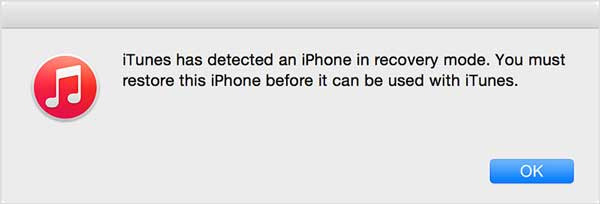
Once the restoration is complete, set up your iPhone and check whether the pink line has disappeared.
In DFU Mode, your iPhone screen should remain completely black. If the Apple logo or the Connect to Computer screen appears, the device has not entered DFU Mode successfully. The button sequence may also vary depending on your iPhone model. Most importantly, DFU Mode can only address certain software or firmware issues; it cannot repair a physically damaged OLED/LCD panel or display cable.
Solution 7. Contact Apple Support
If the pink line remains after restarting, updating, resetting, and restoring your iPhone, the problem may be related to the display hardware.
This is especially likely if:
- The pink line appeared after your iPhone was dropped or exposed to pressure.
- The line remains visible across different apps and screens.
- The pink line appears immediately after the iPhone starts up.
- The screen also flickers, changes color, or has touch-response problems.
In these situations, contact Apple Support or visit an Apple Store or Apple Authorized Service Provider for a professional diagnosis.

Depending on the cause of the issue, the technician may recommend repairing or replacing the display. Whether the repair is covered by warranty or AppleCare+ depends on your device's coverage and the results of the inspection.
Avoid pressing the screen, heating the device, or attempting to open the iPhone yourself, as these actions may cause further damage.
Conclusion
A pink line on an iPhone screen doesn't always mean you need a new display. If the issue is software-related, restarting your device, updating iOS, resetting settings, or using Fixppo may help. You can also try Recovery Mode or DFU Mode if the problem persists.
However, if the pink line remains after these attempts, the display panel or its internal connections may be damaged. In that case, contact Apple Support or visit an authorized repair provider to have your iPhone inspected. Identifying the actual cause will help you choose the right solution and avoid unnecessary repairs.
Related Articles
iPhone Black Screen But Still On? 5 Troubleshooting Tips
iPhone Blue Screen of Death? Everything You Should Know