TL;DR:
Looking for ways to update your iPhone without iTunes? Here are 3 effective methods:
- Update iPhone from Settings: The easiest way to install the latest iOS version directly on your device.
- Use Fixppo: Upgrade or downgrade iOS and fix update issues without relying on iTunes.
- Install iOS Firmware with IPSW: Manually update iPhone by using a downloaded IPSW file instead of waiting for iTunes to download the firmware.
"My iPhone cannot start. When I press the power key, it shows the Apple logo, then after some time, it goes dark again. I want to use recovery mode to update iOS. When using iTunes, it will download iOS 17.4.1, but after the download size reaches 6.87GB, it continues increasing to 7, 8, and 9GB until it fails and reports that the downloaded file is corrupted. So, I just wonder if there is a way to download the update file separately without using iTunes?"
- From the Apple Community
iTunes has long been a common way to update iPhone, but it is not always the most convenient option. Some users may want to update iPhone without iTunes because iTunes is unavailable, the firmware download is too slow, or the update process gets stuck due to system or connection issues.
Fortunately, there are several ways to update iPhone without relying on iTunes. You can update iOS directly from your iPhone settings, use an iOS system repair tool like Fixppo for more advanced updates, or manually install iOS firmware with an IPSW file. This guide will explain each method and help you choose the right option based on your situation.
Part 1. How to Update iPhone Without iTunes from Settings Directly
If your iPhone is working normally and you only want to install the latest iOS version, you can update it directly from the Settings app. This is the easiest way to update iPhone without iTunes because it does not require a computer or additional software.
Before starting, make sure your iPhone has:
- A stable Wi-Fi connection;
- Enough battery power or a charger connected;
- Sufficient storage space for the iOS update.
Steps to update iPhone from Settings:
Step 1. Open the Settings app on your iPhone.
Step 2. Tap "General" and select "Software Update".
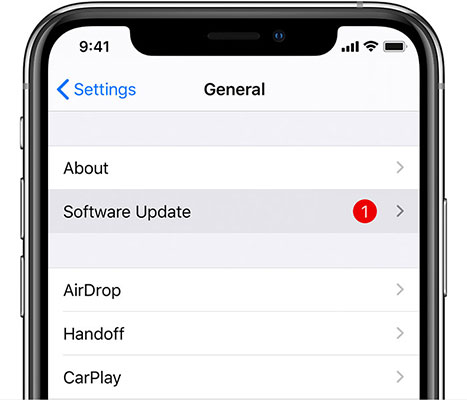
Step 3. Wait for your iPhone to check for available updates.
Step 4. Tap "Download and Install". Enter your passcode if required and wait for the update to complete.
After the installation finishes, your iPhone will restart automatically with the updated iOS version.
Part 2. How to Update iPhone Without iTunes Through Computer
If your iPhone cannot update normally or you want more control over the iOS installation process, using an iOS system repair tool can be a better choice.
Fixppo allows you to upgrade or downgrade iOS without using iTunes. It can also help fix common iOS update problems, such as iPhone stuck on the Apple logo, recovery mode loops, or update failures.
Compared with iTunes, Fixppo provides a more flexible way to handle iOS system issues while offering different repair modes depending on your needs.
Key features of Fixppo:
- Upgrade iPhone to a newer iOS version without iTunes;
- Downgrade iOS to a supported previous version;
- Fix iPhone stuck during update or startup;
- Repair iOS system problems without data loss in Standard Mode;
- Support the latest iOS versions and iPhone models.
Steps to update iPhone without iTunes using Fixppo:
-
Open Fixppo after installation, then choose "iOS Upgrade/Downgrade" from the main interface to start the iOS update process without using iTunes.
-
Use a USB cable to connect your iPhone to the computer. Once Fixppo detects your device successfully, select "Upgrade iOS" to continue.
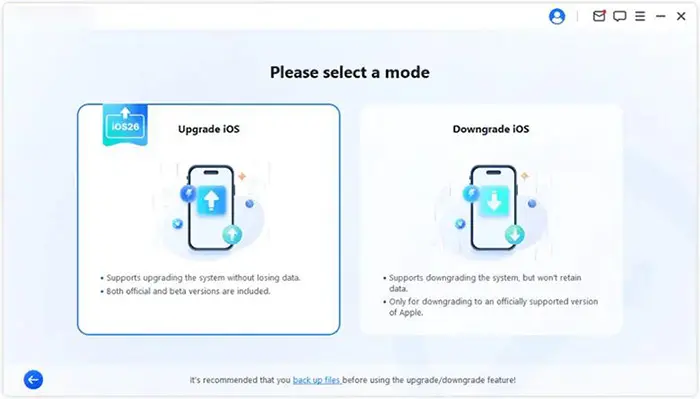
-
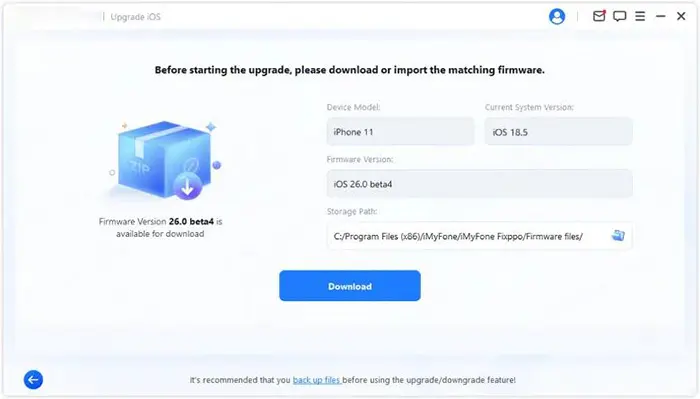
Fixppo will automatically show the available firmware versions compatible with your iPhone. Choose the required iOS version and click "Download" to get the firmware file.
-
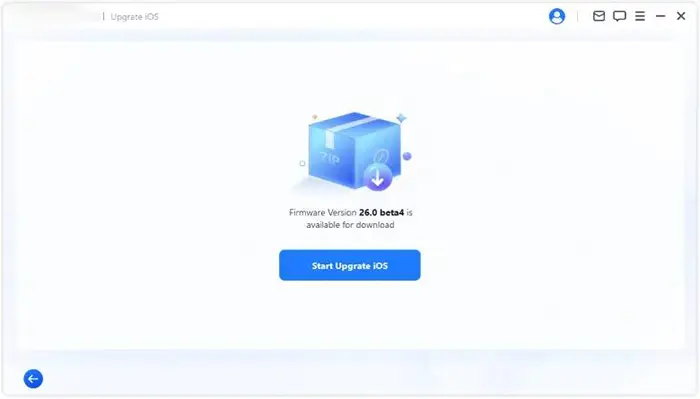
After the firmware package is downloaded, click "Start Upgrade iOS" and let Fixppo install the selected iOS version on your iPhone. Keep your device connected until the process is finished.
Part 3. How to Manually Update iPhone Using IPSW Firmware
Sometimes, updating through iTunes fails because the firmware download process is interrupted or the downloaded file becomes corrupted. In this case, you can manually download the IPSW firmware file first and then use it to update your iPhone.
An IPSW file is the official iOS firmware package used by Apple devices. By downloading it separately, you can avoid waiting for iTunes to complete the firmware download.
Things to know before using IPSW:
- Make sure the IPSW file matches your exact iPhone model.
- Only Apple-signed iOS versions can be installed.
- Keep your iPhone connected during the update process.
Steps to manually update iPhone with IPSW:
Step 1. Find and download the correct IPSW file for your iPhone model.
Step 2. Connect your iPhone to your computer using a USB cable.
Step 3. Open iTunes (Windows) or Finder (Mac).
Step 4. Select your iPhone from the device list.
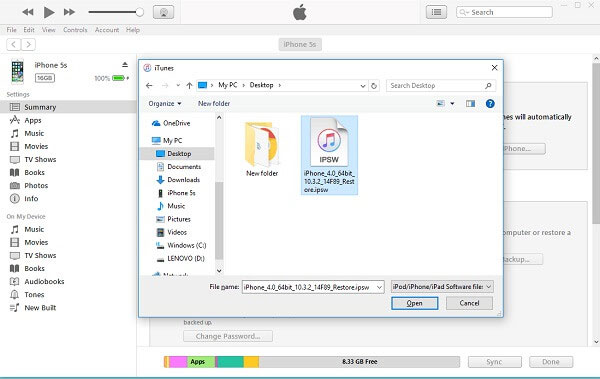
Step 5. Hold "Shift" on Windows or "Option" on Mac and click "Check for Update".
Step 6. Select the downloaded IPSW file.
Step 7. Follow the instructions to install the update.
FAQs About Updating iPhone Without iTunes
1. What causes iTunes iPhone update failures?
iTunes update failures can happen because of unstable internet connections, insufficient storage, Apple server issues, outdated iTunes versions, or corrupted firmware downloads. If iTunes repeatedly fails to update your iPhone, trying another update method may help.
2. Will updating iPhone without iTunes erase my data?
It depends on the update method you choose. Updating iPhone directly from Settings usually keeps your existing data unchanged. When using Fixppo, its iOS Upgrade feature allows you to upgrade iOS without losing your data during the process. However, it is still recommended to back up your iPhone before updating iOS to avoid unexpected data loss.
3. How long does it take to update iPhone without iTunes?
The update time depends on the method you choose, your internet speed, and the size of the iOS firmware. Updating from Settings is usually the simplest, while IPSW installation or computer-based tools may take longer because they involve downloading and installing a complete firmware package.
Conclusion
Updating an iPhone without iTunes is possible, and the best method depends on your situation. If your iPhone works normally, updating through Settings is the simplest option. If you need to upgrade, downgrade, or fix iOS update problems, Fixppo provides a more flexible solution without relying on iTunes. For users who only want to avoid iTunes downloading firmware, manually installing an IPSW file can also be an effective approach.
By choosing the right method, you can update your iPhone more easily and avoid common issues caused by iTunes updates.
Related Articles
How to Update iPhone Without Wi-Fi Using Mobile Data or Computer
How to Fix iOS 27 Unable to Check for Update on iPhone/iPad [Solved]
iOS 27 Update Paused: Causes and Fixes to Resume iPhone Update
How to Back Up iPhone Without iTunes: 5 Reliable Backup Solutions