TL;DR:
If you need to update your iPhone but do not have access to Wi-Fi, you can try these methods:
- Use Cellular Data: Update iOS directly through mobile data if your iPhone supports this option.
- Use a Personal Hotspot: Connect your iPhone to another device's cellular network.
- Use iTunes/Finder: Install iOS updates through a computer with a stable connection.
- Use Fixppo: Upgrade iOS without Wi-Fi or iTunes/Finder while also handling update-related system issues.
Wi-Fi is the most common way to download iOS updates, but it is not always available. You may need to update your iPhone while traveling, using mobile data, or when your home network is unavailable.
Fortunately, there are several ways to update an iPhone without Wi-Fi. Depending on your device and situation, you can use cellular data, a personal hotspot, a computer, or an iOS upgrade tool. This guide explains how to update an iPhone without Wi-Fi and compares different methods to help you choose the most suitable option.
Part 1. Can You Update iPhone Without Wi-Fi?
Can I do a software update without Wi-Fi? Yes, you can update your iPhone without Wi-Fi in several ways. However, the available options depend on your iPhone model, iOS version, and the resources you have available.
For some iPhones, you can download updates using cellular data. If this option is unavailable, you can connect your iPhone to a personal hotspot or update it through a computer.
Before trying any method, make sure your iPhone has enough battery, sufficient storage space, and a stable connection to avoid interruptions during the update process.
Part 2. How to Update iPhone Without Wi-Fi Using Mobile Data
Using mobile data is the easiest option if your iPhone supports it. Instead of connecting to a Wi-Fi network, your device downloads the iOS update through a cellular connection.
2.1 Update iPhone Directly with Cellular Data
Some iPhone models allow users to download iOS updates through cellular data. Before starting, make sure your device meets the basic requirements.
Before updating with cellular data:
- Make sure Cellular Data is enabled.
- Check that your mobile plan has enough data allowance.
- Keep your iPhone connected to a stable cellular network.
- Charge your iPhone or connect it to power before updating.
How can I update my iPhone with cellular data?
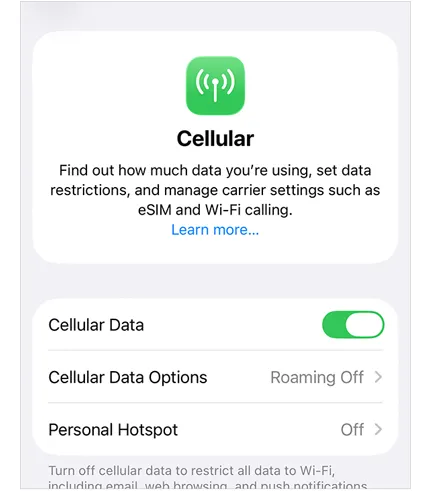
Step 1. Open "Settings" on your iPhone.
Step 2. Tap "Cellular" and turn on "Cellular Data".
Step 3. Return to "Settings" and tap "General".
Step 4. Select "Software Update".
Step 5. Download and install the available iOS update.
Limitations of using cellular data:
Although this method is convenient, it may not work for every iPhone. You may also experience:
- High mobile data consumption during large updates.
- Slower download speeds compared with Wi-Fi.
- Failed downloads if the cellular connection becomes unstable.
2.2 Update iPhone Using a Personal Hotspot
A personal hotspot allows your iPhone to connect to another device's cellular network. It works like a temporary Wi-Fi connection and can help you update your iPhone without a traditional Wi-Fi network.
This method is useful when:
- Your iPhone does not support direct cellular updates.
- You have another phone with enough mobile data.
- You need a temporary internet connection.
Steps to update iPhone using a personal hotspot:
Step 1. Turn on "Personal Hotspot" on another smartphone.
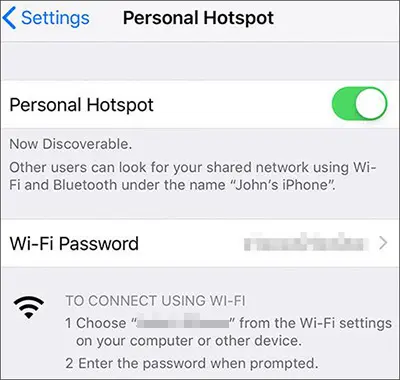
Step 2. Connect your iPhone to the hotspot network.
Step 3. Open "Settings" > "General" > "Software Update".
Step 4. Download and install the latest iOS version.
Limitations of using a hotspot:
- The hotspot device needs enough available data.
- Update speed depends on the cellular network.
- Both devices may drain battery faster.
Part 3. How to Upgrade iPhone Without Wi-Fi Through a Computer
A computer is another reliable way to update an iPhone without Wi-Fi. Instead of downloading the update directly on your iPhone, the computer handles the update process through a wired connection.
This option is recommended when:
- Your iPhone cannot update through cellular data.
- The update download repeatedly fails.
- You want a more stable connection.
- Your mobile data is limited.
3.1 Update iPhone with iTunes/Finder
iTunes and Finder are Apple's official ways to update an iPhone through a computer.
- Windows users can use iTunes.
- Mac users running macOS Catalina or later can use Finder.
How to update iOS without Wi-Fi using iTunes/Finder?
Step 1. Connect your iPhone to your computer using a USB cable.
Step 2. Open iTunes or Finder.
Step 3. Select your iPhone from the device list.
Step 4. Click "Check for Update".
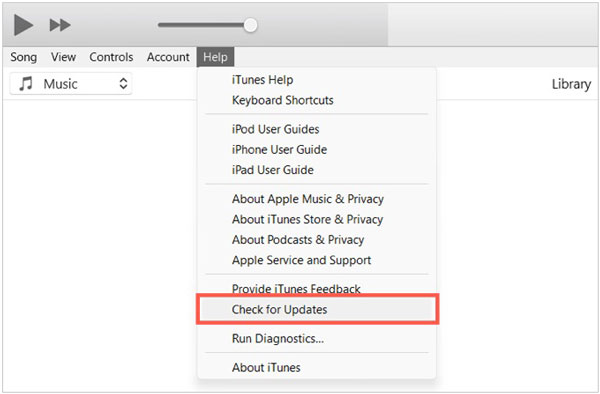
Step 5. Follow the instructions to download and install the latest iOS version.
Common issues with iTunes/Finder updates:
Although it is an official method, some users may encounter:
- iPhone not recognized by the computer.
- Update errors during installation.
- iPhone stuck during the update process.
3.2 Update iPhone with Fixppo
If you want to update iOS without Wi-Fi, cellular data, or iTunes/Finder, Fixppo provides another computer-based option. It includes an iOS Upgrade/Downgrade feature that allows users to upgrade iOS or downgrade iOS through a computer connection.
Compared with standard iTunes/Finder updates, Fixppo can be useful when users need a more flexible update process or encounter problems during normal iOS updates.
Why use Fixppo for iOS updates?
- Update iOS without relying on a Wi-Fi connection on your iPhone.
- Upgrade iOS through a computer using firmware packages.
- Keep your data during iOS upgrades in supported situations.
- Handle some update-related system problems if the normal process fails.
Steps to update iPhone without Wi-Fi using Fixppo:
-
Install and open Fixppo on your computer. From the main interface, select "iOS Upgrade/Downgrade" to enter the iOS upgrade feature.
-
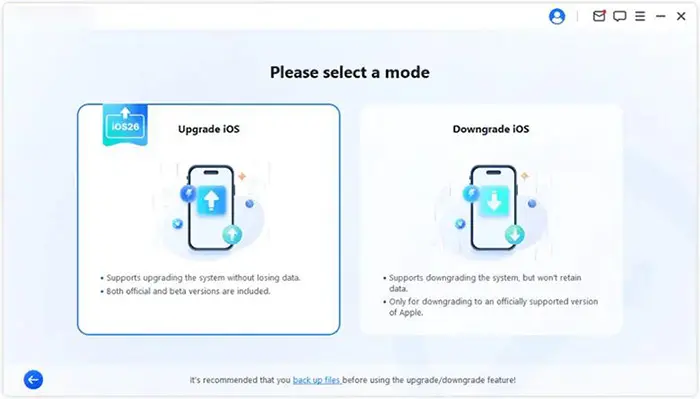
Connect your iPhone to the computer with a USB cable. After your device is recognized, select "Upgrade iOS" to continue the update process.
-
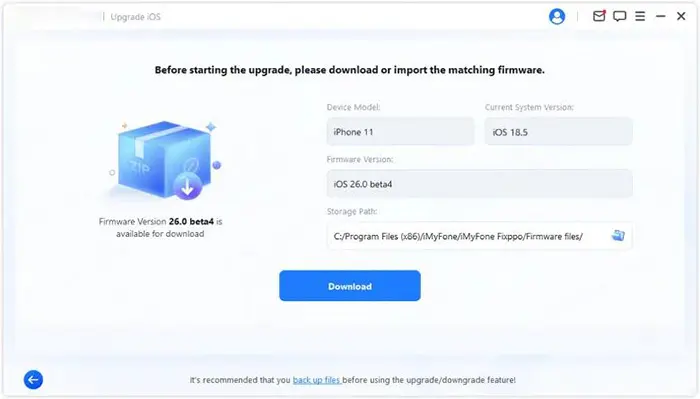
Fixppo will display the available iOS firmware versions for your iPhone. Choose the desired firmware package and click the "Download" button to prepare the update file.
-
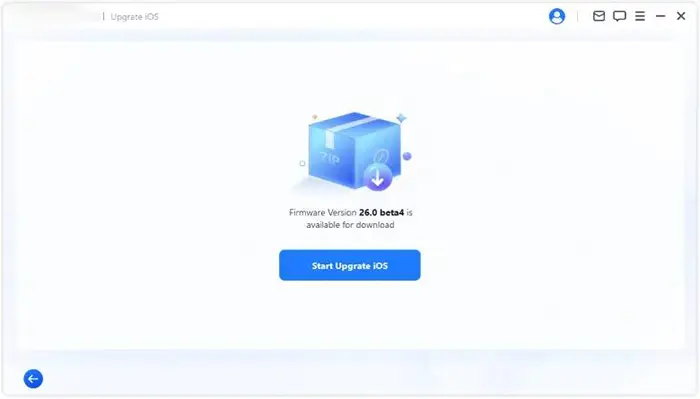
After the firmware download is complete, click "Start Upgrade iOS" and wait for Fixppo to complete the installation. Once finished, your iPhone will be updated to the selected iOS version.
Part 4. Which Method Should You Choose to Update iPhone Without Wi-Fi?
Each method has its own requirements and limitations. The right choice depends on whether you have access to mobile data, another device, a computer, and whether your iPhone can complete the update normally.
The table below compares these four methods to help you quickly find the most suitable way to update your iPhone without Wi-Fi.
| Method | Best For | Required | Advantages | Limitations |
|---|---|---|---|---|
| Cellular Data | Users who want to update directly on iPhone | Supported iPhone + mobile data | No computer or extra device needed | May consume a large amount of data |
| Personal Hotspot | Users without access to Wi-Fi | Another device with hotspot | Simple temporary network solution | Depends on hotspot speed and data availability |
| iTunes/Finder | Users who prefer Apple's official update method | Computer + USB cable | Stable and official update approach | May encounter connection or update errors |
| Fixppo | Users who need flexible iOS upgrades or update solutions | Computer + USB cable | Supports iOS upgrade/downgrade and handles some update-related issues | Requires third-party software |
FAQs About Updating iPhone Without Wi-Fi
1. How much data does an iPhone update use?
The data usage depends on the size of the iOS update. Major iOS versions usually require several gigabytes of download space, so it is recommended to check your mobile data plan before updating.
2. Why can't I update my iPhone without Wi-Fi?
Your iPhone may require Wi-Fi because of device limitations, carrier restrictions, or network conditions. If cellular updating is unavailable, try another method such as a hotspot, iTunes/Finder, or Fixppo.
3. Will updating my iPhone without Wi-Fi erase my data?
No. Updating iOS through cellular data, hotspot, iTunes/Finder, or Fixppo normally does not erase your personal data. However, creating a backup before major updates is still recommended.
Conclusion
Updating an iPhone without Wi-Fi is possible with several methods. If your device supports it, cellular data is the quickest solution. A personal hotspot provides another simple workaround when direct mobile updates are unavailable.
For users who prefer a computer-based approach, iTunes/Finder offers Apple's official solution, while Fixppo provides a more flexible option for iOS upgrades and update-related issues. Choose the method that matches your situation to complete the iOS update smoothly.
Related Articles
How to Fix iOS 27 Unable to Check for Update on iPhone/iPad [Solved]
iPhone Stuck on Preparing Update? 9 Proven Fixes for iOS 27
How to Fix iPhone Stuck on Verifying Update in iOS 27
iOS 27 Update Paused: Causes and Fixes to Resume iPhone Update