


TL;DR:
An iPhone stuck on a blue screen usually points to a serious system crash or startup problem. Depending on the cause, you can try the following solutions to get your iPhone working normally again:
- Force restart your iPhone to interrupt the system crash and trigger a fresh startup.
- Update iPhone in Recovery Mode to reinstall iOS without immediately erasing your personal data.
- Use Fixppo to repair iOS system problems with Standard Mode while preserving existing data.
- Restore iPhone in Recovery Mode when an iOS update or system repair cannot resolve the blue screen.
- Contact Apple Support if the blue screen persists or the problem appears to involve hardware damage.
An iPhone blue screen of death can be particularly worrying because the device may suddenly freeze on a blue screen and stop responding to normal touch or button input. In some cases, the problem occurs during startup or after an iOS update, leaving you unable to access the Home Screen or use the device normally.
Although a blue screen can indicate a serious iOS problem, it does not necessarily mean that your iPhone is permanently damaged. System crashes, failed updates, corrupted system components, and hardware problems can all contribute to this issue. Fortunately, several recovery and repair methods are available even when you cannot access the iPhone normally. Keep reading to learn more about the iPhone blue screen.
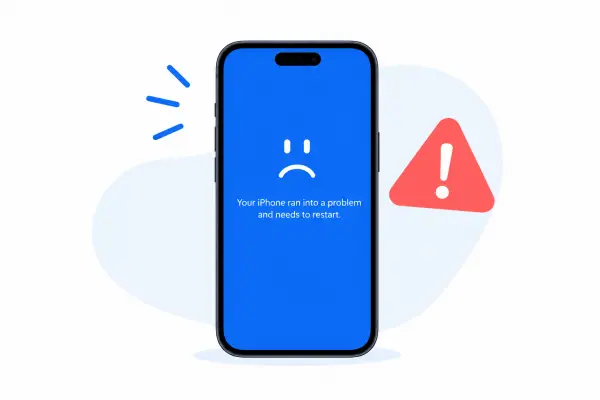
Part 1. What Does iPhone Blue Screen of Death Mean?
The iPhone blue screen of death refers to a situation where an iPhone suddenly displays a blue screen and becomes frozen, unresponsive, or unable to start normally. Unlike a temporary change in screen color, a blue screen accompanied by a system freeze usually indicates that iOS has encountered a serious error.
Several issues can potentially lead to this problem:
* iOS system crashes: A critical software error can cause the system to freeze and leave the device stuck on a blue screen.
* Failed iOS updates: An interrupted or unsuccessful update may prevent the operating system from starting correctly.
* Corrupted system components: Damaged or incomplete system files can interfere with the startup process.
* Repeated system failures: If iOS repeatedly crashes during startup, the iPhone may become stuck before reaching the normal interface.
* Hardware problems: A damaged display, internal component, or other hardware issue can also cause abnormal screen behavior.
Part 2. How Do I Fix the Blue Screen of Death on My iPhone?
Can a blue screen of death be fixed? In most cases, yes. Since an iPhone stuck on a blue screen may not allow you to access its normal settings, the following methods focus on restarting or repairing the system from outside the regular iOS interface. Start with the least invasive solution and move to more advanced options if necessary.
Fix 1. Force Restart iPhone
When your iPhone is stuck on a blue screen, the normal power-off process may not work. In this situation, use the button combination below to force the device to restart.
For iPhone 8 or later, including iPhone X, 11, 12, 13, 14, 15, 16, 17, iPhone Duo, and iPhone 18 series:
Step 1. Press and quickly release the "Volume Up" button.
Step 2. Press and quickly release the "Volume Down" button.
Step 3. Immediately press and hold the "Side" button.
Step 4. Release the button when the Apple logo appears.
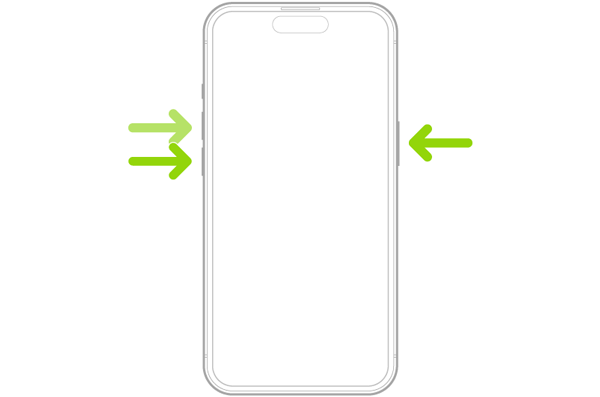
Wait for the iPhone to complete the startup process. If it boots normally, check whether the blue screen reappears. If the device remains stuck or returns to the blue screen, try the next solution.
Fix 2. Update iPhone in Recovery Mode
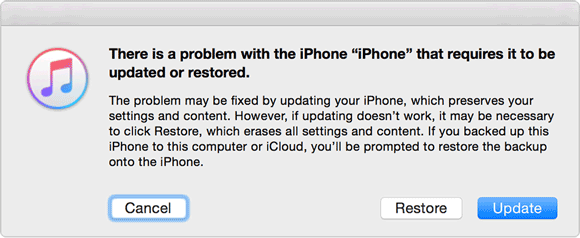
If a force restart does not resolve the blue screen, you can reinstall the current iOS version through Recovery Mode. This can help when the system cannot start normally because of a software error or failed update.
You will need a Mac or Windows computer and a USB cable. On a Mac, you can use Finder. On Windows, Apple's Apple Devices app provides the current device-management functions that many users previously used iTunes for. If you still have a compatible version of iTunes, it can also be used for device management.
For an iPhone 8 or later:
Step 1. Connect your iPhone to the computer with a USB cable.
Step 2. Quickly press and release the "Volume Up" button.
Step 3. Quickly press and release the "Volume Down" button.
Step 4. Press and hold the "Side" button.
Step 5. Continue holding the button until the recovery-mode screen appears.
Step 6. Open Finder, Apple Devices, or iTunes and select your iPhone.
Step 7. When the available options appear, choose "Update". Wait for the computer to download and reinstall iOS.
Fix 3. Use an iOS Repair Tool
If the blue screen is caused by a deeper iOS system problem, an iOS repair tool can help restore the operating system without requiring an immediate factory reset. Fixppo is designed to repair underlying iOS issues that may leave your iPhone stuck on a blue screen or unable to complete the startup process. By repairing the affected system components, it can help bring the device back to a normal working state while keeping your existing data intact in Standard Mode.
Key features of Fixppo:
- Repair various iOS system problems without requiring complicated technical operations.
- Provide Standard Mode and Advanced Mode for handling different system repair scenarios.
- Support iPhone, iPad, iPod touch, and Apple TV.
- Resolve problems such as blue or frozen screens, Apple logo freezes, startup failures, repeated restarts, and iOS update errors.
- Enable iOS downgrading or upgrading to install a compatible iOS version as needed.
How to solve blue screen of death on iPhone with Fixppo?
-
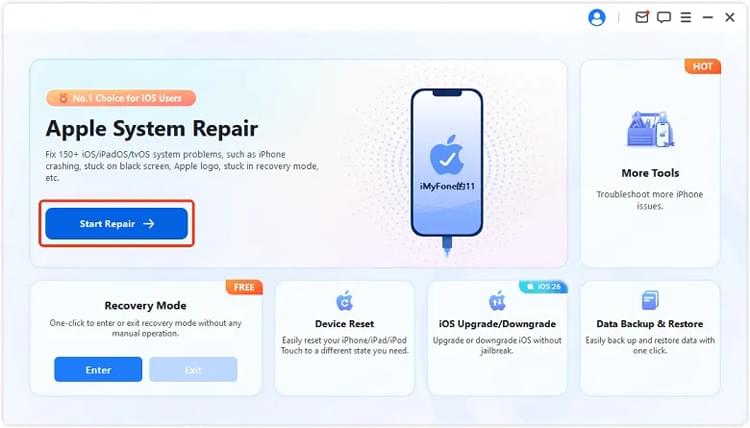
Install and launch Fixppo on your computer, then connect the blue-screen iPhone with a USB cable. Once the program recognizes the device, select "Apple System Repair".
-
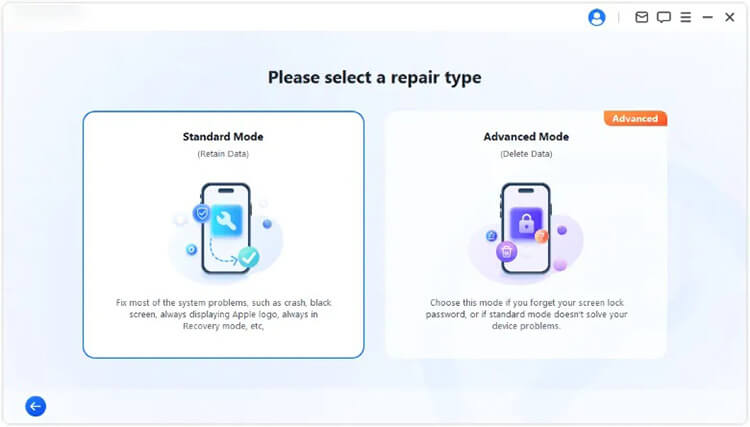
Select "Standard Mode" to repair the iOS system while preserving the existing data on your iPhone.
-
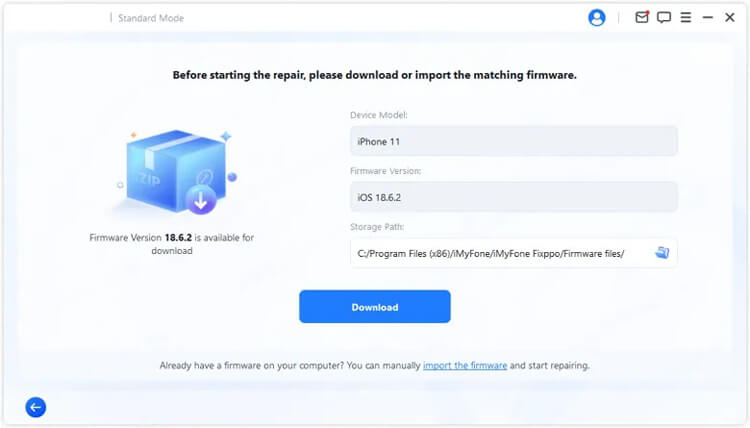
Follow the on-screen instructions to confirm the connected device information and select the appropriate firmware package. Download the firmware and wait for Fixppo to complete its verification.
-
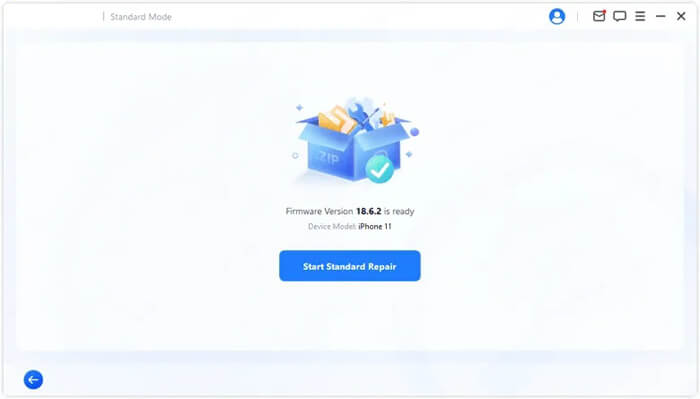
After the firmware is prepared, click "Start Standard Repair" to begin repairing the iOS system. Keep the iPhone connected throughout the process and wait for Fixppo to finish the repair. Then, your screen will return to normal.
Fix 4. Restore iPhone in Recovery Mode
If neither a Recovery Mode update nor an iOS repair tool can resolve the blue screen, you can try restoring the iPhone through Recovery Mode. This reinstalls iOS from scratch and can eliminate serious software problems that prevent the device from starting.
However, Restore erases all content and settings on the iPhone, so it should not be your first choice. If you have not already backed up your iPhone, check whether a recent iCloud or computer backup is available before proceeding.
To restore your iPhone:
Step 1. Connect the iPhone to a Mac or Windows computer.
Step 2. Put the iPhone into Recovery Mode using the appropriate button combination.
Step 3. Open Finder, Apple Devices, or iTunes and select the connected iPhone.
Step 4. When the available options appear, choose "Restore".
Step 5. Confirm the action and wait for the computer to download and install the appropriate iOS version. Keep the iPhone connected until the restoration process is finished.
Afterward, you can set up the iPhone as a new device or restore your information from a compatible backup.
Fix 5. Contact Apple Support
When an iPhone continues to crash into a blue screen even after iOS has been updated, restored, or repaired, the issue may no longer be limited to the software. A recurring blue screen can sometimes indicate a problem with the display, internal connections, logic board, or another hardware component.
This is especially worth considering if the problem appeared after a drop, impact, or liquid exposure, or if you notice other abnormal behavior such as flickering, lines on the screen, unexpected restarts, or failures of other hardware functions.
At this point, further software troubleshooting may not resolve the underlying cause. Contact Apple Support or take the device to an Apple Authorized Service Provider for a hardware inspection. A technician can identify the affected component and determine whether repair or replacement is necessary.

Conclusion
How to fix the iPhone blue screen of death? The solutions above can help you deal with this frustrating problem and get your iPhone back to normal. While some methods, such as restoring iPhone through Recovery Mode, may erase your data, Fixppo provides a safer alternative with its Standard Mode. By repairing underlying iOS system issues without erasing your existing data, it can help bring your iPhone out of the blue screen and back to normal use.
Related Articles
iPhone Black Screen But Still On? 5 Troubleshooting Tips
How to Fix iPhone Stuck in SOS Mode Without Hassle [7 Ways]
[iOS 27] iPhone Overheating After Update: 9 Quick Ways to Fix It
How to Fix iOS 27 Unable to Check for Update on iPhone/iPad [Solved]

