TL;DR:
iPhone can get warm after an iOS update while completing post-update tasks, so temporary heat is not always a cause for concern. However, if your iPhone stays unusually hot during light use or when idle, it is worth troubleshooting.
- Slightly warm after the update: Usually temporary and may improve as post-update activity settles down.
- Still overheating during normal use: Check your iPhone's battery and app activity to find what may be driving the extra heat.
- Extremely hot or showing a temperature warning: Stop using or charging the iPhone and let it cool down in a cool, well-ventilated place.
- The problem continues: Further iOS, battery, settings, or system troubleshooting may be needed. If the overheating is caused by an iOS system issue, Fixppo can repair it without erasing your existing iPhone data.
"After the iOS 26 update was released i thought it would be a great update but after after installing it on my iPhone 14 pro I'm facing severe heating issues just after light tasks like messaging and browsing . This wasn't an issue prior the update i wish apple please fix this problem in the next update. Thank you!"
- From the Apple Community
An iPhone can become noticeably warm after a major software update, which may understandably make you wonder whether something went wrong during the installation. While occasional warmth is not necessarily a cause for concern, the situation can be frustrating when the device stays hot during everyday use.
If you are dealing with iPhone overheating after update, this guide will help you understand what may be happening and determine when the temperature is normal and when further troubleshooting is needed. We will also walk you through practical ways to get your iPhone back to normal.
- Part 1. Why Is My iPhone Heating Up After the iOS 27 Update?
- Part 2. Is It Normal for an iPhone to Get Hot After an Update?
- Part 3. How to Fix iPhone Overheating After Update
- Fix 1. Let Your iPhone Cool Down
- Fix 2. Restart Your iPhone
- Fix 3. Check Battery Usage for Problematic Apps
- Fix 4. Update or Reinstall Apps
- Fix 5. Reduce Background Activity and Power Consumption
- Fix 6. Wait for a Newer iOS Update
- Fix 7. Check Battery Health
- Fix 8. Reset All Settings
- Fix 9. Use an iOS System Repair Tool
Part 1. Why Is My iPhone Heating Up After the iOS 27 Update?
Your iPhone may heat up after installing iOS 27 for several reasons, most of which are related to increased system activity or device workload.
1. Post-Update Background Activity
After a major iOS update, your iPhone may continue processing and organizing data in the background. This can temporarily increase processor and battery activity, causing the device to feel warmer.
2. App Compatibility Issues
Some third-party apps may not be fully optimized for the new iOS version. An outdated or problematic app can use more system resources than usual and contribute to extra heat.
3. Increased Device Workload
Gaming, video recording, GPS navigation, streaming, and charging can all generate heat. If these activities are performed soon after an update, the temperature may rise more noticeably.
Part 2. Is It Normal for an iPhone to Get Hot After an Update?
Yes, some warmth after an iOS update is normal. Your iPhone may temporarily get warmer while completing post-update tasks or handling demanding activities. It should generally return to a normal temperature once these activities finish.
However, overheating is more concerning if your iPhone:
- Stays very hot during light use or while idle.
- Drains the battery unusually quickly.
- Shows a temperature warning or pauses charging.
- Has noticeable performance problems.
Part 3. How to Fix iPhone Overheating After Update
How do I cool down my iPhone quickly? Start with the simplest fixes below and work your way through them if the overheating continues.
Fix 1. Let Your iPhone Cool Down
If your iPhone is already hot, do not immediately continue troubleshooting while using the device. First, reduce the heat source and allow the iPhone to return to a normal temperature.
You can:
- Stop playing games or using other demanding apps.
- Pause charging if the device becomes hot while charging.
- Remove the phone case temporarily.
- Move the iPhone to a cool, dry, and well-ventilated place.
- Keep it away from direct sunlight or other heat sources.
- Use a fan to improve airflow around the device.
Note: Do not put the iPhone in a refrigerator or freezer. Rapid temperature changes can cause condensation inside the device.
Fix 2. Restart Your iPhone
Once the iPhone has cooled down, restart it. A restart can clear temporary processes and minor software glitches that may have developed after the update.
For most iPhone models:
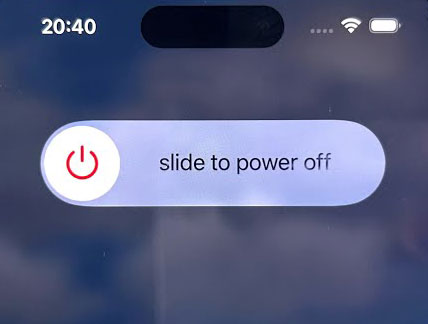
- Press and hold either volume button and the "Side" button until the power-off slider appears.
- Drag the slider to turn off your iPhone.
- Wait about 30 seconds.
- Press and hold the "Side" button until the Apple logo appears.
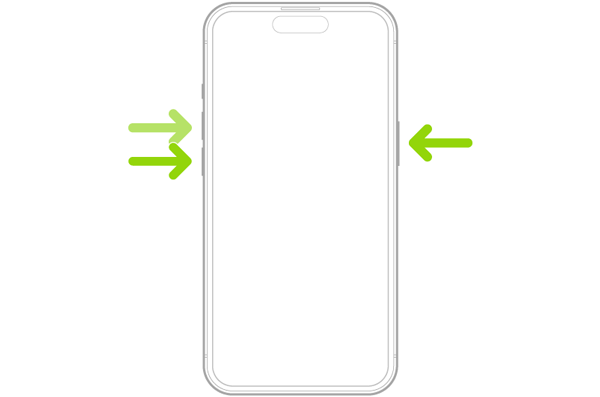
If your iPhone is frozen or does not respond, you can perform a force restart instead:
- Quickly press and release the "Volume Up" button.
- Quickly press and release the "Volume Down" button.
- Press and hold the "Side" button.
- Release it when the Apple logo appears.
Fix 3. Check Battery Usage for Problematic Apps
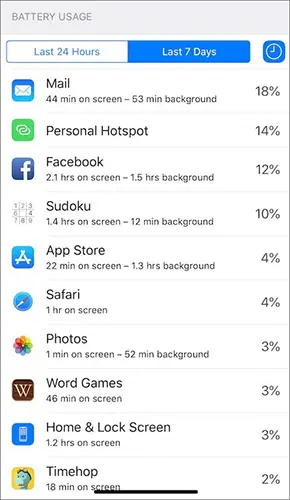
If the iPhone continues to get hot, check whether an app is consuming an unusual amount of power. Go to "Settings" > "Battery".
Review the battery usage for the recent period and look for apps that account for a large percentage of battery consumption or show significant background activity.
If one app stands out, try using it less for a while and see whether the iPhone stays cooler. You can then update or reinstall it using the next fix.
Fix 4. Update or Reinstall Apps
An outdated app may not work properly with the latest iOS version. Updating your apps can resolve compatibility problems that appeared after the system update.
Update Apps
- Open the App Store.
- Tap your profile picture in the top-right corner.
- Scroll to "App Updates".
- Tap "Update All", or update the suspected app individually.
After the update finishes, reopen the app and monitor your iPhone's temperature.
Reinstall a Problematic App
If an app continues to cause excessive battery use or heat:
- Touch and hold the app icon.
- Tap "Remove App".
- Select "Delete App" and confirm.
- Open the App Store and search for the app.
- Download and install it again.
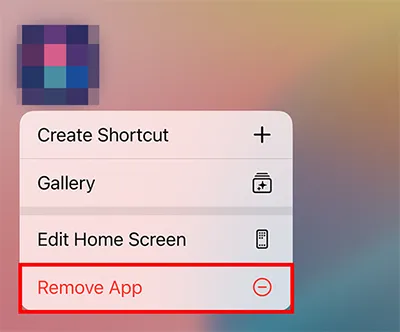
Note: Before deleting an app, make sure any important app data is backed up or synchronized with its associated account. You can back up your iPhone to a computer.
Fix 5. Reduce Background Activity and Power Consumption
If no particular app appears to be responsible, reduce unnecessary background activity and power consumption.
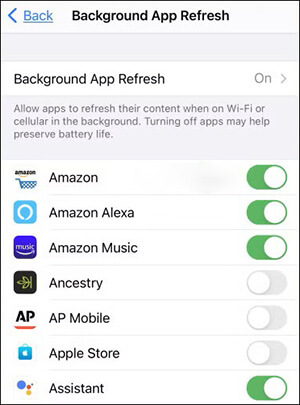
Turn Off Background App Refresh
Go to "Settings" > "General" > "Background App Refresh".
You can turn it off completely or disable it only for apps that do not need to refresh content in the background.
Review Location Services
Go to "Settings" > "Privacy & Security" > "Location Services".
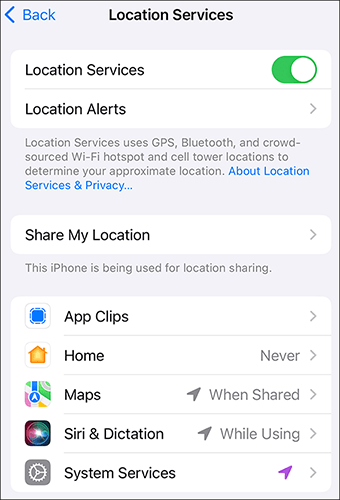
Check which apps can access your location. For apps that do not need continuous location access, consider changing the permission to "While Using the App" or another appropriate option.
You can also reduce unnecessary power consumption by lowering screen brightness or enabling Low Power Mode temporarily: "Settings" > "Battery" > "Low Power Mode".
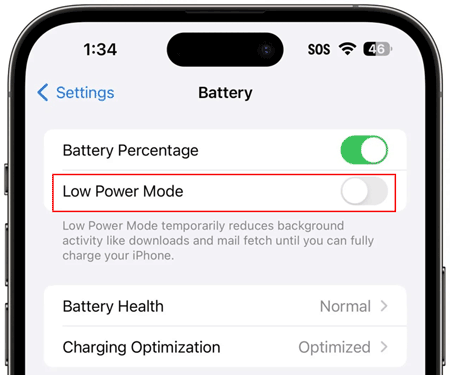
You do not need to disable every background feature. Focus on services and apps that you do not need running continuously.
Fix 6. Wait for a Newer iOS Update
If the overheating started after installing iOS 27, waiting for a newer iOS update may help if the issue is related to a software bug in the current version. However, this method only applies when Apple releases a newer version. If your iPhone is already running the latest iOS version or you want to address the overheating issue right away, try the other fixes below.
You can check for updates at "Settings" > "General" > "Software Update".
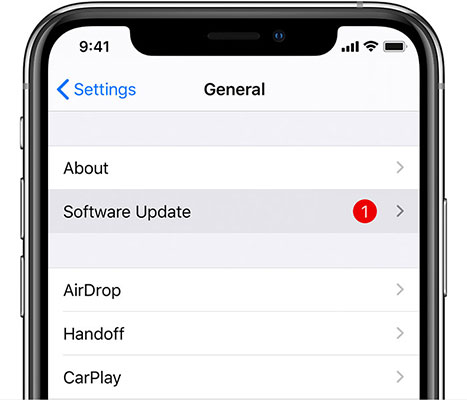
If a newer version becomes available, review the update information and install it if appropriate.
Fix 7. Check Battery Health
Battery condition is another factor worth checking when overheating is accompanied by unusually fast battery drain. On supported iPhone models, go to "Settings" > "Battery" > "Battery Health". Check the Maximum Capacity and any messages indicating that the battery's condition requires attention.
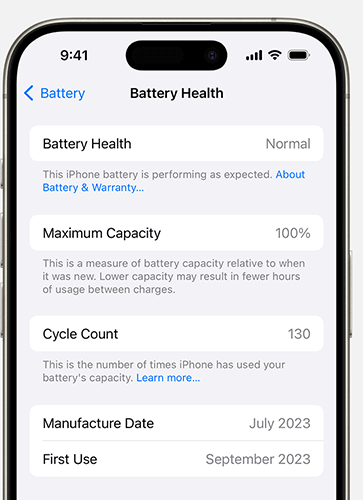
If you see a Service recommendation or the battery has significantly degraded, consider having the battery inspected by Apple or an authorized service provider. Keep in mind that Battery Health alone does not prove that the battery is causing the overheating. It is one part of the overall diagnosis.
Fix 8. Reset All Settings
If the overheating started after the update and the previous fixes did not help, resetting all settings can help eliminate configuration-related problems. This option resets system settings without erasing your personal content, such as photos, videos, and installed apps.
To reset your settings:
- Open "Settings".
- Tap "General".
- Scroll down and select "Transfer or Reset iPhone".
- Tap "Reset".
- Select "Reset All Settings".
- Enter your iPhone passcode if prompted and confirm the reset.
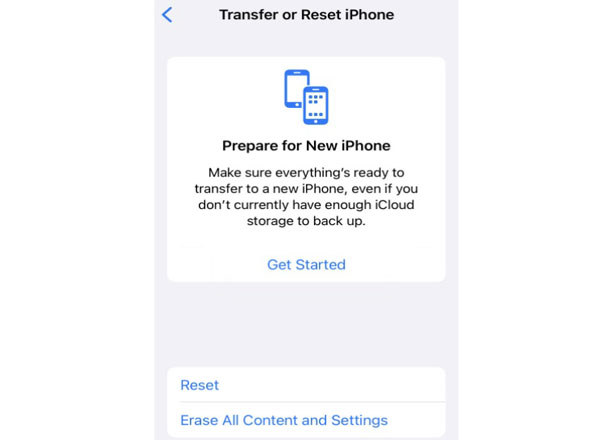
Afterward, you may need to configure some settings again, such as network, privacy, and Apple Pay settings.
Fix 9. Use an iOS System Repair Tool
If your iPhone continues overheating after trying the basic fixes, the problem may involve an iOS system malfunction rather than a simple setting or app issue. In this situation, an iOS system repair tool such as Fixppo can be considered as an additional troubleshooting option. It is designed to repair various iOS system issues and can be useful when an iPhone develops abnormal behavior after a system update.
Key features of Fixppo:
- Repairs iOS-related problems that may cause overheating after an update, including freezing, boot loops, and update errors.
- Fixes software issues without requiring you to erase existing iPhone data when using Standard Mode.
- Automatically identifies your iPhone and provides the appropriate firmware package for the repair.
- Focuses on iOS system problems without modifying the physical battery or its health.
- Supports 150+ iOS system issues, including being stuck on the Apple logo, recovery mode, black screen, and failed updates.
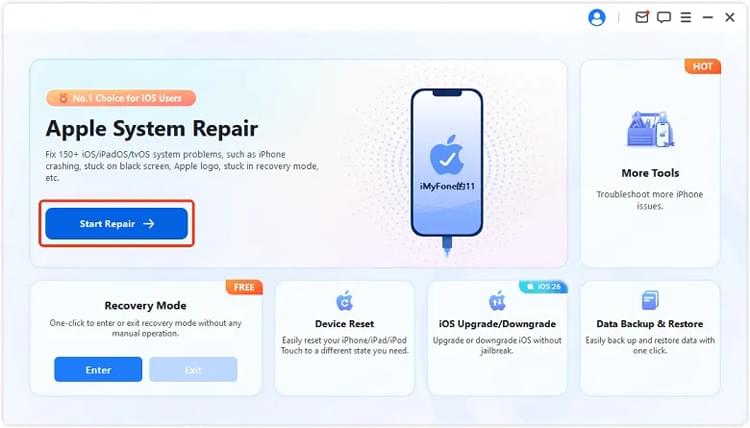
How to fix iPhone overheating after update without data loss?
-
Launch Fixppo and choose "Apple System Repair" from the main interface.
-
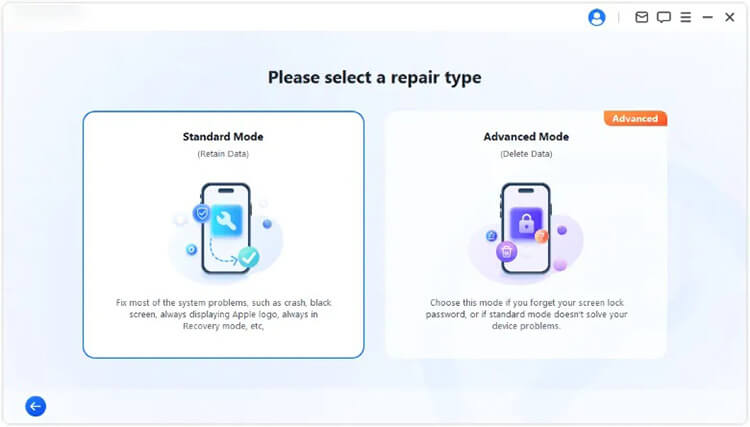
Select "Standard Mode" and connect your iPhone to the computer with a USB cable.
-
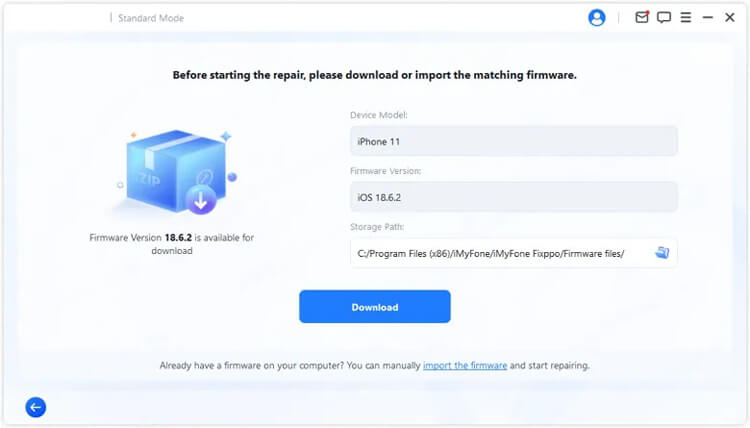
Follow the on-screen instructions to download the appropriate firmware package for your device.
-
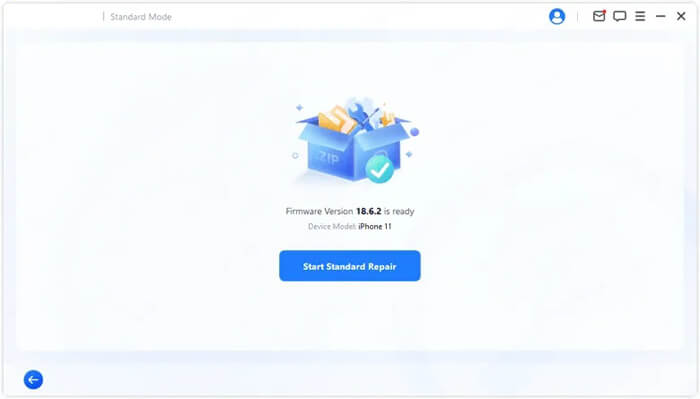
Click the "Start Standard Repair" button to begin the repair process. Wait for Fixppo to complete the repair, then let your iPhone restart and check whether the overheating problem has been resolved.
Conclusion
An iPhone may become warm after a major iOS update, and temporary heat does not necessarily mean that something is wrong. However, if the device stays unusually hot or the problem continues during normal use, it is worth troubleshooting rather than simply waiting for it to disappear.
Start by cooling the device, then restart it and check Battery usage for problematic apps. From there, update apps, reduce unnecessary background activity, check for a newer iOS version, and review Battery Health. If these measures fail, resetting all settings or using an iOS system repair tool such as Fixppo can provide further options for software-related problems.
Related Articles
iPhone Stuck on Preparing Update? 9 Proven Fixes for iOS 27
Why Is iPhone Stuck on Update Requested? Fix It with Easy Steps
How to Fix iPhone Stuck on Verifying Update in iOS 27
How to Fix iPhone Stuck in SOS Mode Without Hassle [7 Ways]