


TL;DR:
An iPhone frozen on the lock screen can often be fixed with the right troubleshooting approach. Depending on the cause, you can try these solutions to get your iPhone back to normal:
- Force restart your iPhone to clear temporary system glitches.
- Charge your iPhone and check the screen for touch-related problems.
- Use Fixppo to repair potential iOS system issues.
- Update or restore iOS through Recovery Mode if the system remains unresponsive.
- Contact Apple Support if the problem is related to hardware damage.
An iPhone frozen on the lock screen can be frustrating, especially when you cannot swipe up, enter your passcode, or access important information. Even if the display is still showing the time and notifications, the touchscreen may stop responding entirely, leaving you unable to use your device.
This problem can happen unexpectedly or after an iOS update, a system crash, or physical damage. Fortunately, you don't always need professional repair to resolve it. In this article, we'll explain the common causes of this issue and walk you through several practical solutions to get your iPhone working normally again.
Part 1. Why Is My iPhone Frozen on the Lock Screen?
There are several possible reasons why your iPhone gets stuck on the lock screen and stops responding to touch. Identifying the underlying cause can help you choose an appropriate solution.
Temporary iOS glitches: Minor software bugs or system process errors may cause the lock screen to become unresponsive.
Insufficient storage space: When your iPhone has very little available storage, system performance may become unstable, potentially causing freezing issues.
Failed iOS updates: An interrupted or incomplete iOS update may leave certain system files corrupted or prevent the operating system from functioning properly.
Software conflicts: Certain apps or background processes may interfere with normal system operations and cause your iPhone to freeze.
Hardware damage: A damaged touchscreen, internal component, or other hardware issue may prevent your iPhone from responding to touch commands.
Part 2. How Do I Fix the Pink Line on My iPhone Screen?
Once you understand the possible causes, you can start troubleshooting. Try the following five solutions in order, beginning with the simplest options before moving on to more advanced system repair methods.
Solution 1. Force Restart iPhone
Force restarting your iPhone is usually the first thing to try when the device freezes on the lock screen. Unlike a regular restart, this procedure forces the device to shut down and reboot, even when the touchscreen is completely unresponsive.
It can help clear temporary system glitches without deleting your personal data. The button combination varies depending on your iPhone model.
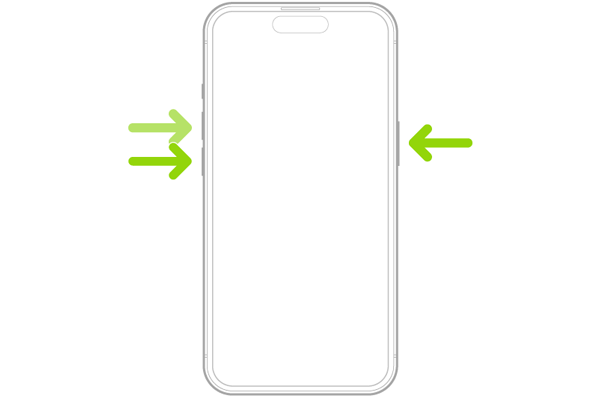
For iPhone 8 and Later (including iPhone SE 2nd Generation and Later):
Step 1. Quickly press and release the "Volume Up" button.
Step 2. Quickly press and release the "Volume Down" button.
Step 3. Press and hold the "Side" button until the Apple logo appears.
Step 4. Release the "Side" button and wait for your iPhone to restart.
For iPhone 7 and iPhone 7 Plus:
Step 1. Press and hold the "Volume Down" and "Side" buttons simultaneously.
Step 2. Keep holding both buttons until the Apple logo appears.
Step 3. Release the buttons and allow your iPhone to restart.
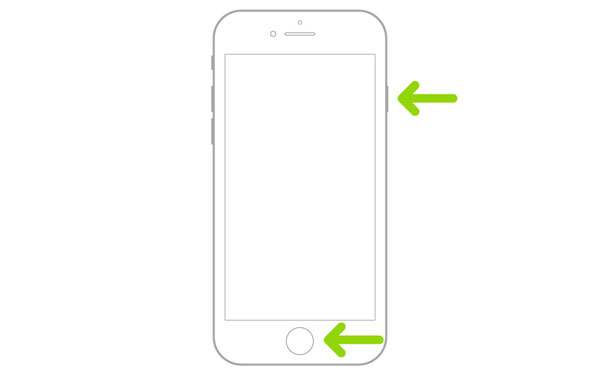
For iPhone 6s and Earlier (including iPhone SE 1st Generation):
Step 1. Press and hold the "Home" and "Side" (or Top) buttons simultaneously.
Step 2. Continue holding both buttons until the Apple logo appears.
Step 3. Release the buttons and wait for the device to restart.
Solution 2. Charge iPhone and Check the Screen
A low battery or a touchscreen-related problem may also contribute to an unresponsive iPhone. Before attempting more complicated repairs, check the charging connection and make sure nothing is interfering with the screen.
Follow these steps:
Step 1. Connect your iPhone to a working charger and charging cable.
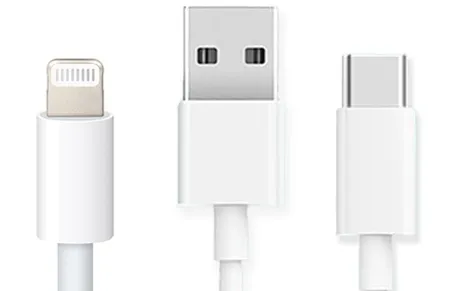
Step 2. Leave it charging for at least 30 minutes.
Step 3. Check whether the screen displays a charging indicator or responds to touch.
Step 4. Disconnect unnecessary accessories, such as headphones and USB devices.
Step 5. Remove the phone case and screen protector temporarily, then clean the display with a soft, lint-free cloth.
If the screen still doesn't respond after restarting, especially if it has visible cracks or was recently exposed to water, the issue may involve the display or touchscreen hardware rather than the iOS software.
Solution 3. Use an iOS System Repair Tool
If your iPhone is still frozen on the lock screen after a force restart, the problem may be related to an iOS system malfunction. In this case, you can try using a professional iOS system repair tool like Fixppo to troubleshoot the issue.
Fixppo is designed to repair various iOS system problems through a straightforward process. It offers two repair modes to address different system issues and provides the following features:
Key Features of Fixppo:
- Repair various iOS system issues through a straightforward process.
- Provide Standard Mode and Advanced Mode for different system repair needs.
- Fix common problems such as frozen screens, startup failures, devices stuck on the Apple logo, and iOS update errors.
- Support iOS upgrading and downgrading to install a different compatible system version.
To fix an iPhone frozen on the lock screen, follow these steps:
-
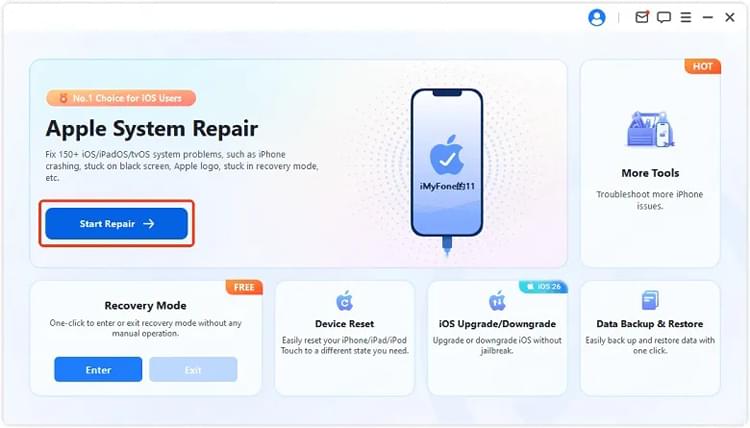
Install and open Fixppo on your computer, then connect your frozen iPhone using a USB cable. After the software recognizes your device, click "Apple System Repair".
-
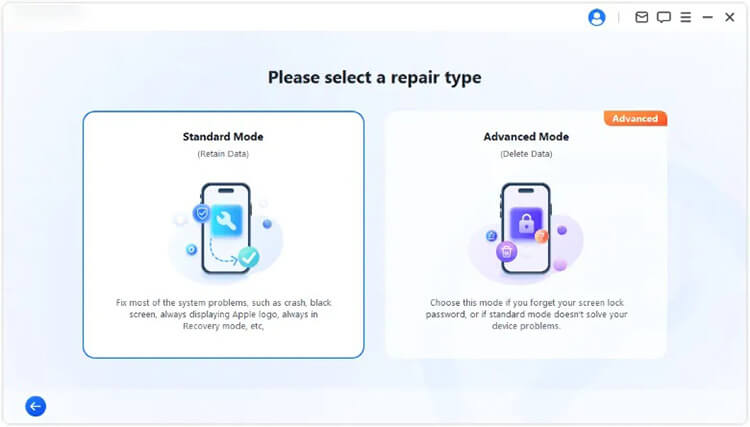
Select "Standard Mode" to repair potential iOS system problems while attempting to preserve your existing data.
-
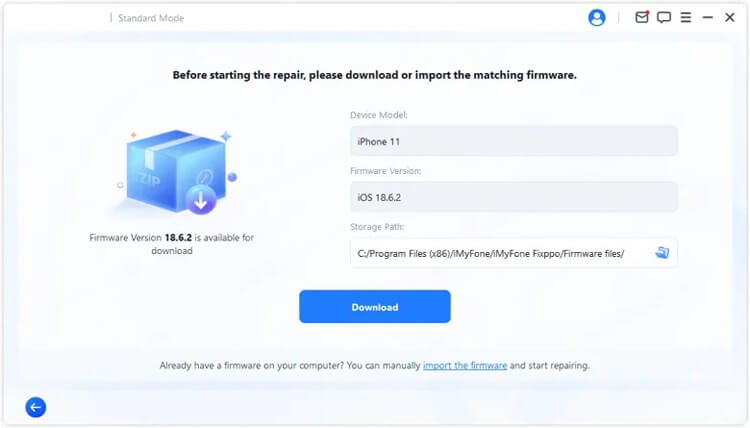
Check your iPhone's device information as prompted. Then, download the matching firmware package and let Fixppo verify the downloaded files.
-
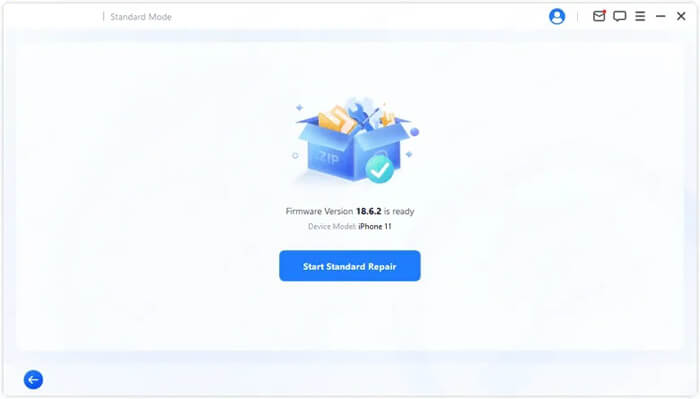
After the firmware is ready, click "Start Standard Repair" to begin repairing your iPhone. Keep the device connected until the repair is finished.
Solution 4. Update/Restore iOS Using Recovery Mode
If your iPhone is still frozen on the lock screen, you can use Apple's built-in Recovery Mode to reinstall or restore the iOS system through a computer.
This approach is particularly useful when the problem is caused by corrupted system files or an unsuccessful software update. You should try the Update option first because it attempts to reinstall iOS without erasing your personal data.
Step 1. Connect Your iPhone to a Computer.
Connect your iPhone to a Mac or Windows PC using a USB cable. Open Finder on a Mac or the Apple Devices app on Windows. You can also use iTunes on supported systems.
Step 2. Enter Recovery Mode.
Use the appropriate button combination for your iPhone model:
- iPhone 8 and Later: Quickly press and release "Volume Up", then "Volume Down". Press and hold the "Side" button until the Recovery Mode screen appears.
- iPhone 7 and 7 Plus: Press and hold the "Volume Down" and "Side" buttons simultaneously until the Recovery Mode screen appears.
- iPhone 6s and Earlier: Press and hold the "Home" and "Side" (or "Top") buttons simultaneously until the Recovery Mode screen appears.
Step 3. Update iOS.
Once your computer detects the iPhone in Recovery Mode, a window will appear with the Update and Restore options. Select "Update" to reinstall iOS without intentionally erasing your personal data. Keep your iPhone connected until the process is complete.
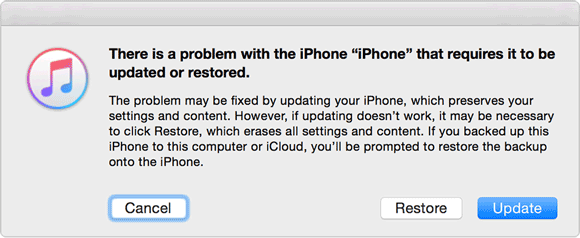
Step 4. Restore iOS if Updating Fails.
If the Update option doesn't resolve the problem, you can try "Restore" instead. This reinstalls iOS and returns your iPhone to factory settings, but it also erases all existing data. Make sure you have a backup before proceeding if you want to recover your information afterward.
Solution 5. Contact Apple Support
If none of the above solutions work, your iPhone may have a hardware-related problem that requires professional diagnosis. This is especially likely if the device has suffered physical damage, liquid exposure, or a touchscreen malfunction. In this situation, contact Apple Support or visit an Apple Store or Apple Authorized Service Provider.
A technician can inspect the display, touchscreen components, and other internal hardware to determine the cause of the freezing issue. If a component is damaged, professional repair or replacement may be necessary. You can visit the Apple Support website to check available service options and arrange a repair appointment.

Conclusion
An iPhone frozen on the lock screen can result from temporary iOS glitches, software problems, or hardware damage. You can start with a force restart and check the charging connection and touchscreen before moving on to more advanced solutions.
If the issue is software-related, Fixppo or Apple's Recovery Mode may help restore normal operation. However, if the screen remains unresponsive after troubleshooting, professional hardware inspection may be necessary. Try the non-destructive solutions first to reduce the risk of losing your personal data.
Related Articles
How to Fix iPhone Stuck on Verifying Update in iOS 27
[iOS 27] iPhone Overheating After Update: 9 Quick Ways to Fix It