

TL;DR:
If your iPhone is frozen during an update, the best solution depends on whether the installation is still progressing and whether you need to preserve your data:
- If the progress bar is still moving or the update seems slow, keep your iPhone connected to power and wait for the installation to finish.
- If your iPhone becomes unresponsive, try a force restart first, as it won't erase your personal data.
- If the problem persists, use Recovery Mode to update iOS or try an iOS system repair tool. Fixppo's Standard Mode can repair common iOS system issues without losing data, while its Advanced Mode erases all existing data.
- If other solutions fail, restore your iPhone through Recovery Mode or DFU Mode, or contact Apple Support for further assistance.
Updating iOS brings new features, security improvements, and performance enhancements to your iPhone. However, the process doesn't always go smoothly. Sometimes, your iPhone may become unresponsive during an update, with the Apple logo, progress bar, or updating screen remaining unchanged for an extended period.
An iPhone frozen during an update can be frustrating, especially when you cannot access your apps, photos, and other important information. Fortunately, this problem doesn't necessarily mean your device is permanently damaged. There are several ways to troubleshoot the issue, ranging from simple restarts to more advanced iOS system repairs. Keep reading to find a suitable solution for your situation.
Part 1. Why Does iPhone Frozen During Update?
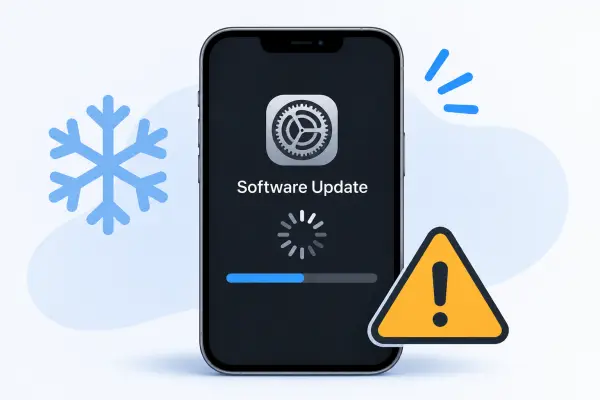
An iPhone may freeze during an iOS update for several reasons. Sometimes, the installation simply takes longer than expected. In other cases, software errors or interruptions prevent the update from completing successfully. Here are some common causes:
Unstable Internet Connection: A weak or interrupted Wi-Fi connection may prevent your iPhone from downloading the required update files completely.
Insufficient Storage Space: iOS updates need enough free storage to download, unpack, and install system files. Limited space may cause the installation to fail or become stuck.
Low Battery Level: If your iPhone runs out of power during installation, the update process may be interrupted.
iOS Software Glitches: Existing system errors, corrupted update files, or compatibility issues may interfere with the installation.
Update Download or Server Issues: Temporary problems with Apple's update servers or an incomplete firmware download may prevent the update from progressing normally.
Part 2. How to Fix iPhone Frozen During Update
Now that you know why an iPhone may freeze during an update, it's time to explore the available solutions. Some methods can resolve temporary problems without affecting your data, while others reinstall iOS or restore the device. Before diving into the detailed steps, let's compare these methods based on their computer requirements, data-loss risks, and limitations.
| Method | Requires a Computer | Data Loss Risk | Main Limitation |
|---|---|---|---|
| Wait for the Update Process to Finish | No | None | Only works if the update is still progressing |
| Force Restart iPhone | No | None | May not resolve corrupted iOS files |
| Update iPhone in Recovery Mode | Yes | Low; Update is designed to preserve data | Requires a computer and a successful firmware installation |
| Use Fixppo | Yes | None with Standard Mode | Some repair features require a paid license |
| Restore iPhone via Recovery Mode | Yes | High; erases all data | Requires setting up the iPhone again |
| Restore iPhone in DFU Mode | Yes | High; erases all data | More complicated operation |
| Contact Apple Support | Not necessarily | Depends on the repair | May require an appointment or service |
2.1 Wait for the Update Process to Finish
Before trying anything else, give your iPhone enough time to complete the update. The progress bar may move very slowly or appear unchanged for a while, particularly when your device is processing a large amount of data.
According to Apple, the time required depends on the number of files and the type of operation being performed. In some cases, the progress bar may even complete and start again. Therefore, an apparently frozen screen doesn't necessarily indicate a failed update.
Here's what you can do:
Step 1. Connect your iPhone to a power source to prevent the battery from running out.
Step 2. Keep the device connected to Wi-Fi if it is still downloading or verifying the update.
Step 3. Avoid disconnecting the power supply or repeatedly pressing buttons while the installation is running.
Step 4. Monitor the progress bar and check whether it changes over time.
Step 5. If your iPhone is restoring from a backup or migrating data and the progress bar has not moved for more than an hour, consider further troubleshooting.
If the update eventually completes, your iPhone should restart automatically. If the screen remains unresponsive and there is no progress, move on to the next solution.
2.2 Force Restart iPhone
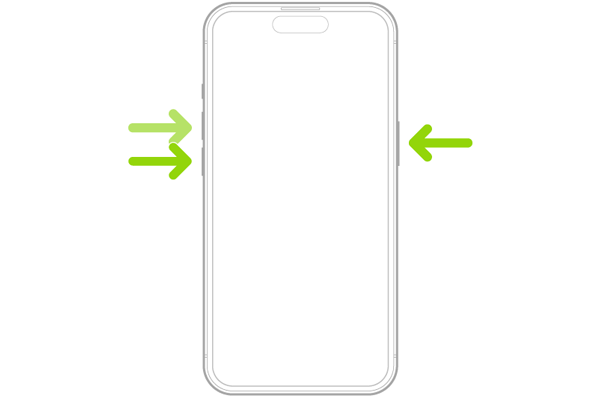
A force restart can help when your iPhone becomes completely unresponsive during an update. It forces the device to restart without requiring you to use the touchscreen. The button combination depends on your iPhone model.
For iPhone 8 and Later (Including iPhone SE 2nd Generation and Later):
Step 1. Quickly press and release the "Volume Up" button.
Step 2. Quickly press and release the "Volume Down" button.
Step 3. Press and hold the "Side" button until the Apple logo appears.
Step 4. Release the button and wait for your iPhone to restart.
For iPhone 7 and iPhone 7 Plus:
Step 1. Press and hold both the "Volume Down" and "Sleep/Wake" buttons simultaneously.
Step 2. Keep holding them until the Apple logo appears.
Step 3. Release the buttons and allow your iPhone to restart.
For iPhone 6s and Earlier (Including iPhone SE 1st Generation):
Step 1. Press and hold both the "Home" and "Sleep/Wake" buttons.
Step 2. Continue holding them until the Apple logo appears.
Step 3. Release the buttons and wait for the device to boot up.
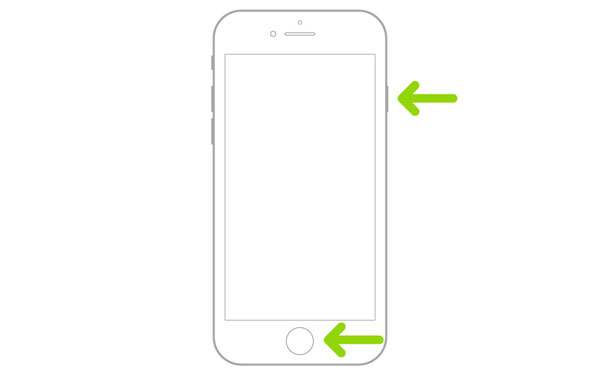
After restarting, check whether your iPhone can enter the home screen normally. If the update was interrupted or the device remains stuck on the Apple logo, proceed to the next method.
A force restart does not erase your personal data, but it cannot repair every type of failed iOS installation.
2.3 Update iPhone in Recovery Mode
If a force restart doesn't resolve the problem, you can use Recovery Mode to reinstall iOS through a computer. This method is useful when your iPhone cannot start normally or repeatedly gets stuck during an update. More importantly, you can choose the Update option first, which attempts to reinstall iOS without erasing your personal data.
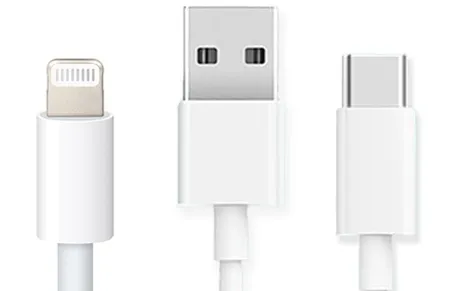
Step 1. Connect your iPhone to a Mac or Windows PC using a USB cable.
Step 2. Open Finder on a Mac or Apple Devices on a Windows PC. You can also use iTunes if applicable.
Step 3. Put your iPhone into Recovery Mode using the appropriate button combination:
- iPhone 8 and Later: Quickly press and release "Volume Up", quickly press and release "Volume Down", then press and hold the "Side" button until the Connect to Computer screen appears.
- iPhone 7 and iPhone 7 Plus: Press and hold the "Volume Down" and "Sleep/Wake" buttons together until the Recovery Mode screen appears.
- iPhone 6s and Earlier: Press and hold the "Home" and "Sleep/Wake" buttons together until the Recovery Mode screen appears.
Step 4. Locate your iPhone in Finder, Apple Devices, or iTunes.
Step 5. When the Update or Restore options appear, select "Update". Wait for the computer to download and reinstall the iOS software. Keep your iPhone connected throughout the process.
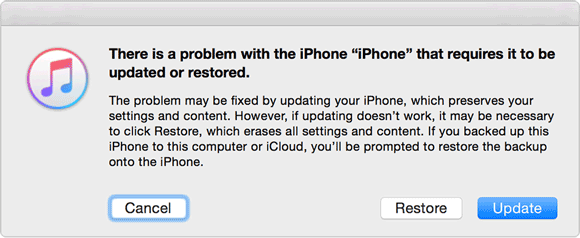
If the download takes more than 15 minutes, your iPhone may leave the Recovery Mode screen. Allow the computer to finish downloading the software, then repeat the steps to enter Recovery Mode and select Update again.
2.4 Use an iOS System Repair Tool
If your iPhone is still frozen during an update after trying the previous methods, an iOS system repair tool may provide another option. Such software can help address system-related problems that prevent an iPhone from starting or completing an iOS installation.
One option is Fixppo, a desktop-based iOS system recovery tool. Its Apple System Repair feature provides two repair modes:
- Standard Mode: Designed to fix common iOS issues without losing personal data.
- Advanced Mode: Intended for more severe system problems when Standard Mode doesn't work. However, it erases all data on the device.
Key features of Fixppo:
- Repairs over 150 iOS/iPadOS/tvOS issues, including an iPhone stuck on the Apple logo, boot loops, black screens, and update issues, without losing data.
- Supports upgrading to iOS 27 or downgrading from iOS 27 to iOS 26 without jailbreaking.
- Allows you to enter or exit Recovery Mode on your iPhone or iPad with one click for free.
- Supports various Apple devices and iOS versions, including iOS 27/26 and iPhone 17.
Steps to fix an iPhone frozen during an update with Fixppo:
-
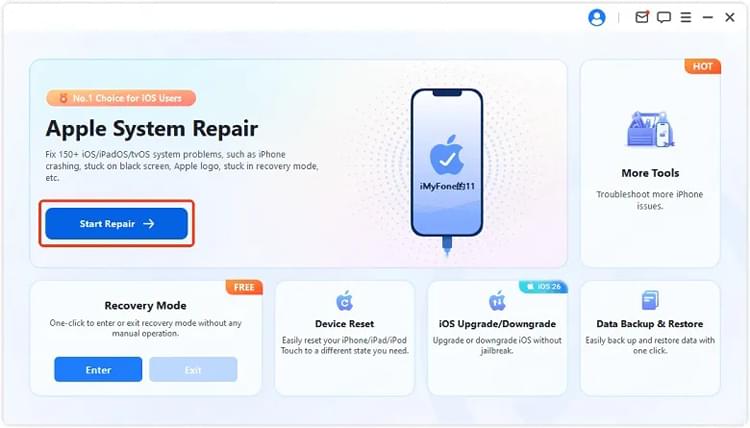
Run Fixppo after installing it on your Windows PC or Mac. On the main interface, open "Apple System Repair" and plug your frozen iPhone into the computer with a USB cable.
-
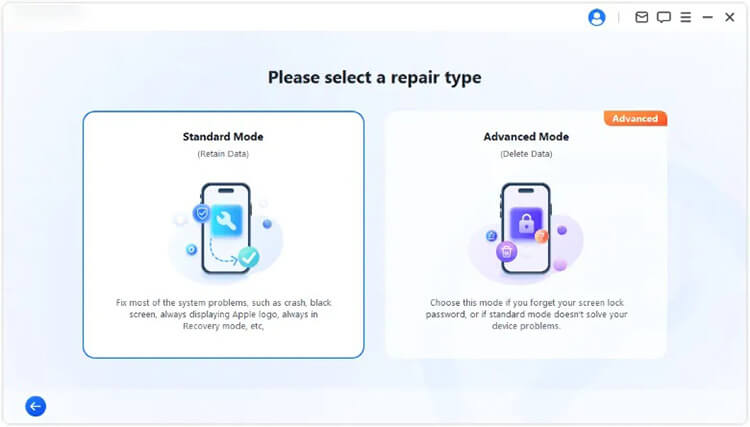
When the available repair options appear, select "Standard Mode". This mode is intended to resolve iOS system problems while keeping your existing iPhone data intact.
-
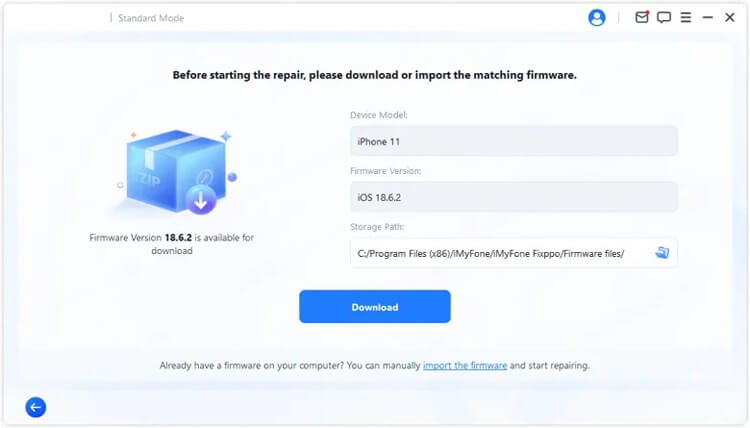
Fixppo will prompt you to confirm your iPhone's device details. Review the information carefully, then download the corresponding firmware package. Wait for the program to finish downloading and verifying the firmware before proceeding.
-
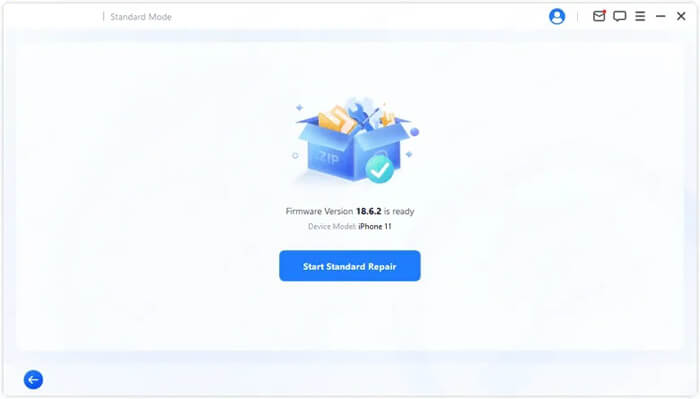
After the firmware verification is complete, click "Start Standard Repair" to apply the firmware and repair the iOS system. Do not unplug your iPhone or interrupt the process until Fixppo finishes.
2.5 Restore iPhone via Recovery Mode
If Recovery Mode's Update option and Fixppo's Standard Mode cannot fix the problem, you can try restoring your iPhone through Recovery Mode. Unlike Update, Restore erases all existing data and reinstalls iOS, which may help resolve more serious system problems.
Before proceeding, back up your iPhone to iCloud or a computer. If you don't have one, understand that your personal data may be permanently lost.
Steps to restore your iPhone via Recovery Mode:
Step 1. Connect your iPhone to your Mac or Windows PC with a USB cable.
Step 2. Open Finder, Apple Devices, or iTunes, depending on your computer.
Step 3. Put your iPhone into Recovery Mode using the button combination described in Method 2.3.
Step 4. When your computer detects the device and displays the Update or Restore options, select "Restore".
Step 5. Confirm your choice and wait for the computer to download and install the latest compatible iOS software.
Step 6. Keep your iPhone connected until the restoration is complete.
Step 7. Once your iPhone restarts, follow the setup instructions and restore your data from an available backup if you have one.
2.6 Restore iPhone in DFU Mode
If your iPhone remains frozen after a Recovery Mode restore, you can try Device Firmware Update (DFU) Mode. DFU Mode allows a computer to communicate with your iPhone without loading the normal iOS operating system or its bootloader. It provides another way to reinstall the device firmware and iOS, making it an advanced troubleshooting option for certain persistent software problems.
Steps to Restore Your iPhone in DFU Mode:
Step 1. Connect your iPhone to a Mac or Windows PC using a USB cable.
Step 2. Open Finder, Apple Devices, or iTunes.
Step 3. Enter DFU Mode using the button combination for your iPhone model:
- iPhone 8 and Later: Quickly press and release "Volume Up", then quickly press and release "Volume Down". Press and hold the "Side" button until the screen turns black. While continuing to hold the "Side" button, press and hold "Volume Down" for about 5 seconds. Release the "Side" button but keep holding "Volume Down" for another 5 seconds. The screen should remain black if DFU Mode is entered successfully.
- iPhone 7 and iPhone 7 Plus: Press and hold the "Side" and "Volume Down" buttons together for about 8 seconds. Release the "Side" button while continuing to hold "Volume Down" for approximately 5 seconds. The screen should remain black.
- iPhone 6s and Earlier: Press and hold the "Home" and "Sleep/Wake" buttons together for about 8 seconds. Release the "Sleep/Wake" button while continuing to hold "Home" for approximately 5 seconds. The screen should remain black.
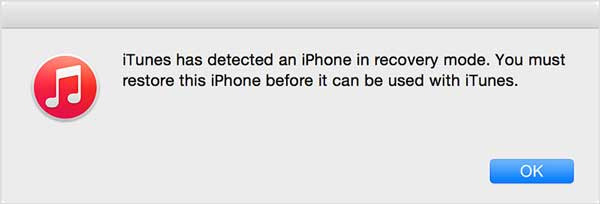
Step 4. Check whether Finder, Apple Devices, or iTunes detects your iPhone in recovery mode. The iPhone screen should remain black rather than displaying the Apple logo or Recovery Mode cable graphic.
Step 5. When the computer prompts you to update or restore the device, choose "Restore".
Step 6. Wait for the computer to download and reinstall the firmware. Keep your iPhone connected until the process is complete.
If your iPhone displays the Apple logo or the Connect to Computer screen, it may not have entered DFU Mode correctly. Repeat the button combination and check the screen again.
2.7 Contact Apple Support
If none of the above solutions work, your iPhone may have a more serious software or hardware problem. In this case, contacting Apple Support is a reasonable next step. You can visit the Apple Support website to find troubleshooting instructions or arrange a service appointment.
Before contacting Apple, prepare the following information:
- Your iPhone model and iOS version, if known.
- A description of what happens during the update.
- Any error messages or error codes displayed on the screen.
- The troubleshooting steps you have already tried.
Apple technicians can help diagnose the issue and determine whether your iPhone needs further software troubleshooting or hardware inspection.
Conclusion
That's everything you need to know about fixing an iPhone frozen during update. Whether your iPhone gets stuck on the Apple logo, remains on the update progress bar, or fails to install the latest iOS version, Fixppo is worth trying. Its Standard Mode can repair 150+ iOS system issues without losing your existing data, making it a convenient option when ordinary troubleshooting methods don't work. Give Fixppo a try and get your iPhone back to normal.
Related Articles
iPhone Stuck on Preparing Update? 9 Proven Fixes for iOS 27
How to Fix iPhone Stuck on Verifying Update in iOS 27
[iOS 27] iPhone Overheating After Update: 9 Quick Ways to Fix It
How to Fix iOS 27 Unable to Check for Update on iPhone/iPad [Solved]