


TL;DR:
Want to protect your iPhone data? This guide shows you how to back up your iPhone to iCloud manually or automatically, restore your data, and fix common backup issues. If you prefer local storage or need more backup control, iReaShare iPhone Manager offers a convenient computer-based alternative.
- Back Up Your iPhone: Create manual or automatic iCloud backups.
- Restore Your Data: Recover your iPhone from an iCloud backup.
- Fix Backup Issues: Solve common storage and connection problems.
- Explore an Alternative: Back up iPhone data directly to your computer with iReaShare iPhone Manager.
Your iPhone is probably packed with photos, videos, messages, and other things you wouldn't want to lose. But what happens if your phone suddenly stops working, gets lost, or you decide to upgrade to a new one? That's where iCloud Backup comes in handy. It gives you an easy way to back up your iPhone to iCloud without connecting your device to a computer. This article will provide a detailed guide on how to back up your iPhone to iCloud. Let's take a look.
- Part 1. What Is iCloud Backup & Why Should You Back Up Your iPhone?
- Part 2. What Does an iCloud Backup Include?
- Part 3. How to Back Up iPhone to iCloud
- Part 4. How to Restore iPhone from iCloud Backup
- Part 5. Best iCloud Alternative to Back Up iPhone Data
- Part 6. FAQs on How to Back Up iPhone to iCloud
Part 1. What Is iCloud Backup & Why Should You Back Up Your iPhone?
iCloud is a cloud storage service provided by Apple that helps iPhone users save important data to the cloud. Once iCloud Backup is enabled, you can restore supported data on your device using a previously created backup, even if your iPhone is lost, damaged, or needs to be reset to factory settings.
Backing up your iPhone to iCloud offers several key benefits:
- Protect important data: Helps preserve device settings, app data, Home Screen layout, message history, and other information, reducing the risk of data loss if your phone is lost or damaged.
- Automatic backups: Once automatic iCloud backups are enabled, your iPhone can create backups automatically when the required conditions are met, so you don't have to do it manually every time.
- Easy device upgrades: When you get a new iPhone, you can use an iCloud backup to transfer data and settings from your previous device.
- No computer required: As long as you have a Wi-Fi connection, you can back up your iPhone directly to the cloud without connecting it to a computer.
Part 2. What Does an iCloud Backup Include?
Once iCloud Backup is enabled, your iPhone can automatically save a copy of certain data and settings to iCloud when the required conditions are met. Generally, it includes information stored on your device that isn't already synced to iCloud.
Depending on your device settings and the apps you use, an iCloud backup may include:
- App data: Data from supported apps, including game progress, app settings, and other saved information.
- Device settings: Various system settings and preferences, such as display settings and other device configurations.
- Home Screen layout: Your Home Screen arrangement and app organization.
- Messages: iMessages, SMS, and MMS messages, if Messages in iCloud isn't enabled.
- Photos and videos: Photos and videos stored on your device, if iCloud Photos isn't enabled.
- Health data: Health information and activity data stored on your iPhone.
- HomeKit configuration: HomeKit settings and configurations.
- Apple Watch data: Apple Watch backup data, which is generally included in your paired iPhone's backup.
- Safari data: Bookmarks and other Safari information, if they aren't already synced through iCloud.
- Call history: Your recent call history and related information.
Some information is synced separately through iCloud rather than included in your device backup. For example, when iCloud Photos or Messages in iCloud is enabled, your photos, videos, and messages are synced to iCloud separately instead of being duplicated in your iCloud Backup. Notes stored in iCloud are also synced separately.
Part 3. How to Back Up iPhone to iCloud
Apple provides two main ways to back up your iPhone to iCloud: manual backup and automatic backup. Manual backup is useful when you want to save your current data immediately, while automatic backup is more convenient for ongoing protection.
Before starting, make sure:
- Your iPhone is connected to a stable Wi-Fi network.
- You are signed in to your Apple Account.
- iCloud Backup is available and enabled.
- You have enough available iCloud storage.
- Your iPhone has sufficient battery power, preferably with the charger connected.
3.1 Back Up iPhone to iCloud Manually
If you want to create a backup immediately before updating iOS, resetting your iPhone, or transferring data to another device, you can manually back up your iPhone to iCloud.
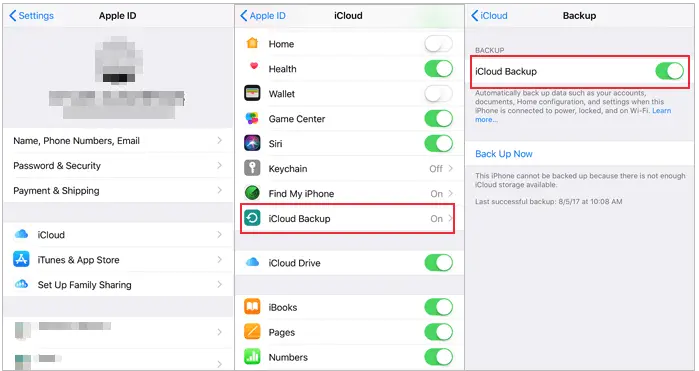
Here is how to back up your iPhone to iCloud manually:
Step 1. Unlock your iPhone and open the "Settings" app.
Step 2. Tap your "Apple Account" name at the top of the screen, then select "iCloud".
Step 3. Scroll down and tap "iCloud Backup".
Step 4. Tap "Back Up Now" to start uploading eligible data from your iPhone to iCloud.
Step 5. Wait for the backup to finish. During this process, keep your iPhone connected to a stable Wi-Fi network and avoid interrupting the internet connection.
3.2 Back Up iPhone to iCloud Automatically
If you don't want to remember to create backups manually, enabling automatic iCloud Backup is a better option. Once configured, your iPhone can automatically back up its data every day when the following conditions are met:
- The device is connected to a power source.
- The screen is locked.
- The device is connected to Wi-Fi.
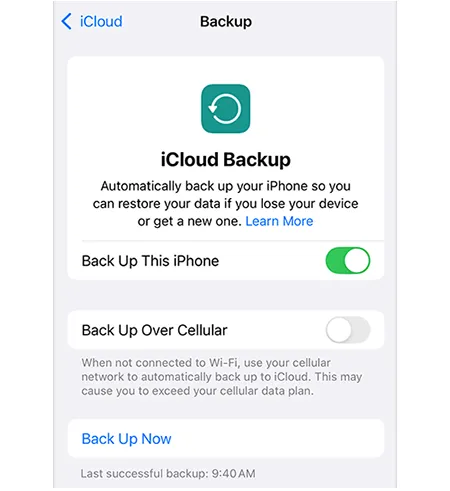
Here's how to enable automatic backup:
Step 1. Open the "Settings" app, tap your "Apple Account" name, select "iCloud", and then tap "iCloud Backup". Make sure "Back Up This iPhone" is enabled.
Step 2. Connect your iPhone to a power source.
Step 3. Make sure your iPhone is connected to a stable Wi-Fi network.
Step 4. Lock your iPhone's screen and leave the device connected to Wi-Fi and power.
Part 4. How to Restore iPhone from iCloud Backup
Backing up your iPhone is only half the process. You should also know how to restore your iPhone from an iCloud backup when you need to recover your information.
For example, you may need to restore an iCloud backup when:
- You purchase a new iPhone.
- You reset your current iPhone to factory settings.
- You need to recover information after a software problem.
- You want to transfer your previous device settings and app data.
Here's how to restore an iCloud backup on an iPhone:
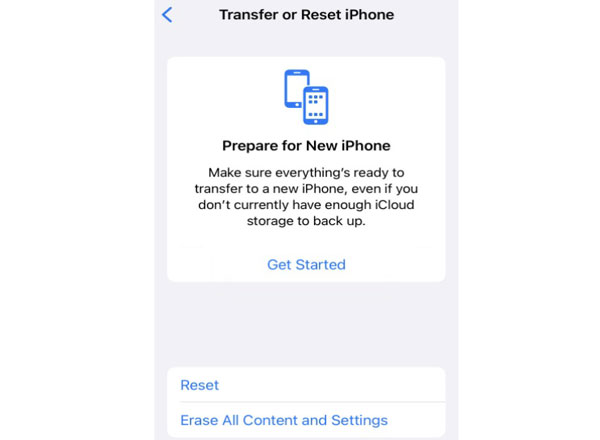
Step 1. Turn on your iPhone and wait for the Hello screen. If your device has already been set up, go to "Settings" > "General" > "Transfer or Reset iPhone" > "Erase All Content and Settings". Back up any important data before erasing your device.
Step 2. Follow the on-screen instructions to select your language and region, then connect to a Wi-Fi network.
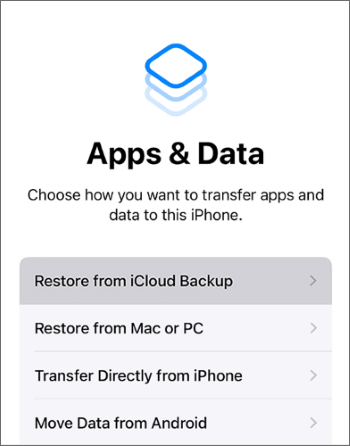
Step 3. On the "Apps & Data" screen, select "Restore from iCloud Backup".
Step 4. Sign in with the Apple Account associated with your iCloud backup. Complete two-factor authentication if prompted.
Step 5. Choose the backup you want to restore, preferably the most recent one containing your required data.
Step 6. Wait for the restoration to begin and finish. Keep your iPhone connected to Wi-Fi and a power source. Some apps and data may continue downloading in the background.
Part 5. Best iCloud Alternative to Back Up iPhone Data
Although iCloud is a convenient way to back up your iPhone, it may not be ideal for everyone. For example, you may not want to purchase additional iCloud storage, prefer keeping your files locally, or need to transfer selected data between your iPhone and computer. In these situations, iReaShare iPhone Manager is an alternative worth considering.
Unlike iCloud, which stores backups online, iReaShare iPhone Manager is a desktop-based iOS data management tool. It allows you to transfer iPhone data to a Windows PC or Mac, manage different types of files, and back up iOS data to a computer without relying on iTunes.
Key features of iReaShare iPhone Manager:
* Transfer data from an iPhone, iPad, or iPod touch to a computer.
* Import files from a computer to an iOS device.
* Back up iPhone data to a computer without using iTunes.
* Restore saved backups to iOS devices.
* Preview detailed data and select specific files before transferring or backing them up.
* Support a wide range of iOS versions, including iOS 27.
* Work with various iOS devices, including iPhone Duo, iPhone 18 Pro Max, and iPhone 18 Pro.
* Run on Windows 11/10/8/7 and Mac OS X 10.9 or later.
Download for Win Download for Mac
Here is how to back up an iPhone to a computer using iReaShare iPhone Manager:
-
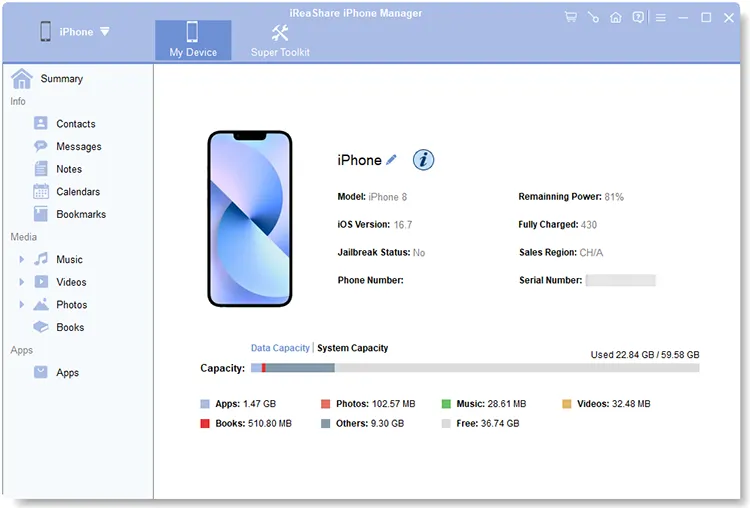
Install and open iReaShare iPhone Manager on your computer. Connect your iPhone to the PC using a USB cable. Once the software detects your device, its main interface will appear.
-
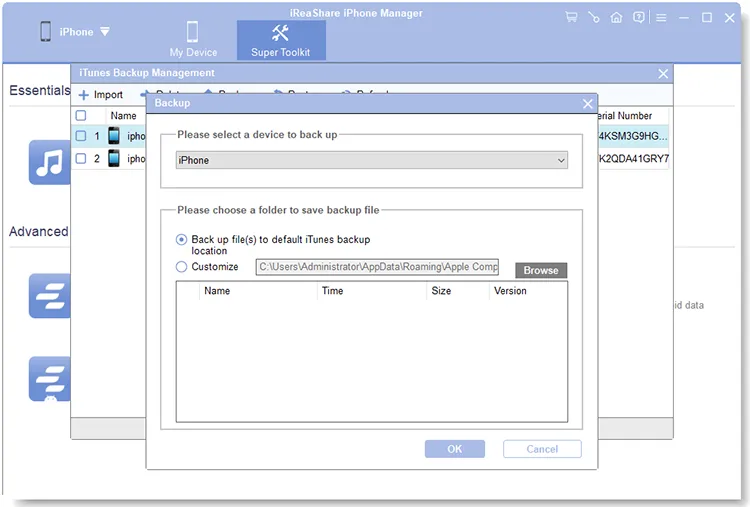
Click "Super Toolkit" at the top, select "iTunes Backup & Restore", and click "Backup". Choose your iPhone from the drop-down list, then select a folder on your PC to store the backup files. Click "OK" to start the backup process.

If you only need to back up specific data, such as photos, open the "Photos" section instead. Preview and select the photos you want to save, click "Export", and follow the prompts to complete the export.
Here's the video guide:
Part 6. FAQs on How to Back Up iPhone to iCloud
Q1. How long does it take to back up an iPhone to iCloud?
The backup time depends on your data size, Wi-Fi speed, network stability, and available iCloud storage. A small backup may take a few minutes, while one containing many photos and videos can take several hours.
To speed up the process:
- Use a stable, fast Wi-Fi connection.
- Keep your iPhone connected to power.
- Avoid large downloads or uploads during backup.
- Remove unnecessary data from your backup.
- Make sure you have enough iCloud storage.
The first backup usually takes longer because it uploads existing data. Later backups are often faster because iCloud generally backs up only new or changed data.
Q2. What to do if iPhone won't back up to iCloud?
If you can't back up your iPhone to iCloud, the cause may be insufficient storage, an unstable Wi-Fi connection, or an iOS issue. Try these fixes:
- Check your Wi-Fi connection: Connect to a stable network or restart your router.
- Check iCloud storage: Go to Settings > [Your Name] > iCloud. Delete unnecessary files or upgrade your storage plan if needed.
- Restart your iPhone: Restart the device and try tapping Back Up Now again.
- Enable iCloud Backup: Go to Settings > [Your Name] > iCloud > iCloud Backup and turn on Back Up This iPhone.
- Update iOS: Check Settings > General > Software Update for available updates.
- Check Apple's system status: Visit the Apple System Status page to see if iCloud services are experiencing an outage.
- If the problem persists, contact Apple Support or use a computer to back up your important data.
Q3. Will turning off iCloud Backup delete previous data?
Turning off automatic backups does not immediately delete existing data from your iPhone. However, your device will no longer create automatic backups as before.
If you also choose to turn off backups and delete existing iCloud backups, you may lose the ability to restore your device from those backups. Therefore, make sure you have another backup before proceeding.
Conclusion
Backing up your iPhone to iCloud is a simple way to protect your photos, messages, settings, and other important data. You can back up your iPhone manually whenever you want or enable automatic backups to keep your data up to date. If you ever lose your device or switch to a new one, you can restore your information from an iCloud backup.
However, iCloud storage limits and backup failures can sometimes get in the way. If you want more control over where your backups are stored, iReaShare iPhone Manager is another option worth considering, allowing you to back up your iPhone data to a computer.
Choose the method that best fits your storage needs and backup habits, and make sure your important data is protected.
Download for Win Download for Mac
Related Articles
Effortlessly Back Up Messages to iCloud on iPhone (New Guide)
How to Back Up iPhone Without iTunes: 5 Reliable Backup Solutions
How to Back Up iPhone to Mac Without Data Loss (Proven)
Back Up Photos from iPhone: 5 Ways to Save Your iPhone Pictures