TL;DR:
Want to record a GIF easily on Windows, Mac, or online? This guide covers two simple ways to create animated GIFs: use Screen Recorder for direct GIF output with flexible recording controls, or try Gifcap for quick browser-based GIF capture. Compare their features, pros and cons, and find the best GIF recorder for tutorials, software demos, and short screen animations.
Want to record a GIF from your screen instead of saving a full video? GIFs are a convenient format for capturing short actions, such as software demonstrations, website interactions, tutorials, and funny moments. Since GIFs play on a continuous loop, they can be easily embedded in many webpages and messages, making them especially useful when you need to show a simple action without requiring users to play a video.
However, not all screen recording tools can directly save recordings as GIF files. In this guide, we'll introduce several simple and effective methods to help you easily record GIFs.
Part 1. What Is a Recorded GIF?
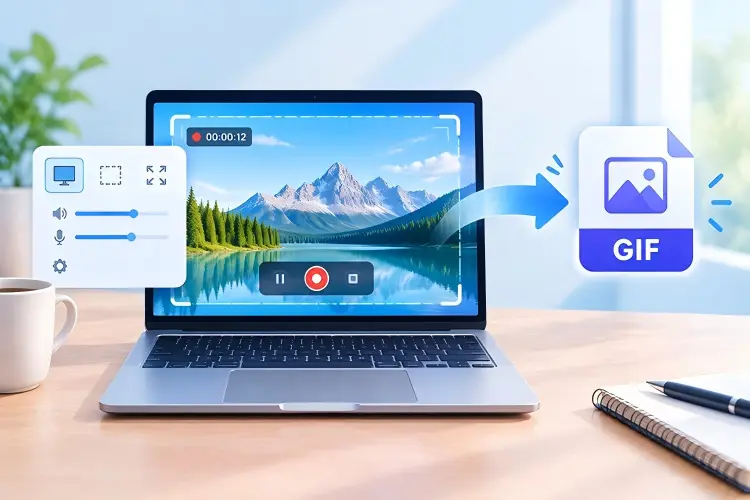
A recorded GIF is a short animated GIF created by capturing content from your screen, webcam, or another video source. Unlike a static image, a GIF contains multiple frames that play automatically and usually repeat in a loop. Recording a GIF is useful when you want to demonstrate a short action, such as:
- Showing how to click a button or use a software feature.
- Demonstrating a short workflow on Windows or Mac.
- Showing a website interaction.
- Creating a quick tutorial for a webpage or blog.
- Capturing a funny or interesting moment from a video.
- Creating a visual guide for customer support or documentation.
Part 2. How to Record GIFs on Windows & Mac
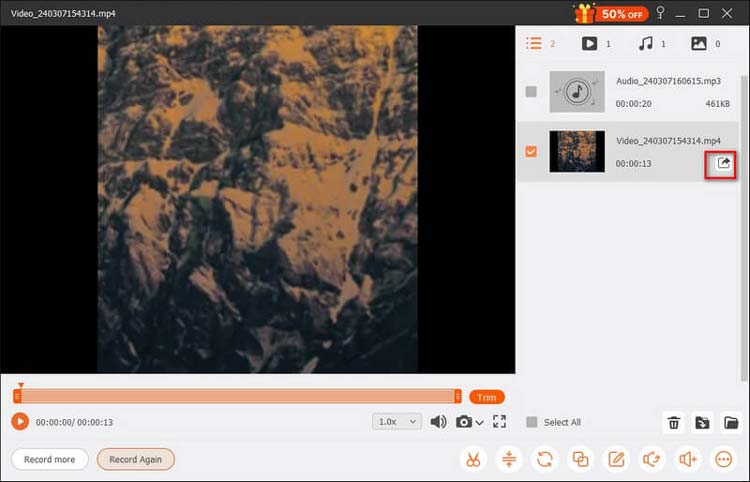
Screen Recorder lets you capture high-quality screen recordings on both Windows and Mac and save them as GIFs. It provides the essential tools for recording your screen, along with basic editing features for creating animated GIFs quickly. You can trim unwanted footage to keep only the key content, then adjust the GIF's quality and frame rate to suit your needs.
In addition to screen-to-GIF recording, it also supports webcam recording, gameplay capture, phone recording, and screenshot capture.
Key features of Screen Recorder:
- Directly export screen recordings as GIFs without additional conversion.
- Capture full screen, selected areas, or specific windows.
- Customize GIF quality and frame rate.
- Record screen, webcam, gameplay, and phone screens.
- Add real-time annotations during recording.
- Trim recordings and remove unwanted sections.
- Schedule recordings to start and stop automatically.
- Capture screenshots while recording.
- Support high-resolution recording up to 8K and 120 FPS with compatible settings.
- Work on both Windows and Mac.
Download for Win Download for Mac
Here is how to screen record a GIF on Windows and Mac using Screen Recorder:
-
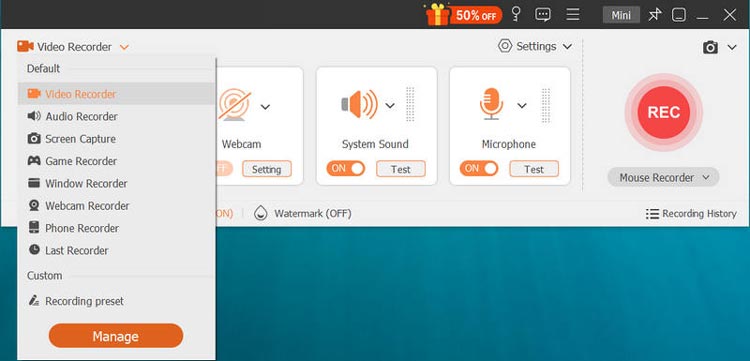
Download and install Screen Recorder on your computer, then launch the program. Click the drop-down menu next to "Video Recorder" and select the recording mode you need.
-
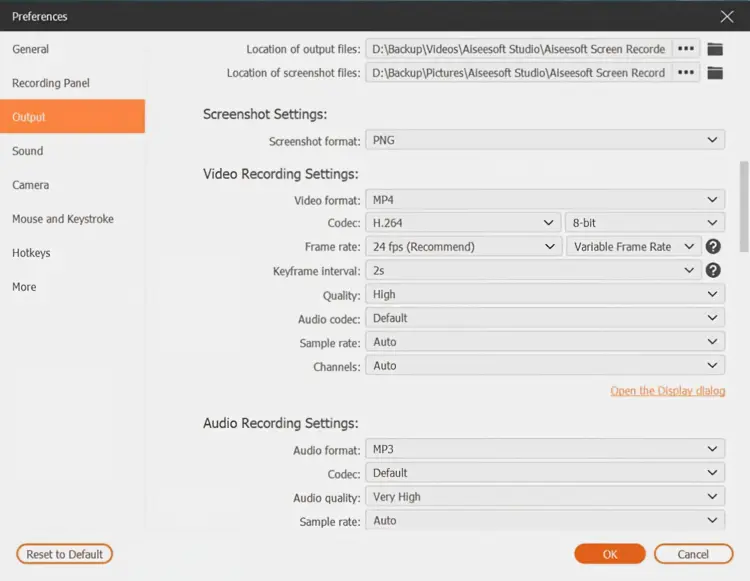
Then, open "Preferences" from the top menu, go to "Output", and select "GIF" as the output format. Click "OK" to save the settings. Adjust the recording frame to cover the area you want to capture, then click the "Record" button. A 3-second countdown will appear before recording starts.
-
When you finish recording, click the "Stop" button to preview the GIF. If you are satisfied with the result, click the "Folder" icon to save the GIF to your computer.
Pros:
+ Support direct GIF output, so you don't need to convert videos to GIFs separately.
+ Work on both Windows and Mac.
+ Support full-screen, window, and custom-area recording.
+ Let you adjust GIF quality and frame rate.
+ Provide basic editing tools, such as trimming.
+ Support screen, webcam, gameplay, and phone recording.
+ Offer real-time annotation tools for tutorials and demonstrations.
+ Support high-resolution recording of up to 8K and 120 FPS with supported settings.
Cons:
- More advanced than necessary if you only need to create a simple GIF.
- The free version has export limitations, while some advanced features require a paid plan.
- High-resolution or high-frame-rate recordings may result in larger GIF files.
Part 3. How to Record GIFs Online via Gifcap
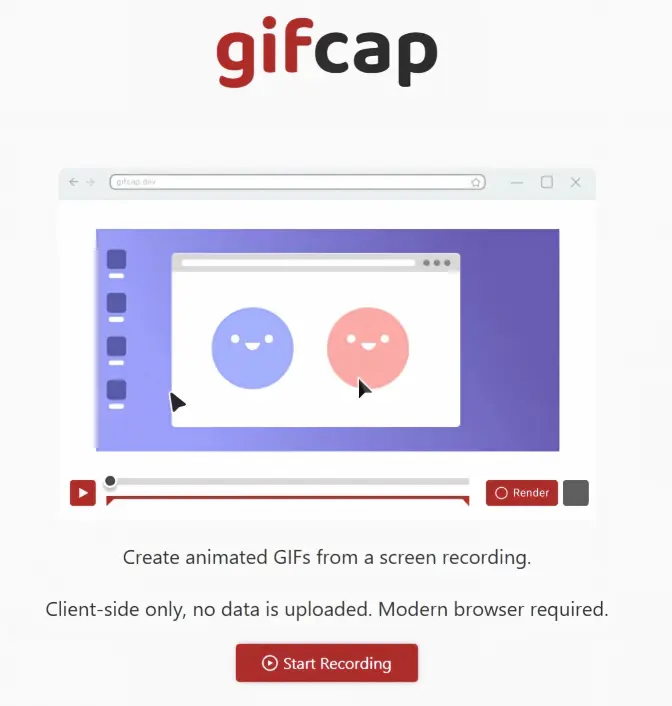
Gifcap is a free browser-based tool that lets you record your screen and turn the recording into an animated GIF. It works directly in modern browsers, requires no software installation, and processes recordings locally on your device.
Here is how to record a GIF online via Gifcap:
Step 1. Visit the Gifcap website and click "Start Recording". Your browser will then ask you to choose what you want to share.
Step 2. Choose whether to record a browser tab, application window, or your entire screen, then click "Share" to start recording. Gifcap supports full-screen and single-window capture.
Step 3. Perform the action you want to capture. When you're finished, return to Gifcap and click "Stop Recording" to end the capture.
Step 4. After recording, Gifcap provides options to trim the recording and crop the captured area. Adjust the GIF as needed, then click "Render" to create the GIF. Once processing is complete, click "Download" to save it to your computer.
Pros:
+ Record GIFs directly without requiring video conversion.
+ Free to use.
+ Browser-based and works on Windows, Mac, and Linux.
+ Ideal for creating software demos, web tutorials, and short animations.
Cons:
- Depend on browser performance.
- High-resolution or long recordings can result in large GIF files.
- Limited editing features compared with professional tools, such as no text or effects.
- Limited control options for recording more complex projects.
Part 4. Gifcap vs. Screen Recorder: Which One Should You Choose?
| Feature | Gifcap | Screen Recorder |
|---|---|---|
| Platform | Windows, Mac, Linux via browser | Windows and Mac |
| Installation | No installation required | Requires installation |
| GIF recording | Directly records and creates GIFs | Directly exports recordings as GIFs |
| Recording area | Screen, window, or browser tab | Full screen, window, or custom area |
| GIF quality/frame rate | More limited controls | Customizable |
| Editing | Basic trimming/cropping | Basic editing and trimming |
| Annotations | Limited | Yes |
| Best for | Quick, simple GIF creation | More flexible screen recording and GIF creation |
| Workflow | Record → create GIF | Record → edit → export GIF |
Which One Should You Choose?
- Choose Gifcap if you want to quickly record a short GIF online without installing software.
- Choose Screen Recorder if you need more recording options, editing controls, annotations, or additional features such as webcam, gameplay, and phone recording.
- For simple screen GIFs: Gifcap is more convenient.
- For professional or more controlled recordings: Screen Recorder is the better choice.
Part 5. FAQs on How to Record a GIF
Q1. Can QuickTime record GIFs on a Mac?
No. QuickTime Player can record your Mac screen, but it cannot directly export recordings as GIFs. You need to record the screen with QuickTime first, then use a separate tool to convert the video to a GIF.
Q2. Can Snipping Tool record a GIF?
No. Windows Snipping Tool can record a selected rectangular area of the screen as a video clip, but it does not directly save the recording as a GIF.
Q3. Can GIFs record sound?
No. Standard GIF files do not support audio. If your tutorial requires spoken instructions, background music, or system audio, use a video format instead. You can also record the source video with audio and later create a silent GIF from the most important visual section.
Q4. Can I convert an existing video to GIF?
Yes. You do not have to record a GIF from scratch. If you already have a screen recording or video, you can select the section you need and convert it to a GIF using a GIF maker or video conversion tool.
Q5. How is a GIF different from a video?
A GIF is a sequence of compressed images that plays as a short animation, while a video consists of frames encoded using a specific video format. GIFs are generally better suited for short, looping animations, while videos are more flexible for longer and higher-quality content.
Q6. How do I record GIFs on my iPhone?
You can create GIFs on an iPhone in two common ways. First, take a Live Photo, open it in the Photos app, tap the Live menu, and choose Loop or Bounce to turn it into an animated image. Alternatively, use the built-in screen recorder to capture your screen, trim the video, and convert the clip to a GIF with a GIF-making tool.
Conclusion
Both Gifcap and Screen Recorder can help you record GIFs, but they are designed for different needs. Gifcap is a convenient choice for quickly creating simple GIFs online without installing software. Screen Recorder is better suited to users who want more control over recording, GIF quality, frame rate, editing, and additional features such as webcam, gameplay, and phone recording. If you need a quick and simple solution, choose Gifcap; for more flexible GIF recording, Screen Recorder is the better option.
Download for Win Download for Mac
Related Articles
Best Video Recording Software 2026: Top 10 Tools Compared
How to Record Roblox Gameplay Smoothly: 5 Effective Methods
Game Recording Software: Select the Best One to Record Gameplay
How to Screen Record Instagram Stories Without Trouble (New Guide)