


Want to transfer contacts from Android to iPhone without SIM after setup? It maybe a significant hurdle before you come here. But now, you can solve this issue without effort. This guide offers 5 easy and secure approaches, so you don't need your physical SIM card as a bridge to move your contacts anymore.
- Part 1: Transfer Contacts from Android to iPhone Without SIM via iReaShare Phone Transfer
- Part 2: Move Numbers from Android to iPhone Without SIM via Google Account
- Part 3: Transfer Contacts from Android to iPhone Without SIM via Move to iOS
- Part 4: Copy Contacts from Android to iPhone Without SIM via VCF File
- Part 5: Q&A About Contact Transfer from Android to iPhone Without SIM
Take a quick look at these methods' pros and cons:
| Transfer Method | Pros | Cons |
|---|---|---|
| iReaShare Phone Transfer | 1. Direct and fast transfers over a stable, wired connection. 2. Does not require cloud storage uploads. 3. Immune to wireless disconnections or Wi-Fi drops. 4. Also supports file transfer. |
1. Requires access to a desktop or laptop to connect both phones. 2. Requires downloading and installing a dedicated desktop program. |
| Google Account Sync | 1. Syncs wirelessly over the air without cables. 2. Keeps your contacts securely backed up in the cloud. 3. Only requires logging into your Google account on the iPhone. |
1. Requires a stable internet or cellular data connection to sync. 2. Requires relying on Google servers to manage your personal data. |
| Move to iOS App | 1. Moves contacts along with photos, bookmarks, and message history. 2. Native integration ensures optimal compatibility with iOS. |
1. Can only be used during the initial setup of a new or erased iPhone. 2. Highly sensitive to local Wi-Fi disruptions during transfer. |
| Manual VCF File | 1. Does not require downloading any third-party software. 2. You have complete control over how and when data is moved. 3. Works universally across all major operating systems. |
1. Requires multiple manual steps (export, send, and import). 2. Re-importing files can introduce duplicate entries. |
Part 1: Transfer Contacts from Android to iPhone Without SIM via iReaShare Phone Transfer
For those who want a direct, one-click solution without navigating cloud settings, iReaShare Phone Transfer is a robust desktop utility. It allows you to connect both devices to a computer and move data swiftly. Once transferred, you can access your contacts on your iPhone.
Main features of iReaShare Phone Transfer:
* Copy all the contacts from Android to an iPhone without SIM.
* The transferred contacts will be automatically allocated to iPhone's Contacts app.
* Contain all the important information, like phone numbers, names, addresses, email addresses, etc.
* Support the transfer of documents, including PDFs and ePubs.
* These data migration directions are available: from iPhone to Android, iPhone to iPhone, and Android to Anddroid.
* Compatible with Android 6.0 or later, and iOS 5.0 or higher, including the latest versions.
Download iReaShare Phone Transfer.
Download for Win Download for Mac
Here's how to move contacts from Android to iPhone without SIM:
-
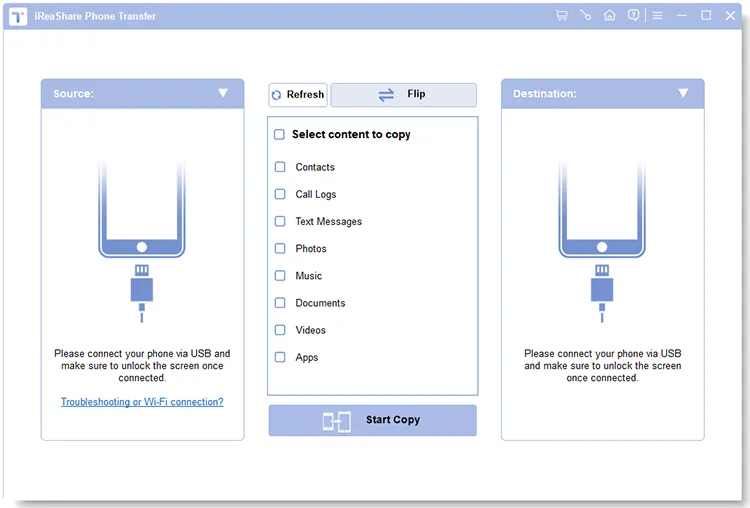
Install and launch the software on your computer. Then connect both your Android device and iPhone via USB cables.
-
Turn on the USB debugging mode on Android and choose "Trust" on the iPhone. Then the program will recognize your devices. Next. ensure the Android is the "Source" and the iPhone is the "Destination".
-
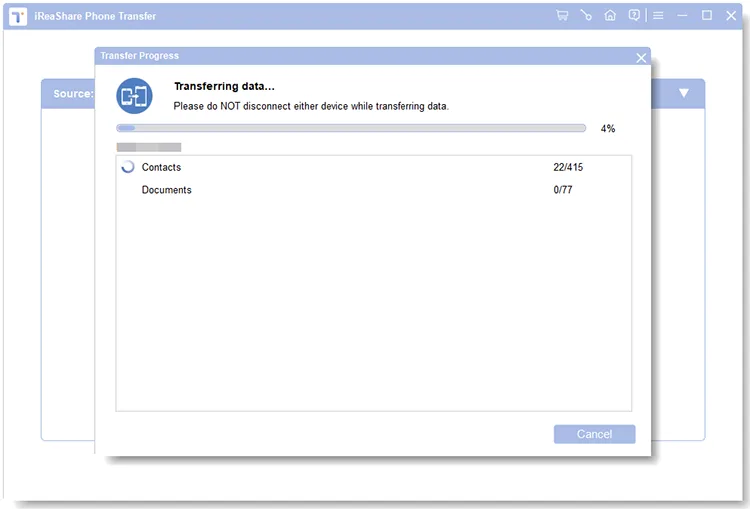
Check the "Contacts" option on the panel, and click "Start Copy" to begin the process. Then you will get the contacts on your iOS device.
Watch the video guide to transfer your contacts easily:
Part 2: Move Numbers from Android to iPhone Without SIM via Google Account
Since most Android users already sync their data with Google, this is often the most efficient "invisible" method. As long as you add the same account to your iPhone, your contacts will be synced to the iOS device, even if there is no SIM card.
Here's how:
-
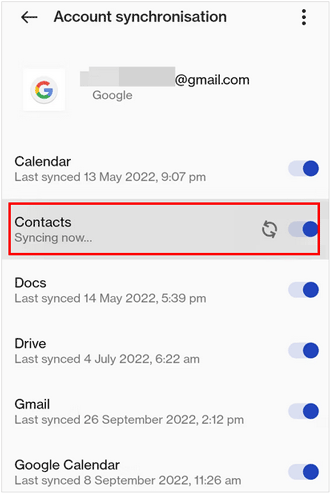
On your Android, go to Settings > "Google", input your Google Account, click "Backup", and ensure "Contacts" is toggled on.
-
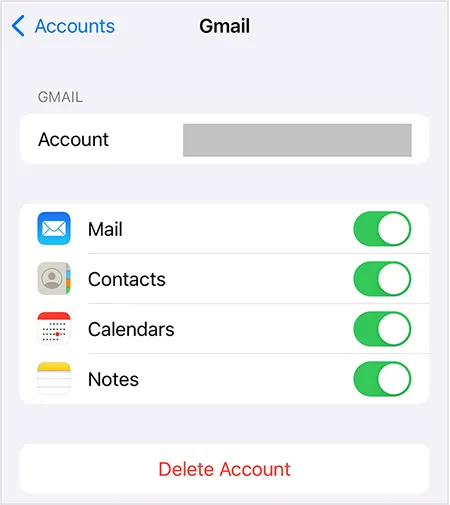
On your iPhone, go to Settings > "Mail" or "Contacts" > "Accounts". Then tap "Add Account" and select "Google".
-
Log in with your credentials. Once added, toggle the Contacts switch to "On". Your Google contacts will automatically appear in your iPhone's address book.
Part 3: Transfer Contacts from Android to iPhone Without SIM via Move to iOS
Apple's Move to iOS app is designed for users setting up a brand-new iPhone. If you haven't set up your iPhone, you can use it to transfer your contacts and other data from your Android phone to the iPhone. But if you have completed the setup, you need to reset the iOS device.
To transfer contacts from Android to iPhone without SIM via Move to iOS:
-
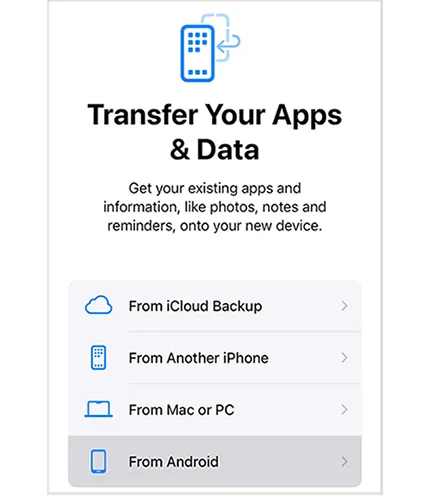
While setting up your iPhone, reach the "Transfer Your Apps & Data" screen and select "From Android".
-
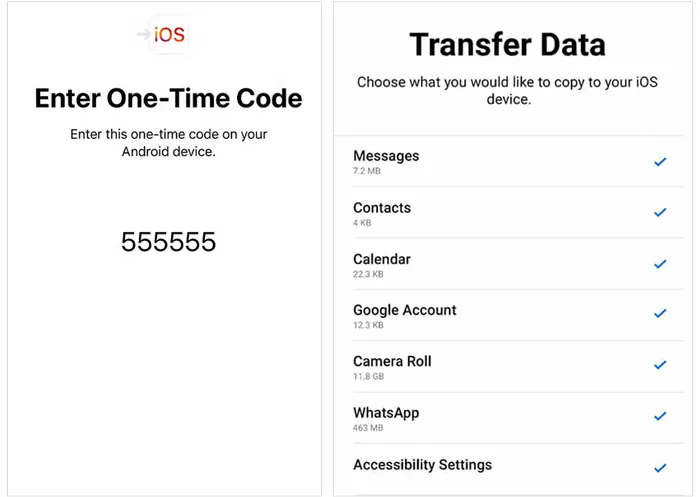
On your Android, download and open the Move to iOS app from the Play Store. Enter the code displayed on your iPhone into the Android app.
-
Select "Contacts" and wait for the transfer to complete over a private Wi-Fi network.
Tips: When Move to iOS doesn't work, you can fix it quickly.
Part 4: Copy Contacts from Android to iPhone Without SIM via VCF File
If you prefer a manual, "offline" approach, using a VCF (Virtual Contact File) is highly reliable. You can export your Android contacts to a VCF file, and then import the contacts to your iPhone without your SIM card.
Here are the detailed steps:
-
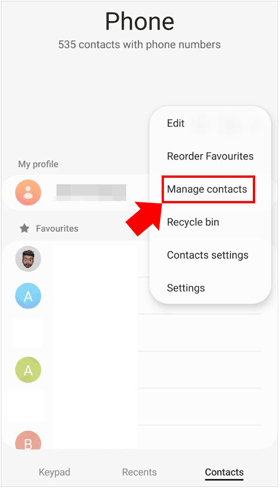
On your Android, open the Contacts app. Next, click the menu, and go to "Manage contacts" > "Import/Export" > "Export to .vcf file".
-
Locate the file on the file manager app, and send it with the "Mail" app to yourself. Then go to the Mail app on your iPhone, and log in to the same email account.
-
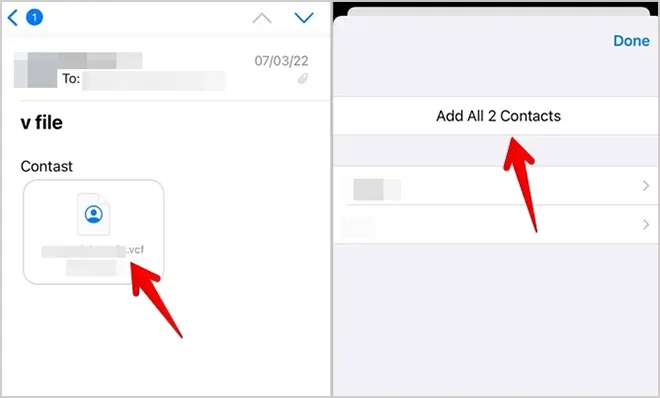
Locate the email in the inbox, tap the .vcf file, and select "Add All Contacts" to import the contacts.
Part 5: Q&A About Contact Transfer from Android to iPhone Without SIM
Q1: Can I use Quick Share to send contacts from my Android phone to an iPhone?
Yes, you can finally use Quick Share to send contacts and other files from an Android phone to an iPhone, though it is currently limited to specific flagship devices. The rollout is currently expanding across premium Android lineups:
- Google: Available on the Pixel 10 family and Pixel 9 series (excluding the 9a).
- Samsung: Supported on the Galaxy S26 series and rolling out to older flagships (S25, S24, S23) via the One UI 8.5 update.
- OPPO & Vivo: Newer models like the Find X9 and Vivo X300 Ultra now include this "AirDrop-like" compatibility.
Q2: Can I move my contacts simultaneously when switching eSIM from an Android phone to an iPhone?
Not automatically. While the eSIM handles your cellular service transfer, it does not store contact data like old-fashioned physical SIMs did. You must use one of the methods mentioned above (like Google Sync or Move to iOS) to move the actual contact information.
Q3: Will my contacts on the iPhone merge or duplicate after transferring Android contacts?
iOS is generally smart enough to recognize identical entries. If you use Google Sync, it will usually link existing contacts. However, if you import a VCF file containing names already on your iPhone, you may see duplicates. You can easily fix this by going to Contacts > Duplicates Found at the top of the iPhone Contacts app.
Conclusion
You surely can transfer your contacts from an Android device to an iPhone without a SIM card. If there are so many phone numbers on your source device, you can copy them at once with iReaShare Phone Transfer. This software supports most Android and iOS devices, and can transfer different data directly without a network, which is one of the most reliable methods.
Download for Win Download for Mac
Related Articles
How to Export Outlook Contacts to Excel Without Effort (5 Solutions)
How to Sync Contacts from Mac to iPhone Effortlessly (Latest Guide)
How to Transfer Contacts from iPhone to iPad Seamlessly (4 Ways)
iPhone Won't Send Pictures to Android: Solve It with Ease

