


TL;DR:
To transfer files from a Windows PC to an iPad, you can choose between wired desktop software, cloud storage services, or local offline methods depending on your file sizes and network status.
- Wired Desktop Tools (iReaShare iPhone Manager & Apple Devices App): Best for stable, cable-based transfers. They offer direct file management without relying on internet speeds, though they require a physical USB connection.
- Cloud Services (iCloud & Google Drive): Best for seamless, wireless access across devices. They allow you to sync files anywhere but are limited by your internet connection speed and available free cloud storage caps.
- Local Offline Methods (USB Drives & LocalSend): Best for speed and privacy. USB flash drives offer the fastest transfers for massive files without internet, while LocalSend provides quick, ad-free wireless sharing across the same Wi-Fi network.
Transferring files from a PC to an iPad might seem tricky at first, especially for users accustomed to Android devices. Unlike Android, iPadOS has a more controlled file system, which requires specific tools or methods for seamless transfer. To solve how to transfer files from a PC to an iPad, this guide covers six proven methods. You can move your files effortlessly.
- Part 1: How to Transfer Files from PC to iPad via iReaShare iPhone Manager
- Part 2: How to Transfer Files from PC to iPad Pro via Apple Devices App
- Part 3: How to Copy Files from PC to iPad via iCloud Drive
- Part 4: How to Transfer a File from PC to iPad via Google Drive
- Part 5: How to Move Files from PC to iPad via USB Flash Drive
- Part 6: How to Transfer Files from Laptop to iPad via LocalSend
- Part 7: Q&A About Transferring Files from PC to iPad
Take a look at the advantages and disadvantages of these 6 solutions:
| Method | Pros | Cons |
|---|---|---|
| iReaShare iPhone Manager |
1. Supports selective or bulk transfer. |
1. Requires a physical USB cable connection. 2. Requires downloading desktop software and a license. |
| Apple Devices App | 1. Official, native software from Apple for Windows. 2. Secure and highly reliable wired connection. 3. Completely free with no file size caps. |
1. Limited to transferring files into specific apps that support File Sharing. 2. Requires a USB cable connection. |
| iCloud Drive | 1. Natively integrated into the iPad's Files app. 2. Completely wireless; accessible from any device. 3. Syncs seamlessly across the Apple ecosystem. |
1. Relies entirely on internet upload/download speeds. 2. Free tier is limited to 5GB of storage. |
| Google Drive | 1. Generous 15GB of free cloud storage. 2. Excellent cross-platform performance between Windows and iOS. 3. Great for collaboration and sharing links. |
1. Requires downloading the Google Drive app on the iPad. 2. Dependent on a stable internet connection. |
| USB Flash Drive | 1. Fastest method for moving massive files (like 4K video). 2. Zero internet or Wi-Fi required. 3. Keeps files completely local and secure. |
1. Requires physical hardware (and potentially a USB-C/Lightning adapter). 2. Files must be moved twice (PC to drive, drive to iPad). |
| LocalSend | 1. Completely wireless local transfer without using the internet. 2. Open-source, free, and ad-free. 3. No file size limits or account logins required. |
1. Both devices must be on the exact same Wi-Fi network. 2. Requires installing the application on both the laptop and iPad. |
Part 1: How to Transfer Files from PC to iPad via iReaShare iPhone Manager
If you want to access your iOS files on your PC as you would on an Android device, iReaShare iPhone Manager can help. It is a powerful and user-friendly tool that makes it effortless to transfer files from PC to iPad without relying on iTunes or iCloud. You can import contacts, books, bookmarks, calendar events, and iTunes backup data to your iOS device via USB.
Main features of iReaShare iPhone Manager:
* Seamlessly transfer files from PC to iPad or from iPad to PC with just a few clicks.
* Allows you to back up important iOS data to your PC and restore it whenever needed.
* Transfer files directly without needing to install or use iTunes, saving time and avoiding compatibility issues.
* Enjoy lightning-fast file transfer speeds, even when moving large files or bulk content.
* Feature a clean and intuitive interface that makes it easy for beginners and advanced users alike.
* Transfer files without deleting or overwriting existing data on your iPad, keeping your content safe at all times.
* Work for most iOS devices, such as iPad, iPad Pro, iPad Air, iPad mini, iPhone 17/Air/16/15/14/13/12/11/X, etc.
Download the iOS transfer software.
Download for Win Download for Mac
To transfer files from a PC to an iPad with this software:
-
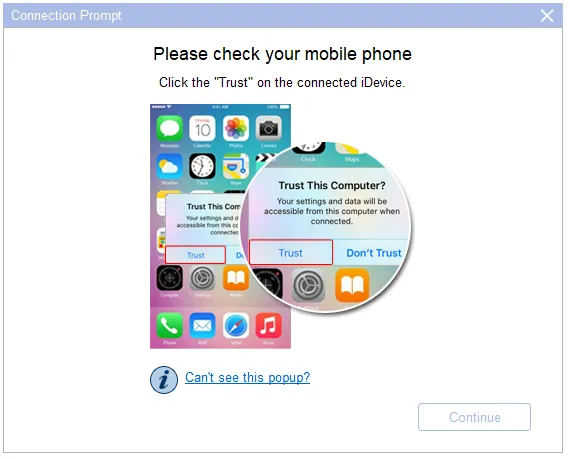
Launch iReaShare iPhone Manager on your PC, and plug your iPad into the PC using a compatible USB cable. Tap "Trust" on your iPad screen if prompted.
-
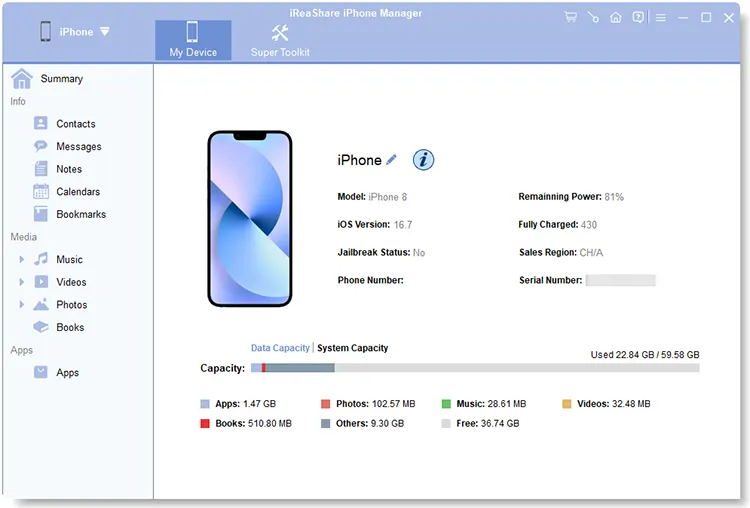
Once connected, on the software dashboard, choose the type of data you want to transfer from the left sidebar.
-
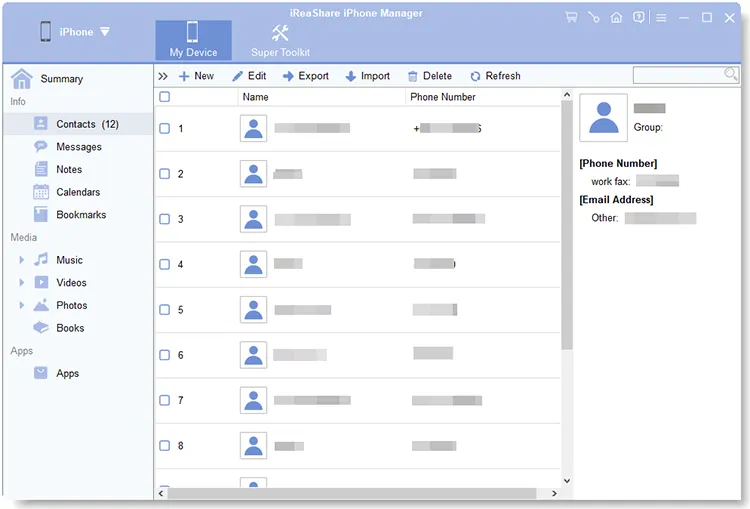
Click the "Import" button at the top, select the files from your PC's local storage, and click "Open" to transfer them directly to your iPad.
Part 2: How to Transfer Files from PC to iPad Pro via Apple Devices App
For Windows 10 and 11 users, Apple has largely replaced iTunes with the streamlined Apple Devices app. This is the official modern method to sync and manage files over a cable connection. This approach works well for app-specific file transfers, such as documents for Pages, Keynote, or PDF readers.
Steps to transfer files from a PC to an iPad via Apple Devices:
-
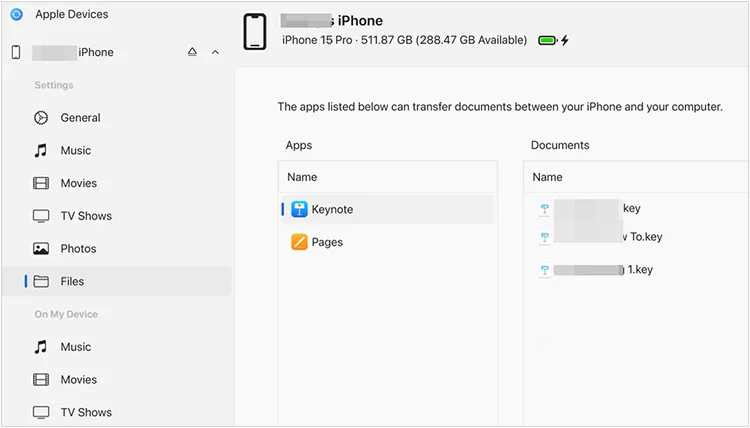
Download and install the Apple Devices app from the Microsoft Store. Then connect your iPad Pro to your PC using a USB-C cable.
-
Select your iPad Pro in the app's sidebar. Click on the "Files" section in the sidebar. You will see a list of apps on your iPad that support file sharing.
-
Drag files from your Windows "File Explorer" and drop them onto the specific app name (like VLC, Pages, or Keynote). The files will immediately sync to that app on your iPad Pro.
Part 3: How to Copy Files from PC to iPad via iCloud Drive
If you prefer a wireless method and want your files integrated directly into Apple's native ecosystem, iCloud Drive is the most seamless option. Files added to iCloud automatically sync across all Apple devices linked to the same account.
To share files from PC to iPad via iCloud Drive:
-
Open your web browser, go to iCloud.com, and log in with your Apple ID. Alternatively, you can use the iCloud for Windows app.
-
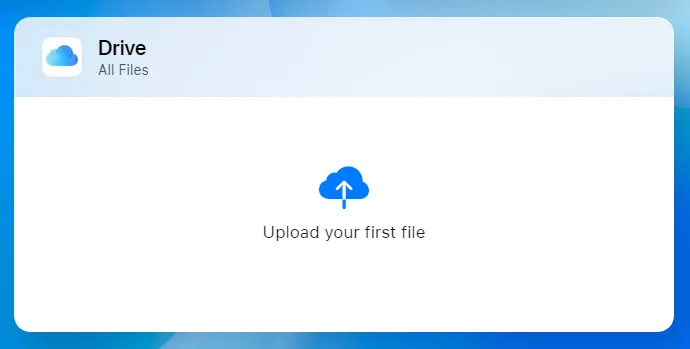
Click on "iCloud Drive", then click the "Upload" icon (the cloud with an up arrow) to select and upload files from your PC.
-
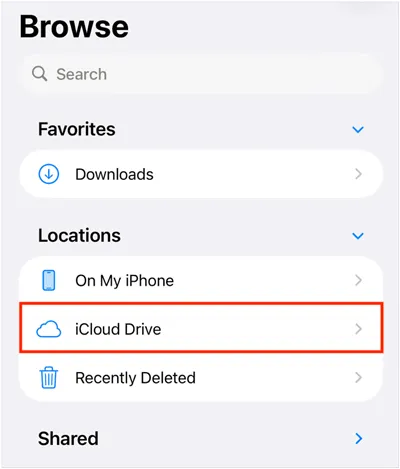
Open the native Files app on your iPad, tap the "Browse" tab, and select "iCloud Drive". Your uploaded files will be waiting for you there.
Part 4: How to Transfer a File from PC to iPad via Google Drive
If you already use Google's ecosystem for work or personal storage, Google Drive offers a generous 15GB of free space and works perfectly across Windows and iOS. This method is useful for users who frequently switch between different devices or operating systems.
To sync files from PC to iPad via Google Drive:
-
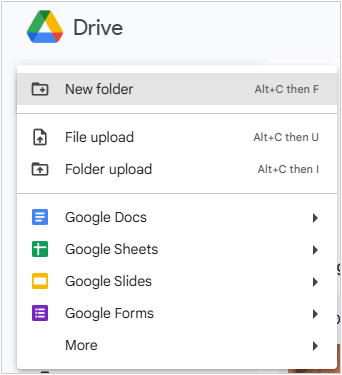
Open your browser, go to Google Drive, and log in. Click the "+ New" button on the left and select "File upload" to upload your files.
-
Download the free Google Drive app from the App Store on your iPad. Then open the app, log into the same Google Account, and locate your file.
-
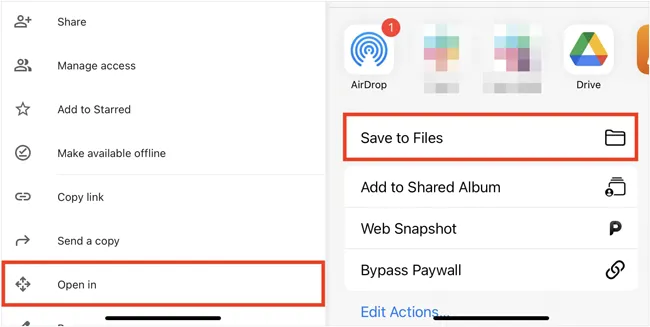
You can view it directly in the app or tap the three dots (...) next to the file and choose "Open in" > "Save to Files" > "Save" to store it locally.
Part 5: How to Move Files from PC to iPad via USB Flash Drive
If you don't have a reliable internet connection or need to move massive video files, using a physical USB drive is the fastest and most reliable method. Modern iPads (especially iPad Pro and Air with USB-C ports) natively support external storage.
To move files from a Windows computer to an iPad via a USB drive:
-
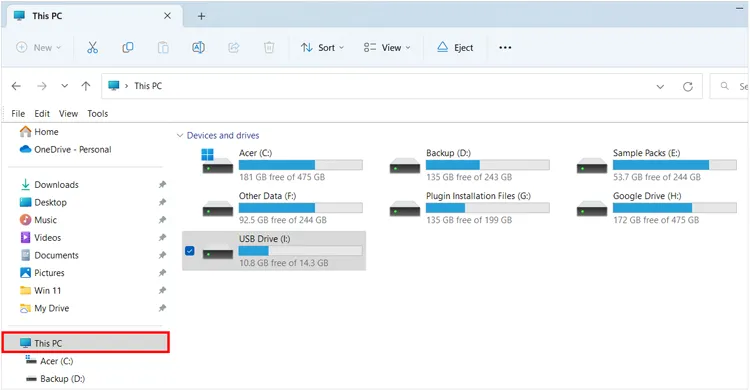
Plug your flash drive into your PC and copy the files onto it. Ensure the drive is formatted in a file system your iPad can read, such as exFAT or FAT32.
-
Plug the flash drive into your iPad. If your iPad has a Lightning port, you will need a Lightning-to-USB Camera Adapter. If it has a USB-C port, you can plug it in directly or use a USB-C hub.
-
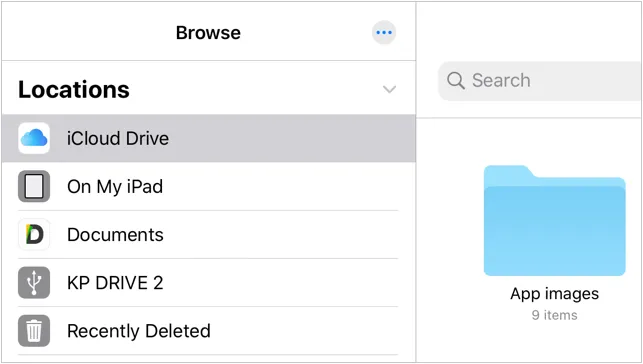
Open the Files app on your iPad. Look under the "Locations" sidebar to find your flash drive's name. From there, you can view the files or copy them to the "On My iPad" storage.
Part 6: How to Transfer Files from Laptop to iPad via LocalSend
When you want to send a quick file wirelessly without uploading it to the internet or logging into cloud accounts, LocalSend is an incredible, open-source tool that works like AirDrop between Windows and iOS. This method avoids the cloud entirely and is faster for large files over local networks.
Here's how:
-
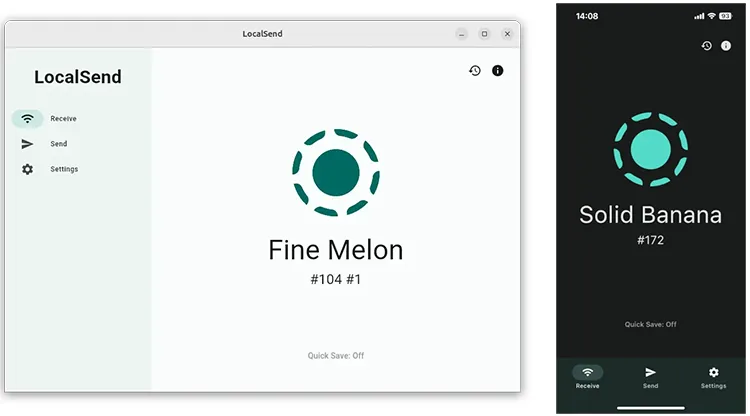
Download and open LocalSend on both your Windows laptop and your iPad. Ensure both devices are connected to the same Wi-Fi network.
-
On your laptop, click "Send", choose "Files" or "Folders", and select what you want to transfer. LocalSend will automatically scan your local network and display your iPad (assigned a funny, temporary nickname). Click on your iPad's name.
-
A prompt will appear on your iPad screen. Tap "Accept", and the files will transfer via your local Wi-Fi router at high speed.
Part 7: Q&A About Transferring Files from PC to iPad
Q1: Can I use iTunes to transfer files from my Windows PC to my iPad?
Yes, you can still use iTunes if you are on an older version of Windows or prefer it. To do this, connect your iPad, click the device icon in iTunes, go to the File Sharing tab, select an app, and click Add File to copy items over. However, for newer Windows builds, Apple recommends using the dedicated Apple Devices app instead.
Q2: Will my photos lose quality if I send them from my PC to my iPad via an email?
It depends on how you send them. If you attach them as standard image files, most modern email clients will give you the option to send them at "Actual Size" (Full Quality). However, some email providers automatically compress large images to save data, and email services generally limit total attachment sizes to 20–25MB. For lossless photo transfers, using iCloud, Google Drive, or a USB drive is a much safer bet.
Q3: Why can't I access my iPad storage space on my PC the way with an Android device?
This comes down to Apple's strict security and privacy architecture, often referred to as "sandboxing". Unlike Android, which treats its internal storage like an open file directory, iOS restricts direct access to system folders to prevent malware and accidental deletion of core files.
You can only view the DCIM (Photos) folder when plugging an iPad into a Windows PC normally; for everything else, you must use an approved bridge like the Apple Devices app or cloud storage.
Conclusion
There is no single "correct" way to transfer files from a PC to an iPad—the best method simply depends on your specific situation. If you are handling large files or lack internet access, a USB Flash Drive or a direct cable connection via the Apple Devices App is useful.
If you want more flexibility, iReaShare iPhone Manager will be your best bet. It enables you to preview and select your specific files before the transfer, and supports one-click backup and restore. By keeping a few of these methods in your digital toolkit, cross-platform file sharing becomes completely hassle-free.
Download for Win Download for Mac
Related Articles
How to Transfer Photos from iPad to Flash Drive (4 Solutions)
How to Delete Files on iPhone or iPad: 4 Deletion Approaches
How to Transfer Photos from iPad to PC Without iTunes (6 Ways)
Seamlessly Transfer Files from Android to iPad with 6 Methods

