


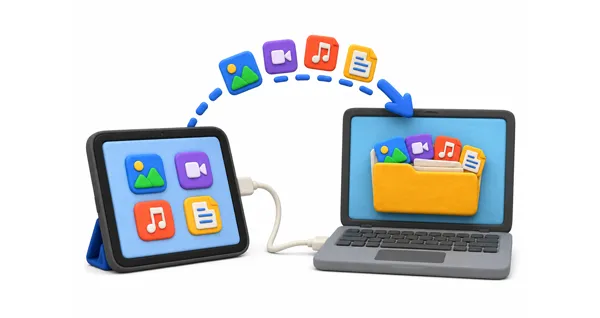
It is a common need for students, office workers, photographers, and everyday users to transfer files from an iPad to a PC. Whether you want to move photos, videos, documents, music, contacts, books, notes, etc., there are several reliable ways to complete the task. Some methods use USB connections, while others rely on cloud storage or wireless syncing.
In this guide, we will introduce five practical methods to copy files from an iPad to a PC. We will also answer some frequently asked questions about iPad-to-PC file transfers.
- Part 1: How to Transfer Files from iPad to PC via Apple Devices App
- Part 2: How to Transfer Files from iPad to Computer via iReaShare iPhone Manager
- Part 3: How to Copy Files from iPad to PC via iCloud
- Part 4: How to Transfer Files from iPad to PC via USB (Photos and Videos Only)
- Part 5: How to Transfer Things from iPad to Computer via Google Drive
- Part 6: Q&A About Transferring Files from iPad to PC
Compare these 5 methods:
| Transfer Method | Pros / Advantages | Cons / Limitations |
|---|---|---|
| Apple Devices App | 1. Official modern desktop tool direct from Apple. 2. Highly secure, stable, and fast wired connection. 3. Completely free to use with no hidden features. |
1. Interface lacks clear visual file or media previewing. 2. Strictly restricted to apps supporting official Apple File Sharing. |
| iReaShare iPhone Manager | 1. Supports extensive data types (contacts, text messages, books, notes, and more). 2. Provides clear, visual file previews before exporting. 3. Intuitive user interface ideal for quick batch transfers. 4. Provides one-click backup and restore feature. |
1. Requires installation of desktop software. 2. Advanced management features require purchasing a paid license. |
| iCloud Sync & Web | 1. Seamless, automated background syncing with no cables needed. 2. Files are easily accessible from any web browser or native Windows app. |
1. Includes only 5GB of free storage space before requiring a subscription. 2. Completely dependent on internet speeds and web stability. |
| Windows File Explorer | 1. Pure plug-and-play setup without downloading extra apps or configurations. 2. Familiar drag-and-drop workspace built directly into Windows. |
1. Strictly limited to camera roll photos and videos only. 2. Internal iOS system folder structures are unorganized and difficult to search. |
| Google Drive | 1. Offers a generous 15GB of free storage room standard. 2. Superb cross-platform ecosystem utility outside of Apple's walled garden. |
1. Demands fully manual tracking of uploads from iPad and downloads onto PC. 2. Consumes internet data cap bandwidth for larger files. |
Part 1: How to Transfer Files from iPad to PC via Apple Devices App
With recent updates, Apple has begun phasing out iTunes on Windows in favor of standalone apps. The Apple Devices app is a modern, useful tool for managing and transferring files between your iPad and a Windows PC via a wired connection.
To copy files from an iPad to a PC via the Apple Devices app:
-
Open the Microsoft Store on your PC, search for Apple Devices, and install the app. Then use a compatible USB cable to connect your iPad to your PC. If prompted on your iPad, tap "Trust" and enter your passcode.
-
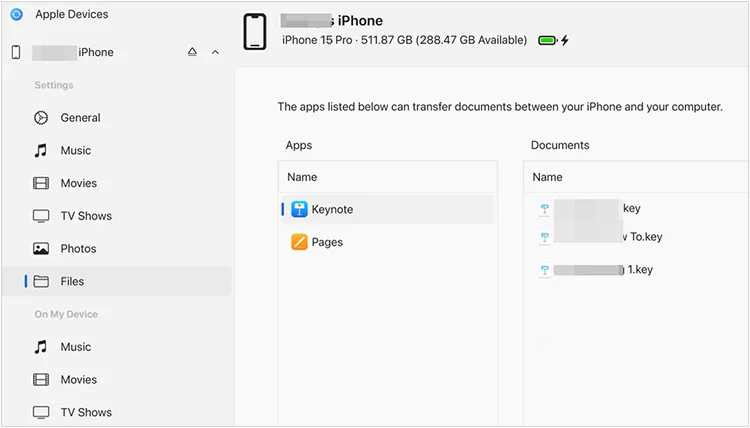
Launch the Apple Devices app on your computer and select your iPad from the sidebar.
-
Click on the "Files" option in the sidebar menu. You will see a list of apps on your iPad that support file sharing.
-
Click the arrow next to an app to see its documents. Select the files you want to copy, click "Save", and choose a destination folder on your PC.
Part 2: How to Transfer Files from iPad to Computer via iReaShare iPhone Manager
If you are looking for a more flexible, all-in-one data management solution, third-party software like iReaShare iPhone Manager provides an intuitive interface to preview and selectively transfer almost any data type - including contacts, messages, music, books, bookmarks, notes, and more - that native Apple apps often restrict.
Main features of iReaShare iPhone Manager:
* Allow you to selectively preview and transfer a wide range of data types like music, calendars, etc.
* Support seamless data transfer both from your iPad/iPhone to your PC and from your PC back to your iOS device.
* The clean and intuitive dashboard makes managing and exporting mobile files straightforward.
* Ensure that all photos, videos, and audio files maintain their original quality and formats during the transfer process.
* Back up your iOS data to your PC at once, and restore the backup anytime you want.
* Provide fast and stable wired transfers, bypassing the file size limits and speed bottlenecks often found in cloud storage.
* Compatible with iOS 5.0 or later.
Download iReaShare iPhone Manager.
Download for Win Download for Mac
To transfer files from an iPad to a computer via iReaShare iPhone Manager:
-
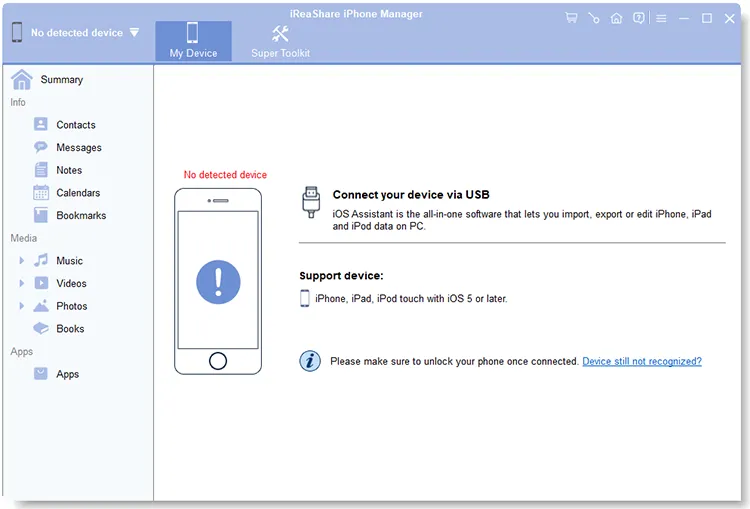
Install and launch iReaShare iPhone Manager on your Windows PC. Then connect your iPad to the PC using a USB cable. Make sure you unlock the iOS device and trust the computer.
-
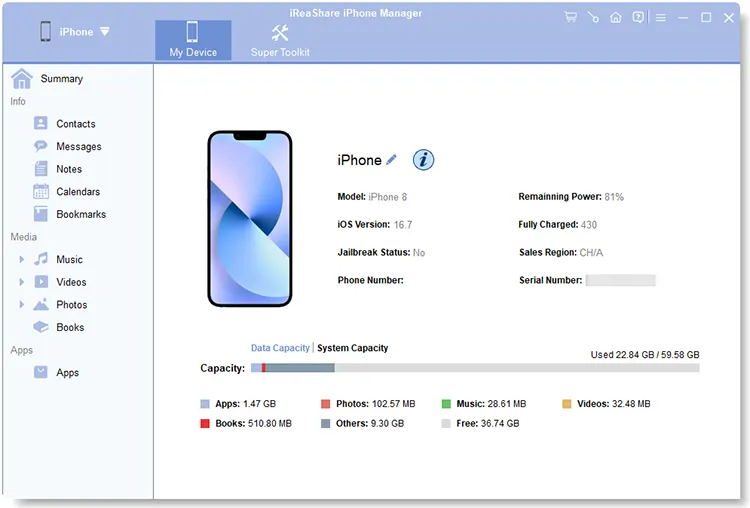
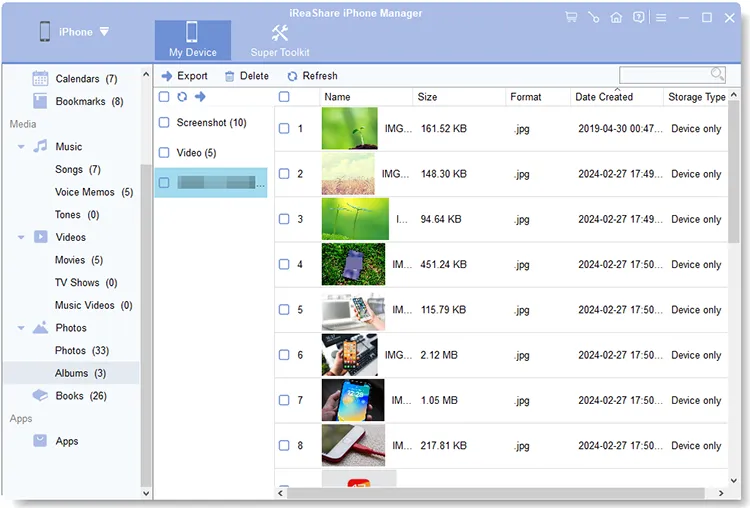
Once the software detects your iPad, you will see a dashboard displaying your device info and data categories on the left panel.
-
Click on a category to preview your files. Check the boxes next to the specific items you wish to transfer. Next, hit the "Export" button at the top menu, select a destination folder on your PC, and wait for the process to finish.
You can watch the video guide to transfer your iPad files easily:
Part 3: How to Copy Files from iPad to PC via iCloud
If you prefer a wireless method and have a stable internet connection, Apple's native cloud service, iCloud, is an excellent choice. It automatically syncs your data across devices, making your iPad files accessible from any browser. By the way, using iCloud requires a stable internet connection and adequate cloud storage space.
Here's how:
-
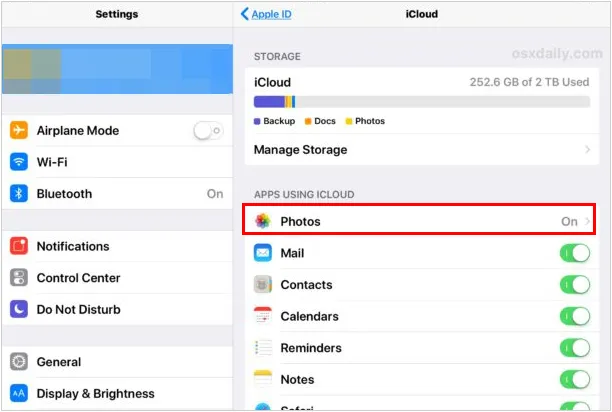
On your iPad, go to Settings > "[Your Name]" > "iCloud". Turn on the toggles for the data you want to sync.
-
After that, go to the iCloud website on your PC's browser, and sign in with your Apple ID.
-
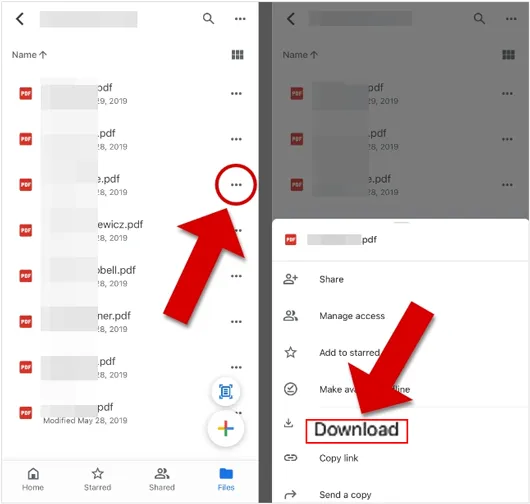
Click on "iCloud Drive" or "Photos" to select your files, and tap the "Download" icon.
Part 4: How to Transfer Files from iPad to PC via USB (Photos and Videos Only)
If you only need to move photos and videos from your iPad camera roll, you don't need any special apps or cloud accounts. Windows recognizes the iPad as a digital camera, allowing you to drag and drop media directly through File Explorer. In this way, you don't need iTunes or other apps.
To transfer files from an iPad to a PC without iTunes:
-
Plug your iPad into your PC using a USB cable. Unlock your iPad screen. A prompt will ask, "Allow this device to access photos and videos?" Tap "Allow".
-
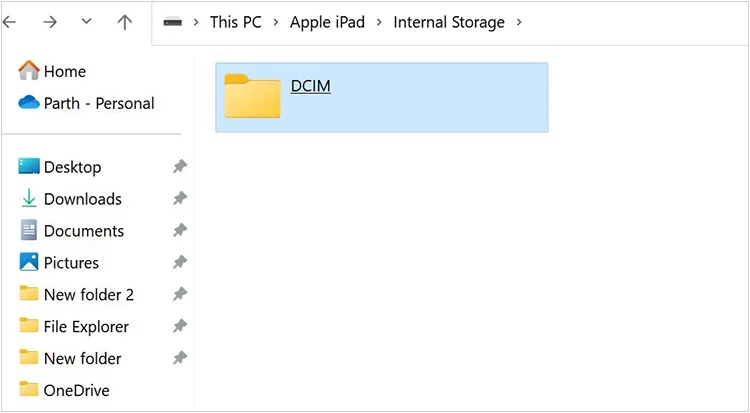
On your PC, open "This PC" or press "Windows Key + E". Under "Devices and drives", double-click your Apple iPad.
-
Navigate through "Internal Storage" > "DCIM" > "100APPLE" (or similar folders). Copy the desired photos and videos, then paste them into a folder on your PC.
Part 5: How to Transfer Things from iPad to Computer via Google Drive
For users who prefer cross-platform cloud storage outside of the Apple ecosystem, Google Drive offers a generous 15GB of free storage and a seamless way to move documents, PDFs, and media wirelessly.
Steps to transfer files from an iPad to a PC via Google Drive:
-
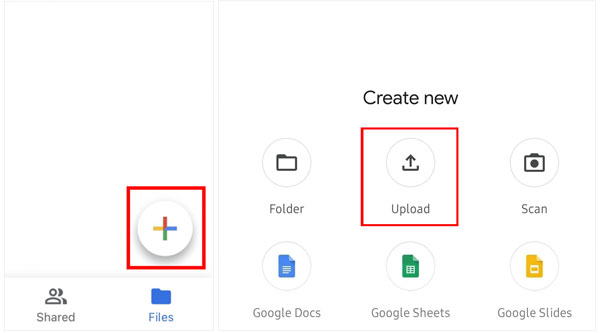
Open the Google Drive app on your iPad. Log in to your Google Account. Then tap the "+" (Plus) icon, select "Upload", and choose "Photos and Videos" or "Browse" to select files from your iPad's Files app.
-
Once the upload is complete, open your web browser on your PC and go to drive.google.com.
-
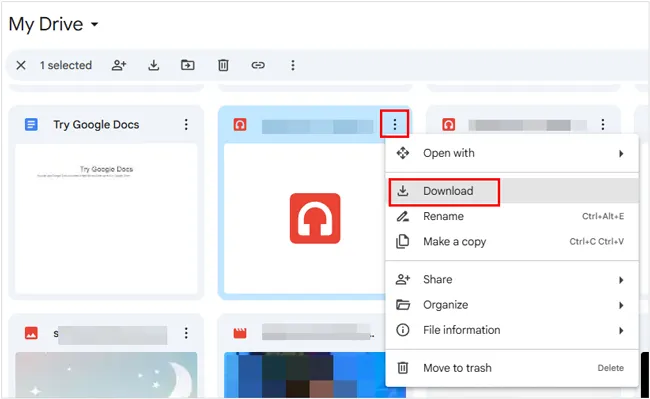
Log into the same Google Account. Locate your uploaded files, right-click on them, and select "Download" to save them to your computer.
Part 6: Q&A About Transferring Files from iPad to PC
Q1: Can I AirDrop files to a PC?
No. AirDrop is a proprietary Apple technology that only works between Apple devices (iPhone, iPad, Mac). Windows PCs do not support AirDrop. However, you can use third-party wireless alternatives like LocalSend or web-based tools like Snapdrop to achieve a similar result.
Q2: Does iTunes still exist for Windows?
Yes, but it is being phased out. While iTunes is still available for download on older versions of Windows, Apple has officially split its functionality into separate, modernized apps for Windows 10 and 11: Apple Devices (for syncing/backups), Apple Music, and Apple TV.
Q3: Can I connect an iPad to a PC wirelessly?
Yes. You can connect wirelessly using cloud storage services (iCloud, Google Drive, OneDrive) or local Wi-Fi transfer apps. Additionally, if you use the Apple Devices app or older iTunes, you can enable the "Sync over Wi-Fi" option while your iPad is plugged in, allowing future syncs to happen wirelessly as long as both devices are on the same Wi-Fi network.
Conclusion
There are many ways to transfer files from an iPad to a PC, and the best method depends on your needs. If you prefer official Apple tools, the Apple Devices app is a good option. For advanced file management, professional software like iReaShare iPhone Manager offers more flexibility. This tool supports more data types, and allows you to preview and select files before the transfer.
Download for Win Download for Mac
Related Articles
How to Transfer Photos from iPad to PC Without iTunes (6 Ways)
Transfer Files from iPad to Android with 6 Effective Methods (New)
How to Transfer Contacts from iPhone to iPad Seamlessly (4 Ways)
How to Clear iPad to Sell Step by Step (4 Methods for Data Erasure)

