


Locked out of your iPhone? It happens to the best of us. Whether you've forgotten a new passcode or an old device has surfaced from a drawer, there are effective ways to regain access. Please note that for security reasons, most of these methods will factory reset your device, erasing your data unless you have a recent backup in iCloud or on your computer. Now, learn about how to unlock an iPhone without a passcode.

Take a quick look at the 4 unlocking methods:
| Method | Pros | Cons |
|---|---|---|
| Finder | 1. Official Apple solution. 2. Completely free. 3. Highly secure. |
1. Requires a Mac computer. 2. Recovery Mode steps can be complicated. |
| Apple Devices App | 1. Modern official tool for Windows. 2. Reliable firmware restoration. |
1. Requires a PC and USB cable. 2. Slow downloads for large firmware files. |
| iPhone Unlocker |
1. Extremely user-friendly interface. |
1. Requires a paid license. |
| Find My App | 1. No computer or cable required. 2. Can be done remotely from another mobile device. |
1. "Find My" must be enabled beforehand. 2. Locked device must have an internet connection. |
Part 1: How to Unlock iPhone Without Passcode via Finder
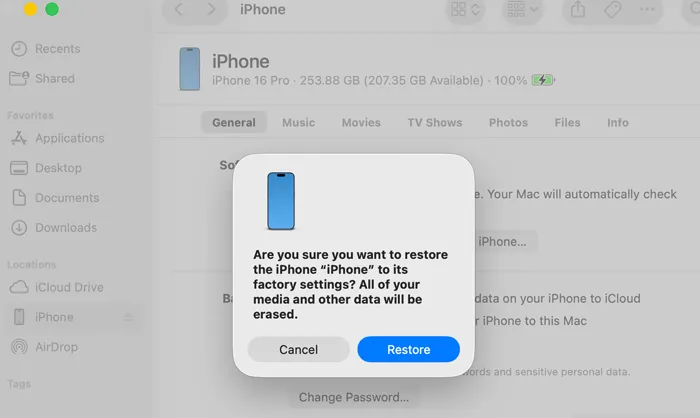
You can easily unlock your iPhone without your passcode with Finder on your Mac computer. This requires a process called Recovery Mode. This will factory reset the phone, meaning all data will be erased, but you will be able to set it up again as new or restore from a backup.
Here's how:
-
Power off your iPhone, and put your iPhone into Recovery Mode. The button combination varies by model; for iPhone 8 and later, hold the "Side" button while connecting to the computer. the Send Anywhere app on both your iPhone and Android device.
-
Open Finder and select your iPhone from the sidebar. A prompt will appear asking if you want to restore your device. Select "Restore".
-
Wait for the process to finish; your iPhone will restart as a new device.
Part 2: How to Unlock iPhone Without Passcode or Face ID via Apple Devices
For Windows users, the Apple Devices app serves the same purpose. By the way, please note that Apple has stopped the update of iTunes, and the Apple Devices app is gradually replacing iTunes.
To unlock an iPhone without a passcode or Face ID via the Apple Devices app:
-
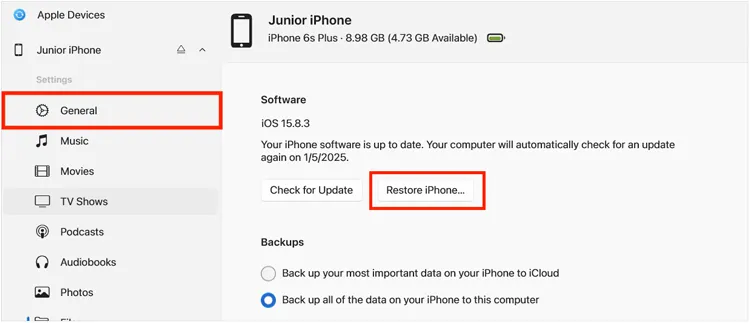
Connect your iPhone to your PC/Mac via USB. Then launch the Apple Devices app.
-
Enter Recovery Mode on your iPhone: Press the "Volume Up" button for a split second and let go; immediately press the "Volume Down" button for a split second and let go; now, press and hold the "Side" button; do not let go when you see the Apple logo; keep holding until you see the Recovery Mode screen.
-
The app will detect a problem with the iPhone. Click "Restore". If not, click "Restore iPhone" to go on. Then it will download the necessary software and wipe the passcode.
Part 3: How to Unlock iPhone Passcode via iPhone Unlocker
If you don't want to use Finder or the Apple Devices app to unlock your iPhone, you can try iPhone Unlocker. This software enables you to remove your iPhone passcode with simple clicks. Furthermore, it can help you remove your Apple ID without a password when you forget it, unlock the time screen passcode, etc. It is a multifunctional unlocking tool for iOS devices. By the way, it will erase all your iPhone data for unlocking.
Main features of iPhone Unlocker:
* Unlock iPhone screen without a passcode, supporting 4 or 6-digit passcodes, Face ID, Touch ID, etc.
* Remove an activation lock without any password.
* Bypass screen time lock with ease on iOS devices.
* Remove iPhone or iPad's MDM profile without a password.
* Compatible with most iOS devices, including iPhone 17e, iPhone 17 Pro Max/17 Pro/Air/17/16/15/14/13/12/11, iPad Pro, iPad Air, iPad mini, etc.
Download iPhone Unlocker.
Download for Win Download for Mac
To unlock an iPhone without a passcode with iPhone Unlocker:
-
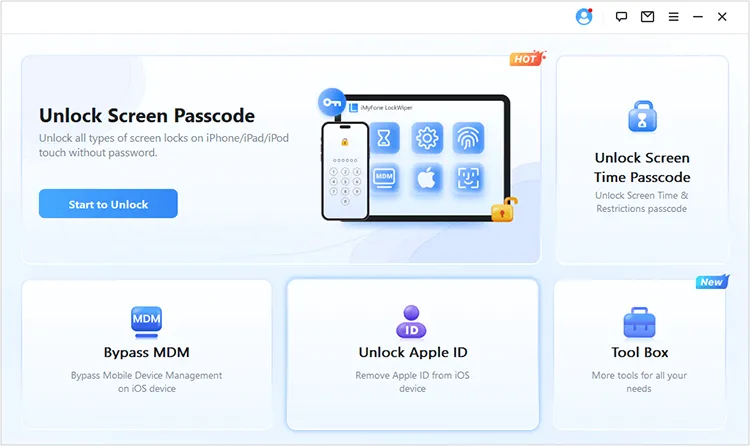
Download and install the iPhone Unlocker software on your PC/Mac. Then launch it, choose "Unlock Screen Passcode", and click "Start to Unlock".
-
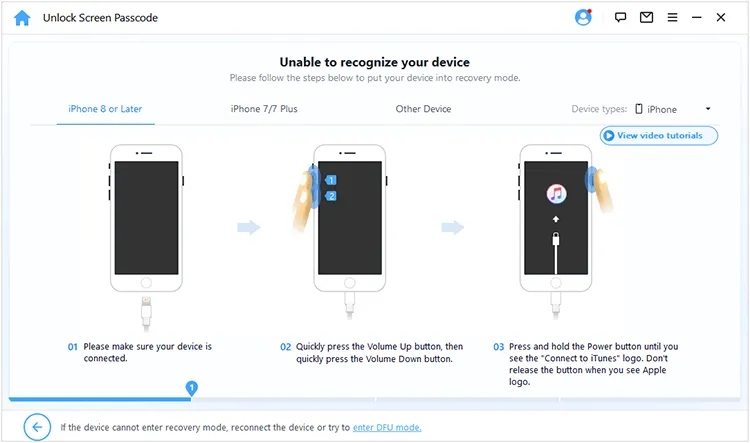
Tap "Start", and connect your iPhone to the computer with a USB cable. Then choose your device model, and follow the on-screen guide to get your iPhone into Recovery Mode.
-
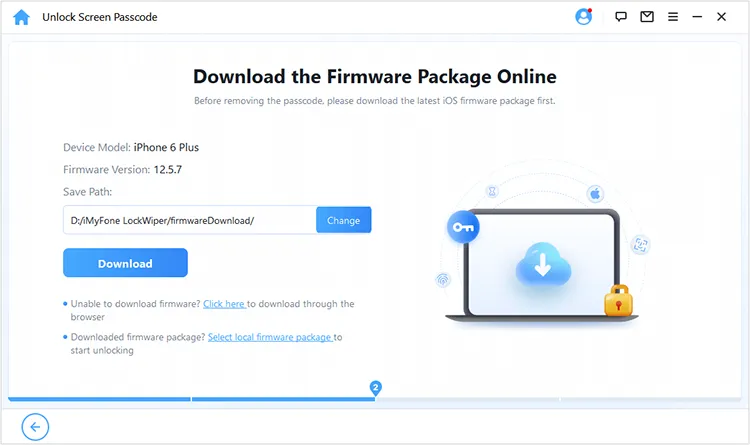
After that, click "Download" to save the firmware package on your computer. Once downloaded, click "Select local firmware package" to add the file.
-
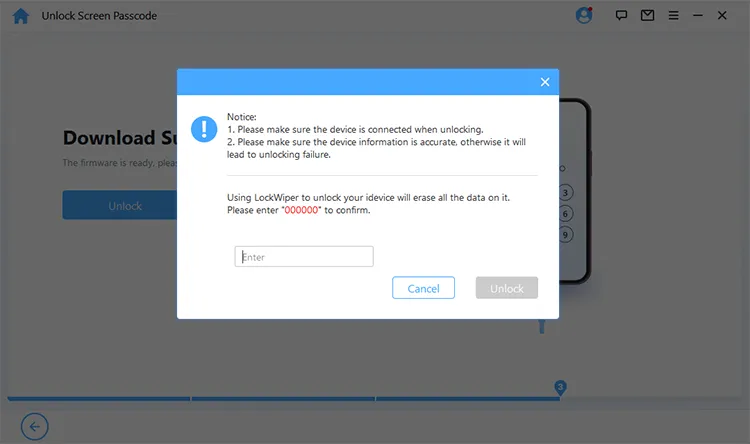
Wait for the program to download and verify the firmware. Then click "Unlock". On the popup window, type "000000", and click "Unlock" again. The software will start to remove the screen lock. Once done, you can access your device without the lock.
Part 4: How to Unlock iPhone Without Passcode via Find My App
If you have another Apple device (iPad or another iPhone), you can use the Find My app to wipe the locked device remotely. However, it requires you to enable the Find My iPhone feature on your device. If you haven't turned it on, you can use this way to unlock your iPhone.
Here's the guide:
-
Open the Find My app on the secondary device, and log in with the Apple ID used on the locked iPhone.
-
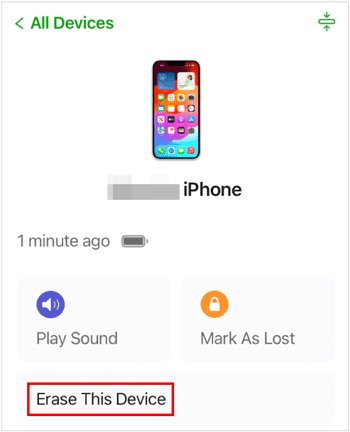
Select the locked iPhone from the Devices list. Then tap "Erase This Device".
-
Confirm the action. Once the iPhone connects to the internet, it will wipe itself, including the passcode.
Part 5: Q&A About Unlocking iPhone Passcode
Q1: Is it possible to unlock an iPhone without losing data when I forget the passcode?
No. Unless you are running a very old version of iOS (iOS 10 or earlier) where certain exploits existed, there is no way to bypass a modern iPhone passcode without erasing the data. This is a core privacy feature to protect your information from thieves.
Q2: Can Face ID be fooled by a photo?
No. Face ID uses a TrueDepth camera system that projects and analyzes over 30,000 invisible dots to create a 3D depth map of your face. It also uses infrared imaging. A 2D photo lacks depth information and will not trigger an unlock.
Q3: Is there a secret button on my iPhone for unlocking?
While there isn't a hidden physical button specifically for unlocking, there is a "secret" software feature called Back Tap that essentially turns the entire back of your iPhone into a giant button. You can configure it in Settings > Accessibility > Touch > Back Tap to perform actions like taking a screenshot or opening the camera when you double or triple-tap the back glass.
Conclusion
Regaining access to your iPhone is straightforward if you have a computer or another Apple device handy. Finder, the Apple Devices app, and the comprehensive unlocking tool - iPhone Unlocker, can provide you with reliable approaches.
While the loss of data is often inevitable during a reset, keeping regular iCloud backups ensures that a forgotten passcode is only a minor inconvenience rather than a permanent loss of memories. Stay backed up, and keep your Apple ID credentials safe.
Download for Win Download for Mac
Related Articles
Aiseesoft iPhone Unlocker Review: Is It Effective and Safe to Use?
How to Transfer eSIM from Android to iPhone Easily (3 Viable Ways)
How to Transfer Photos from iPad to Flash Drive (4 Solutions)
iPhone Stuck in Recovery Mode: How to Fix It (Step-by-Step Guide)

