


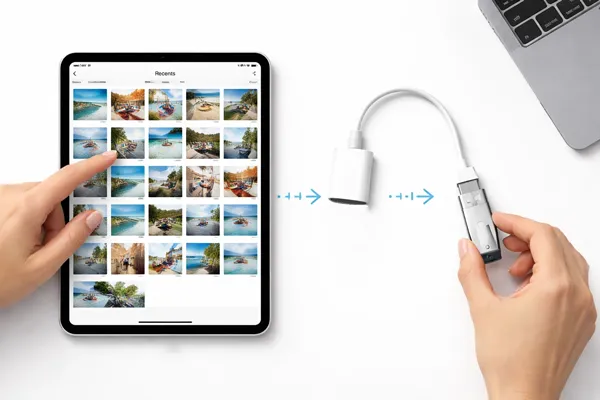
When you plan to free up storage space on your iPad or create a physical backup of your favorite photos, you may want to transfer photos from the iPad to a flash drive. Fortunately, with the evolution of iPadOS, this process has become more straightforward than ever. Follow this guide, and you can transfer your pictures without any hurdles.
- Part 1: How to Transfer Photos from iPad to Flash Drive with Photos App
- Part 2: How to Transfer Photos from iPad to Thumb Drive via iReaShare iPhone Manager
- Part 3: How to Download Pictures from iPad to Flash Drive via PhotoSync
- Part 4: How to Import Photos from iPad to Flash Drive via iCloud
- Part 5: Q&A About Transferring Photos from iPad to Flash Drive
Compare these photo transfer methods:
| Method | Pros | Cons |
|---|---|---|
| Photos App | 1. No extra software required. 2. Works directly on iPad. 3. Completely free. |
1. Tedious for large batches. 2. Slower for high-res videos. |
| iReaShare iPhone Manager | 1. Handles bulk transfers easily. 2. Advanced preview/sorting. 3. Stable wired performance. 4. Supports various data types. |
1. Requires a PC or Mac. 2. A license is needed. |
| PhotoSync | 1. Wireless or wired options. 2. Preserves metadata/dates. 3. Supports auto-sync. |
1. Requires app installation. 2. Some features behind paywall. |
| iCloud | 1. Remote access. 2. Dual-purpose backup. 3. No physical connection needed. |
1. Dependent on internet speed. 2. Limited by iCloud storage. |
Part 1: How to Transfer Photos from iPad to Flash Drive with Photos App
In the past, you needed to utilize the Photos and combine the Files app to import your photos from an iOS device to an external storage device. But now, you can save one step, directly choosing your flash drive on your iPad.
To transfer pictures from an iPad to a USB stick via the Photos app:
-
Plug your flash drive into the iPad's charging port (using a USB-C to USB adapter if necessary).
-
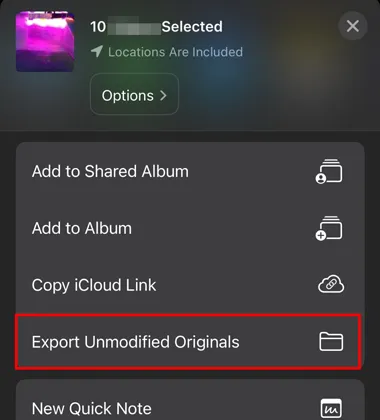
Open the Photos app and tap Select to choose the images you wish to transfer. Tap the "Share" icon and select "Export Unmodified Original".
-
Now, choose your flash drive, and click "Save". The photos will be saved to your USB drive.
Part 2: How to Transfer Photos from iPad to Thumb Drive via iReaShare iPhone Manager
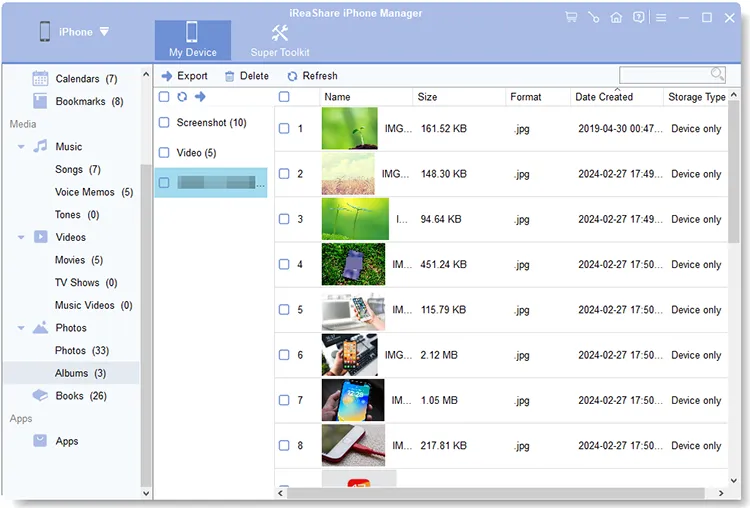
For those who prefer a desktop interface and need to manage thousands of photos at once, iReaShare iPhone Manager offers a more robust solution. It can load and display all your photos on the interface, and you can select and export your pictures from your iPad to your USB stick at one go. If needed, you can also move your photos to your computer for backup.
Main features of iReaShare iPhone Manager:
* Export your photos from your iPad to a flash drive with original quality and formats.
* Allow you to preview the thumbnails of all your photos before transferring them.
* Compatible with many file formats of images, like PNG, HEIC, JPG, JPEG, GIF, etc.
* Back up all your photos from your iOS device to your computer.
* Restore backup photos to your iPad or other iOS devices.
* A comprehensive file manager for iOS devices, like editing contacts, adding bookmarks, organizing iTunes backups, etc.
* Support iOS 5.0 or later, including the latest version.
Download this photo transfer software.
Download for Win Download for Mac
To transfer photos from an iPad to a USB stick via this software:
-
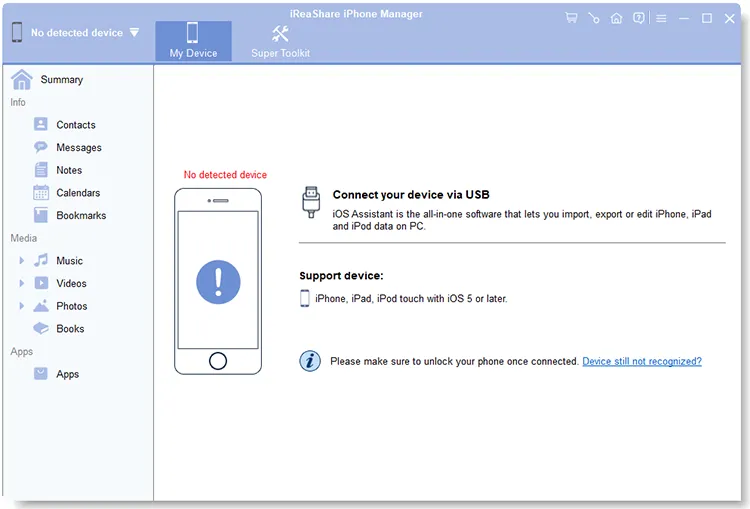
Connect both your iPad and your thumb drive to your computer via USB. Then install and open the program on the desktop.
-
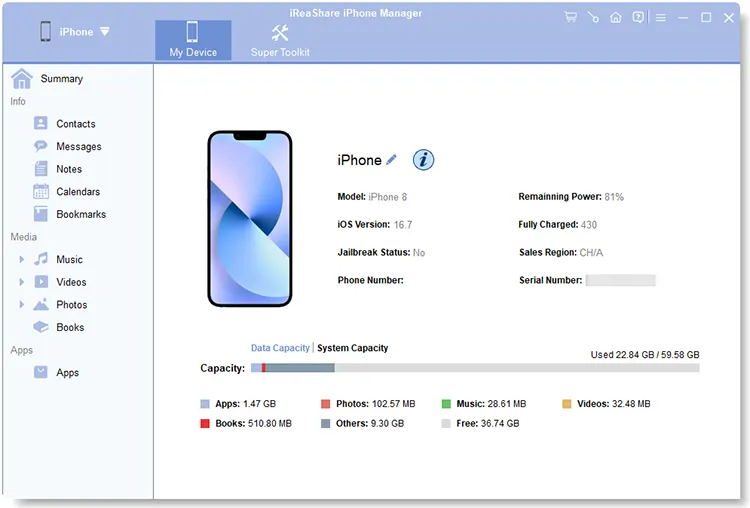
Ensure your iPad is recognized by tapping the "Trust" option. Then you can see the connected interface.
-
Navigate to the "Photos" category, and select the pictures you want to move. Then click "Export" and choose your USB drive. The program will transfer your photos to the selected destination device.
This is a video guide to transferring photos from an iPad to a flash drive:
Tips: Want to transfer photos from an Android device to a USB drive without effort? Then you may need this guide.
Part 3: How to Download Pictures from iPad to Flash Drive via PhotoSync
"Can I transfer photos from an iPad to a USB stick without a USB cable?" Of course, you can. PhotoSync is a popular third-party app designed for wireless and wired transfers, known for its ability to preserve metadata. This approach is useful if you prefer not to rely on cables or direct connections.
To use PhotoSync to move pictures from an iPad to a memory stick:
-
Install PhotoSync on your iPad and plug in your flash drive. Open the app and ensure you have granted it access to your full Photo Library and "Files and Folders".
-
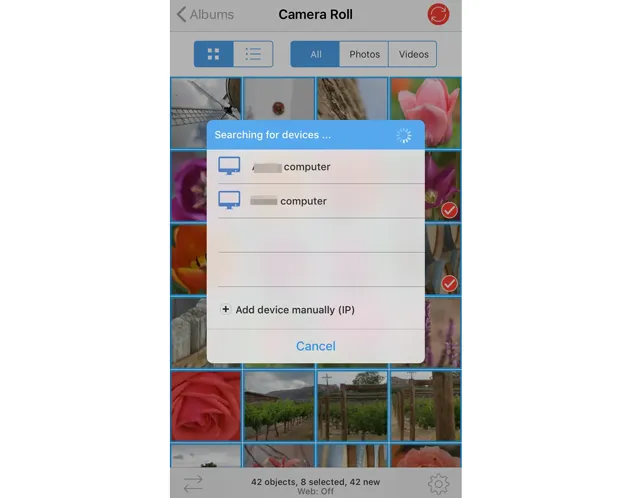
Tap on the thumbnails to select specific photos. A menu will appear. Tap on the red "Sync" icon to choose "New" or "All". Then tap the "Files" icon.
-
A file browser window will pop up (this is the mini-Files app interface). Tap the "Browse" tab at the bottom. Under the list, tap on the name of your flash drive. The process will begin.
Part 4: How to Import Photos from iPad to Flash Drive via iCloud
If your photos are already synced to the cloud, you can use a computer to bridge the gap to your flash drive. If you haven't synced your pictures, you can do it on your iPad without hassle.
To import photos from an iPad to a USB stick via iCloud:
-
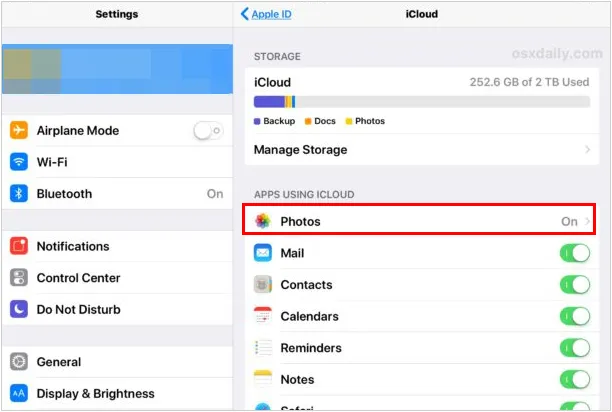
On your iPad, ensure you have enabled the "Photos" synchronization to iCloud in the Settings app.
-
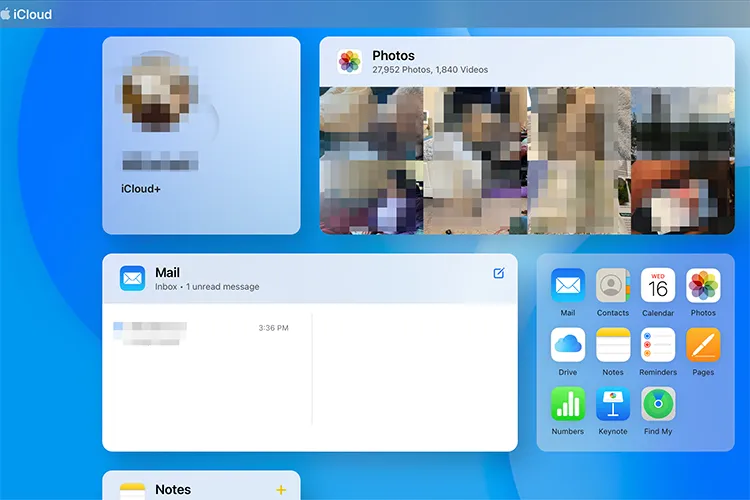
On your PC or Mac, go to iCloud.com and sign in with your Apple ID. Then click on "Photos" and highlight the images you want to save.
-
Click the "Download" icon (cloud with a down arrow). Once the files are in your computer's "Downloads" folder, drag and drop them into your connected flash drive.
Part 5: Q&A About Transferring Photos from iPad to Flash Drive
Q1: What kind of flash drive can an iOS device support?
Modern iPads with USB-C ports support almost any standard USB-C flash drive. For iPads with Lightning ports, you will need a drive with a Lightning connector (like the SanDisk iXpand) or a Lightning-to-USB Camera Adapter. The drive should be formatted as FAT32, exFAT, or APFS.
Q2: If I back up pictures from an iPad onto a flash drive, can they be accessed on a Windows PC?
Yes, provided the drive is formatted in exFAT or FAT32. Windows can read these formats natively. Note that if your iPad saves photos in the HEIC format, you may need to install the "HEIF Image Extensions" on Windows to view them.
Q3: Is there a difference between a USB stick and a flash drive?
In casual conversation, these terms are used interchangeably. Both refer to small, portable solid-state storage devices. "Flash drive" is the more technical term (referring to the type of memory used), while "USB stick" or "thumb drive" refers to the physical form factor.
Conclusion
Whether you choose the simplicity of the native Files app or the advanced management features of iReaShare iPhone Manager, you can easily move photos from your iPad to a flash drive for digital organization. By following the steps above, you can ensure your memories are safely backed up and easily accessible on your portable storage device.
Download for Win Download for Mac
Related Articles
How to Bluetooth Photos from iPhone to Android (Latest Guide)
How to Transfer Photos from Mac to Android: Full Guide with 6 Solutions
Seamlessly Transfer Files from Android to iPad with 6 Methods
How to Delete Files on iPhone or iPad: 4 Deletion Approaches

