


"How do I move music from my iPad to my computer? I have about 3000 songs on my iPad, and I want to transfer them all to my computer for backup. I know iTunes is updated anymore, so what tools can I use?"
- From Apple Community
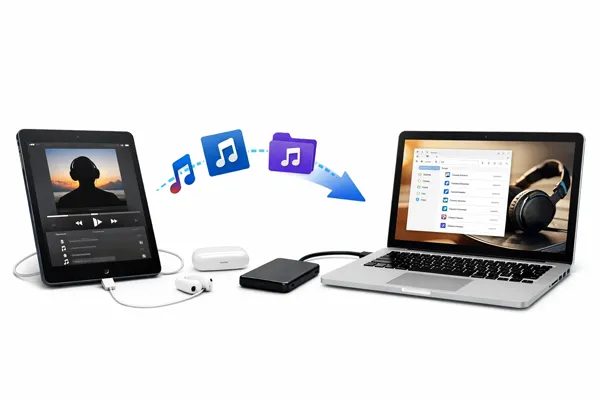
This guide explores 6 effective ways to transfer music from an iPad to a computer. First of all, Apple doesn't maintain iTunes, but it can be used as usual. Even if you don't want to use iTunes, you can move your songs with other reliable tools.
- Part 1: How to Transfer Music from iPad to Computer via iReaShare iPhone Manager
- Part 2: How to Export Music from iPad to Computer via iTunes or Finder
- Part 3: How to Import Music from iPad to Computer via Send Anywhere
- Part 4: How to Send Music from iPad to Computer via AirDrop (Mac Only)
- Part 5: How to Take Music from iPad to Computer via AirMore
- Part 6: How to Put Songs from iPad to Computer via USB Stick
- Part 7: Q&A About Transferring Music from iPad to Computer
Take a quick look at the comparison of the 6 methods:
| Method | Pros | Cons |
|---|---|---|
| iReaShare iPhone Manager | 1. Intuitive interface. 2. Supports non-purchased music. 3. No complex syncing, and support preview. 4. Transfers files with original formats and quality. |
1. Requires software installation on your computer. 2. Full features need a paid license. |
| iTunes / Finder | 1. Official tool. 2. Reliable for purchased media. |
1. Can trigger automatic syncing that might delete data. 2. Clunky for non-purchased files. |
| Apple Devices App | 1. Native Windows support. 2. Modern interface for newer systems. |
1. Limited to Apple-authorized media. 2. Less flexible for sideloaded files. |
| AirDrop (For Mac) | 1. Wireless and fast. 2. No extra cables or apps needed. |
1. Restricted to Mac hardware only. 2. Manual file-by-file transfer. |
| AirMore | 1. Wireless and browser-based. 2. Works across different platforms. |
1. Requires both devices to be on the same network. 2. Potential stability issues. |
| USB Stick | 1. Offline. 2. No software required. 3. Great for bulk physical transfers. |
1. Requires adapters. 2. iOS file system restrictions make this process manual. |
Part 1: How to Transfer Music from iPad to Computer via iReaShare iPhone Manager
If you want a flexible music transfer tool, iReaShare iPhone Manager will be one of the most ideal options. It allows you to preview your iPad music before moving it. Moreover, it can move your songs without losing any quality, and the transferred music will not overwrite the existing ones on your computer.
Main features of iReaShare iPhone Manager:
* Allow you to connect your iOS device to your computer with a USB cable.
* Display your music files on the interface for preview and selection.
* Not only music, but also transfer videos, photos, contacts, notes, calendars, books, messages, etc.
* Back up your iOS device to your computer at once, including most data types.
* Restore backup files from your computer to your iOS device.
* Enable you to select a folder to save your music on your computer.
* Support iOS 5.0 and later, including the latest version.
Download iReaShare iPhone Manager.
Download for Win Download for Mac
How do I copy music from an iPad to a computer? Here's the guide:
-
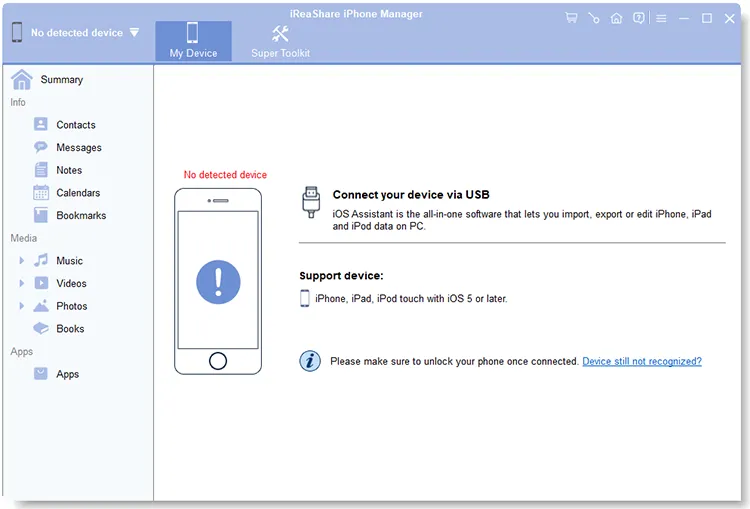
Install iReaShare iPhone Manager on your computer after downloading it. Then launch it and connect your iPad to your computer using a USB cable.
-
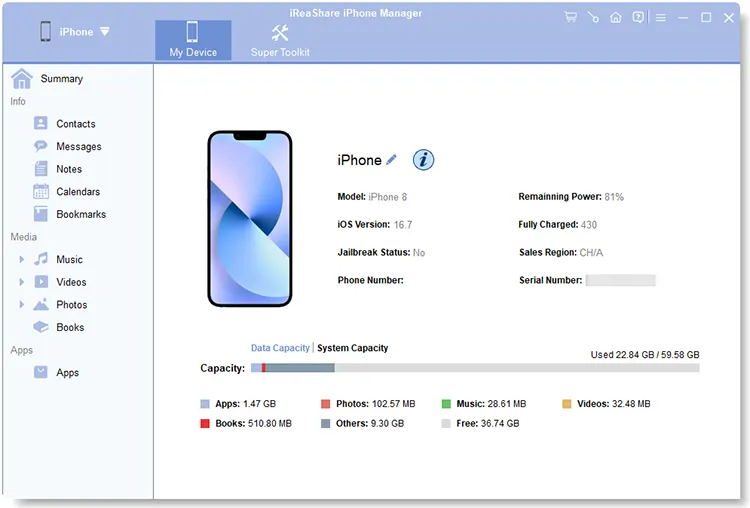
The software will recognize your iOS device after you choose "Trust" on the pop-up. Then click the "Music" tab.
-
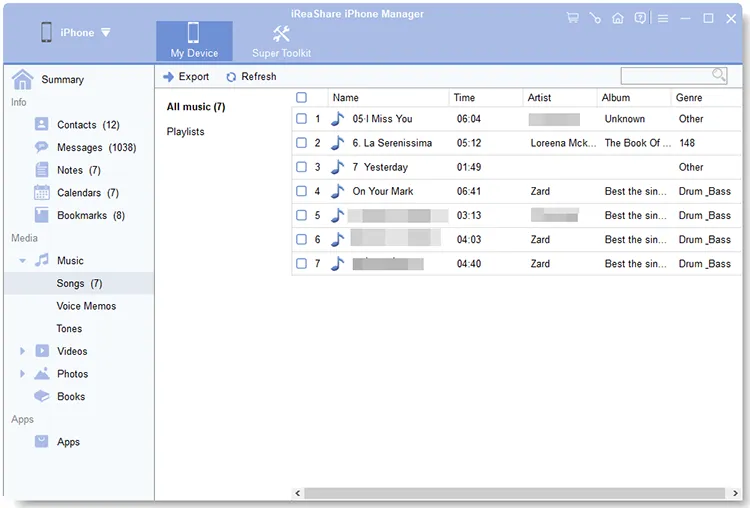
Select the songs you wish to transfer, and then click "Export" and choose the destination folder on your computer to save your music.
You can watch the video guide to transfer your iPad music to a computer:
Part 2: How to Export Music from iPad to Computer via iTunes or Finder
For official Apple-supported methods, you can use iTunes (Windows/macOS Mojave or earlier) or Finder (macOS Catalina and later). However, they can transfer the music purchased from iTunes Store. Besides, their syncing feature can work for computer-to-iPad transfer, but not for the reverse, including the Apple Devices app.
To get songs from an iPad to a computer via iTunes or Finder:
-
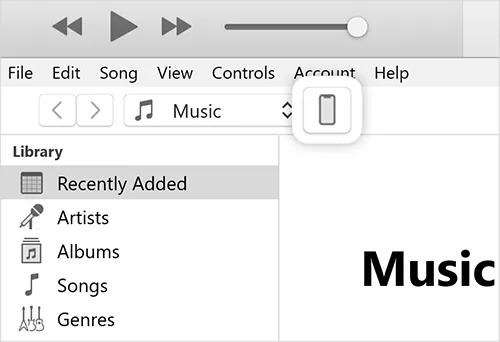
Connect your iPad to your computer. Then open iTunes or Finder, and select your device from the sidebar or device menu.
-
If you are trying to move purchased music, go to "Account" > "Authorizations" > "Authorize This Computer".
-
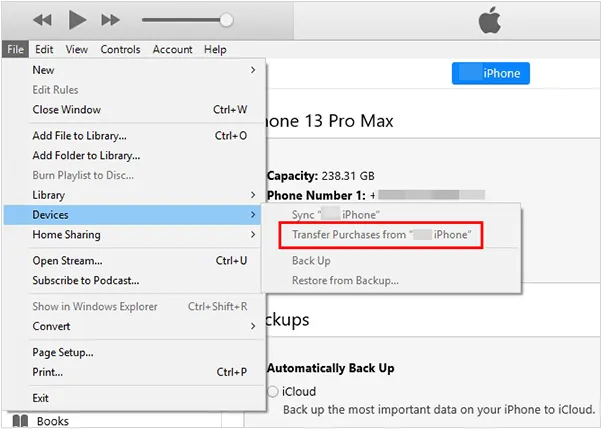
Select "File" > "Devices" > "Transfer Purchases from [Device Name]". This will move music bought from the iTunes Store to your computer.
Part 3: How to Import Music from iPad to Computer via Send Anywhere
If your music files are downloaded from third-party platforms or websites, and they are saved on the Files app on your iPad, you can use Send Anywhere to send your music from your iPad to your computer.
Here are the steps:
-
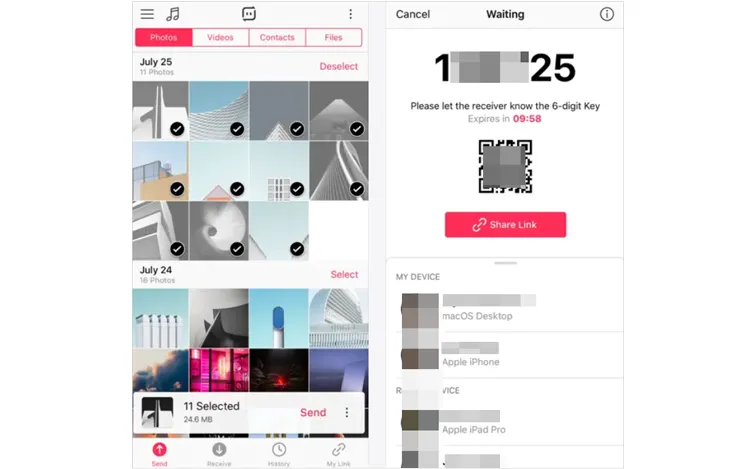
Download and open the Send Anywhere app on your iPad, and choose the "Send" menu.
-
Click the "Files" option, and select the desired music files. Then tap "Send" to generate a 6-digit code or a QR code.
-
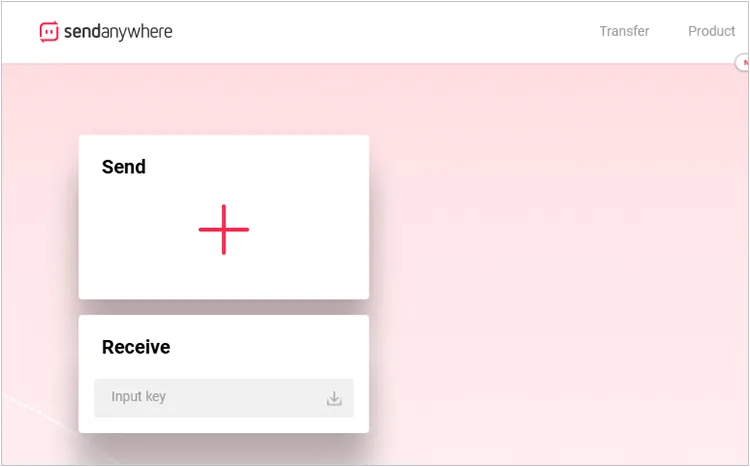
Go to the Send Anywhere website on your computer, and tap enter the input key to the "Receive" area. Then the songs will be sent to your computer.
Part 4: How to Send Music from iPad to Computer via AirDrop (Mac Only)
If you are using a Mac and your iPad, AirDrop is the quickest way to share individual music files. However, this wireless method is not suitable for bulk transfer.
To send music from an iPad to a Mac computer via AirDrop:
-
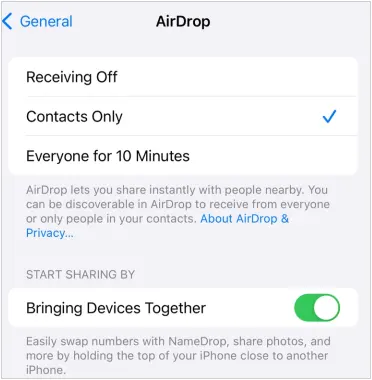
Ensure both devices have Wi-Fi and Bluetooth turned on, enable AirDrop, and choose "Everyone for 10 Minutes". Then open the Files or Music app on your iPad.
-
Select the song file and tap the "Share" button. Tap "AirDrop" and select your Mac from the list.
-
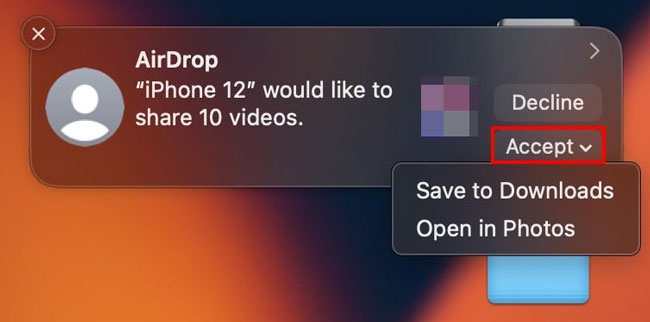
Accept the file on your computer. The song will be sent to your "Downloads" folder.
Part 5: How to Take Music from iPad to Computer via AirMore
AirMore is a wireless, browser-based management tool. It can help you transfer your downloaded music files from your iOS device to your computer without a USB cable.
Here's how:
-
Connect both your iPad and computer to the same Wi-Fi network. Then visit the AirMore web page on your computer.
-
Open the AirMore app on your iPad and scan the QR code displayed on your screen to connect.
-
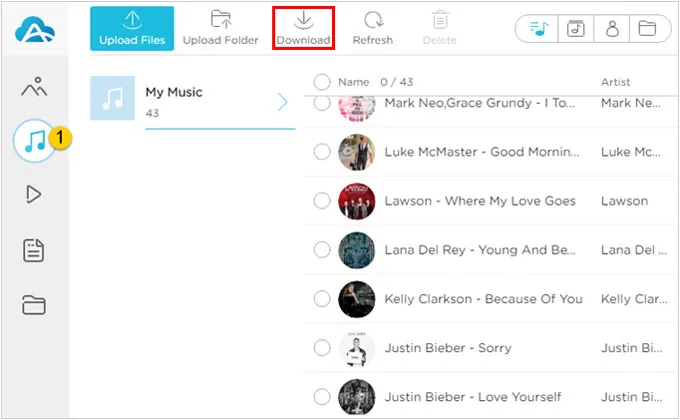
Navigate to the "Music" section in the web interface, select your files, and click "Download".
Part 6: How to Put Songs from iPad to Computer via USB Stick
Generally, you cannot simply plug a USB stick into an iPad and drag-and-drop music because of iOS file system restrictions. However, if you have a file manager app that supports external storage (like Files).
To put songs from an iPad to a computer via a USB stick:
-
Connect the USB drive to your iPad using a Lightning or USB-C adapter. Then open the Files app on your iPad.
-
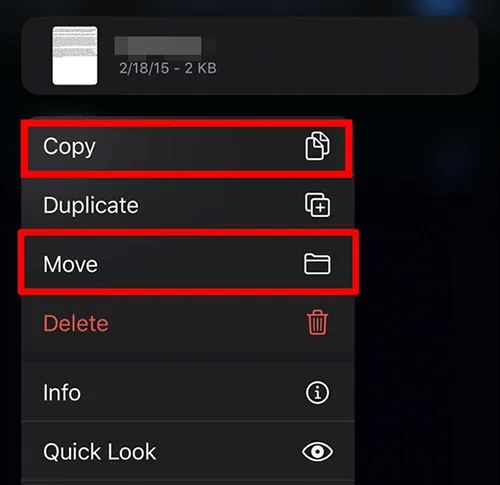
Navigate to the folder containing your music files. Long-press the files, select "Move", and choose the USB drive as the destination.
-
Once complete, unplug the drive and plug it into your computer to copy the files over.
Part 7: Q&A About Transferring Music from iPad to Computer
Q1: Can I plug an iPad into a PC and transfer music files directly?
No. Unlike a standard USB flash drive, an iPad does not show up as a standard "Mass Storage Device" for your music library. You must use specialized software (like iTunes or a third-party manager) to interface with the files.
Q2: Can I transfer non-purchased music from iPad to computer?
Yes, but it is more difficult. Apple restricts the direct transfer of music not purchased through the iTunes Store. Using third-party software like iReaShare iPhone Manager is the most efficient way to bypass these restrictions.
Q3: Will syncing erase my music?
If you use "Sync" features in iTunes or Finder, the computer library can overwrite the iPad library. Always be careful when syncing; it is often safer to use "Export" or "Transfer" features rather than "Sync" to ensure your files are copied rather than replaced.
Conclusion
There are multiple ways to transfer music from an iPad to a computer, each suited to different needs. If you want a straightforward and flexible solution, iReaShare iPhone Manager is often the best choice. It supports selective transfer and bulk transfer. For users who prefer official methods, iTunes, Finder, or the Apple Devices app provide reliable options - though with some limitations.
Download for Win Download for Mac
Related Articles
How to Transfer Photos from iPad to Flash Drive (4 Solutions)
How to Clear iPad to Sell Step by Step (4 Methods for Data Erasure)
How to Transfer Data from iPad to iPad Seamlessly | Comprehensive Tutorial
Seamlessly Transfer Files from Android to iPad with 6 Methods

