

TL;DR:
If your iPhone won't turn on, the problem may be caused by a drained battery, charging issues, an iOS system crash, or hardware damage. You can try these solutions to get your iPhone working again:
- Charge your iPhone for at least 30 minutes and check the charging accessories.
- Force restart the device or let it cool down if it is overheating.
- Use Recovery Mode to update iOS without intentionally erasing your data.
- Try an iOS system repair tool like Fixppo if the problem is software-related.
- Restore your iPhone or use DFU Mode as a last resort, or contact Apple Support if you suspect hardware damage.
An iPhone that won't turn on can be frustrating, especially when the screen remains completely black even after pressing the Power button. Sometimes, the device may show the Apple logo but fail to start, or it may not respond to charging at all. These symptoms can make it difficult to determine whether the problem is related to the battery, display, or iOS system.
Fortunately, an iPhone that won't turn on does not always have a serious hardware problem. In many cases, you can troubleshoot it at home using a few simple methods. Below, we'll explain the possible causes and walk you through 8 practical solutions, starting with basic checks and moving on to more advanced repair options.
Part 1. Why Won't My iPhone Turn On?
Several issues can prevent an iPhone from starting normally. Identifying the possible cause can help you choose an appropriate solution.
- Dead or faulty battery: If the battery is completely drained, the iPhone may not have enough power to start. An aging or damaged battery may also fail to supply sufficient power.
- Charging problems: A defective charging cable, power adapter, or dirty charging port can prevent the battery from charging properly.
- iOS system errors: A system crash, interrupted iOS update, or corrupted firmware may cause the iPhone to freeze during startup or remain on a black screen.
- Overheating: When an iPhone gets too hot, its built-in temperature protection may temporarily limit certain functions or prevent normal operation.
- Hardware damage: Physical impact, liquid exposure, or damaged internal components, such as the battery, charging connector, or logic board, can stop the device from turning on.
Part 2. How to Fix an iPhone That Won't Turn On?
Try the following methods in order. Start with charging and force restarting your device before moving on to system-level solutions. If your iPhone contains important data, prioritize methods that do not erase it.
2.1 Charge the iPhone
If your iPhone won't turn on, the battery may simply be completely drained. Even if you connected it to a charger, it may need some time before displaying the charging screen.
Step 1. Connect your iPhone to a working power adapter using a compatible charging cable.
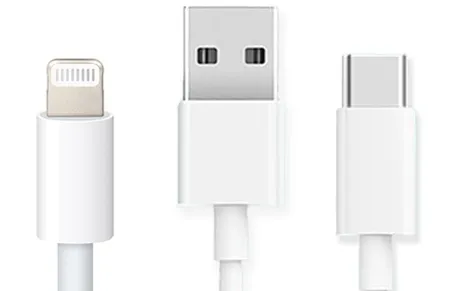
Step 2. Check the charging cable, adapter, and power outlet. If possible, try another cable and adapter to rule out accessory problems.
Step 3. Leave your iPhone charging for at least 30 minutes. If it still doesn't respond, continue charging for up to an hour.
Step 4. After charging, try turning on your iPhone by pressing and holding the Side button until the Apple logo appears.
If you see a low-battery icon, leave the device connected until it has enough power to start. Also, check the charging port for visible debris. If necessary, have it cleaned safely rather than inserting sharp or metallic objects.
2.2 Force Restart iPhone
A temporary iOS crash can make your iPhone unresponsive even when the battery still has power. In this case, a force restart may help restore normal operation. Unlike a factory reset, this process does not erase your personal data.
The button combination depends on your iPhone model:
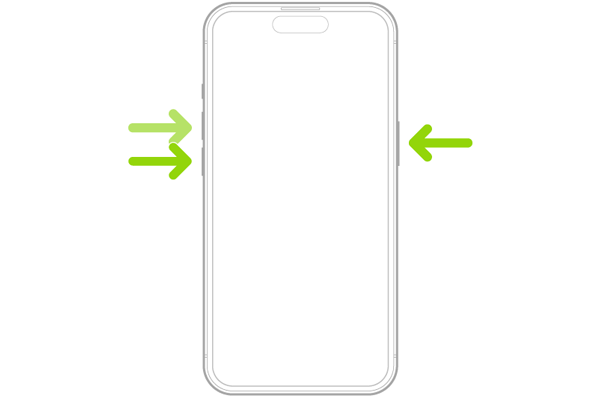
iPhone 8 and later, including iPhone SE (2nd generation and later):
Quickly press and release the "Volume Up" button, then quickly press and release the "Volume Down" button. Next, press and hold the "Side" button until the Apple logo appears.
iPhone 7 and iPhone 7 Plus:
Press and hold both the "Volume Down" and "Side" buttons simultaneously until the Apple logo appears.
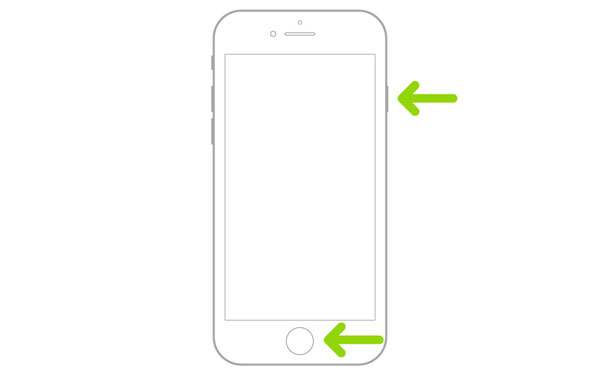
iPhone 6s and earlier, including iPhone SE (1st generation):
Press and hold both the "Home" and "Side" (or Top) buttons until the Apple logo appears.
Keep holding the required buttons even if the screen remains black initially. If the Apple logo appears, release the buttons and wait for the device to start.
2.3 Cool Down iPhone
An iPhone exposed to high temperatures may temporarily stop functioning normally. If your device feels unusually hot, overheating could be contributing to its startup problem.
Step 1. Disconnect the charger and any connected accessories.
Step 2. Remove the phone case if it is trapping heat.
Step 3. Place your iPhone in a cool, dry, well-ventilated area away from direct sunlight.
Step 4. Allow it to return to a normal temperature naturally, then try charging or turning it on again.
Do not put your iPhone in a refrigerator or freezer to cool it down, as sudden temperature changes and condensation may cause additional damage. If it continues overheating or shows signs of battery swelling, stop using it and seek professional service.
2.4 Update iOS in Recovery Mode
If your iPhone still won't turn on after charging and force restarting, an iOS system problem may be preventing it from booting. Recovery Mode allows you to reinstall iOS through a computer. Choosing the Update option can help repair the system while attempting to preserve your personal data.
Step 1. Connect your iPhone to a Mac or Windows PC using a USB cable.
Step 2. Open Finder on a Mac running a supported macOS version, or open the Apple Devices app on Windows. You can also use iTunes on a compatible computer.
Step 3. Put your iPhone into Recovery Mode using the button combination for your model:
iPhone 8 and later, including iPhone SE (2nd generation and later): Quickly press and release "Volume Up", quickly press and release "Volume Down", then press and hold the "Side" button until the Connect to Computer screen appears.
iPhone 7 and iPhone 7 Plus: Press and hold the "Side" and "Volume Down" buttons together until the Connect to Computer screen appears.
iPhone 6s and earlier, including iPhone SE (1st generation): Press and hold the "Home" and "Side" (or Top) buttons together until the Connect to Computer screen appears.
Step 4. When your computer detects the iPhone, a prompt will offer the Update and Restore options. Select "Update".
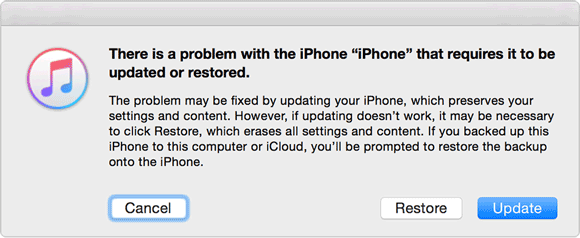
Step 5. Wait for the computer to download and reinstall the iOS software. Keep your iPhone connected throughout the process.
Once the update is complete, check whether your iPhone can start normally. If the download takes longer than 15 minutes and your device exits Recovery Mode, allow the download to finish and then repeat the Recovery Mode steps.
2.5 Use an iOS System Repair Tool
If the Recovery Mode update doesn't resolve the issue, or your iPhone continues to experience startup problems caused by iOS errors, you can try a dedicated iOS system repair tool. One option is Fixppo, which provides repair modes for various iPhone system issues, including black screens, boot loops, Apple logo freezes, and startup failures.
Its Standard Mode is designed to repair common iOS problems without intentionally erasing existing data, making it a possible next step before trying a full restore.
Key Features of Fixppo:
- Repairs various iOS system problems, including an iPhone that won't turn on, a black screen, and a device stuck on the Apple logo.
- Provides Standard Mode and Advanced Mode for different repair situations.
- Supports downloading firmware packages for compatible iPhone models and iOS versions.
- Offers additional functions for entering and exiting Recovery Mode.
To try repairing your iPhone with Fixppo, follow these steps:
-
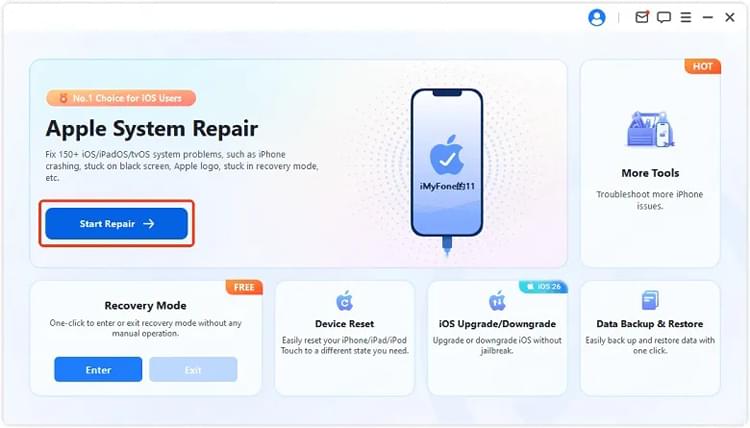
Install and launch Fixppo on your Windows PC or Mac. On the main interface, select "Apple System Repair", then connect your iPhone to the computer using a USB cable.
-
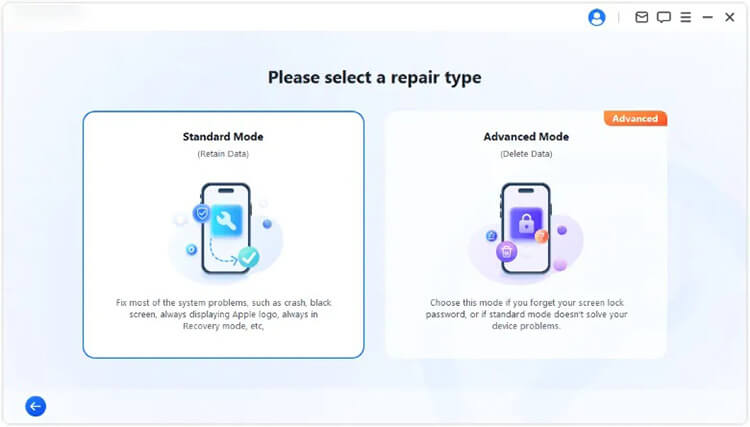
When the available repair options appear, select "Standard Mode". This mode is designed to fix iOS system issues while preserving your existing iPhone data.
-
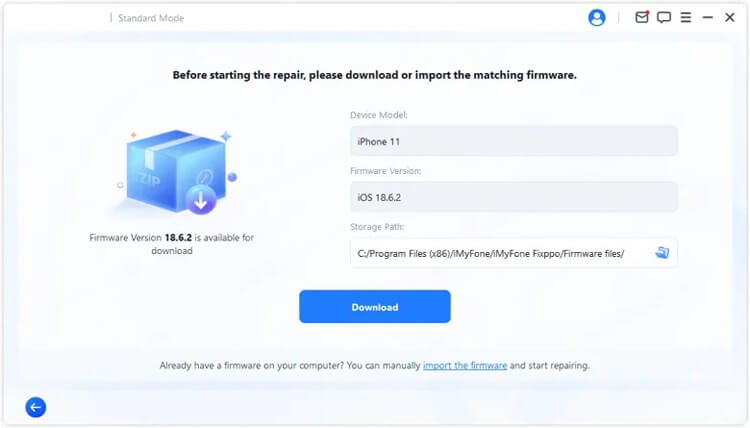
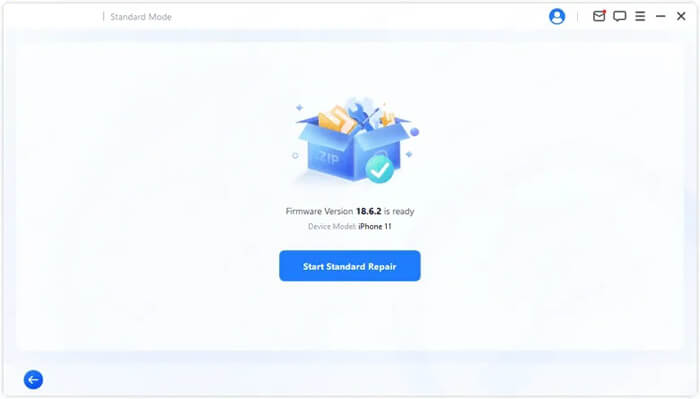
Check your iPhone's device information displayed by the program. Make sure the details are correct, then download the corresponding firmware package. Wait for Fixppo to download and verify the firmware before proceeding.
-
Once the firmware verification is complete, click "Start Standard Repair" to begin repairing the iOS system. Keep your iPhone connected to the computer and do not interrupt the process until the repair is finished.
2.6 Restore iPhone in Recovery Mode
If updating iOS in Recovery Mode fails, restoring your iPhone may be another option. This process reinstalls iOS and can resolve more serious software problems that prevent the device from starting.
However, unlike the Update option, Restore erases all data and settings on your iPhone. Only proceed if you have a backup or accept the possibility of losing your data.
Step 1. Connect your iPhone to your computer and open Finder, Apple Devices, or compatible iTunes.
Step 2. Enter Recovery Mode using the button combination described in Section 2.4.
Step 3. When your computer detects the device and displays the available options, select "Restore" instead of Update.
Step 4. Confirm your choice and wait while the computer downloads the required iOS software and restores your iPhone.
Step 5. Once the process finishes, follow the setup instructions on your iPhone. If available, restore your personal data from an iCloud or computer backup.
2.7 Restore iPhone with DFU Mode
DFU (Device Firmware Update) Mode is a deeper device recovery state that allows a computer to communicate with an iPhone and reinstall its firmware. It may be useful when standard Recovery Mode restoration cannot resolve a serious software problem.
However, DFU restoration is more complicated and typically erases all data on the device. It should be considered a last-resort software troubleshooting option, especially if you have already tried the previous methods.
Step 1. Connect your iPhone to a computer using a USB cable and open Finder, Apple Devices, or compatible iTunes.
Step 2. Put your iPhone into DFU Mode. The button sequence varies by model, so follow the instructions for your specific device. For newer models, this generally involves pressing the "Volume Up" and "Volume Down" buttons in sequence, followed by holding the "Side" button and using a combination of the "Side" and "Volume Down" buttons.
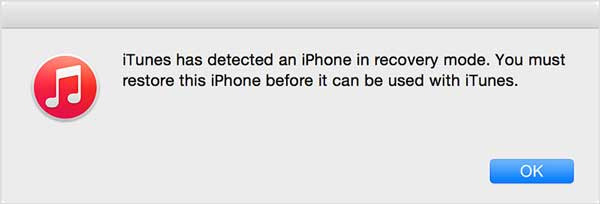
Step 3. When the computer detects an iPhone in recovery mode, confirm that you want to restore the device.
Step 4. Wait for the computer to download and install the appropriate firmware.
Step 5. After the restoration finishes, set up your iPhone and restore a backup if one is available.
DFU Mode and Recovery Mode are different. The exact DFU button sequence depends on the iPhone model, and the computer may describe the detected device as being in recovery mode. Make sure you follow a model-specific DFU tutorial before proceeding.
2.8 Contact Apple Support
If none of the above methods work, your iPhone may have a hardware problem that cannot be fixed through software troubleshooting. A damaged battery, charging port, display, or logic board could prevent the device from powering on.
You should also seek professional assistance if your iPhone has been exposed to liquid, suffered a serious drop, or shows signs of battery swelling. Visit an Apple Store or an Apple Authorized Service Provider to have your device inspected. You can also contact Apple Support online to check available repair options and service costs.
Before sending your iPhone for repair, explain the symptoms and mention any troubleshooting steps you have already tried. If your data is important, tell the technician that you want to preserve it whenever possible. Avoid authorizing a device replacement or data-erasing repair until you understand the potential impact on your information.

Conclusion
In conclusion, an iPhone that won't turn on can result from various issues, ranging from a drained battery to serious system or hardware failures. Before considering professional repair, try the troubleshooting methods above to identify and resolve the problem. If an iOS system error is preventing your device from starting, Fixppo may also help repair the system without intentionally erasing your existing data. However, if none of these solutions work, contact Apple Support for further diagnosis and repair.
Related Articles
How to Fix iPhone Frozen During Update? Solved with 7 Solutions
How to Fix iPhone Stuck in SOS Mode Without Hassle [7 Ways]