


TL;DR:
You can restore iPhone from iCloud backup during the initial setup or after setup by erasing your device and starting the setup process again. If you only need certain files, Data Recovery provides an alternative way to access and recover supported data from your iCloud account. Choose the appropriate method based on whether you want to restore the entire backup or retrieve individual files.
iCloud Backup provides a convenient way to keep a copy of your iPhone data, including device settings, app data, messages, and other supported content. It can be especially useful when switching to a new iPhone, setting up a replacement device, or recovering information after a factory reset. However, restoring a backup is not always as straightforward as expected, particularly if your iPhone has already been set up or you only want to retrieve a few files.
So, how do you restore iPhone from iCloud backup in different situations? In this article, we'll walk you through Apple's official restoration methods and introduce an alternative for recovering specific data without erasing your current iPhone.
Part 1. How to Restore iPhone from iCloud Backup During Setup
If you have a new iPhone or a device that has not yet completed its initial setup, you can restore an existing iCloud backup directly through the Setup Assistant. This is Apple's standard method for transferring your previous iPhone data, settings, and supported apps to another device.
Before proceeding, make sure you have an available iCloud backup, know the Apple account credentials associated with it, and have access to a stable Wi-Fi network. You should also check that your backup is compatible with the iOS version on your iPhone.
Steps to restore iPhone from iCloud backup during setup:
Step 1. Turn on your new or erased iPhone. When the Hello screen appears, follow the on-screen instructions to begin setting it up.
Step 2. Connect your iPhone to a stable Wi-Fi network and continue with the initial setup.
Step 3. When you reach the Transfer Your Apps & Data screen, select "From iCloud Backup".
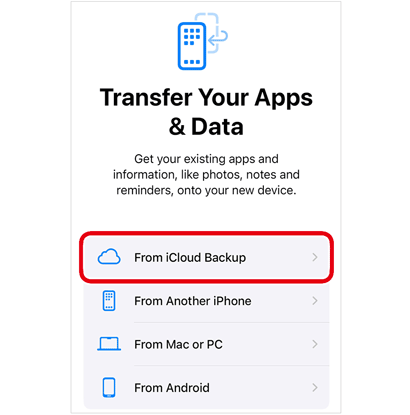
Step 4. Sign in to your Apple account to access your available iCloud backups.
Step 5. Review the backup dates and sizes, then select the backup you want to restore.
Step 6. If prompted, sign in to your Apple account again to restore your apps and purchases.
Step 7. Keep your iPhone connected to Wi-Fi and a power source while the restoration proceeds.
Step 8. Follow the remaining setup instructions to access your iPhone.
Once the initial restoration is complete, your device will be ready to use. However, photos, apps, and other content may continue downloading in the background, depending on the backup size and network speed.
If your iPhone asks you to install a newer iOS version before restoring the backup, follow the on-screen instructions to update the device first.
Part 2. How to Recover Data from iCloud Backup After Setup
Have you already finished setting up your iPhone but now want to restore an older iCloud backup? You can still do this through Apple's built-in settings. However, unlike restoring a backup during the initial setup, this process requires erasing your iPhone first.
Before starting, make sure you have saved any new photos, messages, or other important files that are not included in the backup you intend to restore. Otherwise, these newer items may be lost when you erase the device.
How to recover data from iCloud after setting up your iPhone?
Step 1. Open the Settings app on your iPhone.
Step 2. Go to "General" and scroll down to select "Transfer or Reset iPhone".
Step 3. Tap "Erase All Content and Settings".
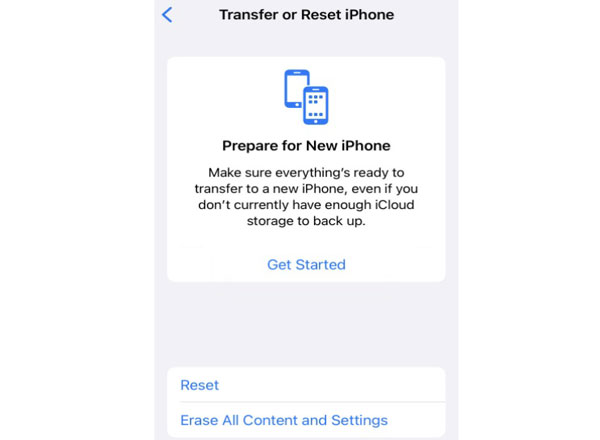
Step 4. Review the information displayed on the screen and tap "Continue" to confirm.
Step 5. Enter your iPhone passcode or Apple account password if requested, then wait for the device to erase and restart.
Step 6. When the Hello screen appears, follow the setup instructions and connect to Wi-Fi.
Step 7. On the Transfer Your Apps & Data screen, select "From iCloud Backup".
Step 8. Sign in to your Apple account and choose the iCloud backup you want to use.
Step 9. Keep your iPhone connected to Wi-Fi and power until the restoration process finishes.
Afterward, your iPhone will return to the state captured in the selected backup, as far as the backed-up content is concerned. Some content may still need time to download or sync.
Part 3. How to Restore iPhone from iCloud Backup Without Resetting [Recommended]
If you want to retrieve specific files from an iCloud backup without erasing your current iPhone, Data Recovery is a useful option. Its Recover from iCloud Backup feature allows you to access an available iCloud backup, preview its contents, and select the files you want to recover to your computer.
Unlike Apple's built-in restoration process, which replaces your iPhone's current contents with the selected backup, Data Recovery lets you export specific supported data without restoring the entire backup to your device. This is particularly helpful when you only need certain messages, contacts, photos, or other backed-up information.
Key Features of Data Recovery:
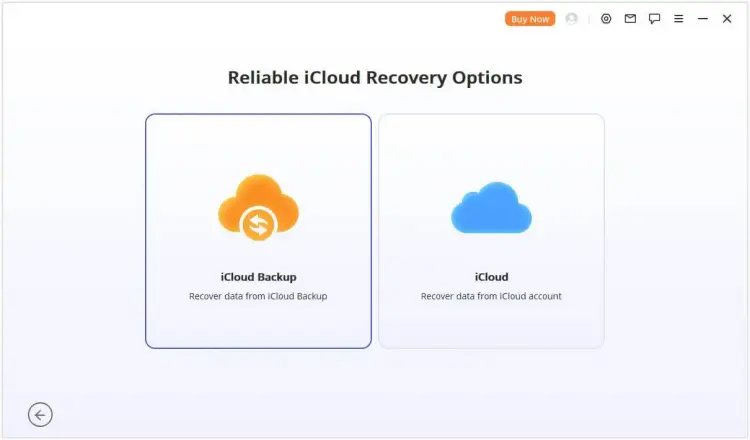
- Offers two iCloud recovery options: recover from iCloud account and recover from iCloud backup.
- Supports data recovery from iOS devices and iTunes backups.
- Supports recovering different types of data, such as messages, contacts, photos, notes, and more.
- Lets you preview available files and choose specific items for recovery.
- Exports selected data to your computer for easy access and management.
How to restore iPhone from iCloud backup after setting up without resetting?
-
Open Data Recovery on your computer. From its main interface, enter the "Recover Data from iCloud" module and select "iCloud Backup".
-
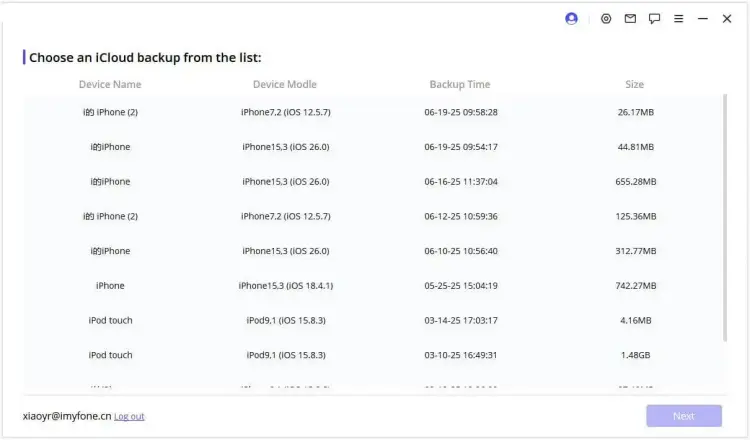
Check the instructions displayed by the program and proceed according to your iPhone's current status. Once the available backups appear, pick the one you need. Allow the program to retrieve its details, and plug your iPhone into the computer when requested.
-
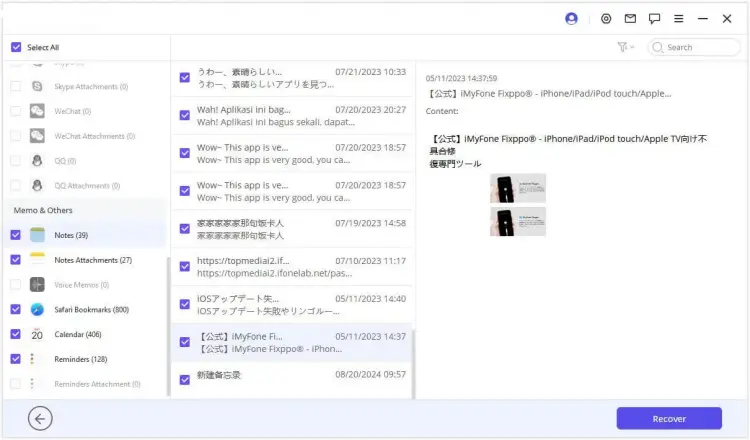
Once the backup contents are displayed, browse through the available files and mark the items you want to save, such as messages. Then, click "Recover" to export your selections to the computer.
FAQs About Recovering Data from iCloud
1. Can I restore only certain things from an iPhone backup?
Apple's built-in iCloud restore process does not let you select individual files or data categories from a full device backup. Instead, it restores the backup as a whole during the iPhone setup process.
If you only need specific information, you can check whether it is available through iCloud syncing or use a compatible third-party recovery tool to preview and export supported data. For example, Data Recovery allows you to select certain available data types and recover individual files from supported iCloud sources.
2. Will restoring an iCloud backup erase existing data?
Yes. Restoring a complete iCloud backup through Apple's built-in method requires erasing your iPhone first, which removes its existing content and settings before applying the selected backup. However, if you only want to retrieve certain files rather than restore the entire backup, you can use a tool like Data Recovery to preview and export supported data to your computer without erasing your iPhone.
3. How long does it take to restore an iPhone from iCloud backup?
The restoration time varies depending on the backup size, Wi-Fi speed, and the amount of content that needs to be downloaded. A smaller backup may finish relatively quickly, while a backup containing many photos, videos, and apps can take considerably longer.
You may also be able to use your iPhone before all content has finished downloading. Keep it connected to Wi-Fi and power so the remaining apps and files can continue to transfer in the background.
Conclusion
Restoring an iPhone from iCloud backup is a convenient way to bring back your previous data when setting up a new or erased device. You can complete the process during initial setup or erase an already configured iPhone to restore an older backup. If you only need certain files, Data Recovery offers another option for accessing and exporting supported iCloud data without resetting your device. Choose the method that best matches your recovery needs and make sure your important current data is backed up before making changes.
Related Articles
How to Recover Notes from iCloud: 3 Ways to Get Them Back
How to Back Up iPhone to iCloud: Complete Backup Guide 2026
How to Restore iPhone from Backup? iCloud & iTunes Methods
How to Retrieve Deleted Contacts on iPhone Without Backup (Resolved)