


TL;DR:
There are three main ways to restore an iPhone from backup, depending on whether you need all your previous data or just specific files:
- iCloud Backup: Restore your entire iPhone backup wirelessly during the device setup process.
- iTunes Backup: Use iTunes, Finder, or Apple Devices to restore a complete backup stored on your computer.
- Data Recovery: Preview and selectively recover supported data from iTunes or iCloud backups instead of restoring the entire backup at once.
Whether you're switching to a new iPhone, recovering lost files, or bringing back data after a factory reset, having an old backup can make the process much easier. However, choosing the right restoration method is important, especially when you want to keep your existing data while retrieving files from an earlier backup.
If you're wondering how to restore iPhone from backup without losing important information, this article will walk you through the available options, explain what to expect during the process, and help you find a suitable way to get your data back.
- Part 1. Can I Restore My iPhone from a Previous Backup?
- Part 2. How to Restore Backup from iCloud to iPhone?
- Part 3. How to Restore iPhone from an iTunes Backup?
- Part 4. How to Restore iPhone from Backup Selectively?
- Part 5. Which Method Is Better for iPhone Backup Restore?
- FAQs of How to Restore iPhone from Backup
Part 1. Can I Restore My iPhone from a Previous Backup?
Yes. You can restore your iPhone from a previous backup as long as a usable backup is available in iCloud or on your computer. This allows you to bring back previously saved settings, apps, messages, photos, and other supported content.
However, the restoration process depends on the backup type. Apple's built-in iCloud and computer restoration options generally replace the current device setup with the contents of the selected backup. If you don't want to restore everything, you can consider a selective recovery tool to retrieve specific files instead.
Part 2. How to Restore Backup from iCloud to iPhone?
If you've enabled iCloud Backup on your iPhone, you can restore your device wirelessly without connecting it to a computer. This method is especially useful when setting up a new iPhone or recovering data after a factory reset.
Before starting, make sure you have:
- A stable Wi-Fi connection.
- Access to the Apple account used to create the backup.
- Enough available storage and sufficient battery power.
- A valid iCloud backup containing the data you want to restore.
Steps to restore an iPhone from an iCloud backup:
Step 1. Open "Settings" on your iPhone, go to "General" > "Transfer or Reset iPhone", and tap "Erase All Content and Settings". Follow the instructions to erase your device. Skip this step if your iPhone is already on the Hello screen.
Step 2. Turn on your iPhone and follow the initial setup instructions.
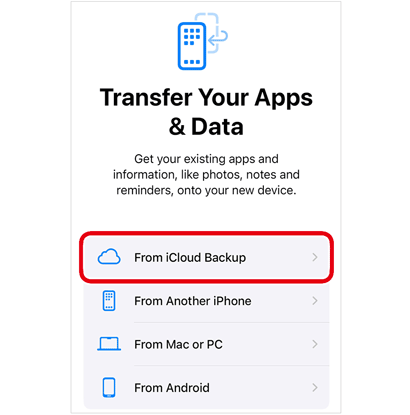
Step 3. When you reach the Transfer Your Apps & Data screen, select "From iCloud Backup".
Step 4. Sign in with the Apple account associated with your backup.
Step 5. Browse the available backups, check their dates and sizes, and select the one you want to restore.
Step 6. Keep your iPhone connected to Wi-Fi and power while the restoration is in progress.
Step 7. Complete the remaining setup instructions. Your apps, photos, and other content may continue downloading in the background.
Once the process is complete, check your iPhone to make sure the required data has been restored.
Limitations:
- You must erase an already configured iPhone before using Apple's standard iCloud backup restoration process.
- You need access to the Apple account associated with the backup.
- The restoration time depends on the backup size and network speed.
- You cannot choose individual files to restore through the standard iCloud restore process.
Part 3. How to Restore iPhone from an iTunes Backup?
If you've backed up your iPhone to a computer using iTunes, you can restore it from that backup whenever necessary. This option is particularly useful if you have a local backup or prefer not to rely on an internet connection for the entire restoration process.
On newer Windows computers, you may use the Apple Devices app instead of iTunes. On a Mac running macOS Catalina or later, Finder handles iPhone backups and restoration.
Steps to restore an iPhone from an iTunes backup:
Step 1. Open the latest version of iTunes on your Windows PC. If you're using macOS Catalina or later, open Finder instead. Windows users who manage their devices through Apple Devices can open that app.
Step 2. Connect your iPhone to the computer using a USB cable.
Step 3. Unlock your iPhone and tap "Trust This Computer" if prompted. Enter your passcode if necessary.
Step 4. Select your iPhone in iTunes, Finder, or Apple Devices.
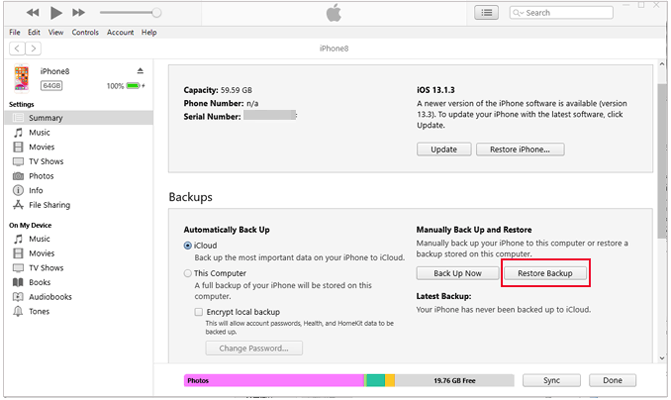
Step 5. In iTunes, open the "Summary" section. In Finder or Apple Devices, select your device and locate the backup restoration option.
Step 6. Click "Restore Backup" and choose the backup you want to use based on its date and size.
Step 7. If your backup is encrypted, enter its password when prompted.
Step 8. Click "Restore" and wait for the process to finish. Keep your iPhone connected while it restarts and syncs with the computer.
After the restoration is complete, you can disconnect your iPhone and check whether your previous data is available.
Limitations:
- You need access to the computer containing the backup.
- Encrypted backups require the correct password.
- Restoring a complete backup replaces the current device data with the backup contents.
- You cannot select individual files through Apple's standard iTunes or Finder restoration process.
Part 4. How to Restore iPhone from Backup Selectively?
What if you only want to recover a few photos, contacts, messages, or other important files from an iPhone backup? Restoring the entire backup just to retrieve a handful of items can be inconvenient, especially if you've added new data to your device since the backup was created.
In this situation, you can try Data Recovery, an iPhone data recovery tool that supports recovering data from iTunes and iCloud backups. It allows you to scan supported backup data, preview the available files, and select the items you want to recover.
Instead of going through Apple's full-device restoration process, you can use its recovery features to extract selected files and save them to your computer. Depending on the recovery mode and supported workflow, you may also have the option to recover data to a connected iOS device.
Key Features of Data Recovery
- Supports data recovery from iOS devices, iTunes backups, and iCloud-related sources.
- Supports multiple data categories, including photos, videos, messages, contacts, notes, and more.
- Lets you scan and preview available backup data before recovery.
- Allows you to select specific files instead of recovering everything.
- Provides options to save recovered files to a computer or transfer supported data to a connected device.
Option 1. Restore iPhone Data from an iTunes Backup
If you have an iTunes backup saved on your computer, Data Recovery can scan it and help you retrieve the files you need.
Steps to recover iPhone data from an iTunes backup:
-
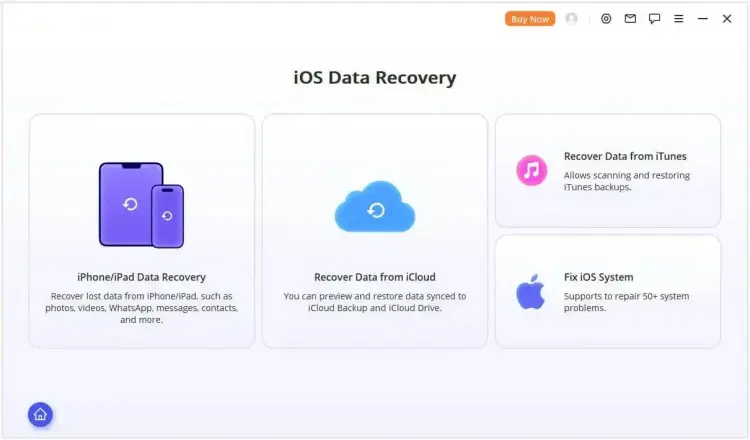
Download and launch Data Recovery on your computer, then select the "Recover Data from iTunes" module.
-
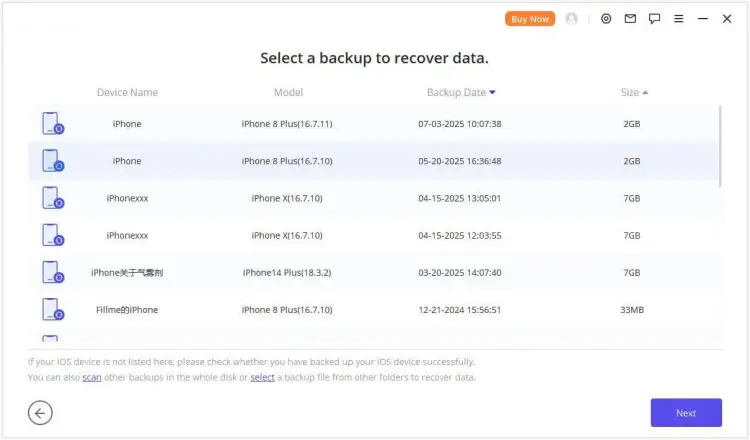
Choose the iTunes backup file containing the data you want to recover and click "Next".
-
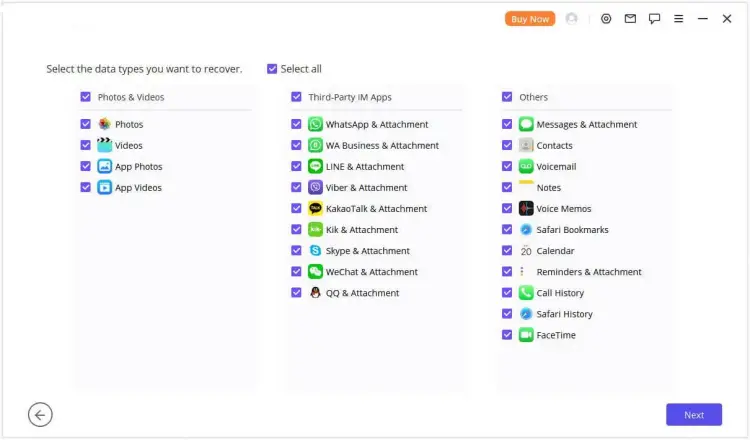
Select the data types you want to retrieve, such as Messages, photos, or contacts, and click "Scan".
-
Preview the scanned files and filter the results if necessary. Select the items you want to recover, then click "Recover to Computer" or "Recover to Device", depending on your needs.

Option 2. Restore iPhone Data from an iCloud Backup
If your backup is stored in iCloud, Data Recovery also provides an iCloud recovery option. Depending on the available recovery source, you can access supported iCloud data or retrieve data from an iCloud backup.
Steps to recover iPhone data from an iCloud backup:
-
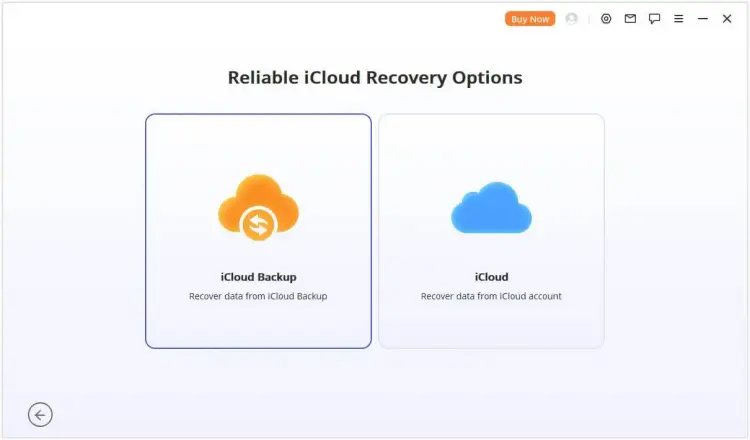
Launch Data Recovery, select the "Recover Data from iCloud" module, and choose "iCloud Backup".
-
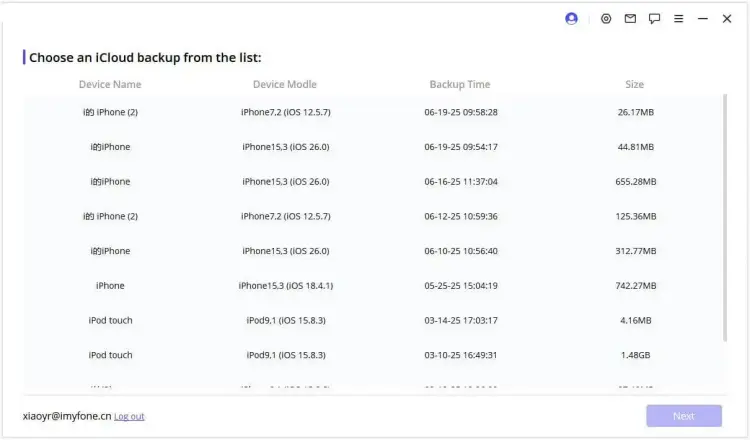
Follow the instructions according to your iPhone's current status, then select an available iCloud backup. Wait for the backup information to load and connect your iPhone to the program when prompted.
-
Preview the available backup data, select the files you want to retrieve, such as messages, and click "Recover" to export the selected items.

Limitations:
- You need a computer to run the desktop recovery program.
- The available data types depend on the backup source, iOS version, and recovery mode.
- Encrypted iTunes backups require the correct encryption password.
- The free trial allows you to scan and preview data, while full recovery requires a paid version.
Part 5. Which Method Is Better for iPhone Backup Restore?
The best way to restore an iPhone from backup depends on how much data you need and where your backup is stored. iCloud is convenient for wireless full-device restoration, while iTunes or Finder is suitable for restoring a local computer backup. If you only need certain files, Data Recovery offers more flexibility through its preview and selective recovery features.
Here's a quick comparison to help you decide:
| Feature | iCloud Backup | iTunes Backup | Data Recovery |
|---|---|---|---|
| Backup source | iCloud | Computer | iCloud / iTunes |
| Requires a computer | No | Yes | Yes |
| Requires erasing an already set-up iPhone | Yes | Generally yes | No |
| Selective data recovery | No | No | Yes |
| Preview backup files | No | No | Yes |
| Best for | Wireless full restoration | Local full restoration | Retrieving specific supported files |
FAQs of How to Restore iPhone from Backup
1. Will restoring an iPhone from backup delete everything?
Restoring an iPhone from an iCloud or iTunes backup through Apple's standard process requires erasing or replacing the current device setup. Any data created after the selected backup that isn't saved elsewhere may be lost.
If you use a selective recovery tool such as Data Recovery to export supported files to a computer, you can retrieve those files without performing a full-device restoration. However, always back up your current iPhone data before using any recovery or transfer feature.
2. What's the difference between restore iPhone and restore backup?
Restore iPhone generally refers to erasing or reinstalling the device's software and returning it to factory settings, depending on the operation you choose. Restore backup means loading previously saved data, settings, and other content from an iCloud or computer backup onto your iPhone.
In simple terms, restoring an iPhone may remove existing content, while restoring a backup brings previously saved content back to the device.
3. How long should it take to restore your iPhone?
The time required depends on the backup size, internet connection, computer performance, and the amount of data being transferred.
An iCloud restoration may take longer if you have a large backup or a slow Wi-Fi connection. A computer backup can be faster in some situations because the data is transferred locally. Even after the initial restoration finishes, apps, photos, and other content may continue downloading or syncing in the background.
Conclusion
Restoring an iPhone from backup is straightforward once you choose the right method. iCloud and iTunes/Finder are suitable for restoring a complete backup, while Data Recovery provides a more flexible option when you only need specific data from an existing backup.
Before starting, check your available backups and save your current iPhone data to avoid losing recent files. Then choose the restoration method that best matches your needs.
Related Articles
How to Recover Deleted Messages on iPhone with/without Backup
How to Recover Notes from iCloud: 3 Ways to Get Them Back
How to Recover Deleted Notes on iPhone (With or Without Backup)
Guide: How to Retrieve Deleted Contacts on iPhone Without Backup (Resolved)