


TL;DR:
Accidentally deleted important notes from your iPhone? You may still have several ways to get them back.
- Check the Recently Deleted folder in the Notes app first.
- Restore notes from iCloud or iTunes backups if available.
- Use Data Recovery to recover deleted notes without restoring the whole iPhone.
Notes on iPhone are often used to save important information, such as work plans, personal reminders, account details, and daily records. However, accidental deletion, system issues, or sync problems can sometimes make valuable notes disappear unexpectedly.
If you are looking for how to recover deleted notes on iPhone, the available method depends on whether the notes are still stored in Recently Deleted, synced with iCloud, included in a backup, or recoverable from the device itself. The following solutions cover different situations, including recovery with and without backups.

Part 1. How to Recover Deleted Notes on iPhone from the Notes App
Before trying more complicated solutions, check the Recently Deleted folder in the Notes app. When you delete a note on iPhone, it is usually moved to this folder temporarily instead of being removed immediately.
Deleted notes remain available in Recently Deleted for up to 30 days. If the note is still there, you can restore it directly without using a backup or third-party tool.
Steps to recover deleted notes from Recently Deleted:
Step 1. Open the Notes app on your iPhone.
Step 2. Tap "Folders" in the upper-left corner.
Step 3. Select "Recently Deleted".
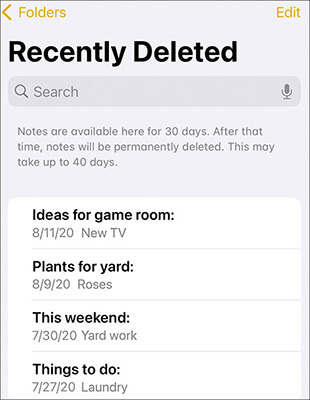
Step 4. Find and open the deleted note.
Step 5. Tap "Move" and choose the folder where you want to restore it. After that, the note will return to the selected Notes folder.
Part 2. How to Recover Deleted Notes from iPhone Without Backup by Data Recovery
If you cannot find the deleted notes in the Recently Deleted folder, or you prefer not to restore your iPhone from an old backup, recovering data directly from your device can be another option. When deleted notes have not been overwritten by new data, recovery software may help locate and restore the missing content.
Data Recovery can scan your iPhone for deleted notes without requiring you to replace the current data with a backup. It allows you to preview recoverable notes and restore only the items you need instead of recovering the entire iPhone. The process does not overwrite existing files on your device.
Key features of Data Recovery:
- Recover deleted messages, notes, photos, contacts, videos, and other lost data from iPhone without a backup.
- Retrieve files lost due to accidental deletion, system errors, factory reset, or other unexpected situations.
- Preview recoverable content before restoration and select only the files you need.
- Recover different types of iPhone data from iOS devices, iCloud accounts, iCloud backups, and iTunes backups based on your situation.
- Support a wide range of iPhone models and iOS versions, including the latest iOS releases.
Note: For mobile users, please register an account first, then download or purchase from your member center to enjoy exclusive discounts.
How do I recover permanently deleted notes on my iPhone?
-
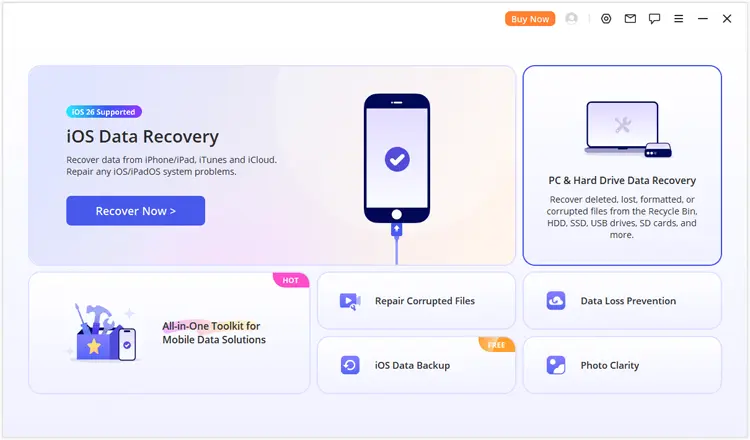
Open Data Recovery on your computer and select the "iOS Data Recovery" mode.
-
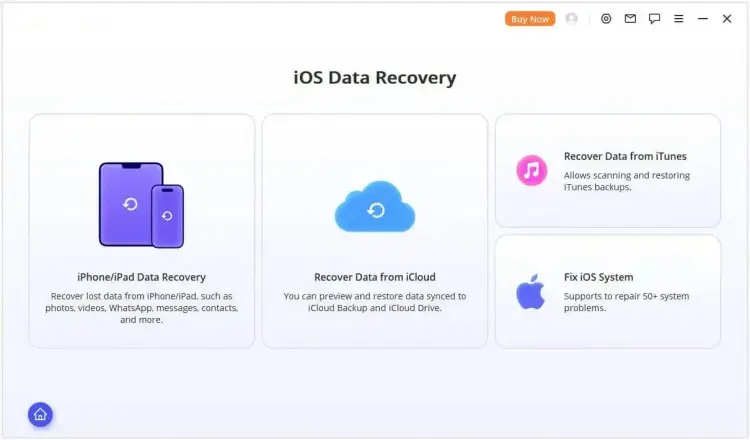
Enter the "iPhone/iPad Data Recovery" module to continue the recovery process.
-
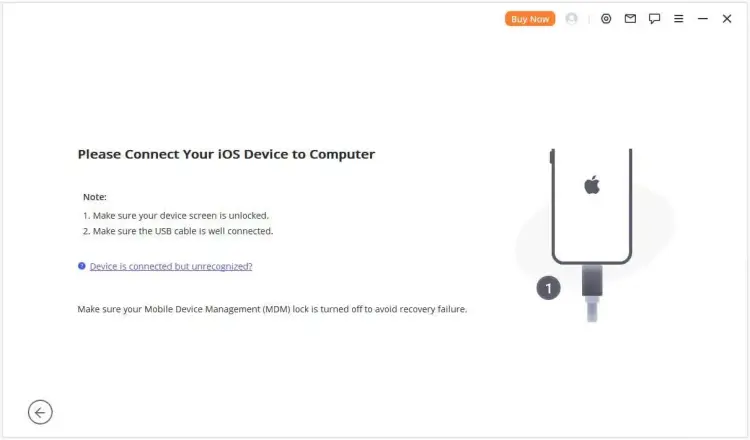
Connect your iPhone to the computer and click "Next" after the device is successfully recognized.
-
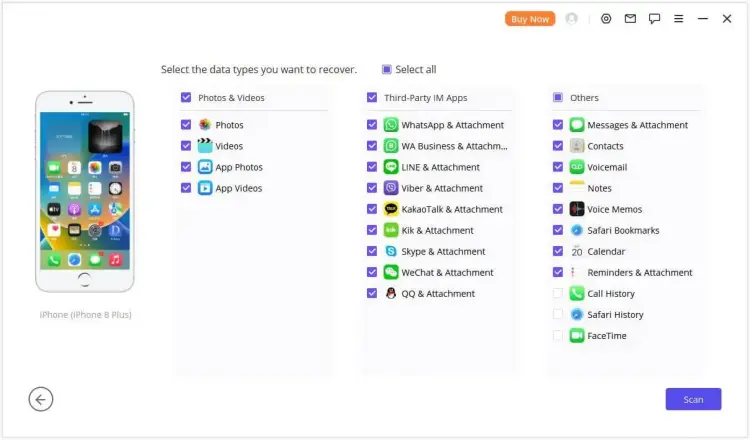
Select "Notes" from the available data types, then click "Scan" to search for deleted notes.
-
Preview the recoverable notes after scanning and select the notes you want to restore. Then choose "Recover to Computer" or "Recover to Device".

Part 3. How to Recover Deleted iPhone Notes Through iCloud
If you use iCloud to sync or back up your iPhone, you may have another chance to recover deleted notes. However, iCloud recovery methods work differently depending on where your notes are stored.
For example, notes synced with iCloud can usually be restored from iCloud.com, while notes included in an iPhone backup require restoring the entire backup. If you want to retrieve notes from iCloud without replacing your current iPhone data, a recovery tool can also help extract specific notes from iCloud data.
3.1 Recover Notes from iCloud.com
When Notes is enabled in iCloud, deleted notes may remain available in the Recently Deleted folder on iCloud.com for a limited time. This method does not require restoring your iPhone and will not affect other data stored on your device.
Steps to recover deleted iPhone notes from iCloud.com:
Step 1. Open iCloud.com in a browser and sign in with your Apple Account.
Step 2. Select "Notes" from the available apps.
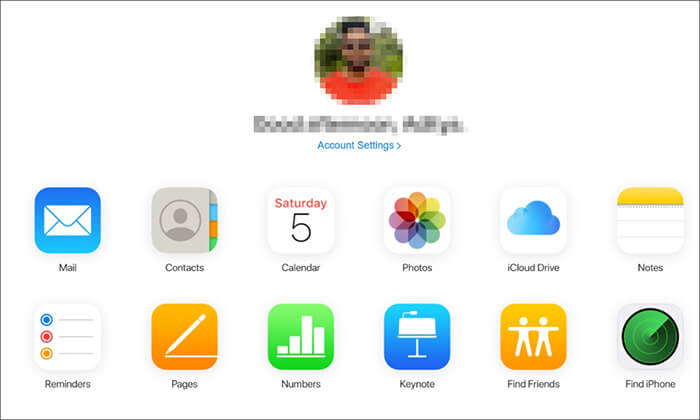
Step 3. Open the Recently Deleted folder.
Step 4. Select the deleted note you want to restore.
Step 5. Click "Recover" to move the note back to your Notes folders.
3.2 Restore iPhone from iCloud Backup
If the deleted notes were included in an iCloud backup created before deletion, you can restore your iPhone to that backup to get the notes back.
However, restoring from iCloud Backup will replace the current data on your iPhone with the content from the selected backup. Therefore, make sure to save any important current files before starting the process.
How to get deleted notes back from iCloud Backup?
Step 1. Check whether your iPhone has an available iCloud backup created before the notes were deleted.
Step 2. Go to "Settings" > "General" > "Transfer or Reset iPhone" and erase your iPhone.
Step 3. Set up your iPhone again and choose "Restore from iCloud Backup".
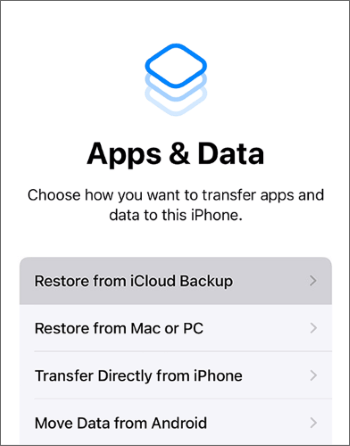
Step 4. Select the backup that contains the deleted notes. After the restoration is complete, the notes included in that backup will return to your iPhone.
3.3 Retrieve iPhone Notes with Data Recovery
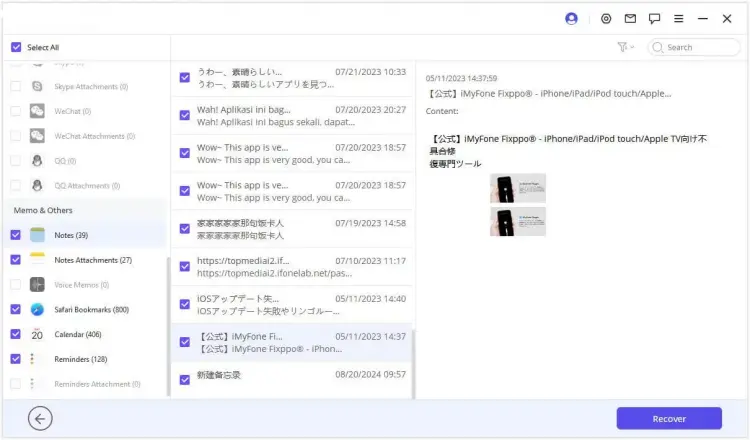
If you want to recover notes from iCloud but do not want to restore the entire iPhone, Data Recovery provides another option. It can extract selected data from iCloud-related sources and lets you recover only the notes you need.
Unlike the official iCloud restore method, this approach does not require erasing your iPhone or replacing current data with an older backup.
Recover deleted notes from iCloud with Data Recovery:
-
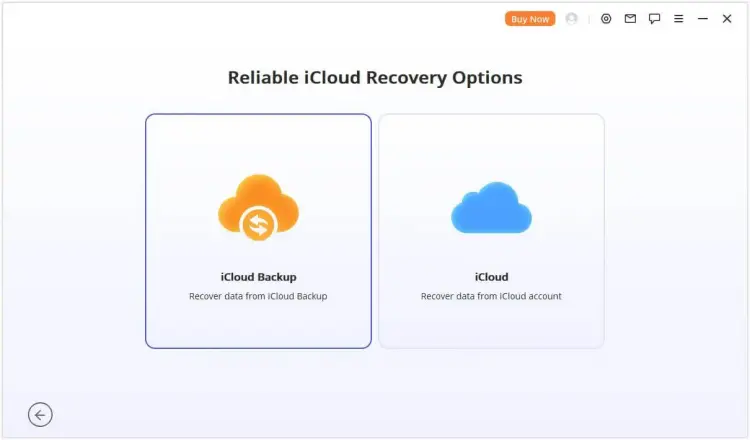
Launch Data Recovery on your computer and select "iOS Data Recovery" > "Recover from iCloud".
-
You can choose "Recover from iCloud Account" or "Recover from iCloud Backup" based on your recovery needs.
-
Follow the on-screen instructions to complete the connection and data loading process. "Recover from iCloud Account" requires scanning the selected data after connection, while "Recover from iCloud Backup" only requires waiting for the backup content to be loaded. Then, select the files you want to recover and click "Recover" to start the recovery process.
Comparison of 3 iCloud Methods for Recovering Deleted iPhone Notes
| Method | Recovery Source | Data Selection | Overwrite Current Data | Best For |
|---|---|---|---|---|
| Recover from iCloud.com | iCloud Notes sync data | Recover available notes only | No | Notes still available in Recently Deleted |
| Restore from iCloud Backup | iCloud device backup | Restore all data included in the backup | Yes | Notes included in an older backup |
| Recover from iCloud with Data Recovery | iCloud account or iCloud backup | Select specific notes to recover | No | Recover notes without full device restoration |
Part 4. How to Get Notes Back from iPhone with iTunes
Besides iCloud, iTunes (or Finder on newer macOS versions) is another official way to restore iPhone data from backups. If you previously backed up your iPhone to a computer, the deleted notes may be included in that backup.
However, the official restore process restores the entire backup, while third-party recovery software allows you to extract only the notes you need.
4.1 Recover Deleted Notes on iPhone with Official iTunes
If you have an iTunes backup created before deleting the notes, you can restore your iPhone using that backup.
Steps to restore deleted notes from iTunes backup:
Step 1. Connect your iPhone to the computer where the backup was created.
Step 2. Open iTunes and select your iPhone.
Step 3. Click "Restore Backup".
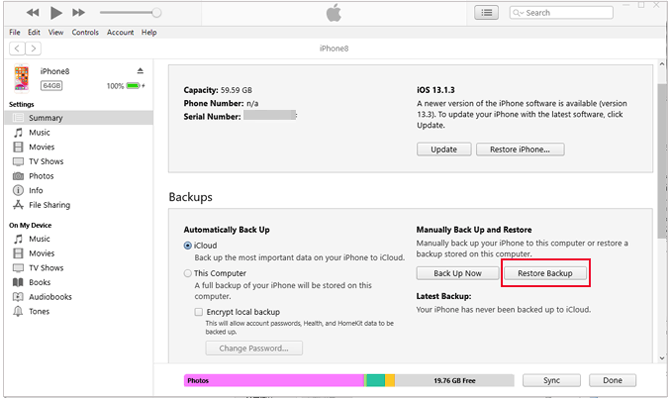
Step 4. Choose the backup file that contains the deleted notes. Wait for the restoration process to complete.
After restoring the backup, the notes saved at that time will be available on your iPhone.
Note: This method replaces the current iPhone data with the backup content. If you have newer files on your device, create another backup first to avoid losing them.
4.2 Get Back Deleted Notes by Data Recovery
If you have an iTunes backup but only need to recover deleted notes, Data Recovery can help extract the required data without restoring the whole backup.
It supports scanning iTunes backup files and allows you to preview available notes before recovery. You can choose specific notes to restore while keeping the current data on your iPhone unchanged.
Recover Deleted Notes from iTunes Backup with Data Recovery:
-
Launch Data Recovery on your computer and enter the "Recover from iTunes Backup" module.
-
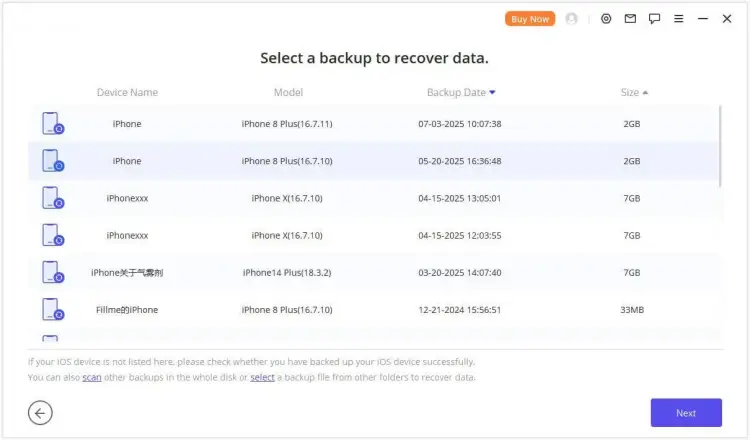
Select the iTunes backup file that may contain your deleted notes, then click "Next".
-
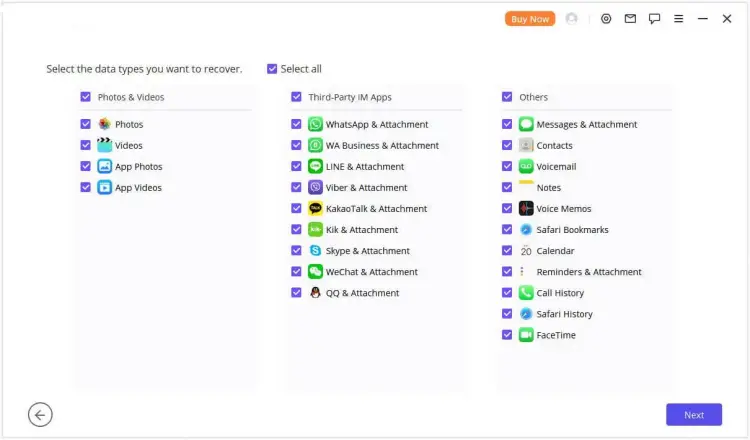
Choose "Notes" as the data type and click "Scan" to analyze the backup content.
-
Preview the recovered notes and select the ones you want to restore. Then click "Recover to Computer" or "Recover to Device" to complete the process.
Comparison of 2 iTunes Methods for Recovering Deleted iPhone Notes
| Method | Recovery Source | Data Selection | Overwrite Current Data | Best For |
|---|---|---|---|---|
| Restore from iTunes Backup | iTunes/Finder backup | Restore all data included in the backup | Yes | Restore iPhone to an earlier backup state |
| Recover from iTunes Backup with Data Recovery | iTunes backup file | Select specific notes to recover | No | Recover deleted notes without restoring the entire backup |
Conclusion
When you accidentally delete notes on your iPhone, the best recovery method depends on whether the notes are still available in Recently Deleted, stored in iCloud, or included in a previous backup. Checking the Notes app first is the quickest solution, while iCloud and iTunes backups provide additional options when available.
If you want to recover specific deleted notes without restoring the whole iPhone, Data Recovery can help extract notes from your iPhone, iCloud, or iTunes backups while keeping existing data unchanged. Choose the method that best fits your situation to get your important notes back.
Related Articles
Solve Notes Not Syncing Between iPhone and Mac in 9 Ways
How to Permanently Delete Files on iPhone Without Recovery (6 Ways)
Guide: How to Retrieve Deleted Contacts on iPhone Without Backup (Resolved)
Repaired: Photos Disappeared from iPhone with Reliable Solutions

