


TL;DR:
If you are wondering how to recover deleted messages on iPhone, the right method depends on whether you have a backup or how recently the messages were deleted. You can try the following options:
- Restore recently deleted messages directly from the Messages app.
- Recover lost messages from an iCloud or iTunes/Finder backup.
- Use iPhone data recovery software to retrieve specific messages without restoring the entire device.
- Contact Apple Support if other recovery methods do not work.
Accidentally deleting important text messages from your iPhone can be frustrating, especially when they contain valuable conversations, work details, or personal memories. Fortunately, deleted messages are not always permanently lost. Depending on when they were deleted and whether you have a backup, there are several ways to get them back.
In this guide, you will learn how to recover deleted messages on iPhone using built-in recovery options, iCloud or iTunes/Finder backups, and professional data recovery software. Whether you deleted messages recently or lost them without a backup, you can find a suitable method below.
- Part 1. How to Recover Deleted Messages on iPhone from Recently Deleted
- Part 2. How to Retrieve a Deleted Text Message on iPhone from iCloud Backup
- Part 3. How to Recover iPhone Deleted Text Messages from iTunes/Finder Backup
- Part 4. How to See Deleted Messages on iPhone with iPhone Data Recovery Software
- Part 5. How to Recover Deleted Messages on iPhone by Contacting Apple Support
- FAQs on How to Recover Deleted Messages on iPhone
Before You Start: Compare Methods to Recover Deleted Messages on iPhone
| Method | Recover Without Backup | Data Overwrite | Preview Before Recovery | Selective Recovery | Computer Required |
|---|---|---|---|---|---|
| Recently Deleted | No | No | No | Yes | No |
| iCloud Backup | No | Yes | No | No | No |
| iTunes/Finder Backup | No | Yes | No | No | Yes |
| Data Recovery | Yes | No | Yes | Yes | Yes |
| Apple Support | No | No | No | No | No |
Part 1. How to Recover Deleted Messages on iPhone from Recently Deleted
If you are using iOS 16 or later, the Messages app includes a Recently Deleted folder where deleted conversations can be restored for a limited period. This is the easiest way to recover deleted messages because it does not require a backup or computer.
To recover deleted messages from Recently Deleted:
Step 1. Open the Messages app on your iPhone.
Step 2. Tap "Filters" or "Edit" at the top of the conversation list.
Step 3. Select "Show Recently Deleted".
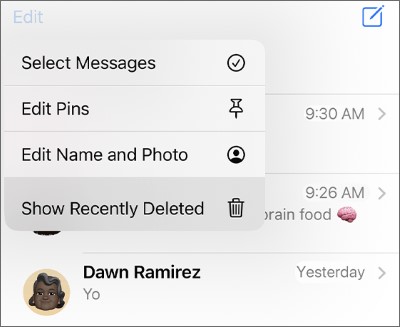
Step 4. Choose the messages you want to restore.
Step 5. Tap "Recover" to get them back.
Note: This method only works for messages deleted within the available recovery period. Once messages are permanently removed from Recently Deleted, you need to try other recovery methods.
Part 2. How to Retrieve a Deleted Text Message on iPhone from iCloud Backup
If you have an iCloud backup created before deleting your messages, you can restore your iPhone from that backup to retrieve the lost conversations.
Before restoring, check whether you have a suitable backup [How to back up messages to iCloud?]:
- Open "Settings" on your iPhone.
- Tap your Apple Account name.
- Go to "iCloud" > "iCloud Backup".
- Check the backup date and confirm it was created before the messages were deleted.
To restore deleted messages from iCloud backup:
Step 1. Go to "Settings" > "General" > "Transfer or Reset iPhone".
Step 2. Select "Erase All Content and Settings".
Step 3. Set up your iPhone again.
Step 4. Choose "Restore from iCloud Backup".
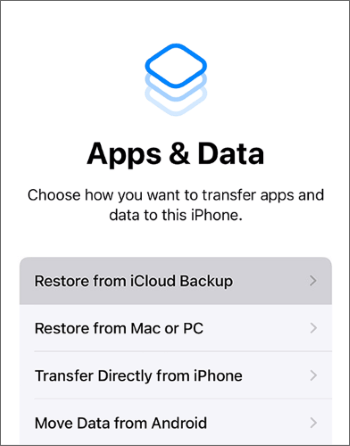
Step 5. Select the backup containing your deleted messages.
Note: Restoring an iCloud backup replaces the current data on your iPhone with the backup content. Any new data created after the backup date may be removed.
Part 3. How to Recover iPhone Deleted Text Messages from iTunes/Finder Backup
A local backup created through iTunes or Finder is another way to recover deleted iPhone messages. This method is useful if you regularly back up your device to a computer. Although this method can bring back deleted messages, it also restores the entire iPhone backup instead of only selected conversations. Therefore, newer files and settings may be overwritten.
Follow these steps to recover deleted text messages on iPhone:
Step 1. Connect your iPhone to the computer that stores the backup.
Step 2. Open iTunes or Finder.
Step 3. Select your iPhone.
Step 4. Click "Restore Backup".
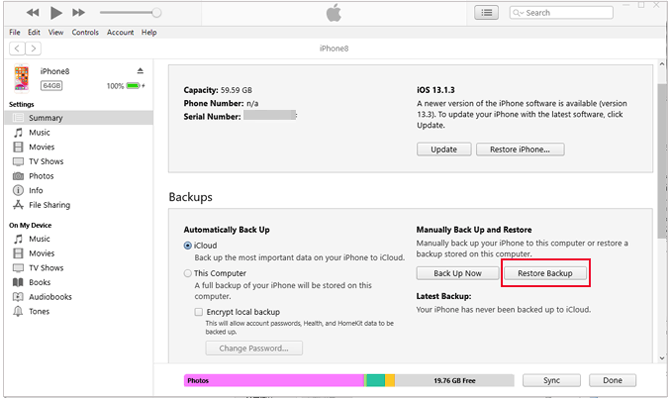
Step 5. Choose a backup created before your messages were deleted. Then, wait for the restore process to finish.
Part 4. How to See Deleted Messages on iPhone with iPhone Data Recovery Software
If you cannot find your deleted messages in the Recently Deleted folder and do not have a suitable backup, iPhone data recovery software can be another option to try. Unlike traditional backup restoration methods, recovery software allows you to scan available data sources, preview recoverable messages, and choose specific conversations without replacing all existing data on your iPhone.
Data Recovery is an iPhone data recovery tool that helps retrieve deleted messages and other lost data from iPhone, iPad, and backups. It supports multiple recovery scenarios, including recovering messages directly from an iOS device, extracting data from iCloud backups, and restoring files from iTunes backups.
Key Features
- Recover deleted text messages, photos, contacts, and other lost data from iDevice without a backup.
- Support recovery from different situations, such as accidental deletion, factory reset, damaged devices, or inaccessible iPhones.
- Preview available messages before recovery and select only the conversations you need.
- Recover data from iOS devices, iCloud backups, and iTunes backups based on your situation.
- Support various iPhone models and iOS versions, including newer iOS versions.
Recover Deleted Messages from iPhone Directly
If you deleted messages from your iPhone but do not have a backup, you can use the iOS device recovery mode to scan your device for recoverable conversations.
-
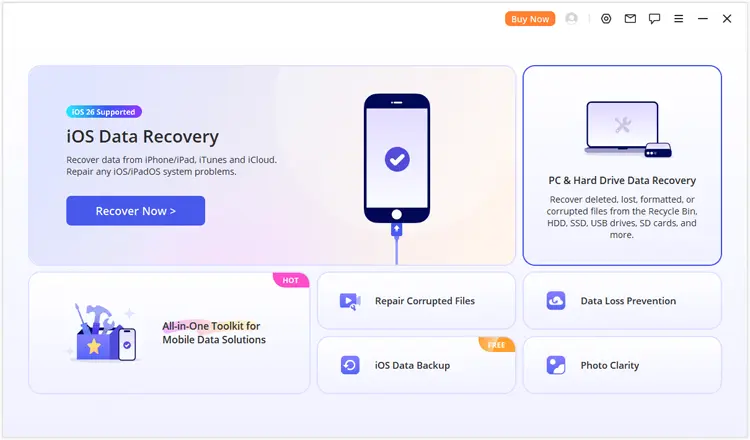
Launch Data Recovery on your computer and select the "iOS Data Recovery" mode.
-
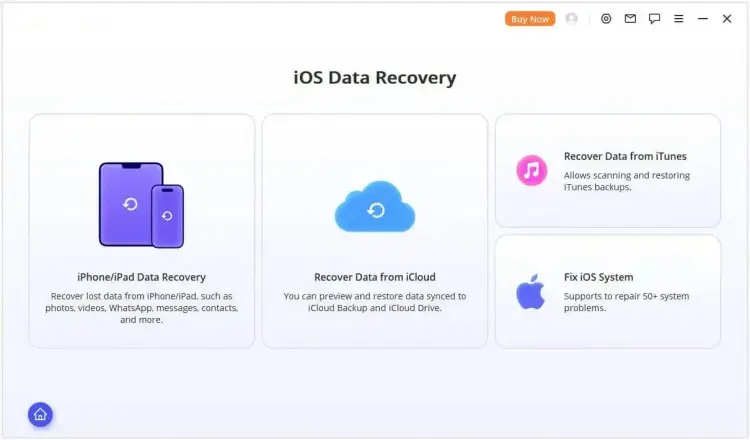
Choose the recovery option according to your situation and enter the "iPhone/iPad Data Recovery" module.
-
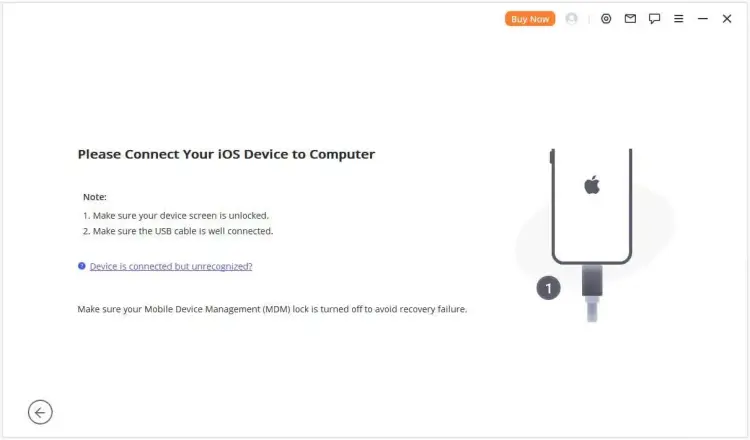
Connect your iPhone to the computer. Once your device is detected, click "Next" to continue.
-
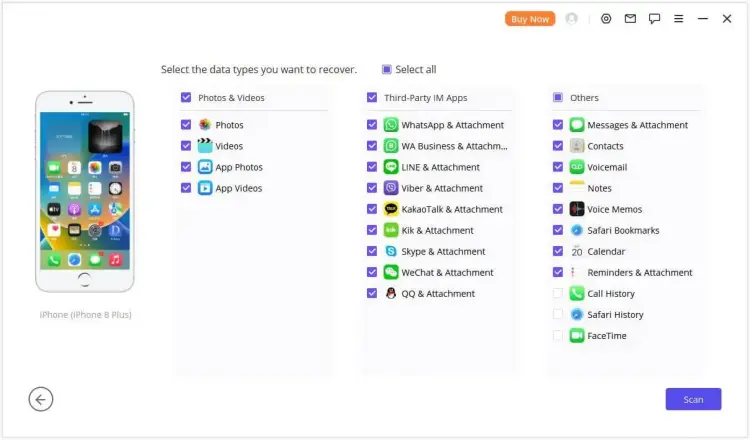
Select "Messages" and other file types you want to recover, then click "Scan" to search for deleted data.
-
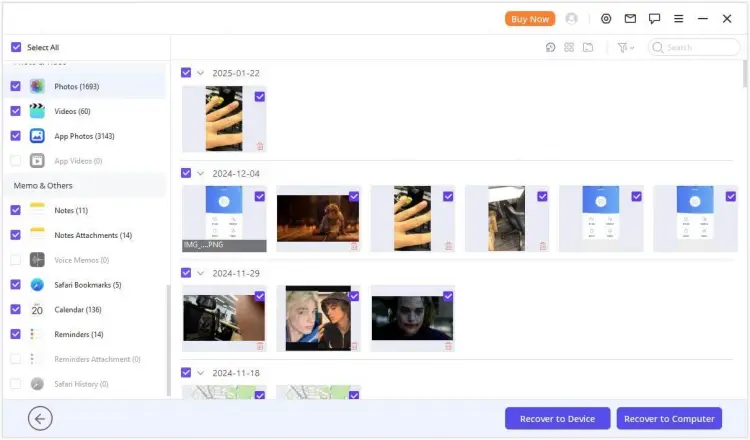
After scanning, preview the available messages and select the conversations you want to restore. You can choose "Recover to Computer" or "Recover to Device".
Recover Deleted Messages from iTunes Backup
If you have an iTunes backup created before deleting your messages, Data Recovery can help extract messages from the backup without restoring the entire iPhone.
-
Select the "Recover from iTunes Backup" module.
-
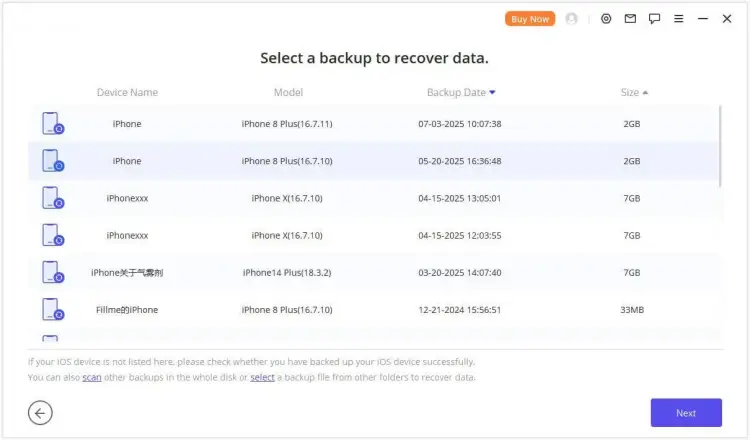
Choose the iTunes backup file containing your deleted messages and click "Next".
-
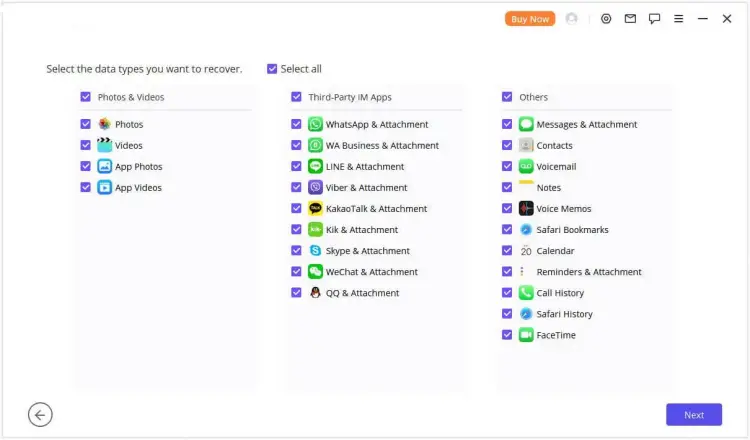
Select "Messages" as the data type and click "Scan".
-
Preview the scanned messages and filter the results if needed. Select the messages you want and click "Recover to Computer" or "Recover to Device".
Recover Deleted Messages from iCloud Backup
For users who have an iCloud backup, Data Recovery can help access the backup content and recover messages without manually restoring the whole backup through iPhone settings.
-
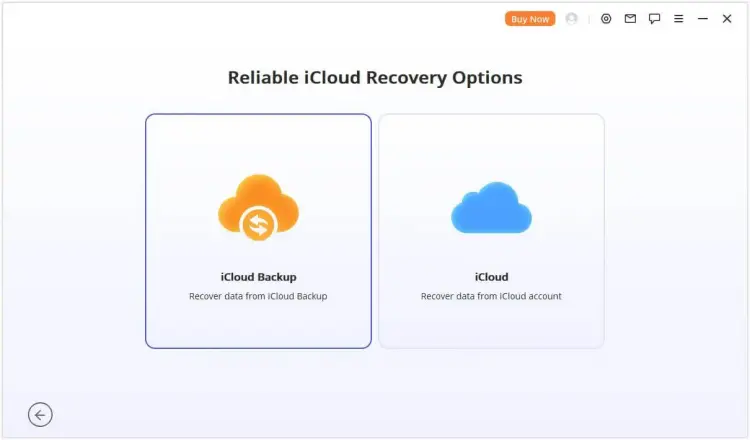
Choose "iCloud Backup" from the "Recover from iCloud" module.
-
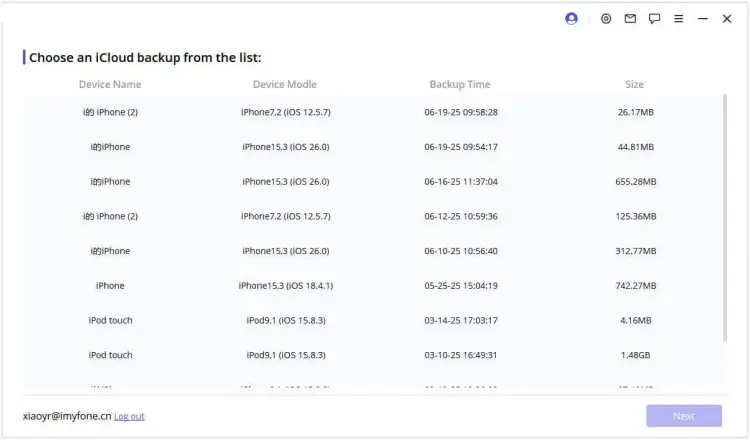
Select the instructions according to your iPhone status and choose an available iCloud backup. Wait for the backup information to load, then connect your iPhone to Data Recovery.
-
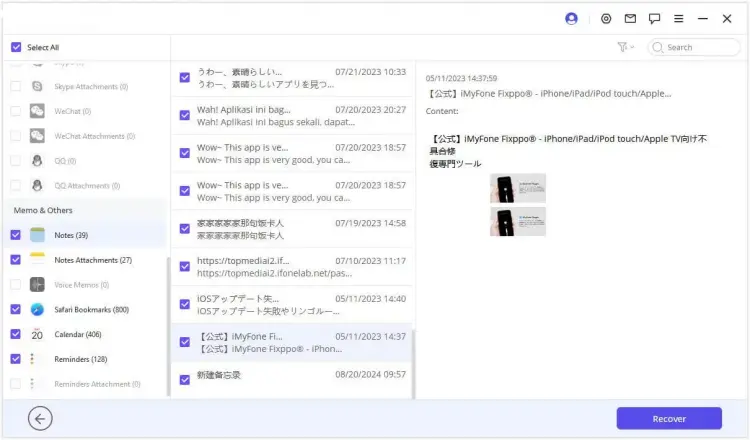
Preview the recovered messages from the iCloud backup and click "Recover" to export the selected messages.
Part 5. How to Recover Deleted Messages on iPhone by Contacting Apple Support
If none of the above methods work, contacting Apple Support can be another option, especially when the issue is related to an Apple service, account, or device problem.
You can contact Apple Support through:
- Apple Support app
- Apple Support website
- Apple Store service
However, Apple Support generally cannot restore permanently deleted messages that are no longer available on your device, iCloud, or backups. In most cases, recovery depends on whether the messages still exist in Recently Deleted or a previous backup.
FAQs on How to Recover Deleted Messages on iPhone
1. How long does iPhone keep deleted messages?
On iOS 16 and later, deleted messages are kept in the Recently Deleted folder for up to 30 days before they are permanently removed. If you cannot find them there, you can try recovering them from an iCloud or iTunes/Finder backup, or use an iPhone data recovery tool to scan for recoverable messages.
2. Are accidentally deleted text messages on iPhone gone forever?
Not necessarily. Deleted text messages may still be recovered if they are available in the Recently Deleted folder or included in a previous iCloud or iTunes/Finder backup. If you do not have a backup, an iPhone data recovery tool can help scan your device and find recoverable messages before they are overwritten by new data.
3. Does restoring iPhone from iCloud delete current data?
Yes. Restoring an iPhone from an iCloud backup will replace the current content on your device with the data stored in the backup. Any new messages, photos, or files created after that backup may be removed. If you only want to retrieve deleted messages without restoring the entire device, a data recovery tool can be a more flexible option.
Conclusion
Recovering deleted messages on iPhone is possible in different ways depending on your situation. If you deleted messages recently, checking the Recently Deleted folder is the fastest solution. For older messages, iCloud and iTunes/Finder backups can help restore lost conversations, but they may replace current iPhone data.
When you have no suitable backup or want to recover specific messages without restoring the entire device, an iPhone data recovery tool like Data Recovery can provide a more flexible option.
Related Articles
How to Permanently Delete Messages on iPhone [Support Latest iOS]
How to Save Text Messages on iPhone [5 Effective Methods and FAQs]
Easily Print Text Messages from iPhone via 4 Methods (Latest)
Easily Transfer Messages from iPhone to Android (Full Guide)

