TL;DR:
The best way to recover notes from iCloud depends on whether they were deleted, stopped syncing, or may still exist in a backup. Start by checking your iCloud Notes folders and account settings before trying more advanced recovery options.
- For recently deleted notes, visit iCloud.com and look in the Recently Deleted folder to see whether they are still recoverable.
- If notes disappeared after switching devices or changing settings, verify your Apple Account and iCloud Notes synchronization, and check other Apple devices for another copy.
- If the notes cannot be found through Apple's built-in options, Data Recovery offers additional ways to check supported iCloud account data, backups, and iPhone data, with selective export of available results to a computer.

Data Recovery Recover lost data


"I thought I was cleaning up my icloud and accidentally deleted all of my notes. Can I get them back?"
- From the Apple Community
Apple Notes is a convenient place to store reminders, personal information, work notes, and other important details. With iCloud synchronization enabled, your notes can stay up to date across your Apple devices. However, accidentally deleting a note, experiencing a synchronization problem, or losing data while changing devices can leave you wondering how to get your notes back.
If you are looking for how to recover notes from iCloud, the right solution depends on where the missing notes were stored and whether they were deleted or simply stopped appearing. This article explains three ways to recover your notes, including Apple's built-in recovery option, an earlier backup, and a professional tool. You can choose the method that best fits your situation.
- Part 1. How to Recover Notes from the Recently Deleted Folder on iCloud.com
- Part 2. How to Restore Notes from an Earlier iCloud Backup
- Part 3. How to Recover Notes from iCloud by iPhone Data Recovery Software
- Part 4. What Is the Best Way to Recover Notes from iCloud?
- FAQs of How to Recover Notes from iCloud
Part 1. How to Recover Notes from the Recently Deleted Folder on iCloud.com
If you accidentally deleted a note, checking the Recently Deleted folder is the easiest method to try first. iCloud keeps deleted notes in this folder for up to 30 days. After that, they are permanently removed and cannot be recovered through this folder.
Follow these steps to recover deleted notes from iCloud.com:
Step 1. Visit iCloud.com in a browser and sign in with the Apple account associated with your missing notes.
Step 2. Open the Notes app from the iCloud homepage.
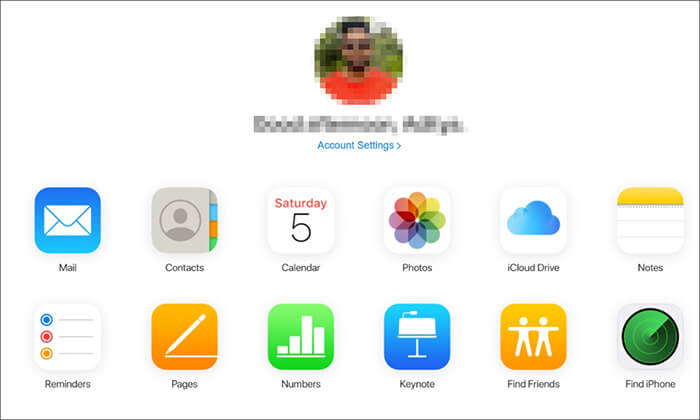
Step 3. Select "Recently Deleted" from the folder list on the left, then choose the note you want to restore.
Step 4. Click "Recover" in the Notes toolbar to move the note back to the Notes folder. Alternatively, if you are using a computer, drag the note to another folder you created.
If you cannot find the Recently Deleted folder, there may be no recently deleted notes available to recover. Notes permanently deleted from this folder cannot be restored through this method.
Part 2. How to Restore Notes from an Earlier iCloud Backup
If your missing notes are not in Recently Deleted, you may consider an earlier iCloud backup. However, this method only helps if the notes were stored in the device backup rather than synchronized separately through iCloud.
Apple explains that iCloud Backup primarily stores information that is not already synchronized with iCloud. Therefore, notes that were synced through iCloud Notes generally are not included in the device backup. Check the backup date and how your notes were stored before proceeding.
Step 1. Check Your Available iCloud Backups
- Open "Settings" on your iPhone.
- Tap your name at the top to open your Apple account settings.
- Select "iCloud" and look for "iCloud Backup".
- Check the available backup information and its date, if shown.
- Determine whether a backup created before the note went missing is available.
- A backup made after the note was deleted may not help. Also, seeing an earlier backup does not guarantee that it contains the missing note.
Step 2. Back Up Your Current iPhone Data
Before restoring an earlier backup, save any important data created since that backup. Restoring an iCloud backup requires erasing the iPhone if it is already set up, and this process can replace current device data with the data from the selected backup.
Do not proceed until you understand what may be overwritten and have protected any files you need to keep.
Step 3. Erase and Set Up Your iPhone
If you decide that restoring the backup is appropriate:
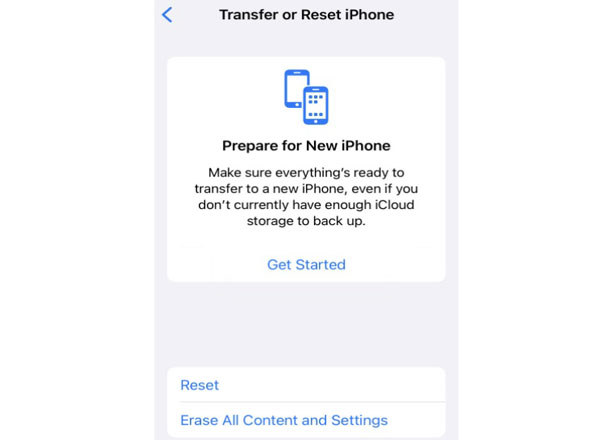
- Open "Settings" and go to "General".
- Tap "Transfer or Reset iPhone".
- Select "Erase All Content and Settings" and follow the instructions.
- After the iPhone restarts, proceed through the setup screens.
- At the transfer or restore screen, select "From iCloud Backup" or the corresponding restore option.
- Sign in with your Apple account and select the appropriate backup.
- Wait for the restoration to finish, then check whether the missing notes are available.
Part 3. How to Recover Notes from iCloud by iPhone Data Recovery Software
If you cannot recover your missing notes using Apple's built-in options, Data Recovery provides another way to check for recoverable data. It offers two recovery modes: scanning supported data categories through an iCloud account and extracting data from an iCloud backup. Unlike restoring an entire iPhone backup through Apple's setup process, Data Recovery lets you preview available results and selectively export supported data to your computer.
Key Features of Data Recovery
- Recover Notes from an iCloud Account: Access supported data categories associated with your iCloud account and check whether the missing notes are available.
- Extract Data from an iCloud Backup: Review supported data in an available iCloud backup and export recoverable notes to your computer.
- Recover iOS Data Without a Backup: Scan a supported iOS device for recoverable data without relying on an existing backup, depending on the data type and recovery conditions.
- Preview and Selectively Recover Files: Preview available results and choose specific notes or other supported files for recovery.
- Support Multiple Data Types: Work with supported data categories such as photos, videos, messages, contacts, and files, depending on the selected recovery mode.
Option 1. Recover Notes from Your iCloud Account
This option lets you check whether your missing notes are available through the iCloud account recovery process without first restoring your entire iPhone from a backup.
-
Launch Data Recovery and Select iCloud.
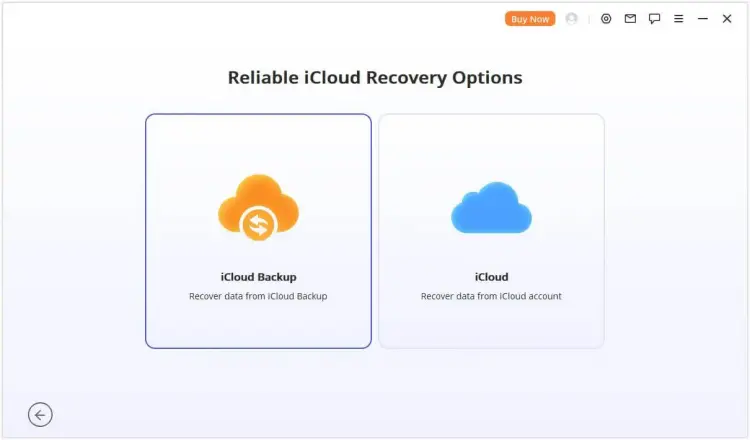
Download and install Data Recovery on your computer. Open the program and select "iCloud" under the Recover from iCloud module. Enter your iCloud account credentials as prompted.
-
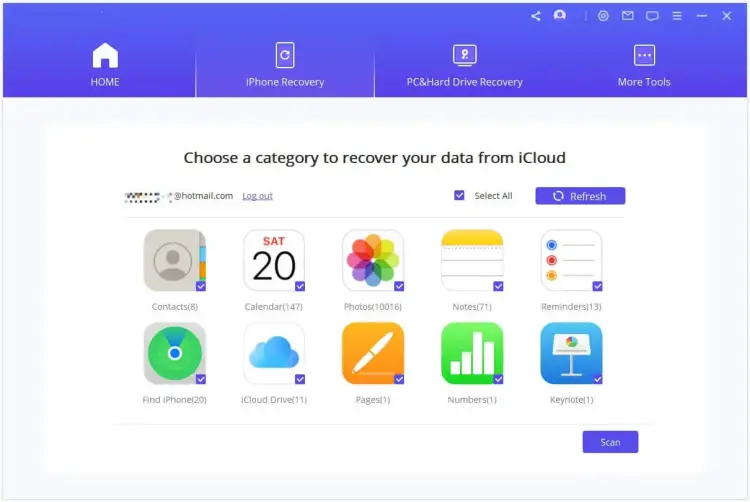
Select Notes and Start Scanning.
After signing in, select "Notes" from the supported data categories. Click "Scan" in the lower-right corner and wait for the process to finish.
-
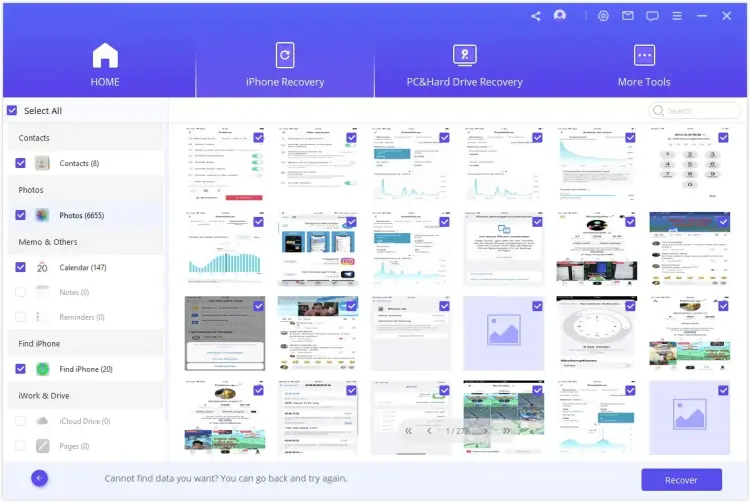
Preview and Export the Available Notes.
Review the scan results and preview the notes that are available. Select the notes you want to recover, click "Recover", and choose a destination folder on your computer. After the export finishes, open the recovered files to check their contents.
Option 2. Extract Notes from an iCloud Backup
If the missing notes may be available in an earlier iCloud backup, you can use Data Recovery to access supported backup data.
-
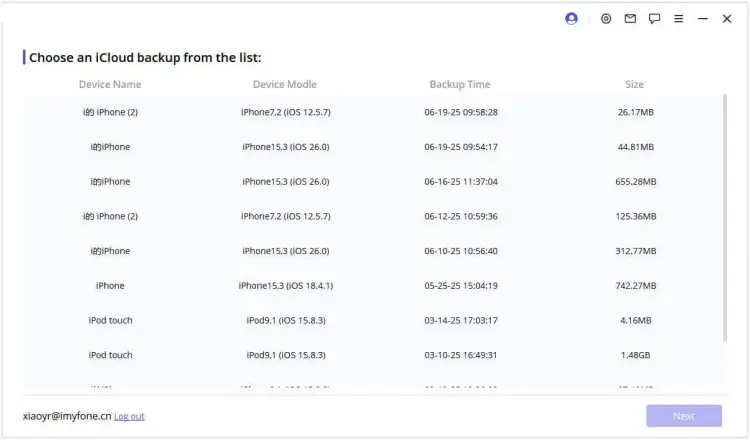
Select iCloud Backup in Data Recovery.
Open Data Recovery and choose "iCloud Backup" under the Recover from iCloud module. Select the option that matches your device's current status and follow the software's instructions.
-
Restore the Appropriate iCloud Backup.
During iPhone setup, select "Restore from iCloud Backup" on the Apps & Data screen. Sign in with the Apple account associated with the backup, choose the appropriate backup, and wait for the restoration to finish.
Then connect your iPhone to the computer running Data Recovery and follow the program's instructions to access the available data.
-
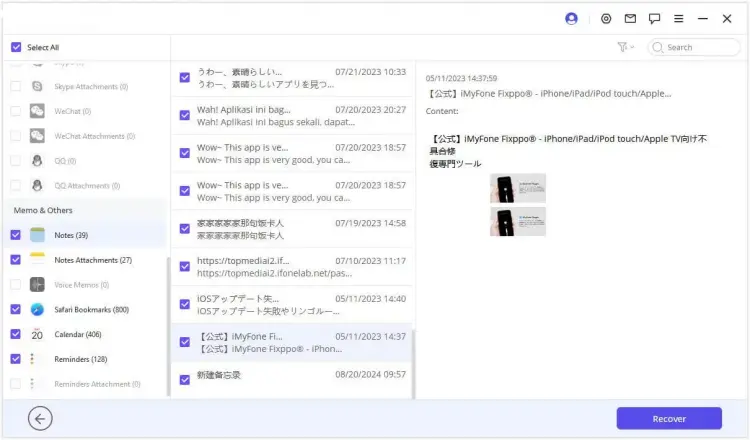
Preview and Recover Notes to Your Computer.
Select "Notes" or the relevant data category and review the available results. Choose the notes you want to keep and click "Recover". Select a supported file format and destination folder, then wait for the export to finish.
Part 4. What Is the Best Way to Recover Notes from iCloud?
The best way to recover notes from iCloud depends on whether the notes were recently deleted, are missing because of a synchronization issue, or may still exist in a backup. Compare the three methods below before deciding what to try.
| Method | Best For | How It Works | Data Loss Risk | Cost |
|---|---|---|---|---|
| Recover from Recently Deleted | Notes deleted within the last 30 days | Restore notes directly from the Recently Deleted folder on iCloud.com | Low; no device reset required | Free |
| Restore from an Earlier iCloud Backup | Notes that may be included in an available device backup | Erase and restore the iPhone using an earlier iCloud backup | High; current device data may be overwritten | Free |
| Recover with Data Recovery | Checking supported iCloud account data, backups, or device data for recoverable notes | Scan the selected source, preview available results, and export selected data to a computer | Depends on the recovery mode; the backup workflow may require a device reset | Paid features may be required |
FAQs of How to Recover Notes from iCloud
1. How long do deleted notes stay in iCloud?
Deleted notes remain in the Recently Deleted folder for up to 30 days. During this period, you can recover them through iCloud.com or the Notes app on a compatible Apple device. After 30 days, the notes are permanently removed from this folder. If you manually delete a note from Recently Deleted, it is also permanently removed.
2. Why are my notes missing from iCloud?
Your notes may be missing for several reasons:
- You signed in with a different Apple account.
- The notes were accidentally deleted or moved to another folder.
- iCloud Notes synchronization is disabled or has encountered a problem.
- The notes are stored locally on another Apple device rather than in iCloud.
- The notes were permanently deleted or are no longer available from the original storage location.
3. Can I recover notes from a deleted iCloud account?
If the Apple account has been permanently deleted, access to its associated iCloud data may no longer be available. If you only signed out of the account or temporarily lost access, try signing in again or recovering access to the account. If the account itself was permanently deleted, contact Apple Support to confirm whether any recovery options remain.
Conclusion
Recovering notes from iCloud depends on where the missing notes were stored and whether they are still available. Start by checking the Recently Deleted folder on iCloud.com, then consider an earlier iCloud backup if applicable. If these options do not work, Data Recovery can help you check supported iCloud account data, backups, or device data for recoverable notes. Before restoring a backup or using a recovery tool, make sure your current data is safe and choose the method that best fits your situation.
Related Articles
How to Recover Deleted Notes on iPhone (With or Without Backup)
Solve Notes Not Syncing Between iPhone and Mac in 9 Ways
Effortlessly Back Up Messages to iCloud on iPhone (New Guide)
How to Delete Photos from iPhone Without Deleting from iCloud [2026 Guide]