


TL;DR:
By default, Apple uses two-way bidirectional sync: deleting a photo on your iPhone deletes it from iCloud automatically. To remove photos from your iPhone local storage while keeping them in iCloud or an external backup, use one of these solutions:
- Fastest Native Fix: Turn on "Optimize iPhone Storage" (Settings > [Your Name] > iCloud > Photos) to compress local copies into KB-sized thumbnails while preserving original 4K/RAW photos in iCloud.
- Manual Disconnection: Turn off "Sync this iPhone" before deleting local photos (Note: Do not re-enable sync later without backing up).
- Safest 100% Free-Up Method (Recommended): Export photos offline to PC/Mac via iReaShare iPhone Manager first, then wipe local photos risk-free without affecting any cloud archives.
Is your iPhone storage full because of thousands of high-resolution photos and 4K videos, but you are afraid to delete them because they will disappear from iCloud too? You are not alone. This is one of the most frustrating issues faced by iOS users worldwide.
In this guide, we will explain why Apple links local photo deletion with iCloud, and provide 5 proven methods to remove photos from your iPhone while keeping your cloud or backup library completely intact.
- Why Deleting Photos on iPhone Automatically Deletes Them from iCloud
- Method 1: Turn Off iCloud Photos Sync Before Deleting
- Method 2: Enable "Optimize iPhone Storage" (Apple's Native Solution)
- Method 3: Back Up Photos to Computer via iReaShare iPhone Manager & Delete Safely
- Method 4: Store iPhone Photos via an Alternative Cloud Service (Google Photos / OneDrive)
- Method 5: Switch to a Different Apple ID / iCloud Account Instead
- Comparison: Which Method Should You Choose?
- Troubleshooting & Frequently Asked Questions (FAQs)
Why Deleting Photos on iPhone Automatically Deletes Them from iCloud
To understand how to safely delete photos, you first need to understand how Apple's cloud infrastructure works. iCloud Photos is a cloud synchronization service, not an offsite backup service.
When "Sync this iPhone" (or iCloud Photos) is turned on, your iPhone camera roll and your iCloud storage maintain a live, mirrored state. Any action taken on one device - adding, editing, or deleting a photo - instantly mirrors across iCloud.com and all other synced devices (iPad, Mac).
Method 1: Turn Off iCloud Photos Sync Before Deleting
If you want to manually delete photos from your iPhone camera roll without affecting the current library stored in iCloud, you can temporarily or permanently disable iCloud Photo Sync on your device.
Step-by-Step Instructions:
- Open the Settings app on your iPhone.
- Tap your Apple ID name banner at the top.
- Select iCloud > Photos.
- Toggle off "Sync this iPhone" (or iCloud Photos in older iOS versions).
- When prompted, choose whether to "Download Photos & Videos" or "Remove from iPhone". Select Keep on My iPhone if you want to manually select which items to delete.
- Now, open the native Photos app on your iPhone and delete the unwanted photos.
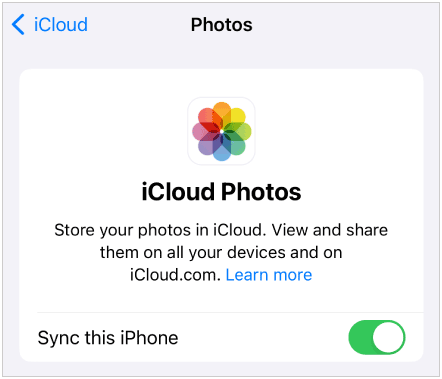
Critical Warning:
If you turn "Sync this iPhone" back ON in the future, iCloud will re-synchronize your device library with the cloud library. During this process, iCloud may detect that the local photos were removed and push those deletions to the cloud. Therefore, this method is best suited if you intend to leave iCloud Photos permanently disabled on that specific device.
Method 2: Enable "Optimize iPhone Storage" (Apple's Native Solution)
If your ultimate goal is simply to free up internal iPhone storage space rather than permanently deleting files from your life, Apple offers an automated feature called "Optimize iPhone Storage".
Step-by-Step Instructions:
- Go to Settings > [Your Name] > iCloud > Photos.
- Ensure "Sync this iPhone" is turned ON.
- Tap and check Optimize iPhone Storage (instead of Download and Keep Originals).
How It Works:
When your iPhone runs low on space, full-resolution photos and videos are automatically replaced with lightweight, space-saving thumbnails on your device. The original, full-resolution versions remain securely stored in iCloud. Whenever you tap to view or edit a photo, your iPhone instantly downloads the full-resolution file from iCloud.
Method 3: Back Up Photos to Computer via iReaShare iPhone Manager & Delete Safely (Recommended)
Cloud storage plans can be expensive, and relying solely on cloud sync leaves your photos vulnerable to accidental deletion or account sync errors. The safest and most flexible way to delete photos from your iPhone without losing them is to export them to a computer first using a specialized iOS file management software.
This is where iReaShare iPhone Manager shines as an indispensable desktop utility for Windows and Mac users.
Video Guide:
See the video about how to back up and delete photos from iPhone but not iCloud here:
Why Choose iReaShare iPhone Manager Over iCloud Sync?
- No Cloud Storage Limits: Transfer tens of thousands of high-resolution photos and 4K videos directly to your PC/Mac hard drive or external SSD without paying monthly cloud subscription fees.
- Selective or Bulk Transfer: Preview photos by album, date, or format before exporting. Choose exactly what to back up and what to delete.
- Zero Quality Loss: Preserves original photo formats (HEIC, JPG, PNG, GIF, RAW) and EXIF metadata (location, time, camera settings).
- Bidirectional Independence: Photos backed up to your computer via iReaShare are 100% offline and detached from iCloud sync. Deleting them from your iPhone afterward will NEVER affect your PC backup.
- All-in-One iOS Management: Beyond photos, it seamlessly manages contacts, SMS messages, music, videos, call logs, notes, calendars, bookmarks, books and apps.
How to Back Up & Safely Delete iPhone Photos Step-by-Step:
Step 1: Download and Install. Launch iReaShare iPhone Manager on your PC or Mac.
Download for Win Download for Mac
Step 2: Connect Your iPhone. Connect your device via USB cable and tap "Trust This Computer" on your iPhone screen.
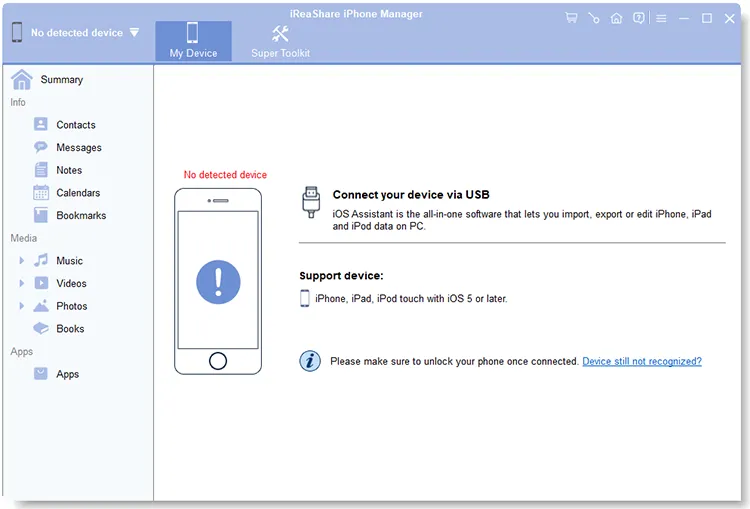
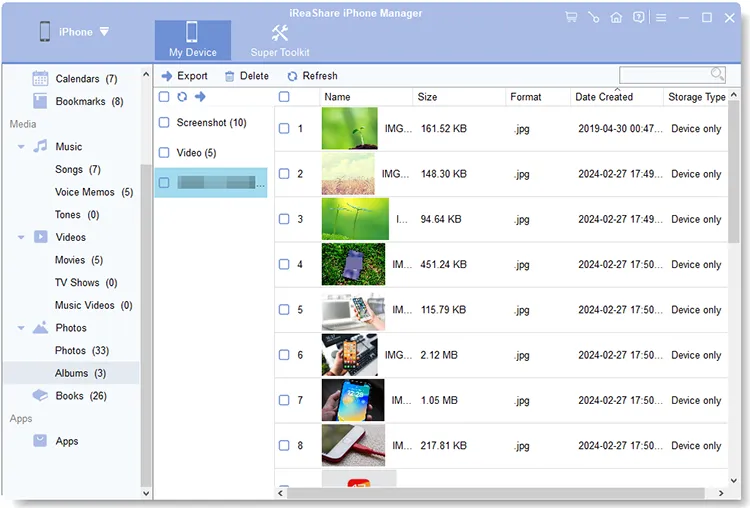
Step 3: Preview Photos. Select Photos from the left menu bar. You will see all your camera roll photos organized cleanly by categories and albums.
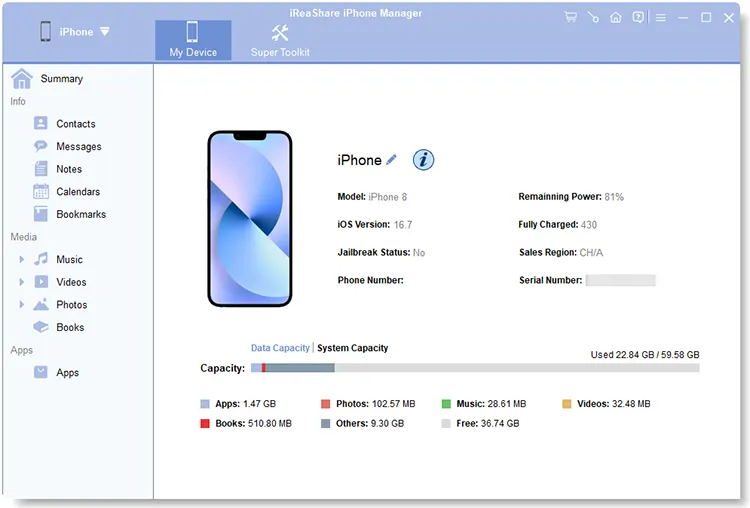
Step 4: Export to PC. Select the photos or albums you wish to keep, click the Export button at the top menu, and select a folder on your computer to save them.
Step 5: Safely Delete from iPhone. Once export is complete, you can either select the photos within iReaShare and click Delete, or manually delete them directly from your iPhone Photos app. Your computer backup remains 100% safe.
Method 4: Store iPhone Photos via an Alternative Cloud Service (Google Photos / OneDrive)
Another popular workaround is using a non-Apple cloud storage platform like Google Photos, Dropbox, or Microsoft OneDrive to store your photos, as they operate independently from Apple's native iCloud sync engine.
Step-by-Step Instructions (Using Google Photos):
- Download and open the Google Photos app from the App Store.
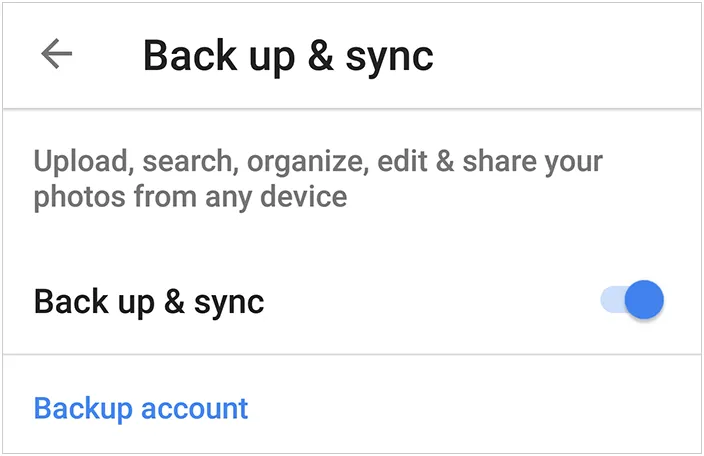
- Sign in with your Google Account and enable Back up & sync.
- Wait for all your iPhone photos to finish uploading to Google Photos cloud.
- Once backup is confirmed, tap your profile icon in Google Photos and select "Free up space".
- Google Photos will safely delete the local copies from your iPhone's internal storage while retaining the cloud copies on your Google account.
Tips: What if Google Photos backup stuck? Here's the real fix and best alternative.
Method 5: Switch to a Different Apple ID / iCloud Account Instead
If you want to maintain a master photo archive on iCloud under one account while keeping your phone's local camera roll clean under a separate account, you can use two different Apple IDs.
How It Works:
- Ensure all current photos are fully synced to iCloud Account A.
- Go to Settings > [Your Name] and tap Sign Out.
- Select "Remove from iPhone" when prompted so the existing photo library is deleted locally.
- Sign in with iCloud Account B (a secondary account).
- Your iPhone now starts with a clean camera roll, while Account A securely retains your photo archive in the cloud.

Comparison: Which Method Should You Choose?
| Method | Cloud Safety | Local Space Freed | Technical Complexity | Best For |
|---|---|---|---|---|
| 1. Turn off iCloud Sync | Medium (Risk on re-sync) | High | Easy | Users disabling iCloud Photos permanently. |
| 2. Optimize Storage | High | Moderate (Leaves thumbnails) | Very Easy | Users who want seamless Apple ecosystem integration. |
| 3. iReaShare iPhone Manager | Maximum (Offline Local Copy) | Maximum (100% Freed) | Easy | Users wanting secure PC backup with zero subscription costs. |
| 4. Google Photos | High | High | Easy | Cross-platform Android/iOS users. |
| 5. Secondary Apple ID | High | High | Moderate | Advanced users separating work and personal archives. |
Troubleshooting & Frequently Asked Questions (FAQs)
Q1: Will deleting photos from the "Recently Deleted" album delete them from iCloud too?
Yes. If iCloud Photos sync is enabled, emptying the "Recently Deleted" album on your iPhone permanently removes those files from iCloud.com and all connected devices immediately.
Q2: Why is my iPhone storage still full after deleting photos?
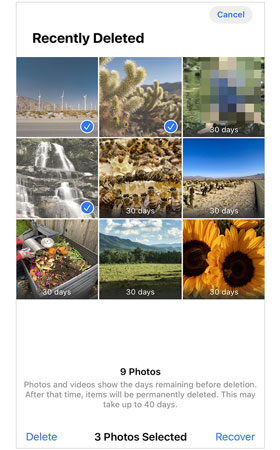
When you delete photos on iOS, they are moved to the Recently Deleted album for 30 days before being purged. To reclaim storage immediately, open Photos > scroll down to Utilities > tap Recently Deleted > authenticate with Face ID/Touch ID > tap Delete All.
Q3: Can I delete photos directly on iCloud.com without deleting them from my iPhone?
No. If "Sync this iPhone" is turned ON, deleting a photo on iCloud.com will send a command to delete that photo from your iPhone camera roll as well.
Q4: What is the safest way to ensure I never lose photos accidentally?
The golden rule of data backup is the 3-2-1 strategy: keep local copies on a physical computer or external storage drive using an iPhone transfer software, alongside secondary cloud backups.
Conclusion
Deleting photos from your iPhone while keeping them in iCloud can be tricky due to Apple's default two-way synchronization. If you want to remain within Apple's ecosystem, enabling "Optimize iPhone Storage" is the easiest native solution.
However, if you want complete control over your photo library, free up maximum storage space, and avoid monthly cloud fees, transferring your photo library to a PC or Mac using iReaShare iPhone Manager is the ultimate, risk-free recommendation. Back up your precious memories offline today, and clear your iPhone storage with confidence.
Download for Win Download for Mac
Related Articles:
How to Permanently Delete Photos from iPhone via Hassle-free Methods
How to Transfer Files from iPhone to PC with Ease (Practical Guide)
How to Transfer Photos from iPad to PC Without iTunes (6 Ways)
Repaired: Photos Disappeared from iPhone with Reliable Solutions

