

TL;DR:
If iMessage not working on iPhone, try these 11 fixes: check your internet connection, restart your iPhone, check Apple's system status, enable iMessage, review Send & Receive settings, sign out of iMessage and sign back in, adjust date and time settings, update iOS, reset network settings, use Fixppo to repair iOS system issues, or contact your carrier or Apple Support for further assistance.
iMessage makes it easy to exchange texts, photos, videos, and other attachments with Apple users. However, it doesn't always work as expected. You might find that your messages won't send or arrive, conversations suddenly turn green, or iMessage gets stuck on Waiting for Activation.
These problems can be related to network interruptions, incorrect account settings, Apple service outages, or underlying iOS glitches. Fortunately, most iMessage issues can be diagnosed and resolved without visiting an Apple Store. Below, we'll explain the common causes and walk you through 11 ways to get iMessage working again.
- Part 1. Why Is My iMessage Not Working on iPhone?
- Part 2. How to Fix iMessage Not Working on iPhone
- 2.1 Check Internet Connection
- 2.2 Restart iPhone
- 2.3 Check Apple's iMessage Server Status
- 2.4 Make Sure iMessage Is Enabled
- 2.5 Check Send & Receive Settings
- 2.6 Sign Out of iMessage and Sign Back In
- 2.7 Check Date & Time Settings
- 2.8 Update iOS to the Latest Version
- 2.9 Reset Network Settings
- 2.10 Use an iOS System Repair Tool
- 2.11 Contact Carrier or Apple Support
Part 1. Why Is My iMessage Not Working on iPhone?
When iMessage stops working, the problem isn't necessarily caused by your iPhone itself. Several factors can interfere with Apple's messaging service:
* Poor internet connection: iMessage requires Wi-Fi or cellular data. A weak or unstable connection may prevent messages from being sent or received.
* Apple server outages: Temporary problems with Apple's iMessage servers can interrupt the service, even when your device and network are working normally.
* Incorrect Messages settings: If iMessage is disabled or your phone number and Apple Account email aren't selected under Send & Receive, you may experience messaging problems.
* Account activation issues: iMessage may fail to activate because of Apple Account authentication problems, phone number verification delays, or carrier SMS restrictions.
* Outdated iOS or software glitches: Bugs, incomplete updates, and corrupted system components can interfere with Messages and other iPhone services.
* Network configuration errors: Incorrect cellular, Wi-Fi, or VPN settings may prevent your iPhone from communicating properly with Apple's services.
Part 2. How to Fix iMessage Not Working on iPhone
If iMessage isn't sending or receiving messages, try the following solutions in order. Start with simple checks and move on to more advanced troubleshooting if the problem persists.
2.1 Check Internet Connection
A stable internet connection is essential for iMessage. Unlike regular SMS messages, iMessages are sent over Wi-Fi or cellular data. If your iPhone is disconnected from the internet, messages may remain undelivered.
Here's what you can do:
Step 1. Open Safari and visit a website to check whether your internet connection is working.
Step 2. If you're using Wi-Fi, turn it off and switch to cellular data. Alternatively, connect to another Wi-Fi network.
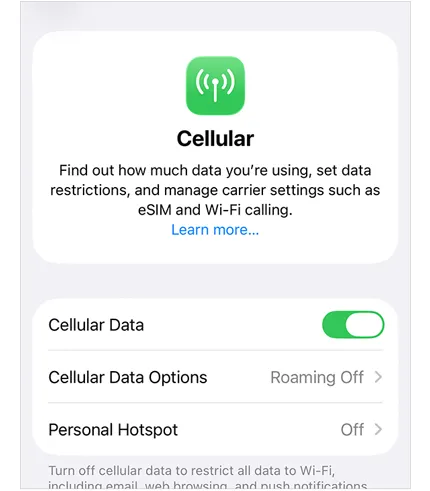
Step 3. If you're using cellular data, open "Settings" > "Cellular" and make sure "Cellular Data" is enabled.
Step 4. Turn Airplane Mode on, wait about 10 seconds, and then turn it off.
Step 5. Open Messages and try sending an iMessage again.
If other online apps also fail to connect, the issue is more likely related to your internet connection than iMessage itself.
2.2 Restart iPhone
Temporary software glitches and background process errors can sometimes prevent iMessage from working properly. Restarting your iPhone can refresh these processes and help restore normal functionality. (iDevice fails to restart?)
The steps vary slightly depending on your iPhone model.
For iPhones with Face ID:
Step 1. Press and hold the "Side" button and either "Volume" button simultaneously.
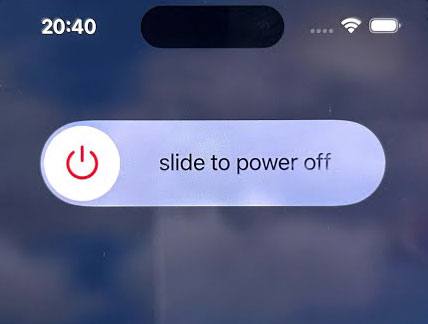
Step 2. When the power-off slider appears, drag it to turn off your iPhone.
Step 3. Wait about 30 seconds.
Step 4. Press and hold the "Side" button until the Apple logo appears.
For iPhones with a Home button:
Step 1. Press and hold the "Side" button or "Top" button until the power-off slider appears.
Step 2. Drag the slider to turn off your device.
Step 3. Wait about 30 seconds.
Step 4. Press and hold the "Side" button or "Top" button again until the Apple logo appears.
Once your iPhone restarts, open Messages and send a test iMessage to see whether the issue has been resolved.
2.3 Check Apple's iMessage Server Status
Sometimes, iMessage stops working because Apple's servers are temporarily unavailable. In this situation, changing your iPhone settings or resetting your network won't necessarily help.
To check whether Apple's service is experiencing problems:
Step 1. Open Apple's System Status page in a browser.
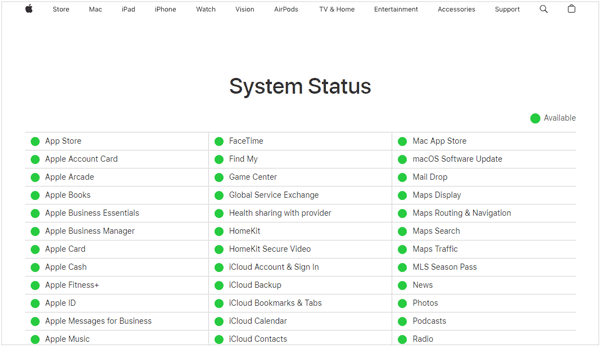
Step 2. Find iMessage in the list of Apple services.
Step 3. Check its status. A green indicator generally means the service is operating normally, while a warning or outage indicator suggests a service interruption.
Step 4. If iMessage is experiencing an outage, wait for Apple to resolve it and try again later.
If Apple's servers are operating normally, continue with the following methods to troubleshoot your iPhone.
2.4 Make Sure iMessage Is Enabled
If iMessage has been accidentally disabled, your iPhone won't be able to send or receive blue-bubble messages through Apple's messaging service. Checking this setting is one of the simplest ways to fix the problem.
Follow these steps:
Step 1. Open "Settings" on your iPhone.
Step 2. Scroll down and tap "Apps" > "Messages". (On older iOS versions, tap Messages directly.)
Step 3. Find the iMessage option and make sure its toggle is turned on.
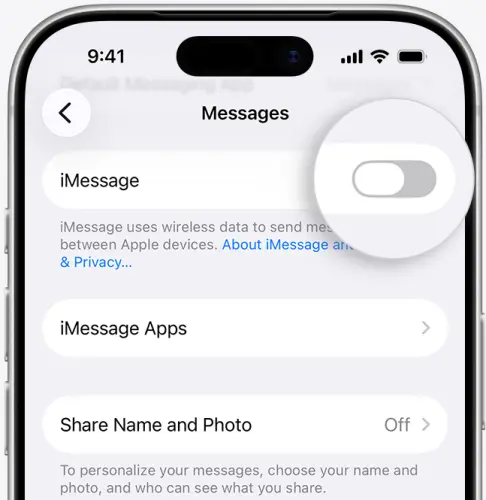
Step 4. If it's already enabled but still not working, turn it off, wait a few seconds, and turn it back on. Wait for iMessage to activate and check whether you can send messages.
If you see Waiting for Activation or a spinning indicator next to your phone number, your iPhone may still be verifying it. Avoid repeatedly switching iMessage on and off while verification is in progress.
2.5 Check Send & Receive Settings
Even when iMessage is enabled, incorrect Send & Receive settings can prevent messages from reaching the intended phone number or email address.
For example, if your iPhone is configured to receive iMessages through your Apple Account email but you expect them to arrive at your phone number, you may think the service isn't working.
To check these settings:
Step 1. Open "Settings" > "Apps" > "Messages".
Step 2. Tap "Send & Receive".
Step 3. Under "You Can Receive iMessages To and Reply From", make sure your phone number and preferred email address are selected.
Step 4. Under "Start New Conversations From", select the phone number or email address you want to use by default.
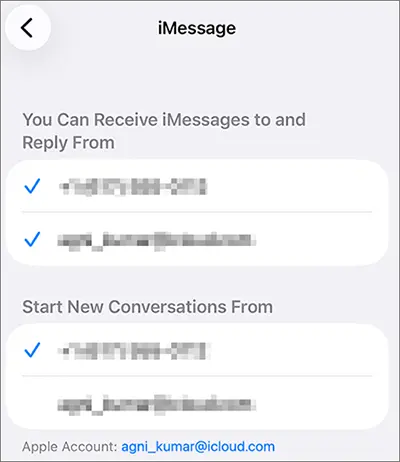
Step 5. If your phone number isn't listed or hasn't been verified, check your cellular line and activation status.
If you recently switched to a new iPhone or added an eSIM, make sure the correct phone line is turned on. You may also need to turn iMessage off and back on after setting up the cellular line.
2.6 Sign Out of iMessage and Sign Back In
If your iMessage settings appear correct but the service still has trouble connecting to your Apple Account, signing out of iMessage and signing back in may refresh the account connection. This method is different from signing out of your entire Apple Account through the main Settings menu. It only affects the account used for Messages.
Here's how:
Step 1. Open "Settings" > "Apps" > "Messages".
Step 2. Tap "Send & Receive".
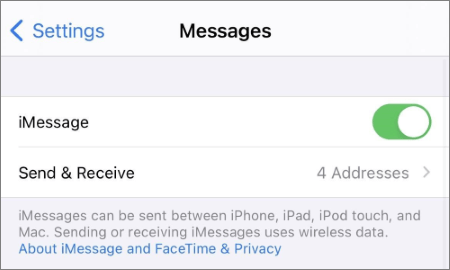
Step 3. Tap your Apple account email address.
Step 4. Select "Sign Out".
Step 5. Restart your iPhone.
Step 6. Return to "Settings" > "Apps" > "Messages" > "Send & Receive".
Step 7. Sign in with your Apple account again and check whether your phone number and email address are selected.
After signing back in, give iMessage some time to reconnect and verify your contact information.

If you don't see the Sign Out option or your account is already disconnected, you can instead turn iMessage off, restart your iPhone, and turn it back on.
2.7 Check Date & Time Settings
Incorrect date, time, or time zone settings may interfere with Apple's service authentication and activation processes. If your iPhone displays an incorrect time, check this setting before trying more complicated fixes. Using automatic date and time settings helps your iPhone maintain accurate time information, which is especially useful when troubleshooting activation errors.
Step 1. Open "Settings" on your iPhone.
Step 2. Go to "General" > "Date & Time".
Step 3. Turn on "Set Automatically".
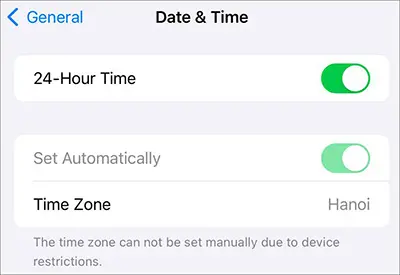
Step 4. Check whether the displayed time and time zone are correct.
Step 5. Return to Messages and try using iMessage again.
2.8 Update iOS to the Latest Version
An outdated iOS version may contain software bugs or compatibility issues that affect the Messages app. Apple regularly releases system updates to address known problems and improve device stability. If iMessage isn't working after a recent software change or update, installing a newer iOS version may help.
Follow these steps:
Step 1. Open "Settings" > "General" > "Software Update".
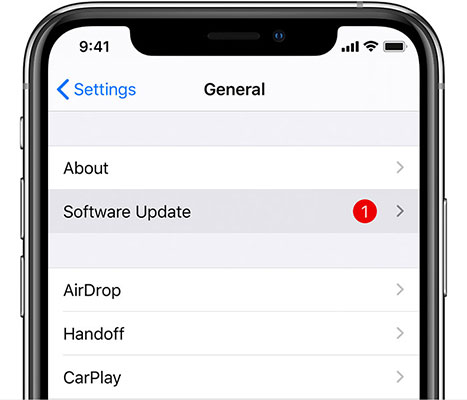
Step 2. Wait for your iPhone to check for available updates.
Step 3. If an update is available, tap "Update Now" or "Download and Install".
Step 4. Enter your passcode if prompted and agree to the update terms. Wait for the installation to finish and your iPhone to restart.
Before updating, make sure your iPhone has sufficient battery power and storage space. It's also a good idea to back up your iPhone important data in case anything unexpected happens during the update.
2.9 Reset Network Settings
If you've checked your internet connection but iMessage still cannot connect properly, incorrect or corrupted network configurations may be responsible. Resetting network settings can remove problematic Wi-Fi, cellular, VPN, and APN configurations and allow your iPhone to establish fresh network connections. It won't erase your photos, messages, apps, or other personal files.
Here's how:
Step 1. Open "Settings" > "General".
Step 2. Tap "Transfer or Reset iPhone".
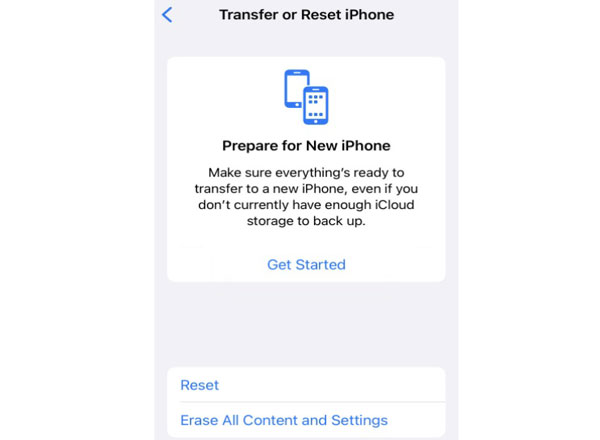
Step 3. Select "Reset" > "Reset Network Settings".
Step 4. Enter your iPhone passcode if prompted.
Step 5. Confirm your selection and wait for your iPhone to restart.
Step 6. Reconnect to your Wi-Fi network and test iMessage again.
2.10 Use an iOS System Repair Tool
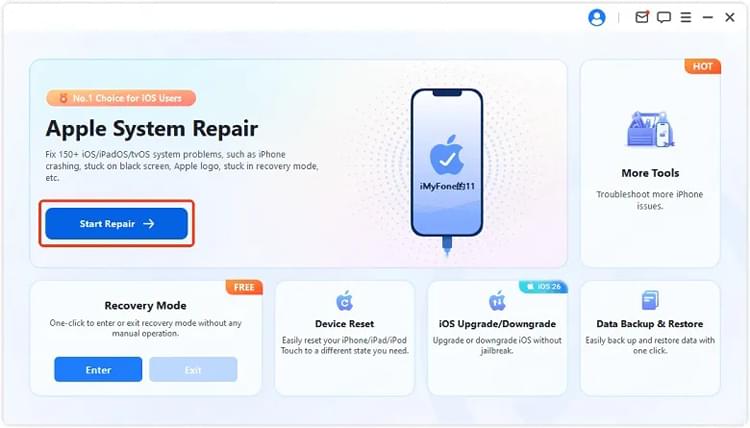
If iMessage is still not working after trying the basic troubleshooting methods, an underlying iOS system problem may be preventing Messages from functioning properly. In this case, you can try Fixppo, an iOS system repair tool designed to resolve various software-related issues on iPhone, like iPhone stuck on Apple logo, update errors, etc.
Key features of Fixppo:
- Fix more than 150 iOS, iPadOS, and tvOS issues, including system errors that may affect built-in apps like Messages.
- Repair common iOS problems in Standard Mode without erasing your existing data.
- Upgrade or downgrade iOS without jailbreaking your device.
- Enter or exit Recovery Mode on an iPhone or iPad with one click for free.
- Support a wide range of Apple devices and iOS versions, including iOS 27/26 and iPhone 17.
If you suspect an iOS system glitch is causing iMessage problems, follow these steps to try repairing your iPhone:
-
Install and open Fixppo on your computer, then connect your iPhone with a USB cable. After the software recognizes your device, open the "Apple System Repair" feature.
-
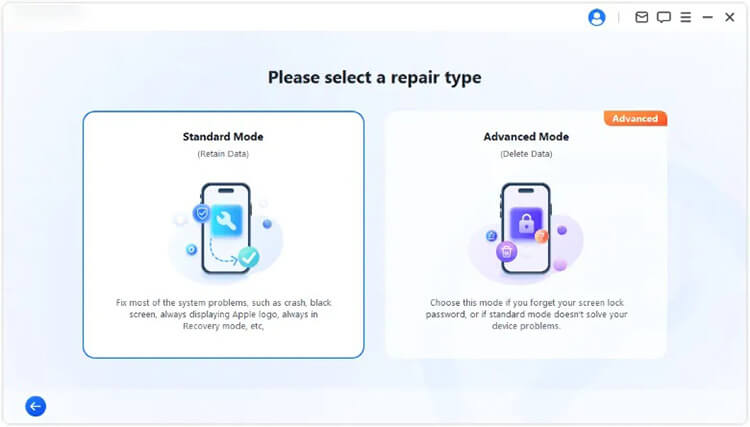
Select "Standard Mode" to start the repair process with the option designed to preserve your iPhone data.
-
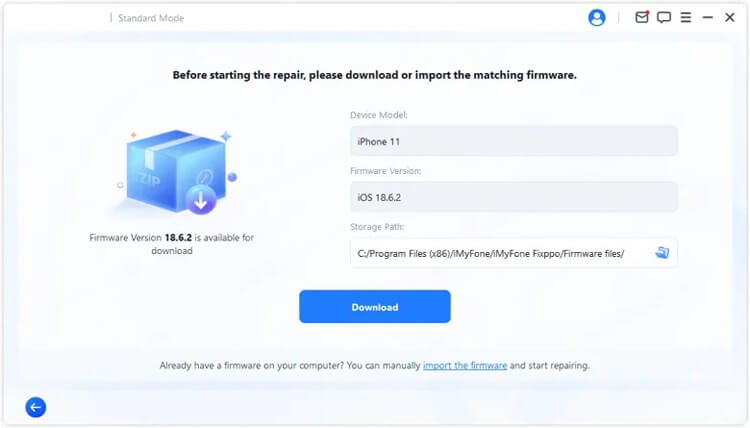
Check the device details displayed by the program and confirm that they are correct. Fixppo will then download and verify the firmware required for your iPhone.
-
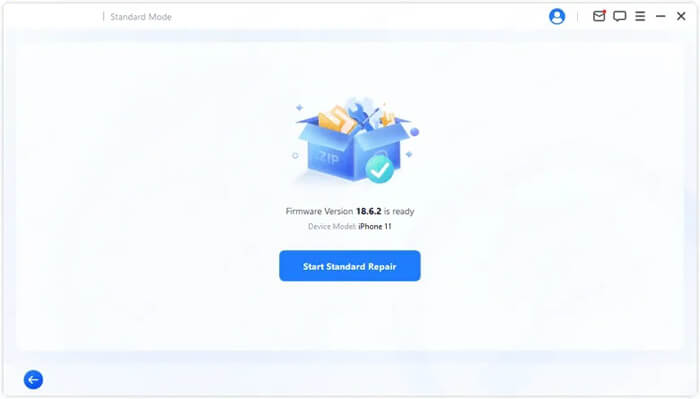
After the firmware preparation is complete, click "Start Standard Repair" to run the repair. Do not disconnect your iPhone until the process has finished.
2.11 Contact Carrier or Apple Support
If none of the above solutions work, the problem may require assistance from your mobile carrier or Apple Support.
Contact your carrier if:
- You cannot send or receive regular SMS messages.
- Your phone number cannot be verified for iMessage activation.
- You recently changed your SIM card, eSIM, or mobile plan.
- Your carrier may be blocking international SMS messages required for iMessage activation.
Contact Apple Support if:
- You continue to see Waiting for Activation or Activation Unsuccessful.
- Your Apple Account cannot sign in to iMessage.
- iMessage still doesn't work even though your network and account settings are correct.
- You suspect a more serious iOS or device-related problem.
Keep in mind that phone number verification can take up to 24 hours. If your number still isn't verified after that period, ask your carrier to confirm that your line can send and receive international SMS messages. Some carriers may charge for the activation SMS.
Conclusion
A reliable iMessage connection depends on more than just having the Messages app enabled. Your phone number must be properly activated, your Apple Account details must be correct, and your iPhone must be able to communicate with Apple's services. If the problem keeps coming back, pay attention to whether it affects all conversations or only specific contacts, as this can help narrow down the cause.
With the right troubleshooting approach, you can identify what's preventing iMessage from working and choose an appropriate solution. If you suspect a deeper iOS malfunction, Fixppo is an additional option to consider, while activation or carrier-related problems may require help from Apple or your mobile provider.
Related Articles
How to Fix iPhone Not Receiving Texts in 11 Quick Ways
Text Messages Disappeared from iPhone? Cause and Solutions
How to Fix iPhone Frozen on Lock Screen [Step-by-Step Guide]