TL;DR:
If text messages disappeared from your iPhone, try these methods to find missing conversations or recover lost messages:
- Check message filters and search for missing conversations, then restart your iPhone.
- Check iCloud Messages sync and iPhone storage space, turn iMessage off and on, update iOS, or reset all settings to troubleshoot the issue.
- Recover deleted messages from the Recently Deleted folder.
- Restore missing messages from an iCloud or iTunes backup created before the messages disappeared.
- Use Data Recovery to scan your iPhone directly or retrieve available messages from iCloud and iTunes backups.

Data Recovery Recover lost data


"Why are my text messages disappearing? When I go to re-read or send a text to some people, there are no previous texts under their name. Just a blank screen. Also a few texts now have a date of 2000, but I didn't even have a phone then. What is going on and how can I fix it?"
- From the Apple Community
Have your text messages disappeared from your iPhone without warning? You may find that entire conversations are missing, older messages are no longer visible, or certain texts have vanished after an iOS update or device change. This can be frustrating, especially when those conversations contain important information, personal memories, or details you need to keep.
Fortunately, missing text messages do not always mean they are permanently lost. The problem may be related to message filters, iCloud synchronization, message retention settings, or an unexpected deletion. This article explains the common causes of disappearing iPhone messages and provides practical solutions to help you find missing conversations or recover lost texts.
Part 1. Why Have My Text Messages Disappeared from iPhone?
Text messages can disappear from an iPhone for several reasons. Sometimes, the conversations are still on the device but are hidden by filters or search settings. In other cases, messages may have been deleted accidentally, removed automatically because of the message retention setting, or become unavailable due to iCloud synchronization or software problems.
Here are some common causes to consider:
Message filters: Conversations from unknown senders or other filtered categories may not appear in the main conversation list.
Accidental deletion: A conversation or individual message may have been deleted unintentionally.
iCloud synchronization issues: Messages may not appear correctly if iCloud synchronization is paused, disabled, or incomplete.
Message retention settings: Choosing to keep messages for 30 days or one year can cause older conversations to be removed automatically.
iOS or device issues: Temporary software glitches, an unsuccessful update, or problems during device migration may affect message availability.
Backup and restore problems: A restored iPhone may not contain all the messages that were present on the previous device.
Part 2. How to Fix Text Messages Disappeared from iPhone?
If your messages have suddenly disappeared, start with simple checks before changing system settings. The following methods focus on finding hidden conversations and addressing possible synchronization, configuration, or software issues.
2.1 Check Message Filters and Search for Missing Conversations
Before assuming that your messages have been deleted, check whether they are hidden by a filter or simply difficult to locate. The Messages app can separate conversations into different categories, so not every message necessarily appears in the default list.
Step 1. Open the Messages app on your iPhone and return to the conversation list.
Step 2. Tap the "Filters" button. Depending on your iOS version, you may need to tap "Edit" to access the filtering options.
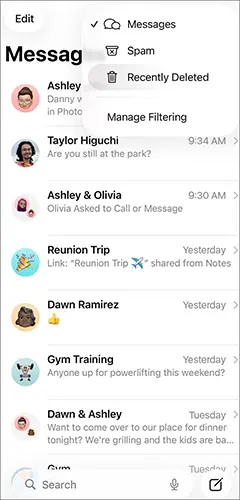
Step 3. Check categories such as Unknown Senders or other available filters. If the missing conversation appears in another category, open it to view the messages.
Step 4. Use the search field in Messages to enter the contact's name, phone number, or a distinctive word from the conversation.
If you can find the conversation, it may not have been deleted at all. If it remains missing, continue with the following solutions.
2.2 Restart Your iPhone
A temporary iOS glitch can sometimes affect how conversations appear in Messages. Restarting your iPhone is a simple way to refresh system processes before attempting more involved troubleshooting.
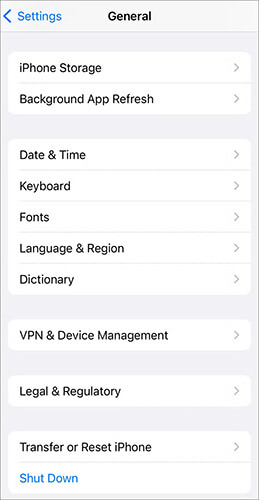
Step 1. Turn off your iPhone using the appropriate button combination for your model, or go to "Settings" > "General" > "Shut Down".
Step 2. Wait a few seconds after the screen goes dark.
Step 3. Turn your iPhone back on and unlock it.
Step 4. Open Messages and check whether the missing conversations have reappeared.
2.3 Check iCloud Messages Sync
If you use Messages in iCloud, your message history is synchronized across supported Apple devices signed in to the same Apple account. A synchronization delay or an incorrect account or sync setting may explain why messages are not appearing as expected.
Step 1. Open "Settings" and tap your name at the top.
Step 2. Select "iCloud", then tap "Messages". If necessary, tap "See All" under the apps using iCloud.
Step 3. Check whether "Use on this iPhone" or the equivalent synchronization option is enabled, depending on your iOS version.
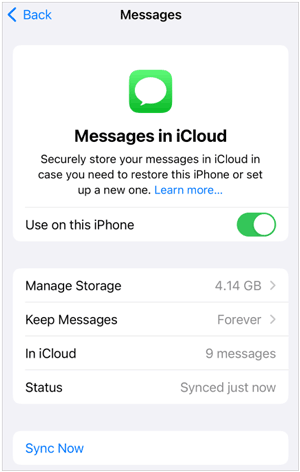
Step 4. Make sure your iPhone has a stable Wi-Fi or cellular connection and is signed in to the correct Apple account.
Step 5. If synchronization is enabled, give your device time to update the message history. You can also check another Apple device using the same account to see whether the conversations are available there.

Keep in mind that deleting a message while Messages in iCloud is enabled can also delete it from other synchronized devices. Avoid repeatedly turning synchronization off and on, especially when you are unsure whether the missing messages remain in iCloud.
2.4 Check iPhone Storage Space
Very limited storage can interfere with normal device operations and may contribute to software problems. Although a full iPhone does not automatically mean that existing text messages will be deleted, checking available space is a useful troubleshooting step.
Step 1. Open Settings and go to "General" > "iPhone Storage".
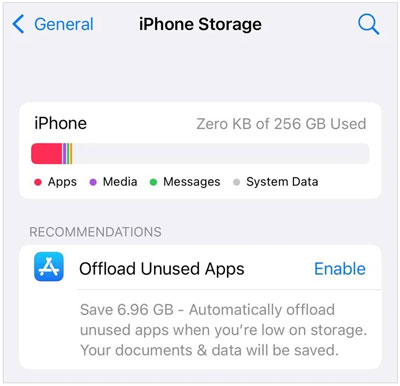
Step 2. Wait for the storage breakdown to load.
Step 3. Check how much space is available and identify apps or files occupying large amounts of storage.
Step 4. If necessary, remove unwanted downloads, delete unnecessary files, or offload apps you no longer use.
Step 5. Reopen Messages and check whether the conversations are visible.
2.5 Turn Off and On iMessage
If the missing conversations involve iMessage, an issue with its activation or account configuration may be worth investigating. Toggling iMessage can refresh the service, although it will not recover messages that have already been permanently deleted.
Step 1. Open "Settings" and go to "Apps" > "Messages".
Step 2. Turn off "iMessage".
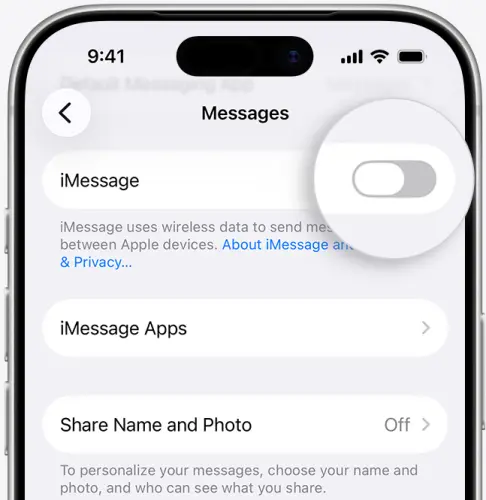
Step 3. Wait briefly, then turn iMessage back on.
Step 4. Tap "Send & Receive" and verify that the correct phone number and Apple account email addresses are selected.
Step 5. Open Messages and check whether your conversations are available.
2.6 Update iPhone to the Latest Compatible iOS Version
An outdated iOS version or a software bug may affect the Messages app. Installing an available compatible update can help resolve known system issues and improve stability.
Step 1. Connect your iPhone to Wi-Fi and make sure the battery is sufficiently charged.
Step 2. Open "Settings" and go to "General" > "Software Update".
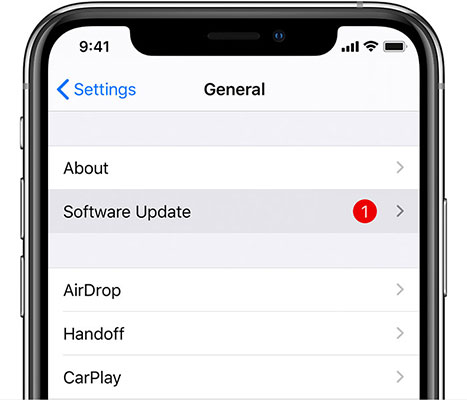
Step 3. Wait while your iPhone checks for available updates.
Step 4. If an update is available, review the details and tap the option to download and install it.
Step 5. After the update finishes, open Messages and check whether the missing conversations have returned.
Before updating, back up iPhone important data to your computer whenever possible. An update may fix a software-related display or synchronization issue, but it cannot guarantee the recovery of permanently deleted messages.
2.7 Reset All Settings on Your iPhone
If the previous methods do not help, resetting all settings may resolve certain configuration-related problems. This option resets system settings without intentionally erasing your personal files, photos, messages, or apps.
However, it will reset settings such as network configurations, privacy preferences, and other system preferences, so you may need to configure them again afterward.
Step 1. Open "Settings" and go to "General".
Step 2. Tap "Transfer or Reset iPhone".
Step 3. Select "Reset".
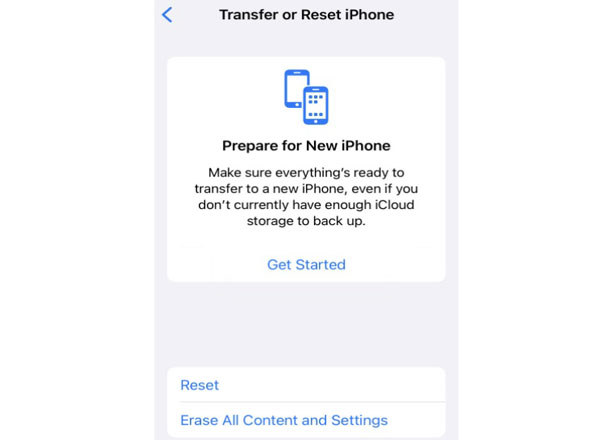
Step 4. Choose "Reset All Settings" and enter your passcode if requested.
Step 5. Confirm your selection and wait for the iPhone to restart.
Make sure you select "Reset All Settings" rather than "Erase All Content and Settings". The latter erases your device and should not be used as a routine troubleshooting step. If your messages remain missing after resetting settings, consider the recovery methods in Part 3.
Part 3. How Do I Retrieve Text Messages that Disappeared from My iPhone?
If the missing messages were deleted or cannot be restored through basic troubleshooting, you may need to use a recovery method. Start with the iPhone's built-in Recently Deleted folder. If the messages are no longer there, check whether a suitable backup exists before considering recovery software.
3.1 Recover Deleted Messages from Recently Deleted
On iPhones running iOS 16 or later, the Messages app includes a Recently Deleted folder for recovering eligible deleted conversations. This is usually the first recovery option to try because it does not require restoring the entire device from a backup.
Step 1. Open Messages and return to the conversation list.
Step 2. Tap "Filters" and select "Recently Deleted". On some iOS versions, you may need to tap Edit and then choose "Show Recently Deleted".
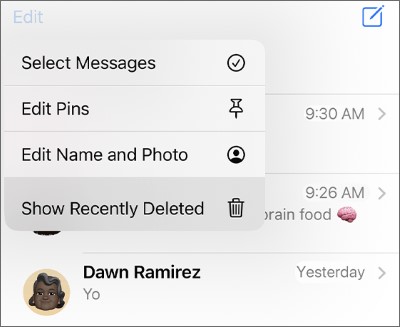
Step 3. Review the available conversations and select the ones containing the missing messages.
Step 4. Tap "Recover", then confirm the recovery when prompted.
Apple generally allows eligible deleted conversations to be recovered for approximately 30 to 40 days, depending on the circumstances and iOS version. Messages permanently removed from Recently Deleted may not be recoverable through this feature.
3.2 Restore Missing Text Messages from an iCloud Backup
If the messages are not available in Recently Deleted, an iCloud backup created before the messages disappeared may offer another recovery option. Before proceeding, check the date of the available backup and consider whether restoring it could replace newer data on your iPhone.
Step 1. Open "Settings", tap your name, and go to "iCloud" > "iCloud Backup".
Step 2. Check the available backup information and confirm whether a suitable backup predates the loss of your messages.
Step 3. If you decide to restore the device from that backup, first create a current backup of any important data you do not want to lose.
Step 4. Apple's standard full-backup restoration process requires erasing the iPhone if it has already been set up. To do this, go to "Settings" > "General" > "Transfer or Reset iPhone" > "Erase All Content and Settings".
Step 5. After the iPhone restarts and displays the setup screen, follow the setup instructions until you reach the data transfer or restoration screen.
Step 6. Select "Restore from iCloud Backup", sign in with the appropriate Apple account, and choose the relevant backup.
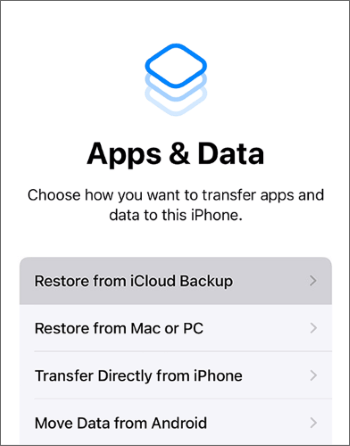
Step 7. Wait for the restoration process to finish, then open Messages to check whether the missing conversations are available.
3.3 Retrieve Missing Text Messages from an iTunes Backup
If you previously backed up your iPhone to a computer using iTunes, you may be able to retrieve the missing conversations from that backup. On newer Mac systems, Finder is used for managing iPhone backups instead of iTunes.
This method is most suitable when the backup was created before the messages disappeared and contains the relevant message history. As with iCloud restoration, restoring an entire computer backup may overwrite newer information on the iPhone. Back up your current data before proceeding.
Step 1. Connect your iPhone to the computer containing the backup.
Step 2. Open iTunes on a Windows PC or an older Mac. On a newer Mac, open Finder and select your iPhone.
Step 3. Choose "Restore Backup", locate the device's backup from the list.
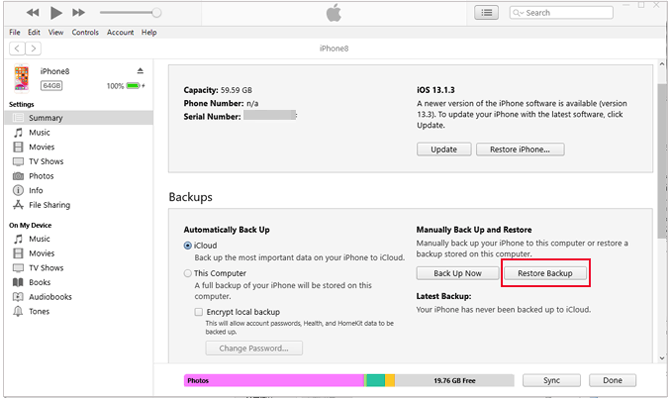
Step 4. Hit the "Restore" icon and wait for the restoration to finish, then check Messages for the missing conversations.
3.4 Recover Missing Text Messages with Data Recovery
When the missing messages are not available in Recently Deleted, or you want to examine an existing backup without immediately restoring the entire iPhone, you can consider Data Recovery.
This iOS data recovery tool provides different recovery modes for retrieving messages and other data from a supported iPhone or compatible backup. Depending on your situation, you can scan the iOS device directly, extract data from an iCloud backup, or recover files from an iTunes backup.
Key features of Data Recovery:
- Recover deleted messages, photos, contacts, and other supported data, even without a backup.
- Support data recovery from accidental deletion, factory reset, and other data loss scenarios.
- Preview recoverable messages and select specific conversations to restore.
- Recover data from an iPhone, iCloud backup, or iTunes backup.
- Work with various iPhone models and iOS versions.
Option 1. Recover Deleted Messages from an iPhone Directly
If you do not have a backup, you can try scanning your iPhone for recoverable messages. The success of this method depends on whether the deleted data remains accessible.
-
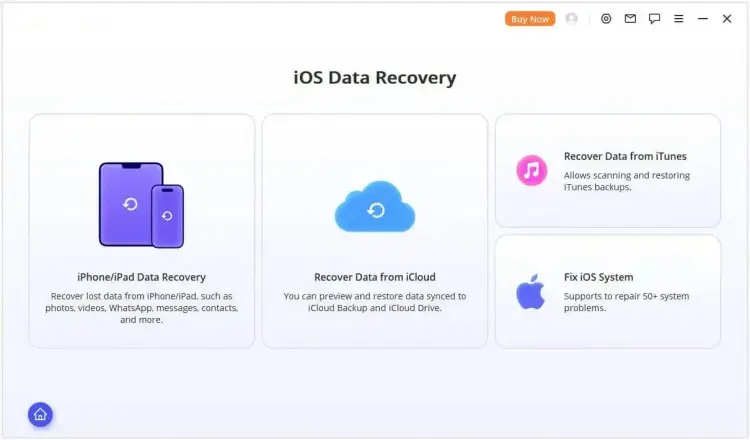
Download and launch Data Recovery on your computer. Select "iOS Data Recovery" from the available recovery modes.
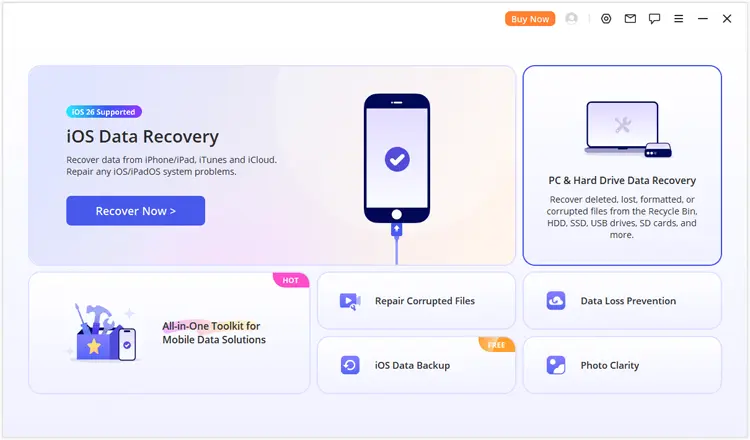
-
Choose the appropriate recovery option for your situation and enter the "iPhone/iPad Data Recovery" module.
-
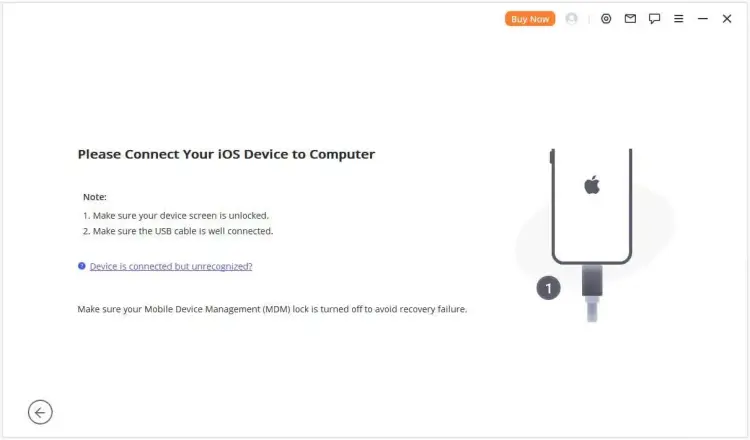
Connect your iPhone to the computer using a USB cable. Once the program recognizes your device, click "Next" to proceed.
-
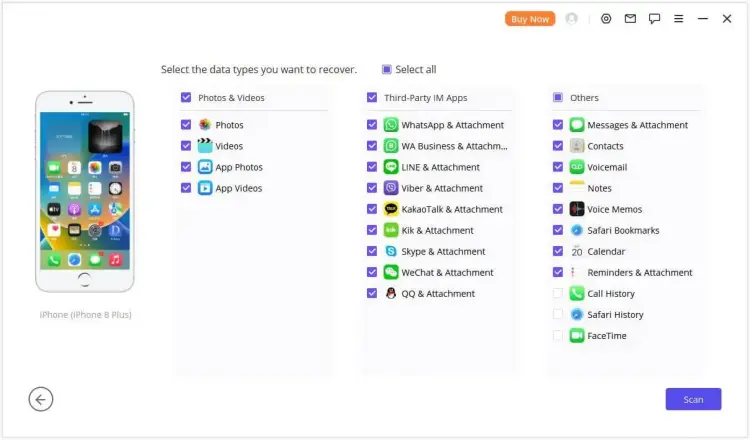
Select "Messages" as the data type you want to retrieve, along with any other supported categories if needed. Click "Scan" to search for recoverable data.
-
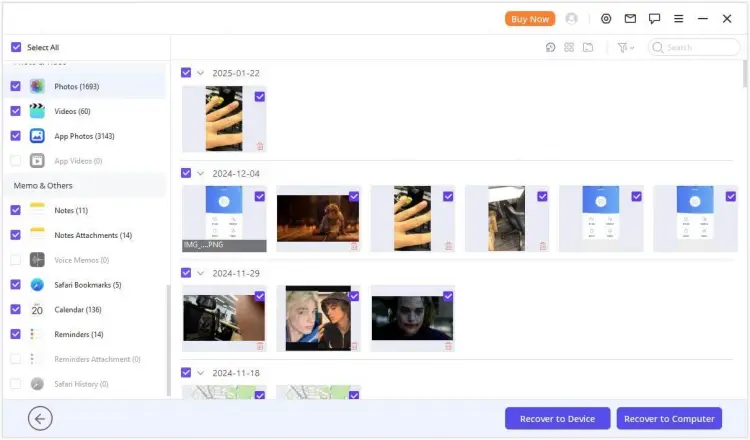
After the scan is complete, preview the available messages and select the conversations you need. Click "Recover to Computer" or "Recover to Device", depending on the available options and your recovery preference.
Option 2. Recover Deleted Messages from an iTunes Backup
If you backed up your iPhone to a computer before the messages disappeared, you can use the iTunes backup recovery mode to look for the missing conversations. This approach may let you extract supported messages without restoring the entire backup to your iPhone.
-
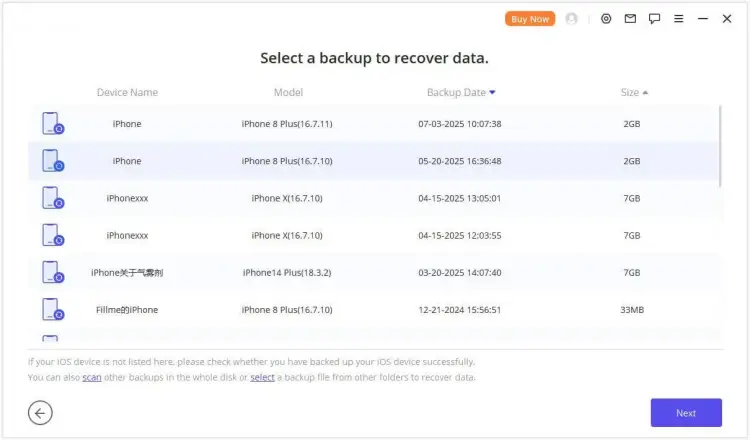
Open Data Recovery and select "Recover from iTunes Backup".
-
Choose the backup file that contains the missing messages, then click "Next" to continue.
-
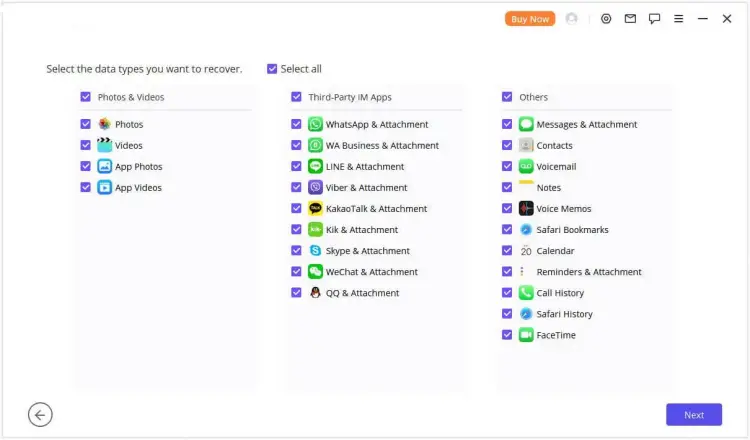
Select "Messages" from the available data categories and click "Scan" to examine the backup.
-
Review the scan results and filter the available messages if necessary. Select the conversations you want to retrieve, then click "Recover to Computer" or "Recover to Device", depending on the available recovery options.
Option 3. Recover Deleted Messages from an iCloud Backup
If you previously backed up your iPhone to iCloud, Data Recovery may help you access supported backup data and extract messages without first restoring the entire backup through your iPhone's settings.
-
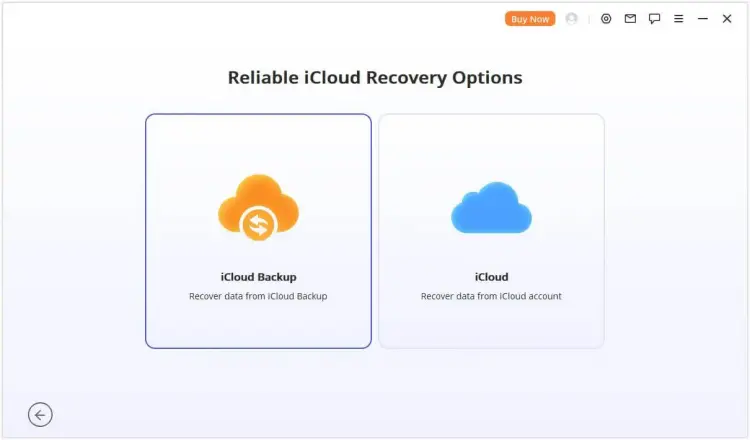
Launch the software and open the "Recover from iCloud" section. Select "iCloud Backup" to continue.
-
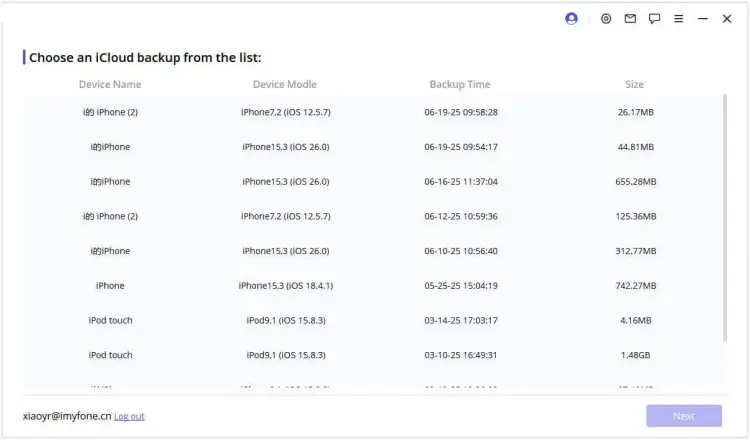
Follow the prompts that match your iPhone's current status and sign in to the appropriate iCloud account if required. Select an available backup and wait for its information to load. Complete any additional device connection steps requested by the program.
-
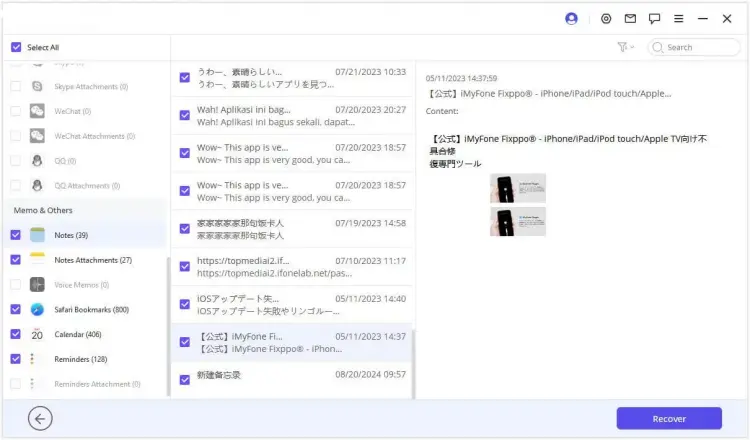
Preview the messages available for recovery and select the conversations you need. Click "Recover" to export the selected messages to the supported destination.
Conclusion
When text messages disappear from your iPhone, the cause may be a filtering issue, iCloud sync problem, software glitch, or accidental deletion. Start with basic troubleshooting methods to locate missing conversations, then check Recently Deleted if the messages are no longer available.
If these methods don't work, try restoring a suitable iCloud or iTunes backup. Alternatively, Data Recovery can help you scan a supported iPhone or extract messages from compatible backups. Choose the recovery method that best fits your situation, and protect your current data before restoring a backup or making major system changes.
Related Articles
How to Save Text Messages on iPhone [5 Effective Methods and FAQs]
Easily Print Text Messages from iPhone via 4 Methods (Latest)
How to Copy Text Messages from iPhone in 5 Viable Ways (Proven)
Repaired: Photos Disappeared from iPhone with Reliable Solutions