


TL;DR:
If your iPhone is not receiving texts, the following tips can help you identify the cause and find a suitable solution:
- Check your cellular connection, restart your iPhone, and toggle Airplane Mode to resolve temporary network issues.
- Review Messages settings, blocked contacts, and SIM/eSIM status to identify common causes of missing texts.
- Update carrier settings and iOS, or reset network settings if basic troubleshooting does not work.
- Use an iOS repair tool to troubleshoot potential system issues, or contact your carrier or Apple Support for further assistance.
"Can send but not receive SMS on iPhone. Tried everything? Appreciate your help!"
- From Reddit
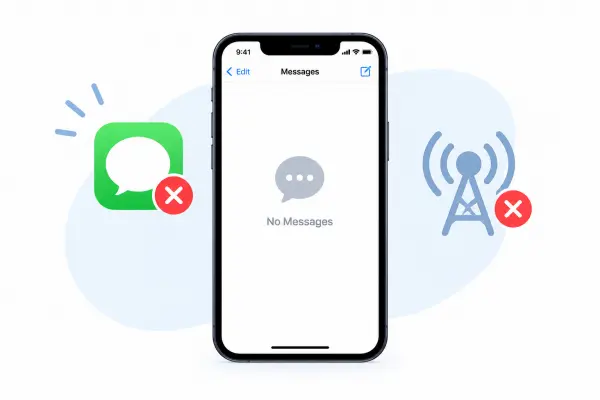
Is your iPhone not receiving texts from friends, family, or other contacts? Missing important text messages can be frustrating, especially when you are waiting for a reply or a verification code. This problem may occur for several reasons, including poor network connectivity, incorrect Messages settings, SIM card issues, or iOS system glitches.
Fortunately, there are several ways to troubleshoot this issue and restore normal message delivery. In this article, you will learn why your iPhone is not receiving texts and discover 11 practical fixes, from checking your network connection to using an iOS repair tool. Follow the methods below to find the cause and get your iPhone receiving text messages again.
- Part 1. Why Is My iPhone Not Receiving Texts?
- Part 2. How to Fix iPhone Not Receiving Texts
- Fix 1. Check Cellular Network Connection
- Fix 2. Turn Airplane Mode On and Off
- Fix 3. Restart iPhone
- Fix 4. Check Messages Settings
- Fix 5. Check Blocked Contacts and Message Filters
- Fix 6. Check SIM Card or eSIM
- Fix 7. Update Carrier Settings
- Fix 8. Update iPhone
- Fix 9. Reset Network Settings
- Fix 10. Use an iOS Repair Tool
- Fix 11. Contact Carrier or Apple Support
Part 1. Why Is My iPhone Not Receiving Texts?
If your iPhone is not receiving texts, several factors may be responsible. The causes generally fall into four categories:
* Network and Carrier Issues
Weak cellular signals, temporary carrier outages, inactive messaging services, or account restrictions can prevent incoming text messages from reaching your iPhone.
* Messaging Settings
Disabled iMessage, incorrect Send & Receive settings, blocked contacts, or message filtering may cause certain messages to go missing.
* Device and SIM Card Issues
An inactive SIM or eSIM, an improperly configured cellular line, or problems after switching to a new iPhone may interrupt message delivery.
* iOS Software Issues
Outdated iOS or carrier settings, temporary system glitches, and underlying software errors may also interfere with your iPhone's ability to receive texts.
Part 2. How to Fix iPhone Not Receiving Texts
Try the following fixes in order, starting with the simplest troubleshooting steps.
Fix 1. Check Cellular Network Connection
A weak cellular signal or temporary network outage may prevent your iPhone from receiving SMS messages. Although iMessage can work over Wi-Fi, standard SMS messages generally require a cellular connection.
To check your connection:
Step 1. Look at the signal indicator in the status bar to see whether your iPhone has cellular service.
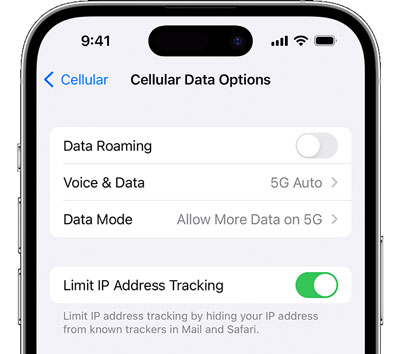
Step 2. If the signal is weak, move to an area with better reception.
Step 3. Open Safari and visit a website to check whether your internet connection is working.
Step 4. If you see "SOS" or "No Service", check your cellular line and contact your carrier if the issue persists.
Step 5. Ask someone to send you a test message.
If you can receive iMessages but not regular text messages, continue with the following methods to check your messaging configuration and carrier service.
Fix 2. Turn Airplane Mode On and Off
Toggling Airplane Mode forces your iPhone to disconnect from and reconnect to available cellular networks. This may resolve temporary connection issues that prevent incoming text messages from arriving.
Step 1. Open Control Center by swiping down from the upper-right corner of the screen.
Step 2. Tap the "Airplane Mode" icon to turn it on.
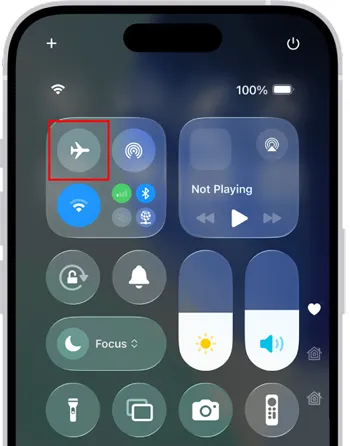
Step 3. Wait approximately 10-15 seconds.
Step 4. Tap the icon again to turn Airplane Mode off. Wait for your cellular signal to return, then ask someone to send you a text message.
Fix 3. Restart iPhone
Temporary software glitches can affect the Messages app or other processes involved in receiving texts. Restarting your iPhone is a simple way to refresh these processes without deleting your personal data.
To restart your iPhone:
Step 1. Press and hold a volume button and the "Side" button until the power-off slider appears.
Step 2. Drag the slider to turn off your iPhone.
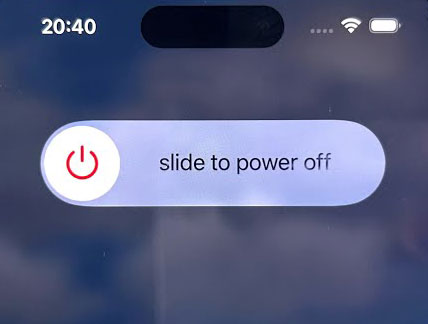
Step 3. Wait about 30 seconds.
Step 4. Press and hold the "Side" button until the Apple logo appears.
Step 5. Once your iPhone restarts, check whether incoming messages are working again.
If your iPhone model uses a different shutdown procedure, follow the instructions for your specific device.
Fix 4. Check Messages Settings
Incorrect messaging settings may prevent your iPhone from receiving certain types of messages. This is particularly worth checking if you can receive some texts but not others, such as iMessages from iPhone users or SMS messages from Android users.
Step 1. Check iMessage.
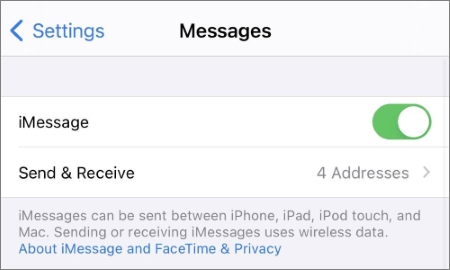
Open "Settings" > "Apps" > "Messages" (the path may vary slightly by iOS version) and make sure iMessage is enabled. If it is already on, turn it off, wait a few seconds, and turn it back on.
Step 2. Check Send & Receive.
Tap "Send & Receive" and make sure your phone number is selected under the available addresses. If you recently changed devices or transferred your phone number, confirm that the correct number is associated with iMessage.
Step 3. Check text messaging options.
Review the available options under Messages, including Send as Text Message and MMS Messaging, if supported by your iOS version and carrier. If your iPhone supports RCS messaging, check that setting as well.
Step 4. Test message delivery.
Ask someone to send you a message from another iPhone and, if possible, from an Android phone. This can help you determine whether the issue affects iMessage, carrier-based messaging, or both.
Fix 5. Check Blocked Contacts and Message Filters
If your iPhone is not receiving text messages from one person or only certain messages appear to be missing, check your blocked contacts and message filters. Messages from unknown senders may be separated from your main conversation list, depending on your settings and iOS version.
To check blocked contacts:
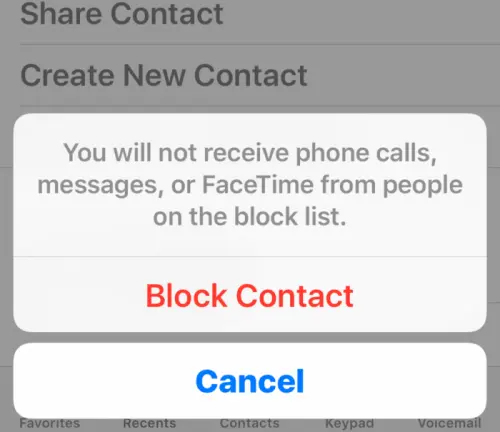
Step 1. Open "Settings" and locate the blocked contacts section. Depending on your iOS version, it may appear under "Apps" > "Messages" or another relevant settings menu.
Step 2. Open "Blocked Contacts".
Step 3. Review the list and remove any contact you want to receive messages from.
To check message filters:
Step 1. Open the Messages app.
Step 2. Tap "Filters" or the available message categories.
Step 3. Review Unknown Senders and other filtered categories, if available.
Step 4. Look for the missing conversation and open it if you find it.
If the sender is not blocked and the missing messages do not appear in any filtered category, continue troubleshooting. These settings are more likely to explain problems affecting specific senders than cases where all incoming messages have stopped.
Fix 6. Check SIM Card or eSIM
An inactive SIM card, a disabled eSIM, or an incorrectly configured cellular line can prevent your iPhone from receiving SMS messages. This is especially relevant if the problem started after changing phones, transferring a number, or switching carriers.
Step 1. Open "Settings" > "Cellular" (or Mobile Service, depending on your region).
Step 2. Check whether your phone line is enabled.
Step 3. If you use multiple SIMs or eSIMs, confirm that the correct line is active.
Step 4. If you use a physical SIM card, turn off your iPhone before removing and reinserting it.
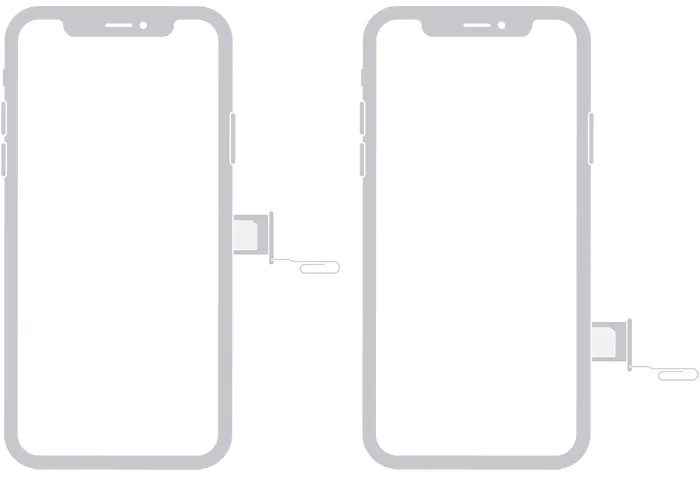
Step 5. Restart your iPhone and test incoming messages.
If you recently transferred your number to a new device, contact your carrier to verify that the SIM or eSIM is fully activated. Do not delete an eSIM unless your carrier has confirmed that you can safely reactivate it.
Fix 7. Update Carrier Settings
Carrier settings help your iPhone communicate with your wireless provider's network. If these settings are outdated, updating them may help resolve certain cellular connectivity or messaging issues.
Follow these steps:
Step 1. Connect your iPhone to Wi-Fi or a working cellular network.
Step 2. Open "Settings" > "General" > "About".
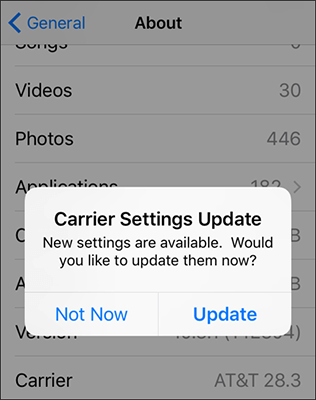
Step 3. Stay on the About screen for a short time.
Step 4. If a carrier settings update prompt appears, follow the instructions to install it. If no update prompt appears, there may be no available update for your device.
Fix 8. Update iPhone
An outdated iOS version may contain software bugs that affect messaging or network connectivity. Installing an available update may resolve known issues and improve system stability.
Step 1. Connect your iPhone to a stable Wi-Fi network and make sure the battery is sufficiently charged.
Step 2. Open "Settings" > "General" > "Software Update".
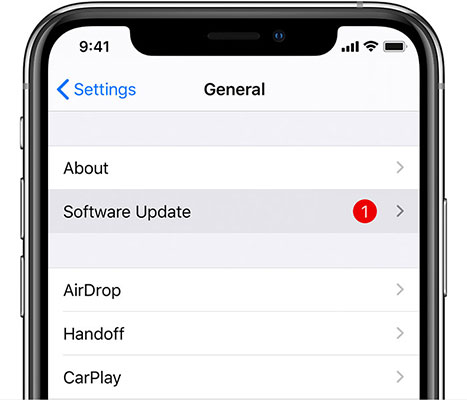
Step 3. Wait while your iPhone checks for available updates.
Step 4. If an update is available, tap "Update Now" or "Install Now" and follow the on-screen instructions.
Step 5. After the update is complete, ask someone to send you a test message.
Back up your iPhone before installing a major iOS update. If you already have the latest version, proceed to the next fix rather than repeatedly checking for an update.
Fix 9. Reset Network Settings
If your iPhone is still not receiving texts after you have checked the connection and messaging configuration, incorrect network settings may be contributing to the problem. Resetting network settings can help resolve persistent connectivity issues.
Before proceeding, note that this action removes saved Wi-Fi networks and passwords and resets certain network-related settings. It does not normally erase your photos, apps, or messages.
Step 1. Open "Settings" > "General".
Step 2. Tap "Transfer or Reset iPhone".
Step 3. Select "Reset".
Step 4. Tap "Reset Network Settings".
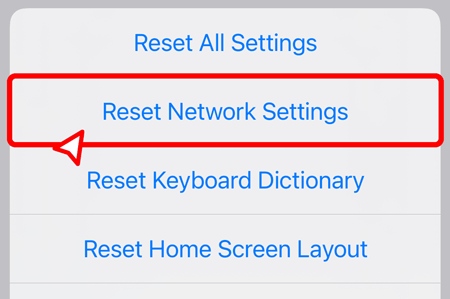
Step 5. Enter your passcode if prompted and confirm your choice.
Step 6. Wait for your iPhone to restart, reconnect to Wi-Fi if necessary, and test incoming messages again.
This step is more disruptive than restarting your iPhone, so try the simpler methods first. If the problem remains, determine whether you are dealing with an iOS system issue or a carrier-side problem.
Fix 10. Use an iOS Repair Tool
What to do if not receiving texts on iPhone? If you have tried the methods above but your iPhone is still not receiving texts, an underlying iOS system issue may be responsible. In this case, you can try a system repair tool before seeking further assistance. Fixppo offers a way to repair various iOS problems that may affect your iPhone's normal operation. If the issue is caused by a system malfunction rather than a carrier or network problem, Fixppo may help restore normal functionality.
Key features of Fixppo:
- Repair various iOS system issues through a straightforward process without requiring advanced technical skills.
- Offer Standard Mode and Advanced Mode to accommodate different system repair needs.
- Support iPhone, iPad, iPod touch, and Apple TV.
- Fix iOS issues, including frozen screens, Apple logo errors, startup failures, and problems that may affect text message delivery.
- Support iOS upgrading and downgrading when you need to install a compatible system version.
Tips: For mobile users, please register an account first, then download or purchase from your member center to enjoy exclusive discounts.
How to fix iPhone not receiving texts with Fixppo?
-
Connect your iPhone to the computer.
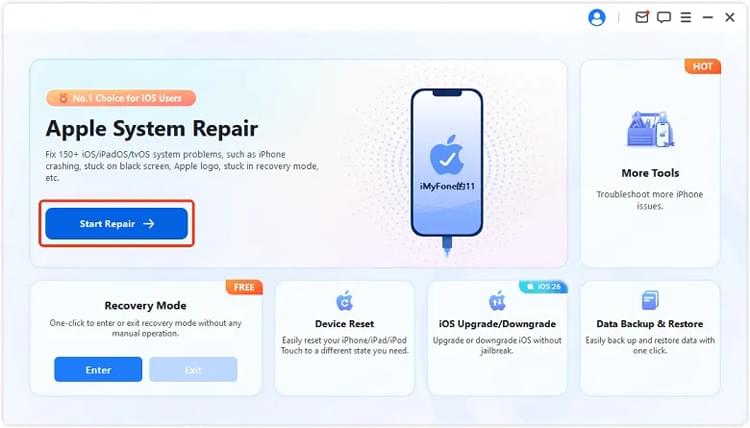
Download and open Fixppo on your computer, then connect your iPhone using a USB cable. After the program detects your device, select "Apple System Repair" to access the available system repair options.
-
Choose the repair mode.
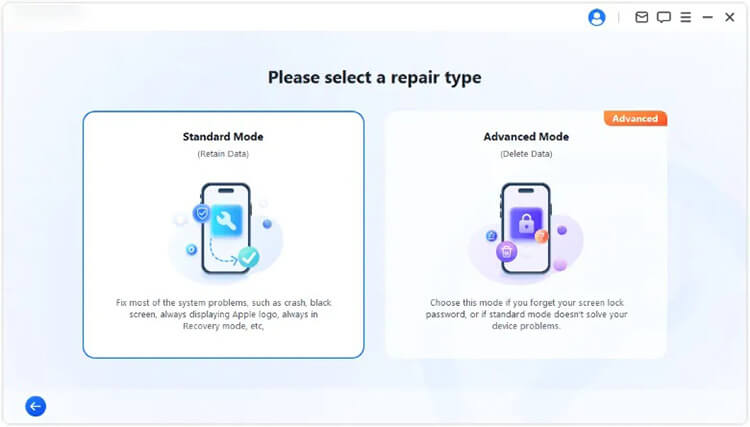
Select "Standard Mode" to attempt to repair the iOS system while preserving your existing iPhone data. This mode is a suitable starting point when you suspect a software issue but want to avoid erasing your personal information.
-
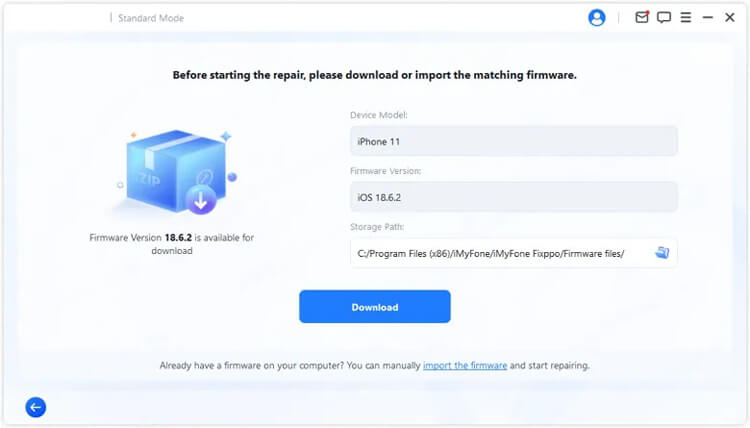
Confirm your device information and download the firmware.
Follow the on-screen instructions to verify your iPhone's model and other device details. Choose the appropriate firmware package, download it, and allow Fixppo to verify the firmware before proceeding.
-
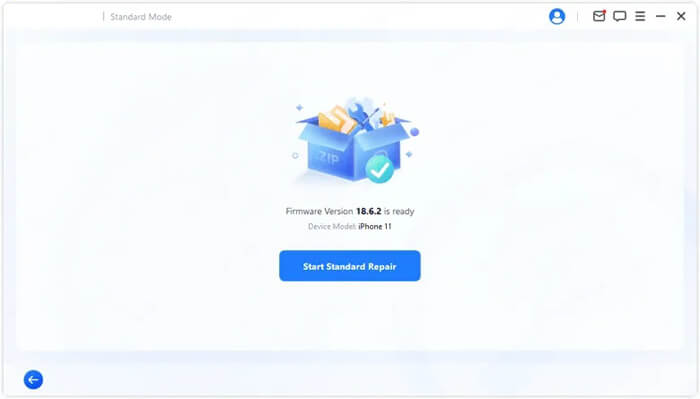
Start repairing the iOS system.
Once the firmware is ready, click "Start Standard Repair" to begin the repair process. Keep your iPhone connected to the computer and wait for Fixppo to complete the operation. Avoid disconnecting the device during the repair.
Fix 11. Contact Carrier or Apple Support
If none of the methods above work, contact the appropriate support team. Before reaching out, note when the problem started and whether it followed an iOS update, a phone replacement, a SIM transfer, or a carrier change.
- Contact your carrier: If you cannot receive SMS, MMS, or supported RCS messages, ask your carrier to check your account status, cellular line, messaging service, and local network conditions.
- Contact Apple Support: If iMessage is not working despite correct settings and a stable connection, Apple Support can help investigate potential device or account-related issues.

Conclusion
That's all. If your iPhone is not receiving texts, the problem may be related to network connectivity, Messages settings, your SIM card, or an iOS system issue. Start with the simple fixes, such as checking your cellular connection and restarting your iPhone, before moving on to more advanced troubleshooting.
If the issue persists and you suspect an iOS system problem, Fixppo may help repair the system and restore normal device functionality. However, if the problem is related to your carrier or cellular service, contact your carrier for further assistance.
Related Articles
How to Get iPhone Text Messages on Windows 10/11 with 4 Viable Methods
Easily Print Text Messages from iPhone via 4 Methods (Latest)
How to Save Text Messages on iPhone [5 Effective Methods and FAQs]
How to Copy Text Messages from iPhone in 5 Viable Ways (Proven)

